
Learning / Handbook
Ideas grounded in the app

See what is possible.
Then try the steps.

Explore source-backed workflows across every audience. Browse native app screenshots and illustrated examples, then follow their setup, walkthrough, and troubleshooting guidance.

Build your first routine native iOS screen
Routines

Build your first routine

Turn a deliberate cue into a useful private result, with a sequence you understand.

  1. Open the Routines workspace and choose New routine. Starts opens first; enter the routine name later in Review.
  2. In Starts choose You say a trigger phrase and enter a distinct phrase in Phrase that starts the routine. Connected app, Lumen Pad, custom link, and chained starts have their own setup.
  3. In Shows choose Pre-written text or crib for a fixed practice cue. Choose Right away, On a phrase, Look down, or Ring press for its timing. This is the initial display, not the later processed output.

Native iOS screen · clean simulator capture.

Try the guided example ↗
Practice a routine before performing native iOS screen
Routines

Practice a routine before performing

Learn what the routine is waiting for before an audience is waiting for you.

  1. Open Routines and search by its name or start phrase. Inspect Ready and Needs setup filters.
  2. Choose Rehearse for your sample. Review the current step and expected input.
  3. Use the configured phrase, integration test, or supported input. Keep personal performance material out of this exercise.

Native iOS screen · clean simulator capture.

Try the guided example ↗
Perform, reveal, and recover native iOS screen
Routines

Perform, reveal, and recover

Keep your attention on the person while staying in control of the sequence.

  1. Inspect readiness, listening, and wearable connection. Resolve dependencies before going live.
  2. Enable the routine you intend to use. Check which routines are armed so similar phrases do not surprise you.
  3. Use the configured trigger. Read the live state and any captured fact before selecting an outcome.

Native iOS screen · clean simulator capture.

Try the guided example ↗
Build choices into a routine native iOS screen
Routines

Build choices into a routine

Prepare different outcomes and choose deliberately in the moment.

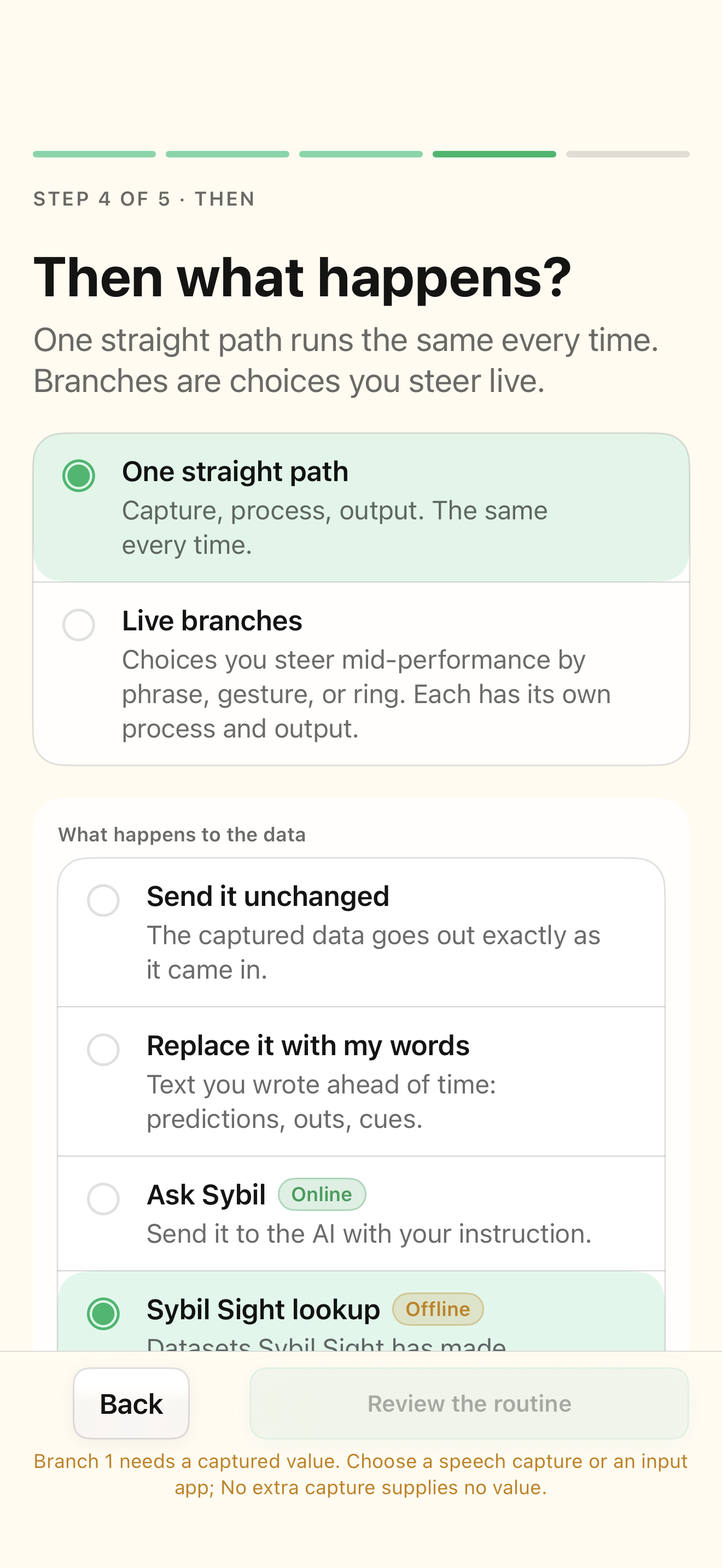
  1. In Then, choose a path that offers choices in the moment. Give each choice a short recognizable label.
  2. In the branch editor, configure a phrase, supported head gesture, or wearable-only selection.
  3. Use Input and variable to choose routine input, start trigger data, a connected app, or an earlier saved action output.

Native iOS screen · clean simulator capture.

Try the guided example ↗
Capture facts and reuse values native iOS screen
Routines

Capture facts and reuse values

Carry a name, number, or other detail across multiple steps instead of asking twice.

  1. Open advanced capture settings and add the named values your routine actually needs.
  2. For phrase-delimited capture, set the opening and closing conditions. For AI facts, describe the intended value precisely.
  3. Insert the appropriate variable in an action’s input or result. Reference declared anchors with the supported anchor syntax.

Native iOS screen · clean simulator capture.

Try the guided example ↗
Organize phases, loops, and saved results native iOS screen
Routines

Organize phases, loops, and saved results

Make a longer routine manageable by offering the right choices at the right time.

  1. Open Advanced → Phases and define a small sequence using names you will recognize live.
  2. In a branch’s Phase section, choose when the action should be selectable.
  3. Set the next phase where needed. For a loop, deliberately choose an earlier phase and plan its exit.

Native iOS screen · clean simulator capture.

Try the guided example ↗
Choose formulas, lookups, rules, or AI native iOS screen
Routines

Choose formulas, lookups, rules, or AI

Use the simplest processing that produces the result you need.

  1. Open The answer in the branch editor and decide whether you need fixed text, calculation, a lookup, or interpretation.
  2. For a formula, use the supported value and anchor inputs. For a lookup, choose the source and key.
  3. For multiple-out rules, place specific matches first and an otherwise rule last.

Native iOS screen · clean simulator capture.

Try the guided example ↗
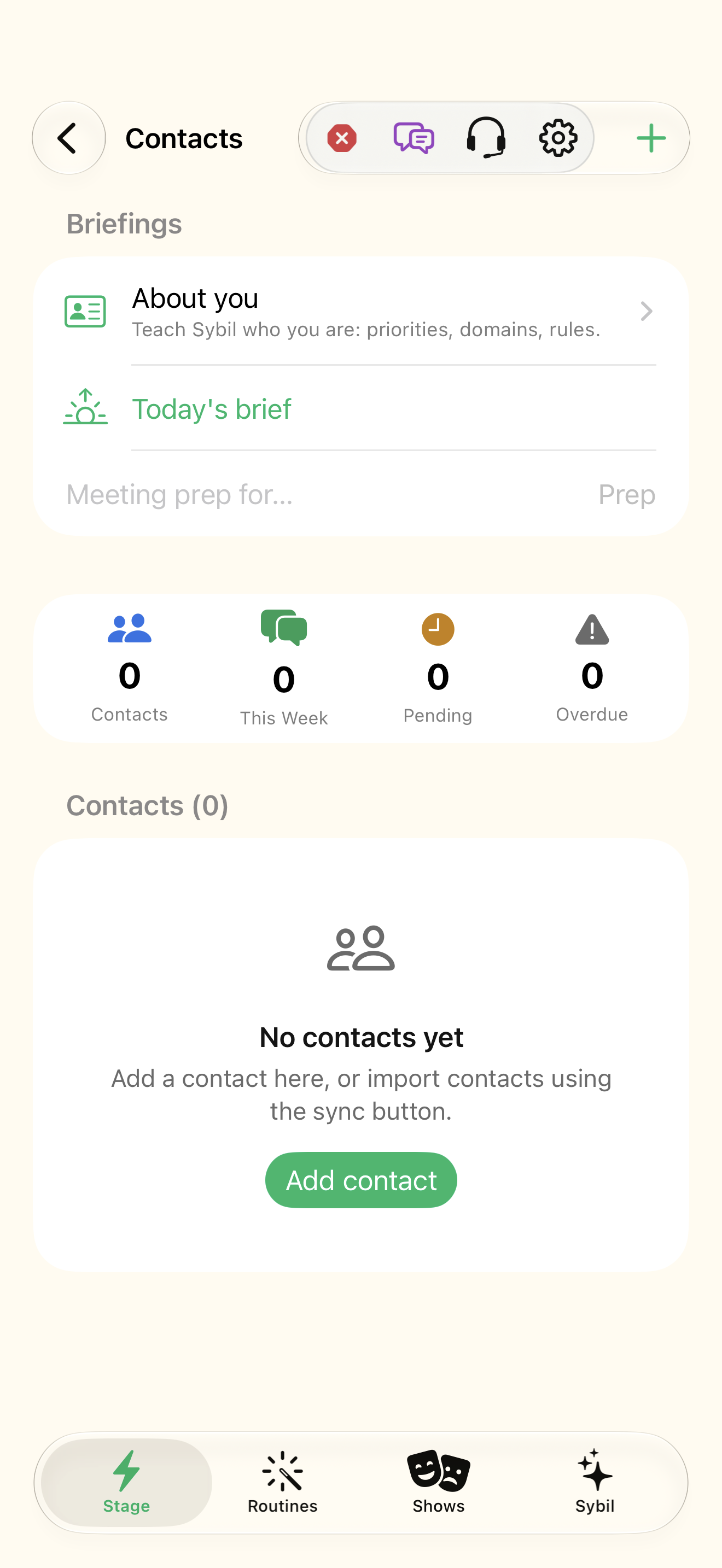
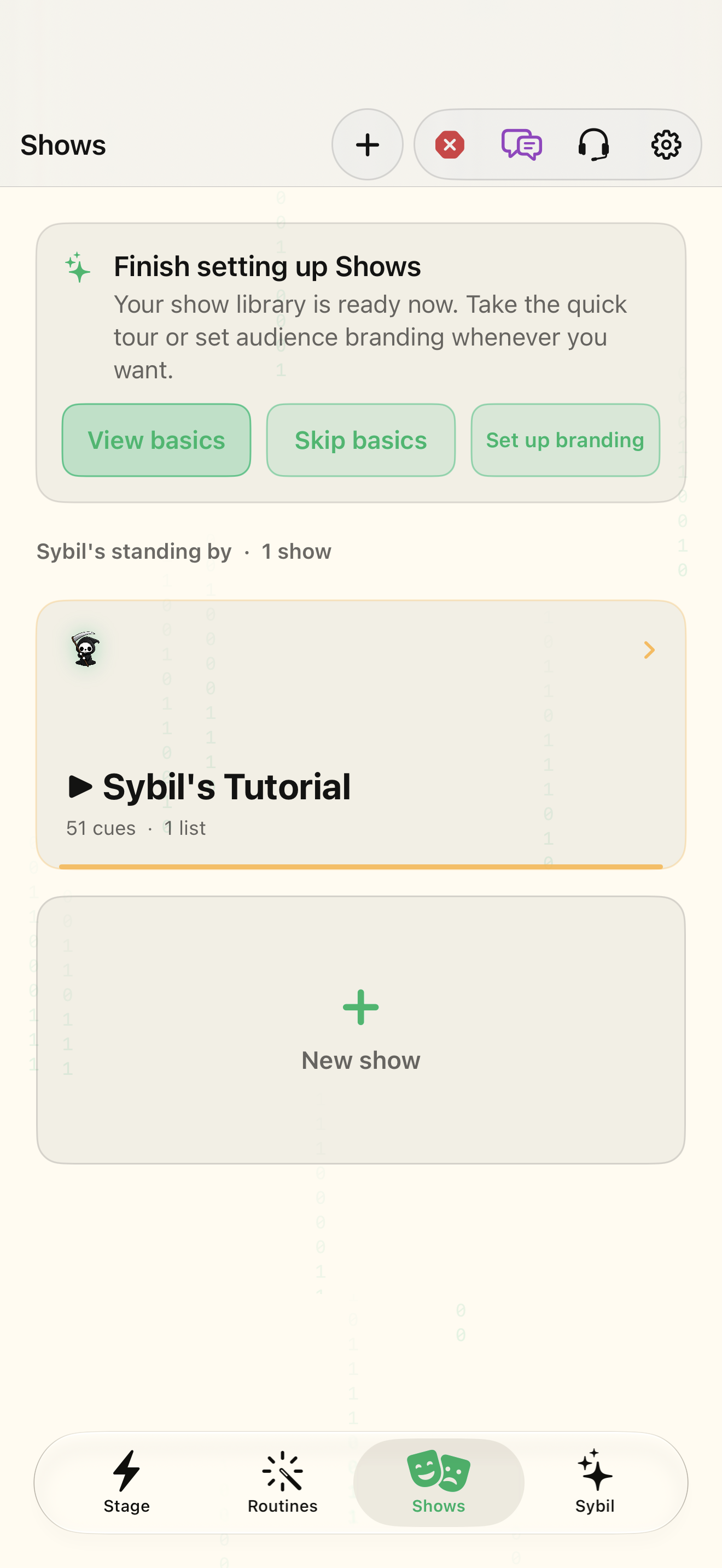
Create a show and prepare its cues native iOS screen
Shows

Create a show and prepare its cues

Keep scripts, media, and routine cues in an intentional running order.

  1. Open Shows and create or choose a rehearsal show. Review its current list and standby cue.
  2. Choose Add cue and configure a supported type. For a routine cue, choose an existing routine and review its requirements.
  3. Place cues in the order you intend. Inspect timing and progression settings rather than assuming one cue waits for another.

Native iOS screen · clean simulator capture.

Try the guided example ↗
Run a show and recover calmly native iOS screen
Shows

Run a show and recover calmly

Know how to advance, pause, reduce audio, and stop before you need those controls live.

  1. Read the live and standby cue labels before starting.
  2. Use GO and observe the destination. Keep the result in view before advancing again.
  3. Use Back or Hold in a safe rehearsal. Learn Duck for reducing audio and Panic/Kill audio for the relevant stop behavior.

Native iOS screen · clean simulator capture.

Try the guided example ↗
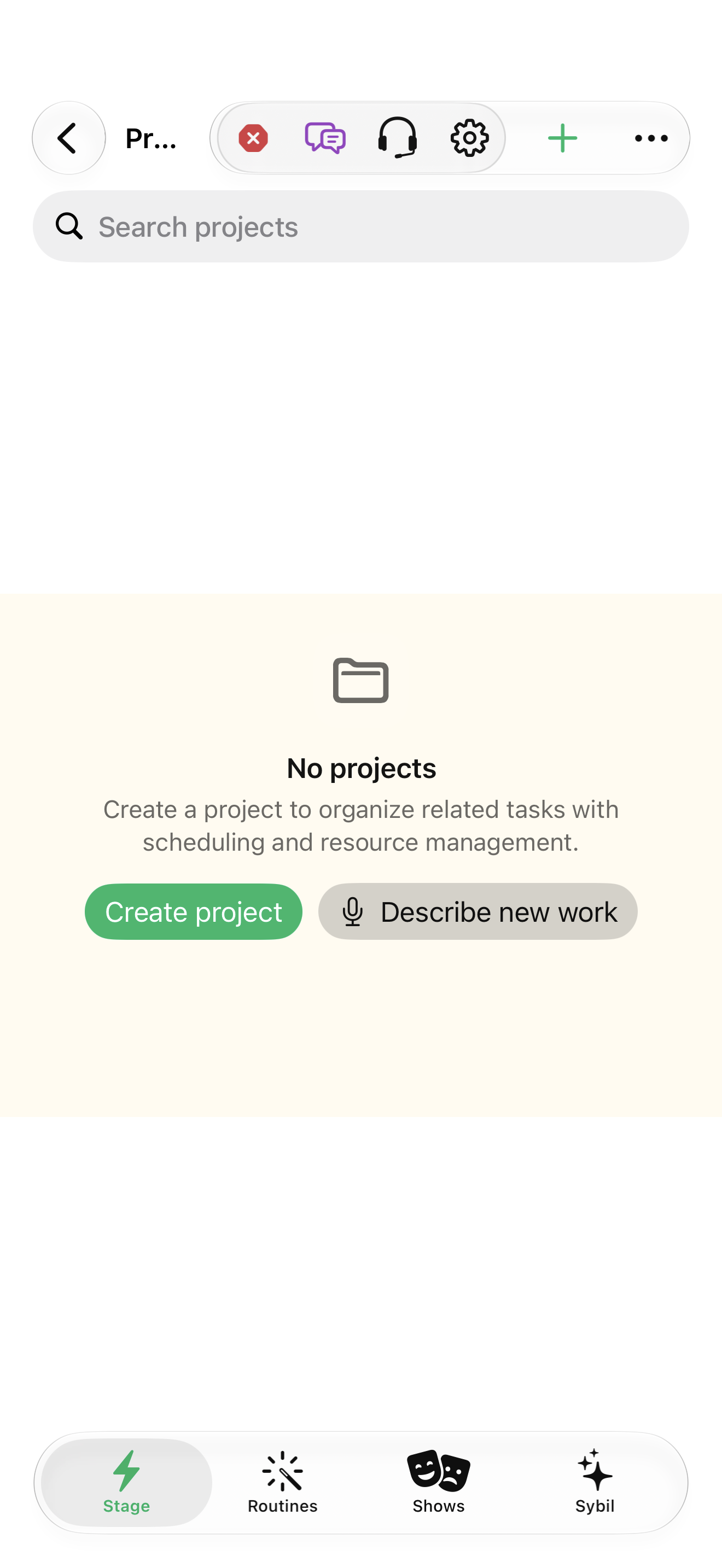
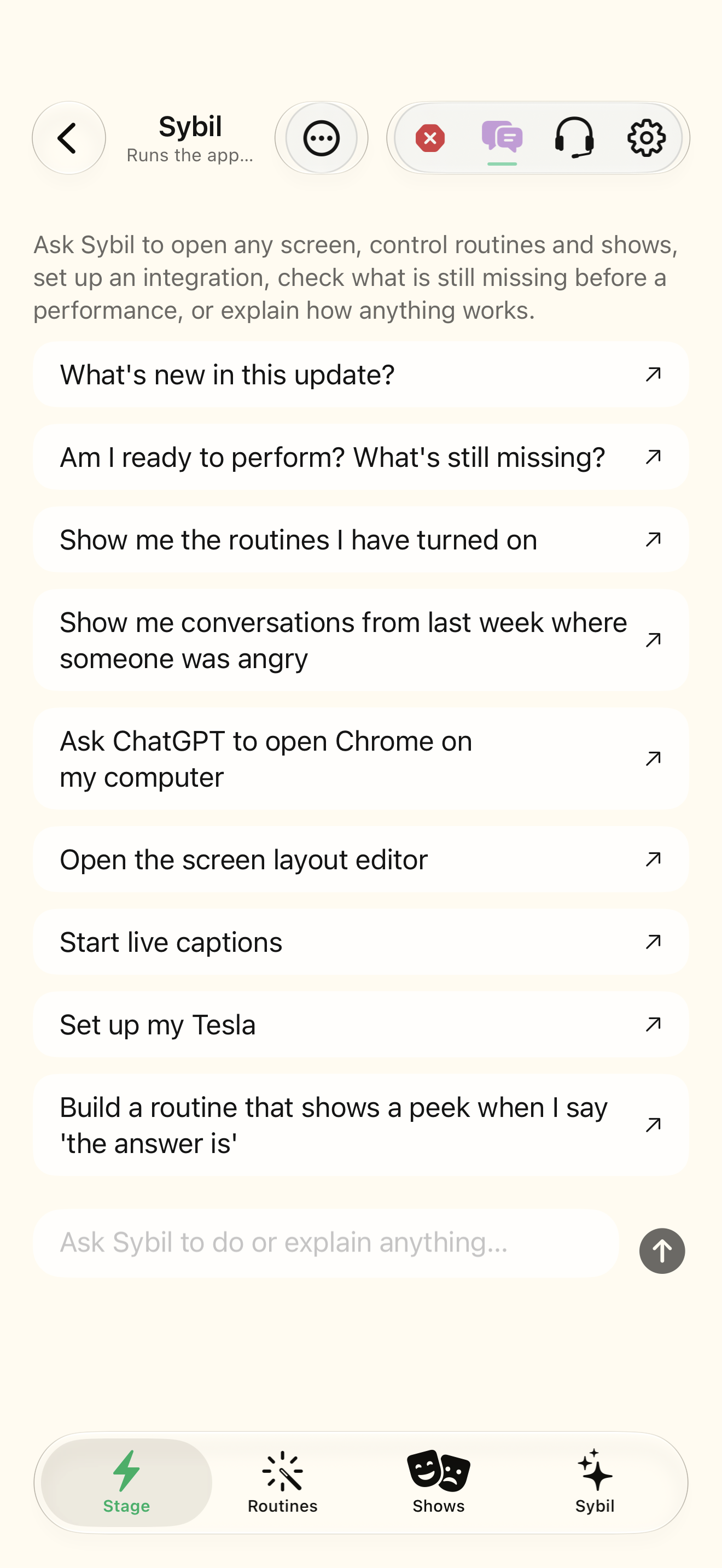
Ask Sybil to explain, find, and help native iOS screen
Sybil AI

Ask Sybil to explain, find, and help

Move from knowing a detail exists to finding it and deciding what to do next.

  1. Open Sybil AI settings and inspect the active processing provider.
  2. Ask a focused question such as “How do I create a branch in a routine?”
  3. Try “Find my conversations with prospects from last week” using sample records.

Native iOS screen · clean simulator capture.

Try the guided example ↗
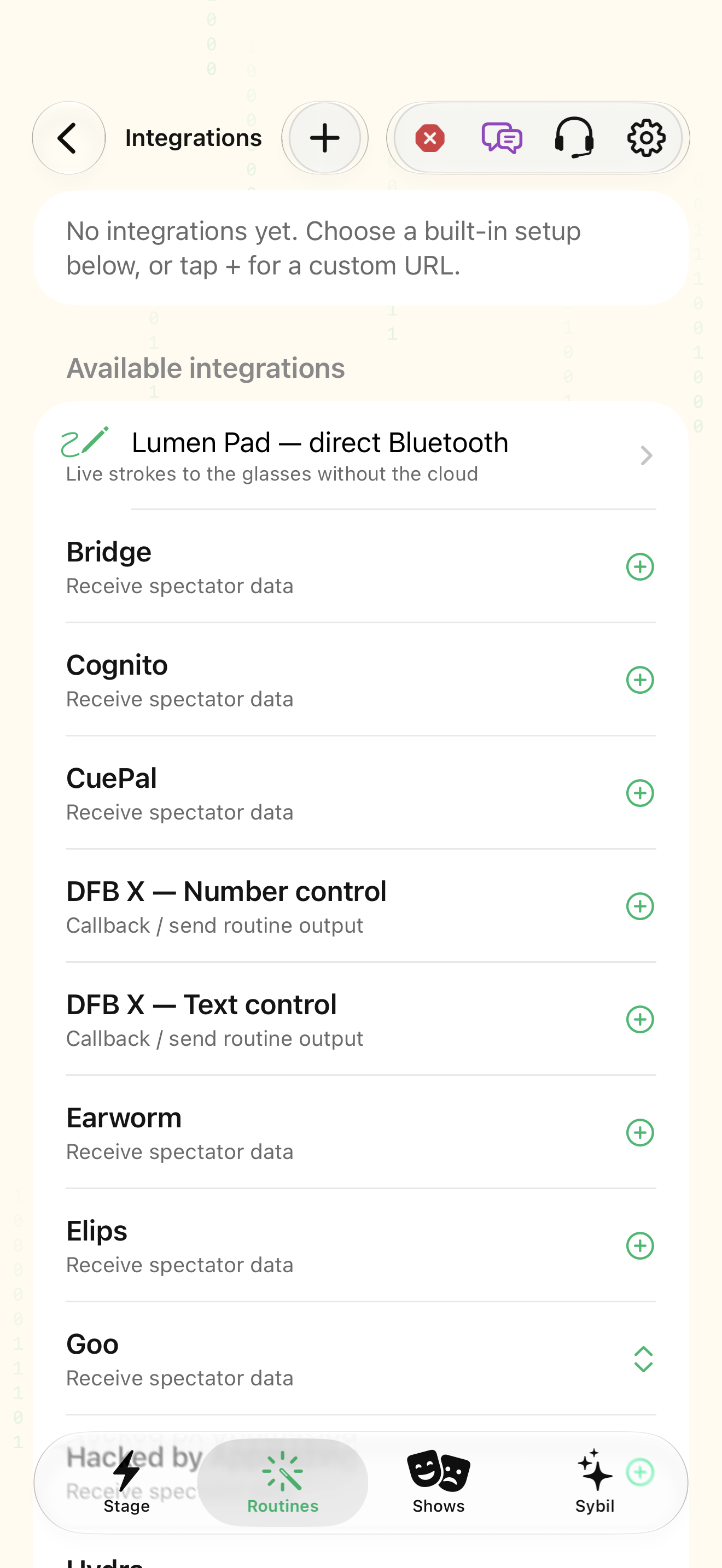
Use speech and chat intentionally native iOS screen
Sybil AI

Use speech and chat intentionally

Keep hands free while staying aware of when you are issuing a command.

  1. Review Listening activation, hold/gesture options, stop word, and timeout in your build.
  2. Use the available wearer enrollment flow and inspect speaker profiles.
  3. Ask Sybil to set brightness to a comfortable level or open a supported mini-app.

Native iOS screen · clean simulator capture.

Try the guided example ↗
Record, search, and return to context illustrated teaching view
Memory

Record, search, and return to context

Spend less effort reconstructing who said what and what you promised.

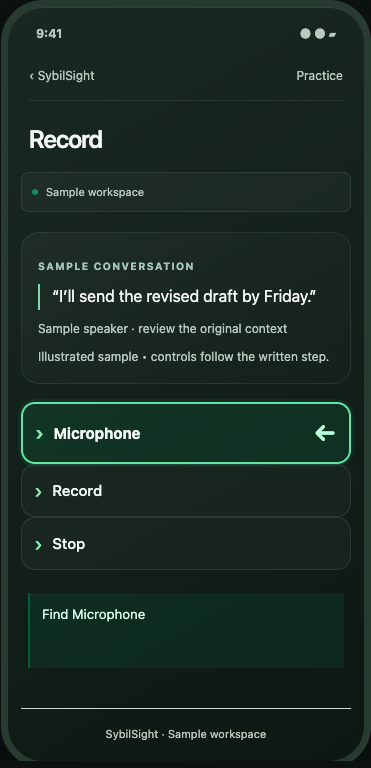
  1. Open Record and inspect input and retention preferences before starting a sample.
  2. Record a fictional commitment and stop.
  3. Open Recordings and compare speaker labels and transcript text with the sample.

Illustrated teaching view · actual app layout varies.

Try the guided example ↗
Review facts with their evidence native iOS screen
Memory

Review facts with their evidence

Keep useful knowledge without losing where it came from or what remains uncertain.

  1. Review the Facts Engine overview and available source status.
  2. Use sync/analyze or reanalyze available sources as appropriate.
  3. Open Needs review and read the statement, source, quote, and rationale.

Native iOS screen · clean simulator capture.

Try the guided example ↗
Use the OSINT scanner responsibly native iOS screen
People

Use the OSINT scanner responsibly

Prepare for a conversation with sourced context instead of disconnected search results.

  1. Open Research scope and review enabled sources, accounts, purpose, and acknowledgement.
  2. Choose Research a person. Add known context such as the company to distinguish namesakes.
  3. Choose Look Up after checking the target. Watch source progress and any incomplete marker.

Native iOS screen · clean simulator capture.

Try the guided example ↗
Turn conversations into relationship context native iOS screen
People

Turn conversations into relationship context

Arrive prepared, remember the person, and see the commitments that need attention.

  1. Open Contacts and select a sample person. Use Import from Contacts only when you intend to bring those records into the app.
  2. Inspect details, interaction history, and relationship stage.
  3. Review pending commitments and reminders, including who owes what and when.

Native iOS screen · clean simulator capture.

Try the guided example ↗
Capture tasks, reminders, and follow-ups illustrated teaching view
Planning

Capture tasks, reminders, and follow-ups

Give a promise a clear next action before it gets lost in a busy day.

  1. Open capture and enter one action per line. Choose task, reminder, or follow-up as appropriate.
  2. Assign the project, tags, priority, or flag you need. Keep classification simple enough to maintain.
  3. Use Planned date for intent, Deadline for the commitment, and Defer date to control availability.

Illustrated teaching view · actual app layout varies.

Try the guided example ↗
Create a project that reflects the work native iOS screen
Planning

Create a project that reflects the work

Connect individual tasks to a plan with owners, timing, and visible progress.

  1. Open Projects and create a sample. Choose the project organization that fits: parallel, sequential, or single-action.
  2. Use Add task in the project. Build a small hierarchy and identify milestones.
  3. Inspect Resources and associate appropriate people, capacity, and rates where used.

Native iOS screen · clean simulator capture.

Try the guided example ↗
Dependencies, resources, and forecast native iOS screen
Planning

Dependencies, resources, and forecast

See what drives the finish date and where a change could affect the rest of the work.

  1. Open Dependencies and inspect predecessor direction, relation, and lead/lag.
  2. Review project work hours, time zone, and non-working dates in project settings.
  3. Review assignments, capacity, rates, manual dates, and scheduling constraints before leveling or recalculating.

Native iOS screen · clean simulator capture.

Try the guided example ↗
Compare baselines and review projects native iOS screen
Planning

Compare baselines and review projects

Notice drift early and revisit whether the next action still makes sense.

  1. Use Capture baseline before changing the sample plan. Name it meaningfully.
  2. Update a sample task or resource assumption and recalculate.
  3. Open Overview, select the baseline, and inspect finish movement, effort, added/removed tasks, and available cost metrics.

Native iOS screen · clean simulator capture.

Try the guided example ↗
Pair Sybil Terminal and use Mac context native iOS screen
Connected tools

Pair Sybil Terminal and use Mac context

Bring supported computer context and processing into your personal assistant workflow.

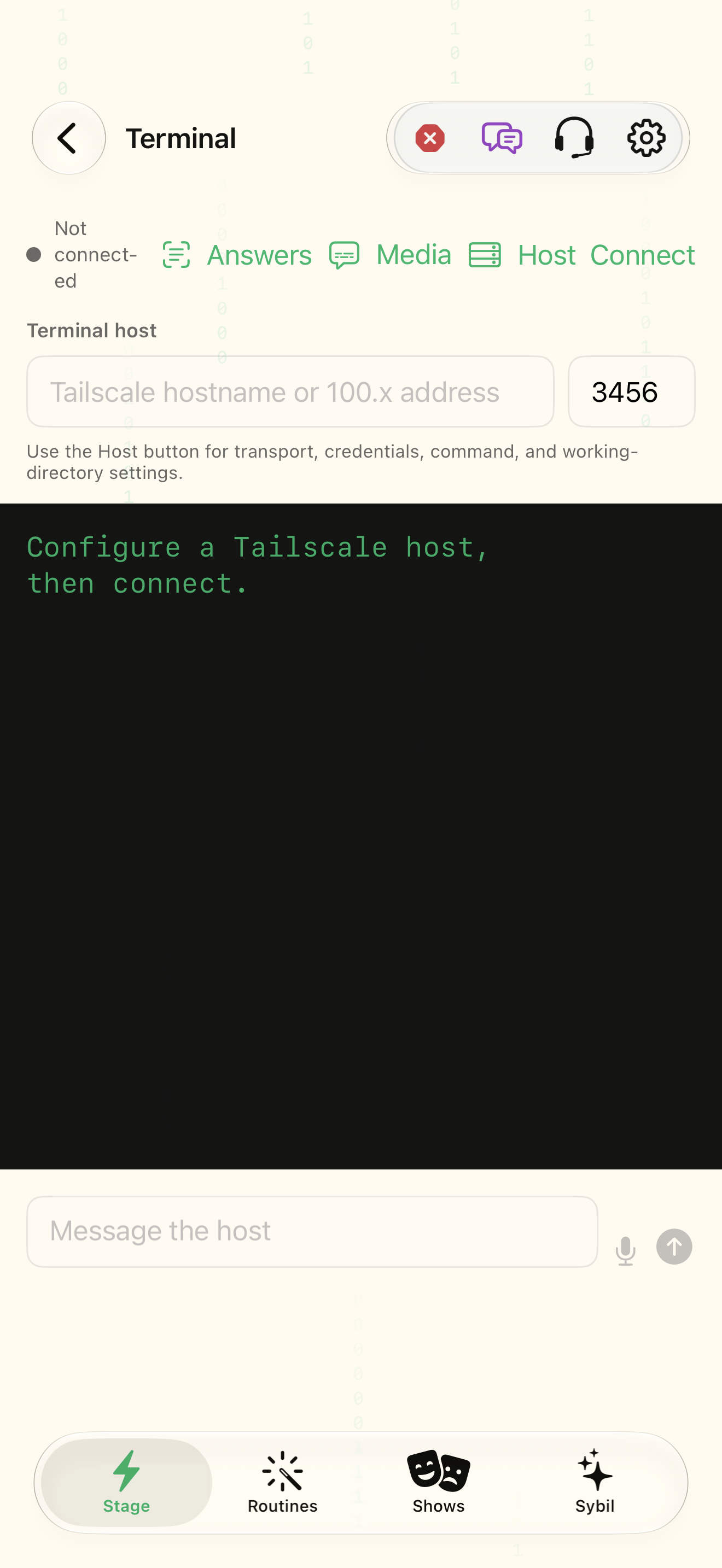
  1. Locate its pairing QR or connection details. Keep the token private.
  2. Scan the QR or enter the host, port, and token in the app’s Terminal setup.
  3. Query status and inspect Connected before selecting Terminal as a processing route.

Native iOS screen · clean simulator capture.

Try the guided example ↗
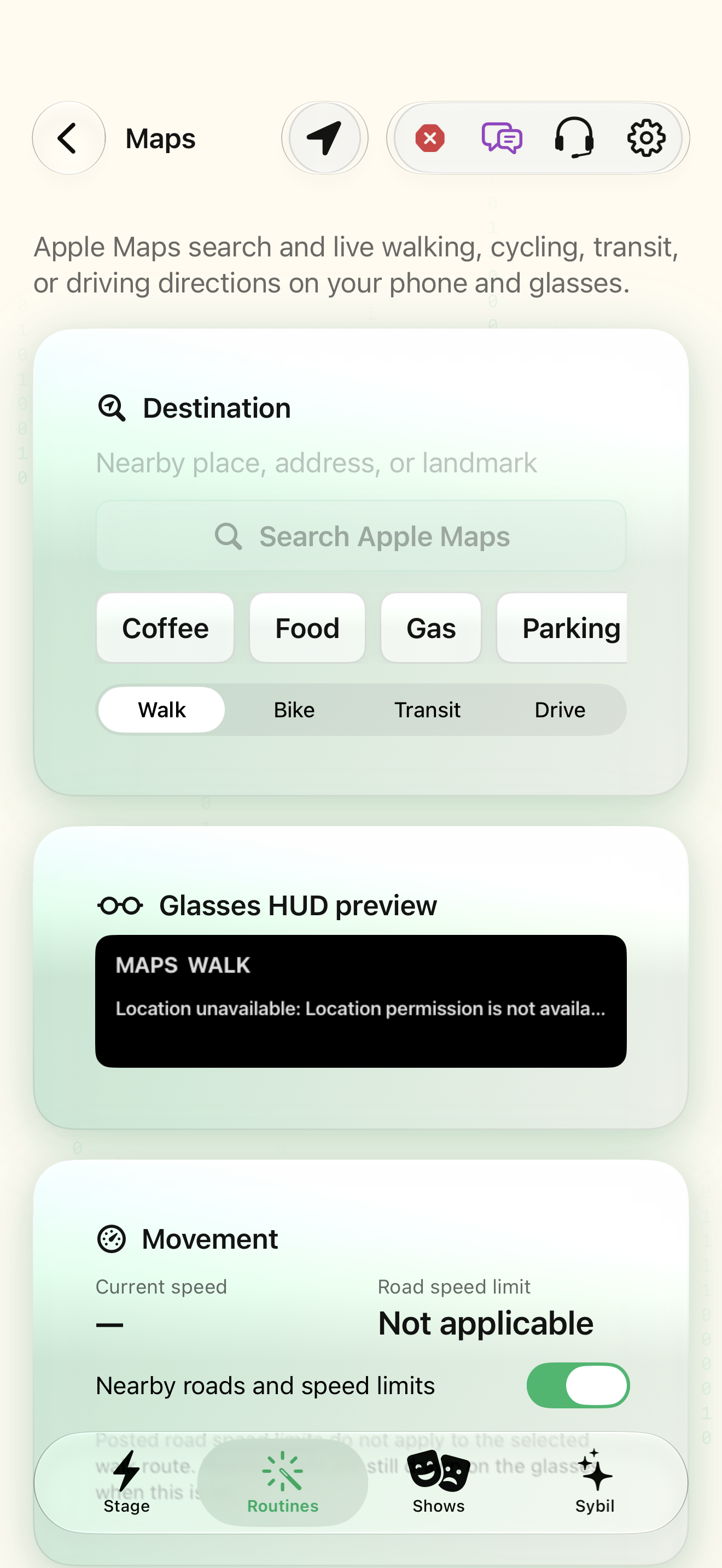
Connect an integration and test its value native iOS screen
Connected tools

Connect an integration and test its value

Reuse a configured connection across routines instead of rebuilding it each time.

  1. Open Integrations and choose a preset or Custom URL. See the directory for required field labels and restrictions.
  2. Enter the requested fields in the app, or paste the provider’s personal URL as instructed. Never put a token into the website chat.
  3. Choose Test and inspect the returned status and keys. Select the field that contains the intended sample value.

Native iOS screen · clean simulator capture.

Try the guided example ↗
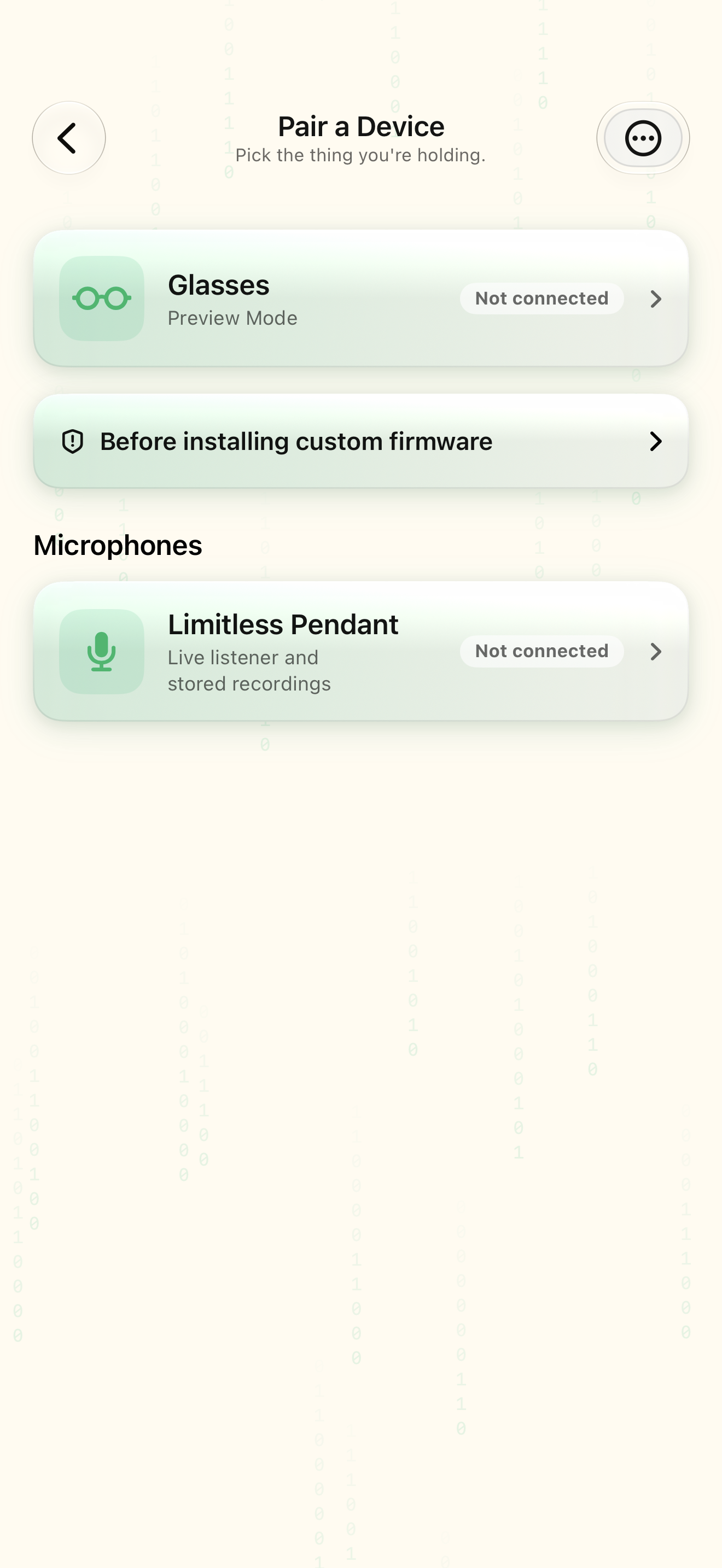
Use Shortcuts, the local API, and MCP native iOS screen
Connected tools

Use Shortcuts, the local API, and MCP

Connect supported automation to the same app capabilities used by the in-app operator.

  1. Review the local Integration API documentation and distinguish query resources from actions.
  2. Use the Get Integration API Token shortcut and the required device authentication. Keep the value in your local client.
  3. Call the documented capabilities endpoint from an authorized local context before invoking an action.

Native iOS screen · clean simulator capture.

Try the guided example ↗
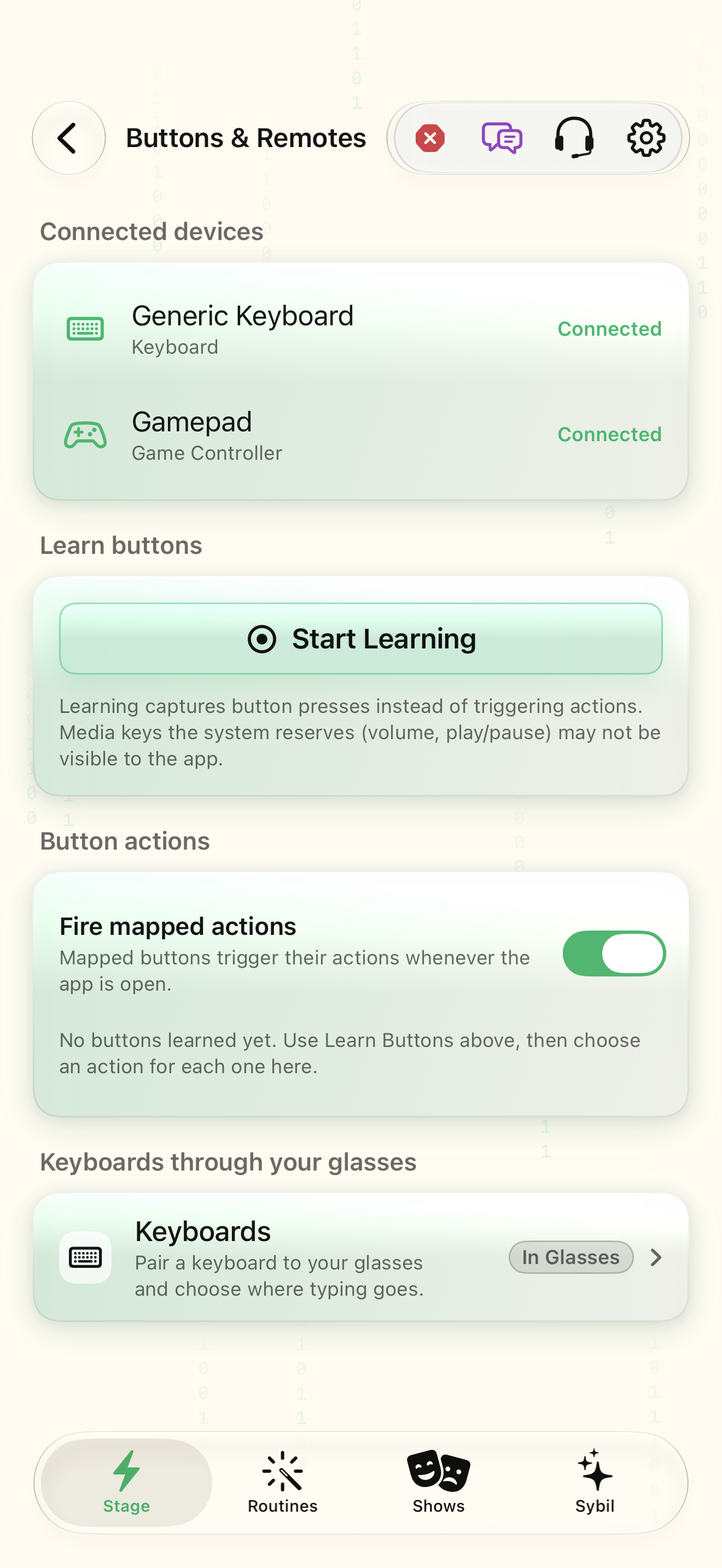
Pair glasses and a controller native iOS screen
Getting started

Pair glasses and a controller

Make the physical input and display dependable before adding workflows.

  1. Open Setup Checklist and choose the device family you actually have.
  2. Follow the preparation and scan steps; identify the intended device and wait for a confirmed connection.
  3. Grant the permissions needed by the selected features.

Native iOS screen · clean simulator capture.

Try the guided example ↗
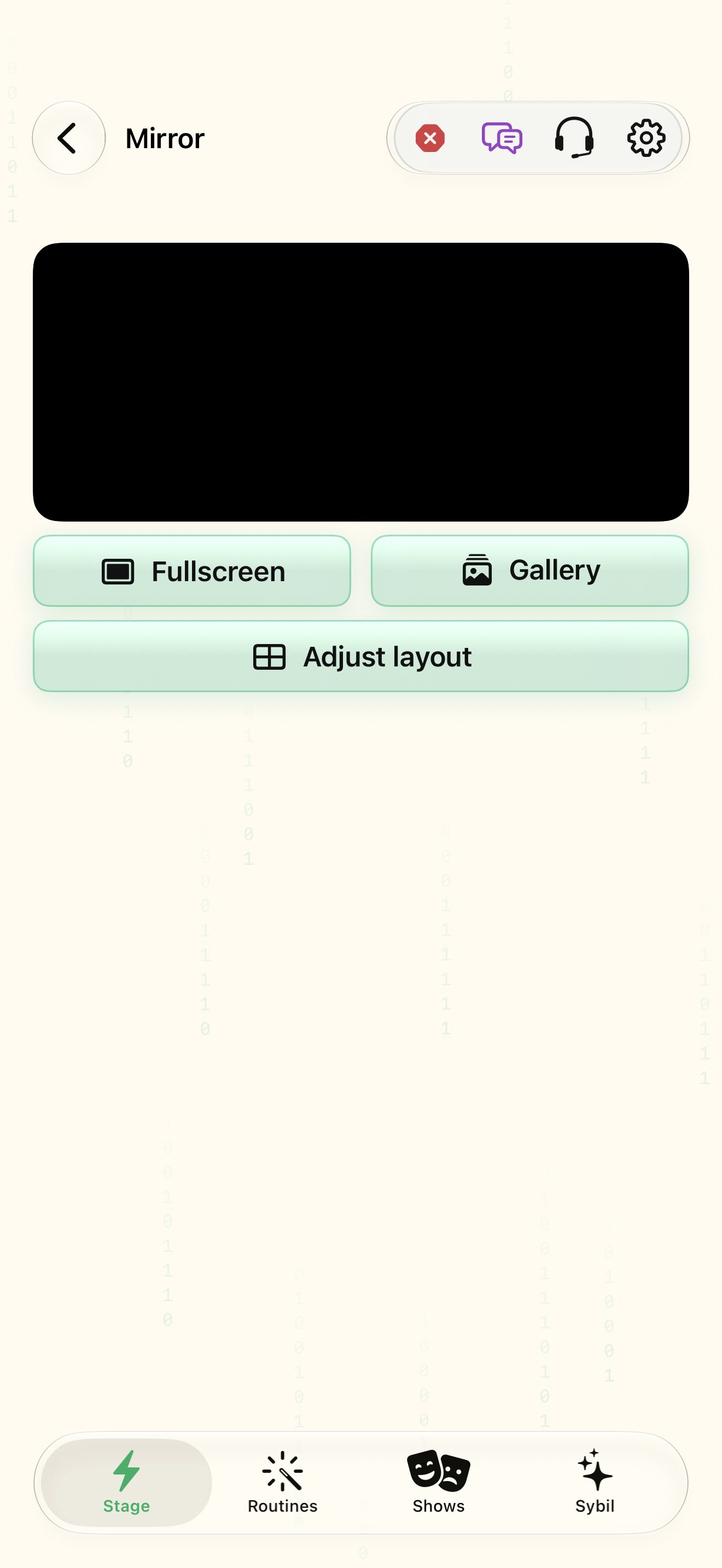
Arrange and inspect the HUD native iOS screen
Getting started

Arrange and inspect the HUD

Keep the information you need legible and in a predictable place.

  1. Open Mirror and identify what is currently driving the display.
  2. Open Layout presets and select a starting point that leaves space for the important content.
  3. Review the content assigned to each region and its available sizing/placement controls.

Native iOS screen · clean simulator capture.

Try the guided example ↗
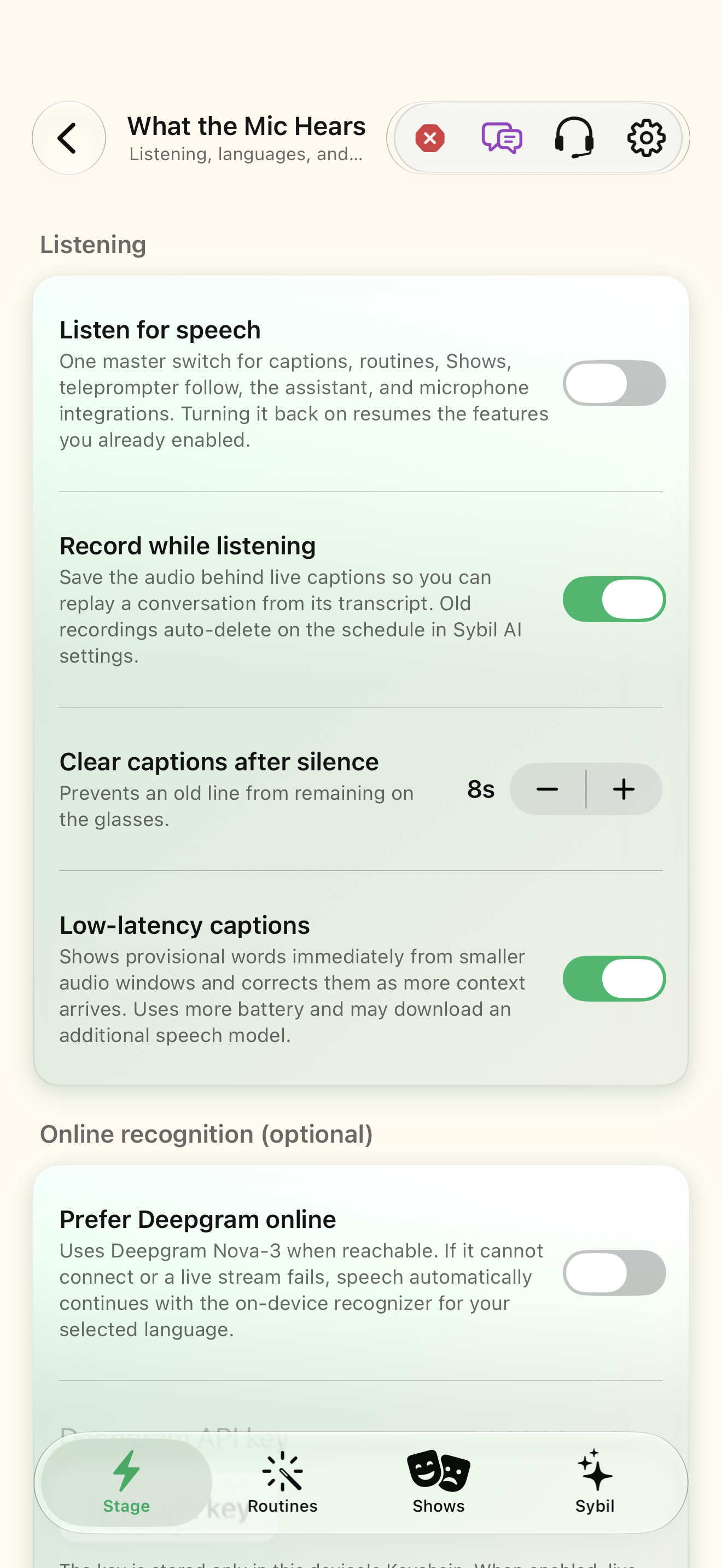
Follow speech and review captions native iOS screen
Everyday support

Follow speech and review captions

Keep words available to read at your own pace.

  1. Review Speech engine and language choices, including whether the selected route is local or external.
  2. Start captions and speak a short test phrase.
  3. Use the available display and input settings to make the text readable. Pause when you need time.

Native iOS screen · clean simulator capture.

Try the guided example ↗
Read scripts and books hands free native iOS screen
Shows

Read scripts and books hands free

Keep your place while presenting or reading.

  1. Choose a sample script in Teleprompter, or open the book reader for reading content.
  2. Select speech-follow, automatic, or manual mode according to your rehearsal needs.
  3. Review speed where relevant, then start and practice moving forward and backward.

Native iOS screen · clean simulator capture.

Try the guided example ↗
Explore tones, music, and sound tools native iOS screen
Tools

Explore tones, music, and sound tools

Build useful audio cues and practice musical or sound-oriented workflows.

  1. Choose Tone Studio for tone content, Musician for its music workflow, or the sound tool relevant to your task.
  2. Read the tool’s current input, output, and device status before starting.
  3. Use a short permitted sample and observe the actual output.

Native iOS screen · clean simulator capture.

Try the guided example ↗
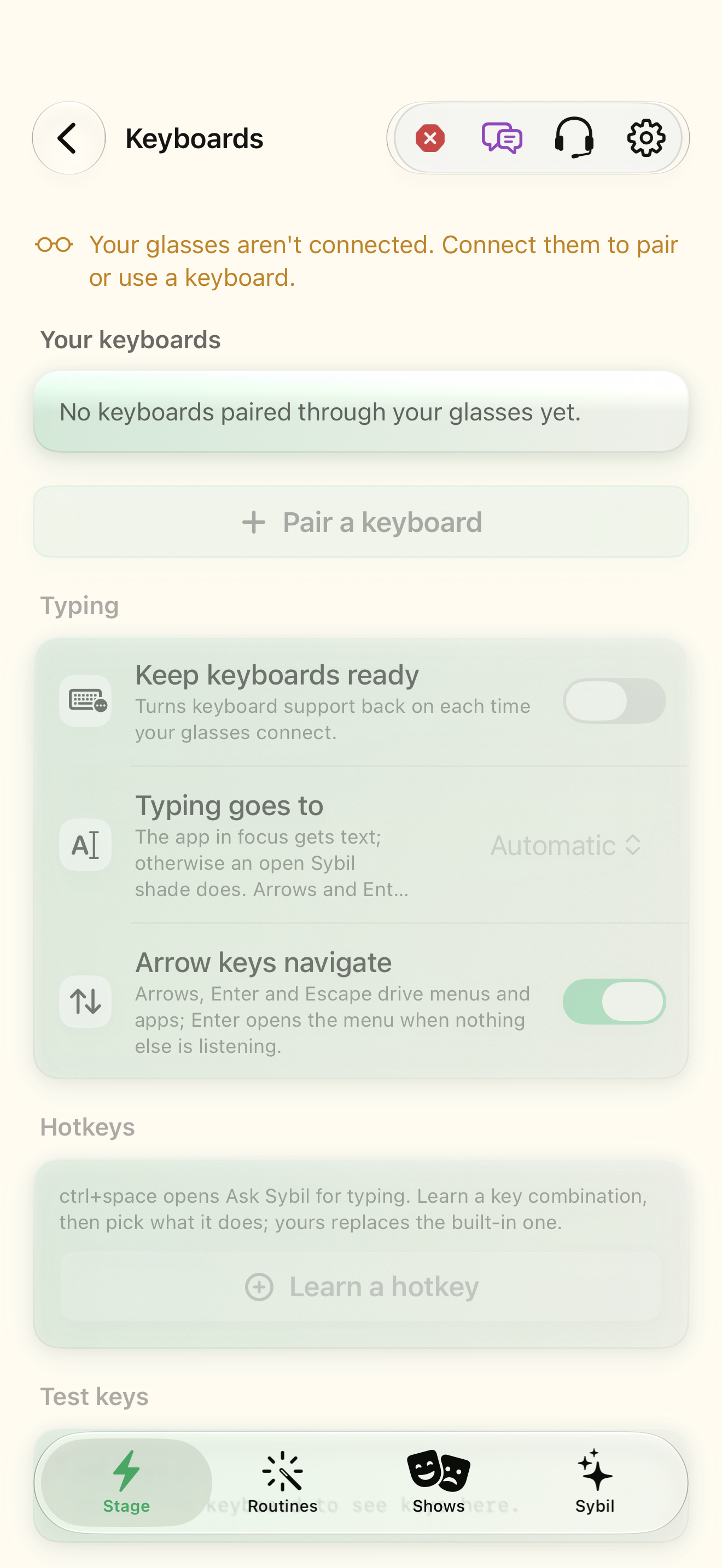
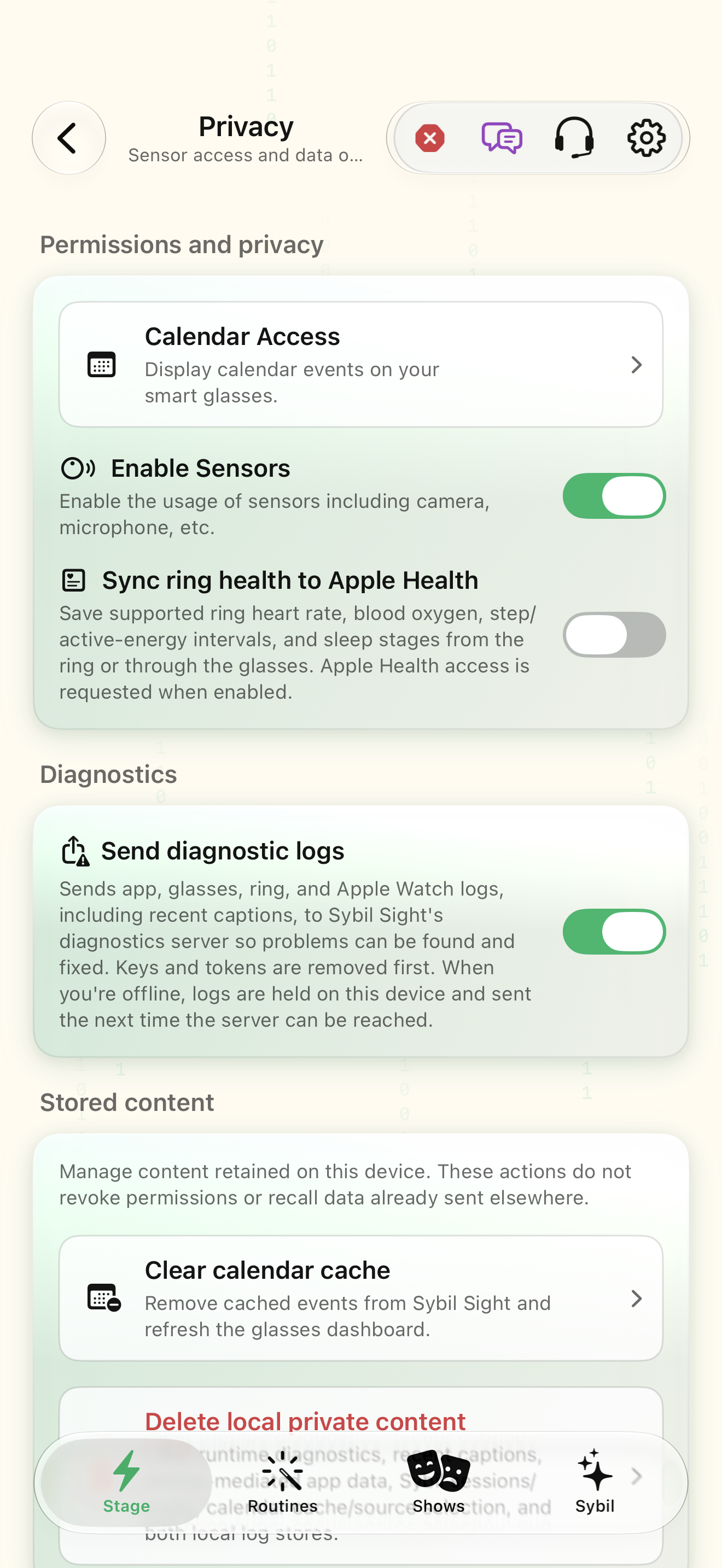
Choose your privacy and processing boundaries native iOS screen
Trust

Choose your privacy and processing boundaries

Know which data stays on your devices and which optional features use another service.

  1. Open Privacy and Permissions. Match each grant to a feature you intend to use.
  2. Inspect the active on-device, Terminal, or external provider route.
  3. Review recording retention and synchronization preferences in assistant settings.

Native iOS screen · clean simulator capture.

Try the guided example ↗
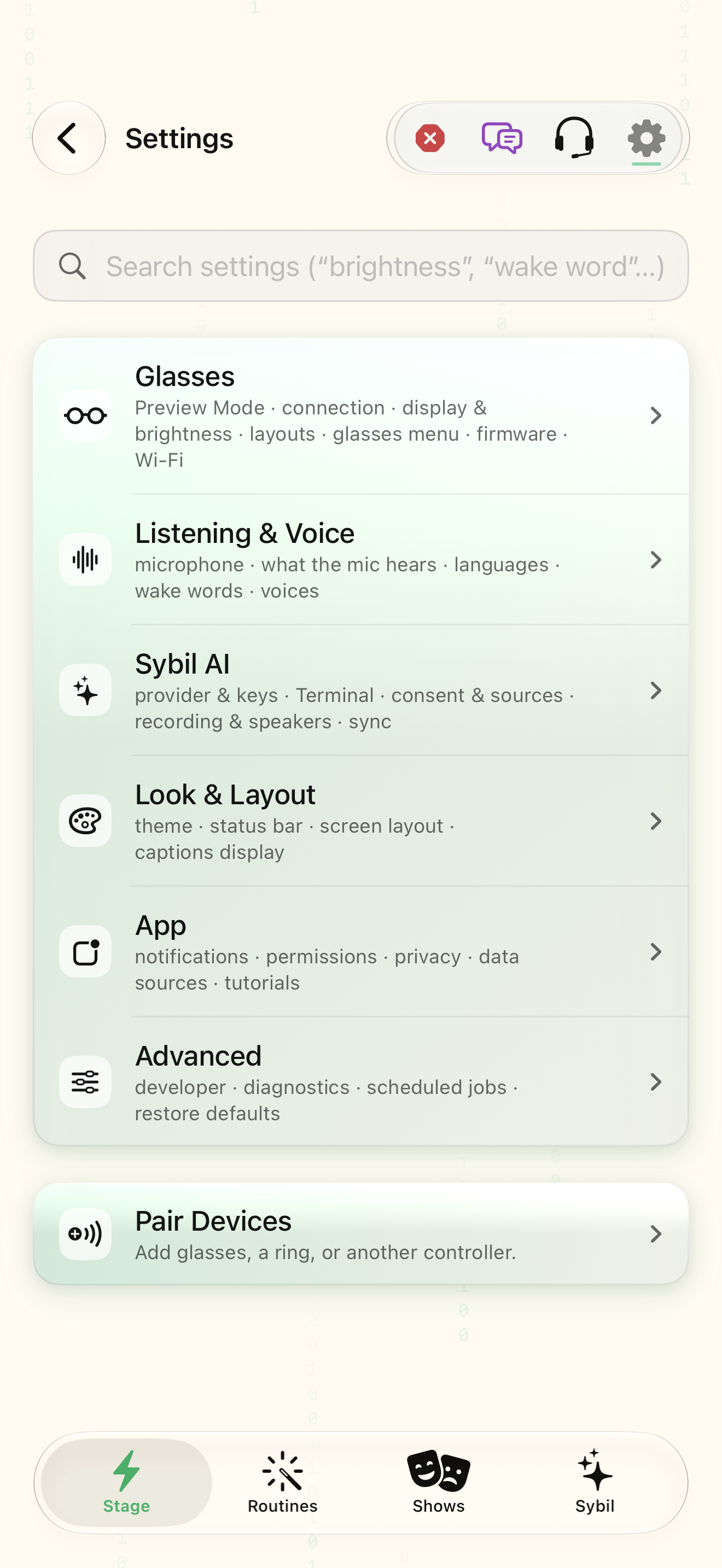
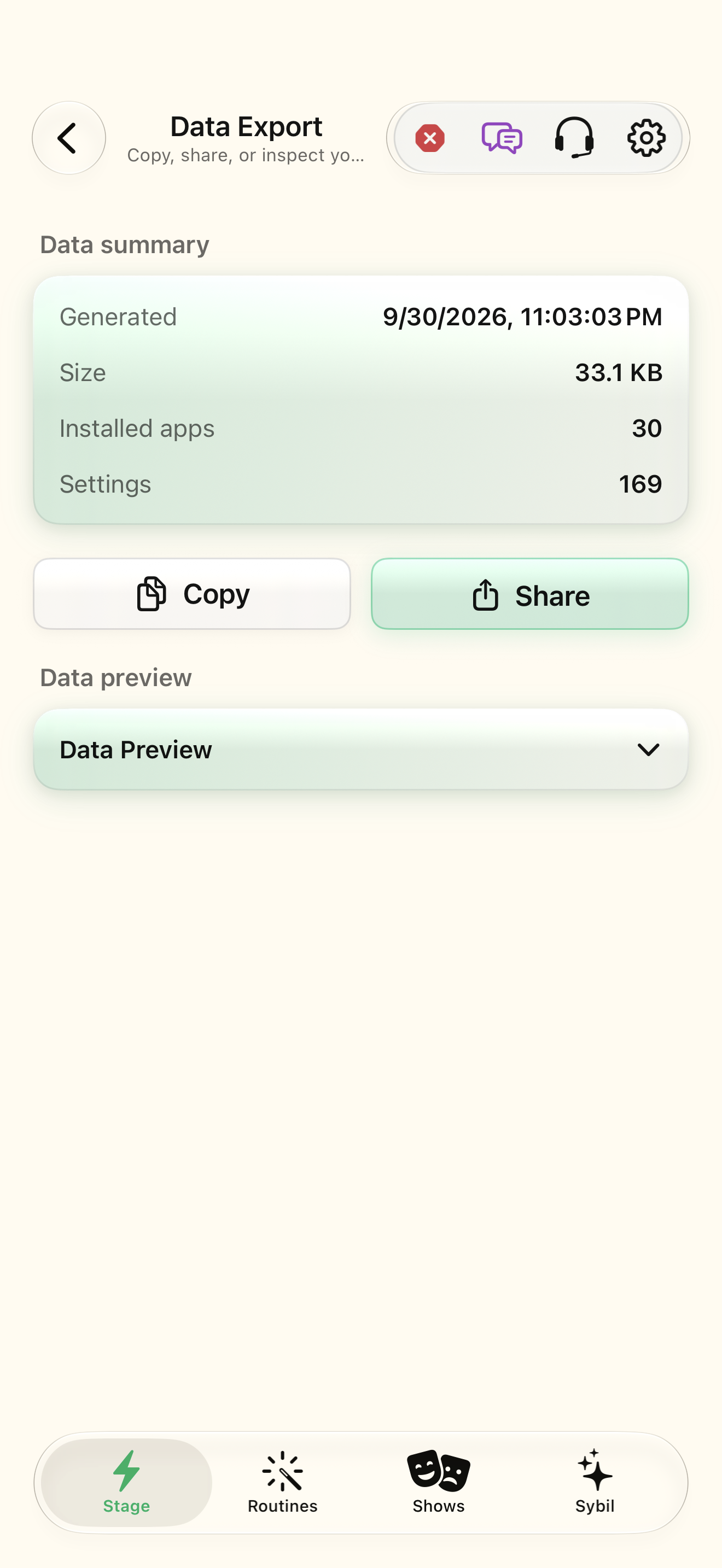
Understand exports and synchronization native iOS screen
Trust

Understand exports and synchronization

Move information intentionally and understand what an exchange format preserves.

  1. Open Data & Export and identify which records or settings the chosen export includes.
  2. For projects, review JSON, CSV, or Microsoft Project XML support and the fields each preserves.
  3. Use a destination you control and inspect the completed export.

Native iOS screen · clean simulator capture.

Try the guided example ↗
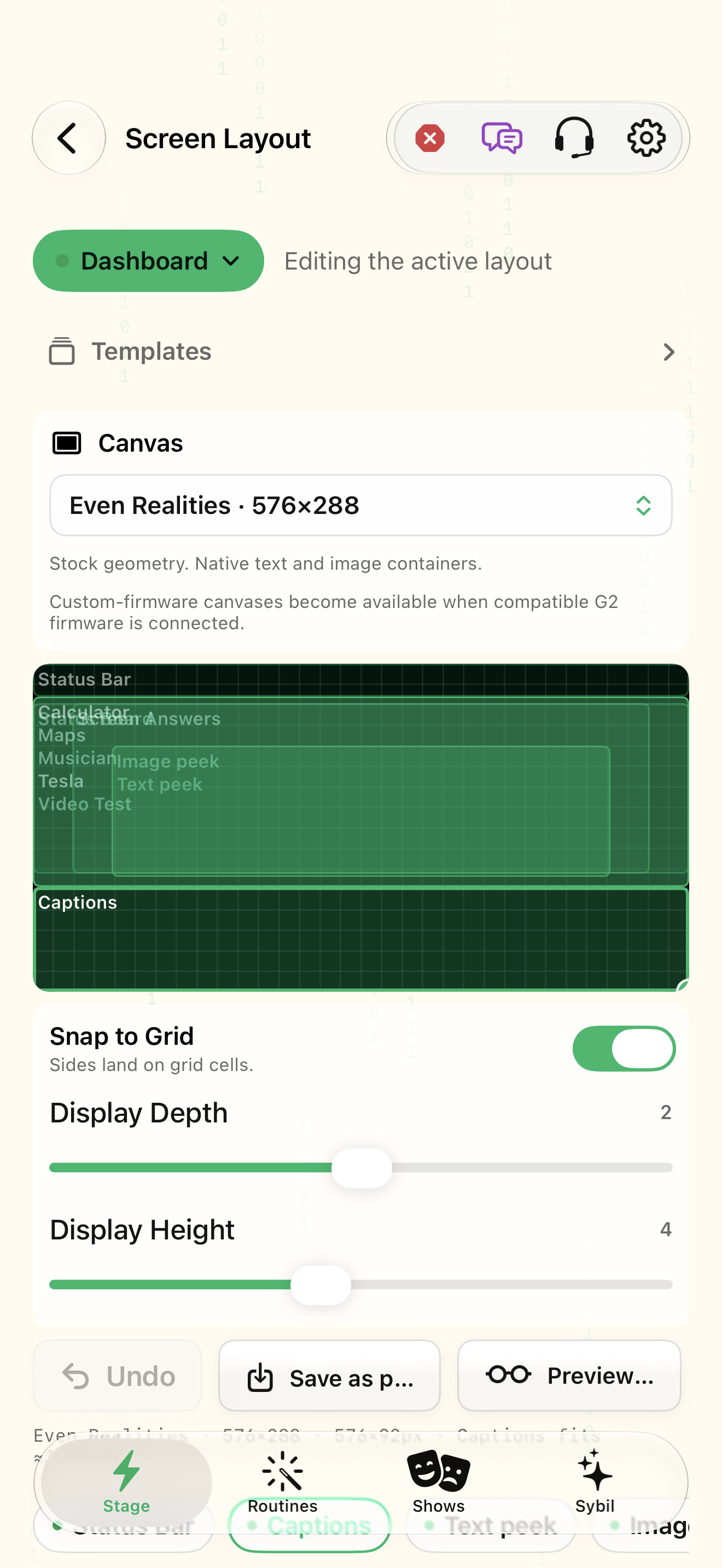
Discover the everyday mini-apps native iOS screen
Tools

Discover the everyday mini-apps

Find small tools that fit the moment without needing to adopt a single persona.

  1. Pick navigation, browsing, calculation, a status board, or a supported Mac-data view.
  2. Open the matching screen guide and inspect the current controls and setup requirements.
  3. Use a harmless calculation, known location, or permitted sample record.

Native iOS screen · clean simulator capture.

Try the guided example ↗
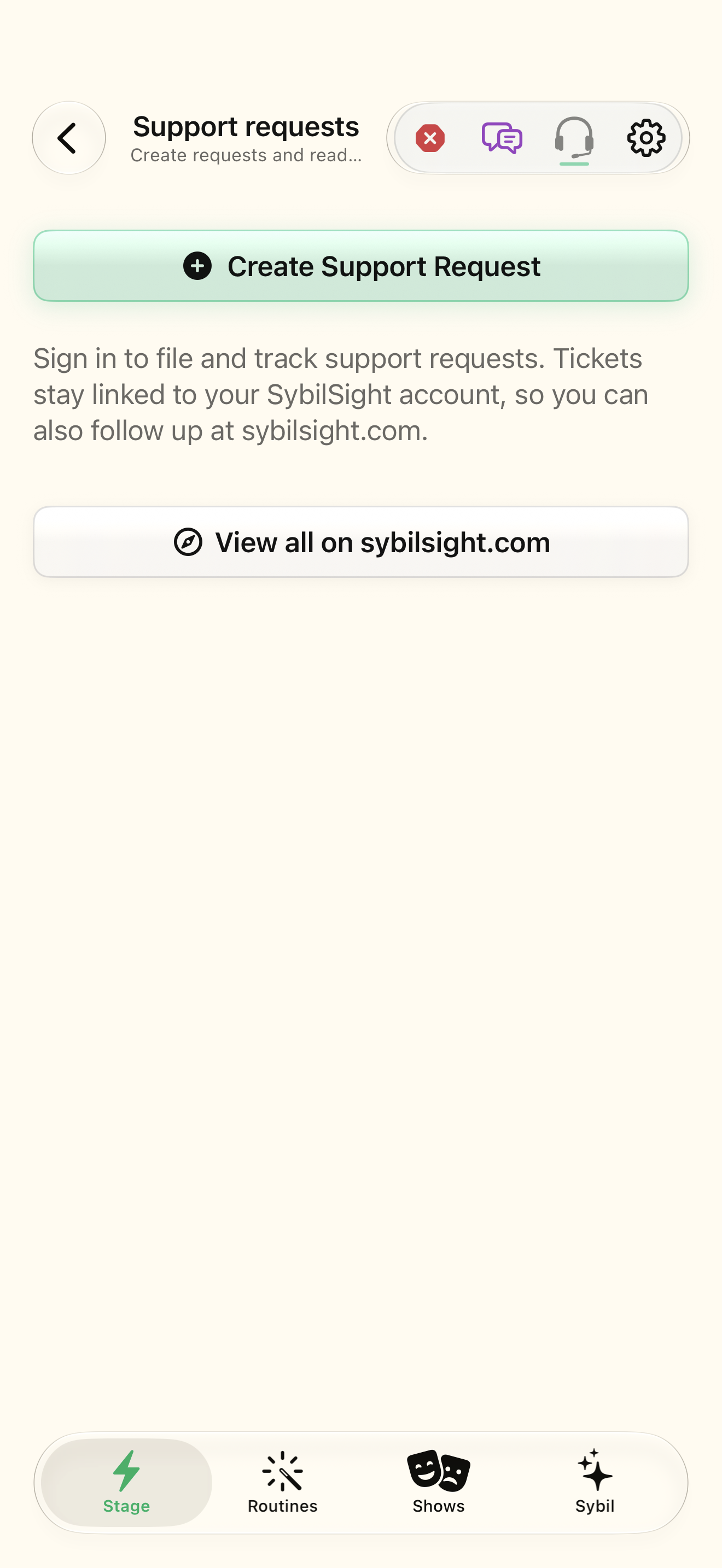
Find the cause and get useful support native iOS screen
Getting started

Find the cause and get useful support

Turn “it did not work” into a clear next step.

  1. Write what you tried and what you expected to see. Include the screen name.
  2. Review setup, permissions, connection, and processing route for that feature.
  3. Search the learning library with the exact screen or feature name. Try a safe sample to isolate the issue.

Native iOS screen · clean simulator capture.

Try the guided example ↗
Pair your smart glasses native iOS screen
Setup

Pair your smart glasses

Bring the private display into your workflow, from model selection to a verified connection.

  1. From Home, open Pair and choose Glasses.
  2. Choose the glasses you own. The example selects Even G2; other models have different preparation and capabilities.
  3. Charge the glasses and follow the on-screen instructions for their case and pairing mode. Resolve any competing app connection before continuing.

Native iOS screen · clean simulator capture.

Try the guided example ↗
Pair an R1 smart ring native iOS screen
Setup

Pair an R1 smart ring

Control your display with deliberate ring input without re-pairing the glasses.

  1. Open Home → Pair → Ring.
  2. Read the explanation and choose Start Ring Pairing.
  3. Keep the ring charged and nearby, and disconnected from another phone. Follow the pairing-mode instructions, then choose Pair R1 ring.

Native iOS screen · clean simulator capture.

Try the guided example ↗
Pair and map a remote control native iOS screen
Setup

Pair and map a remote control

Learn each physical button once, then assign the action you want it to perform.

  1. Put your presenter remote in its manufacturer’s pairing mode. In iOS Settings → Bluetooth, select it and complete any system pairing instructions. Return to SybilSight.
  2. In SybilSight, open Settings → Ring → Buttons & remotes. Check Connected devices.
  3. Choose Start Learning, then press each button on the real device. Existing learned buttons light up rather than firing actions.

Native iOS screen · clean simulator capture.

Try the guided example ↗
Pair a keyboard to your iPhone native iOS screen
Setup

Pair a keyboard to your iPhone

Learn each physical button once, then assign the action you want it to perform.

  1. Put your Bluetooth keyboard in its manufacturer’s pairing mode. In iOS Settings → Bluetooth, select it and complete any system pairing instructions. Return to SybilSight.
  2. In SybilSight, open Settings → Ring → Buttons & remotes. Check Connected devices.
  3. Choose Start Learning, then press each button on the real device. Existing learned buttons light up rather than firing actions.

Native iOS screen · clean simulator capture.

Try the guided example ↗
Pair a keyboard through G2 glasses native iOS screen
Setup

Pair a keyboard through G2 glasses

Type and navigate through the glasses’ supported keyboard bridge.

  1. Open Settings → Glasses → Keyboards, or the Keyboard card in Pair when using G2. Read the availability note first.
  2. Put the keyboard in pairing mode, then choose Search for keyboards. Keep it near the glasses.
  3. Choose the matching keyboard. Follow the actual code-entry or comparison prompt; only confirm matching codes.

Native iOS screen · clean simulator capture.

Try the guided example ↗
Find settings and detailed app controls native iOS screen
Setup

Find settings and detailed app controls

Understand which controls change the whole app and which belong to a single workspace.

  1. From Home, open Settings. Choose a section according to what you want to change.
  2. For presentation controls, open Look & Layout. Choose Screen Layout to change placement, or Appearance for the app’s visual preferences.
  3. Return Home and tap the app icon or name. Its destination depends on the app: a native workspace or its app-settings page.

Native iOS screen · clean simulator capture.

Try the guided example ↗
Arrange apps in the Live HUD layout editor native iOS screen
Setup

Arrange apps in the Live HUD layout editor

Give the information you need a clear place in your glasses display.

  1. Open Settings → Look & Layout → Screen Layout. Read the current Edit layout for selection.
  2. Use Edit layout for to select the intended mode. Decide whether to follow global positions or use a dedicated layout.
  3. Choose Add App and select the app that needs a region.

Native iOS screen · clean simulator capture.

Try the guided example ↗
Open a support request native iOS screen
Support

Open a support request

Give support the details needed to reproduce a problem and follow up with you.

  1. Tap the headset button in the Home header. Sign in if requested so the ticket can be associated with your account.
  2. Choose Create Support Request, then Bug Report or Feature Request as appropriate.
  3. For a bug, describe What did you expect to happen? and What actually happened? Include the steps, hardware, and build that make the problem repeat.

Native iOS screen · clean simulator capture.

Try the guided example ↗
Check a request and reply to support native iOS screen
Support

Check a request and reply to support

Follow the status, see replies, and provide the missing detail without starting over.

  1. Tap the Home headset button. Check the request list and its status chips; an unread badge can signal an update.
  2. Select your request and read Conversation, the status, and any reply-by date.
  3. Enter the requested details in Reply to support, then choose Send Response. Wait for confirmation.

Native iOS screen · clean simulator capture.

Try the guided example ↗
Maintain a routine after rehearsal native iOS screen
Routines

Maintain a routine after rehearsal

Keep a proven routine dependable as inputs, integrations, and performance needs change.

  1. In Routines, use Needs setup or inspect the routine you changed. Read the specific missing requirement.
  2. Open the routine builder and check Starts, Shows, Captures, Then, and Review. Update obsolete phrases, fields, and destinations.
  3. Use Rehearse with sample inputs. Exercise each branch and its fallback, including missing or unexpected input.

Native iOS screen · clean simulator capture.

Try the guided example ↗
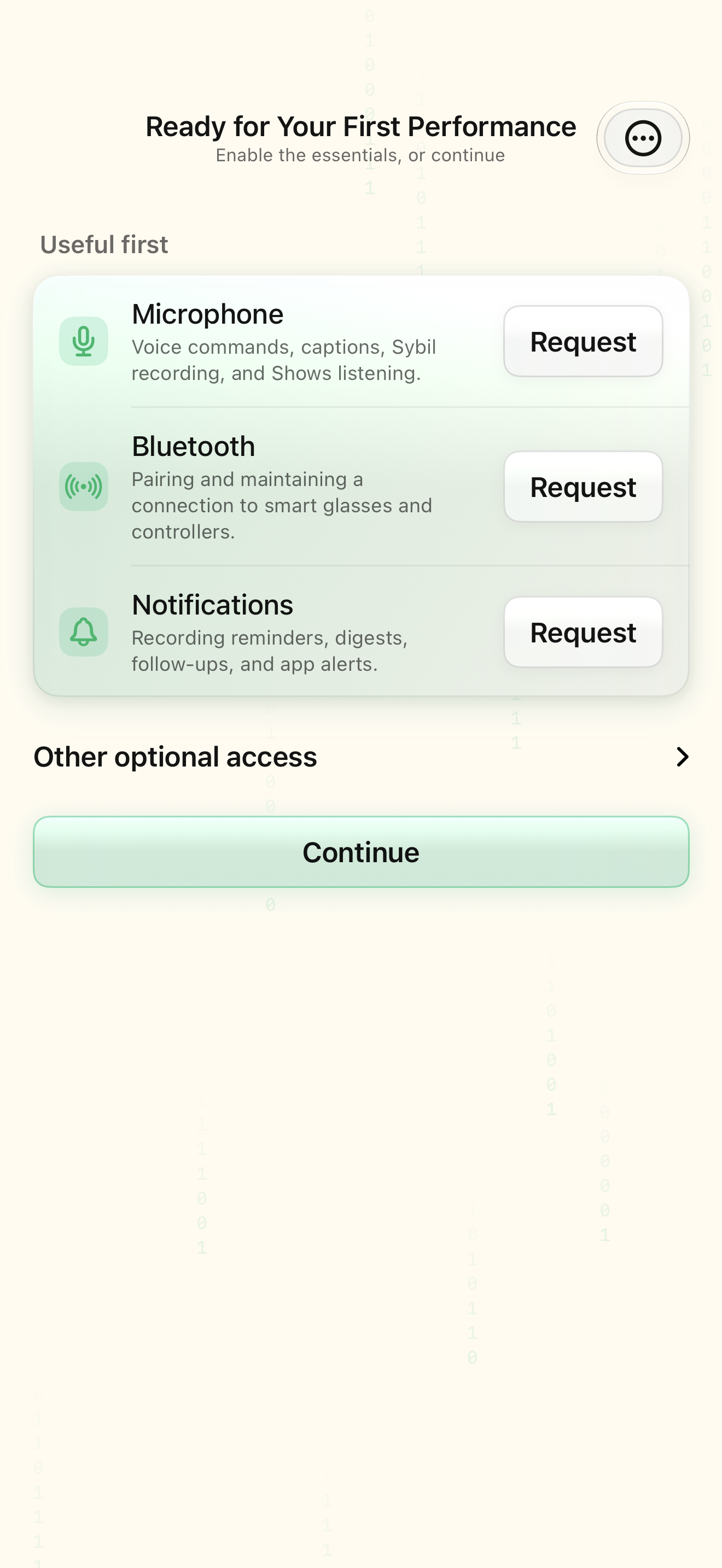
Complete the first-run flow native iOS screen
Getting started

Complete the first-run flow

Learn the real onboarding sequence and complete one trigger-to-result loop.

  1. Sign in using your account email, then review the permission requests for the features you want to use.
  2. Choose I have glasses to pair hardware, or Preview without glasses to use the Simulated wearable.
  3. In the guided routine, choose Display visibility, then your Move On gesture. Ring triple-tap is the recommended default.

Native iOS screen · clean simulator capture.

Try the guided example ↗
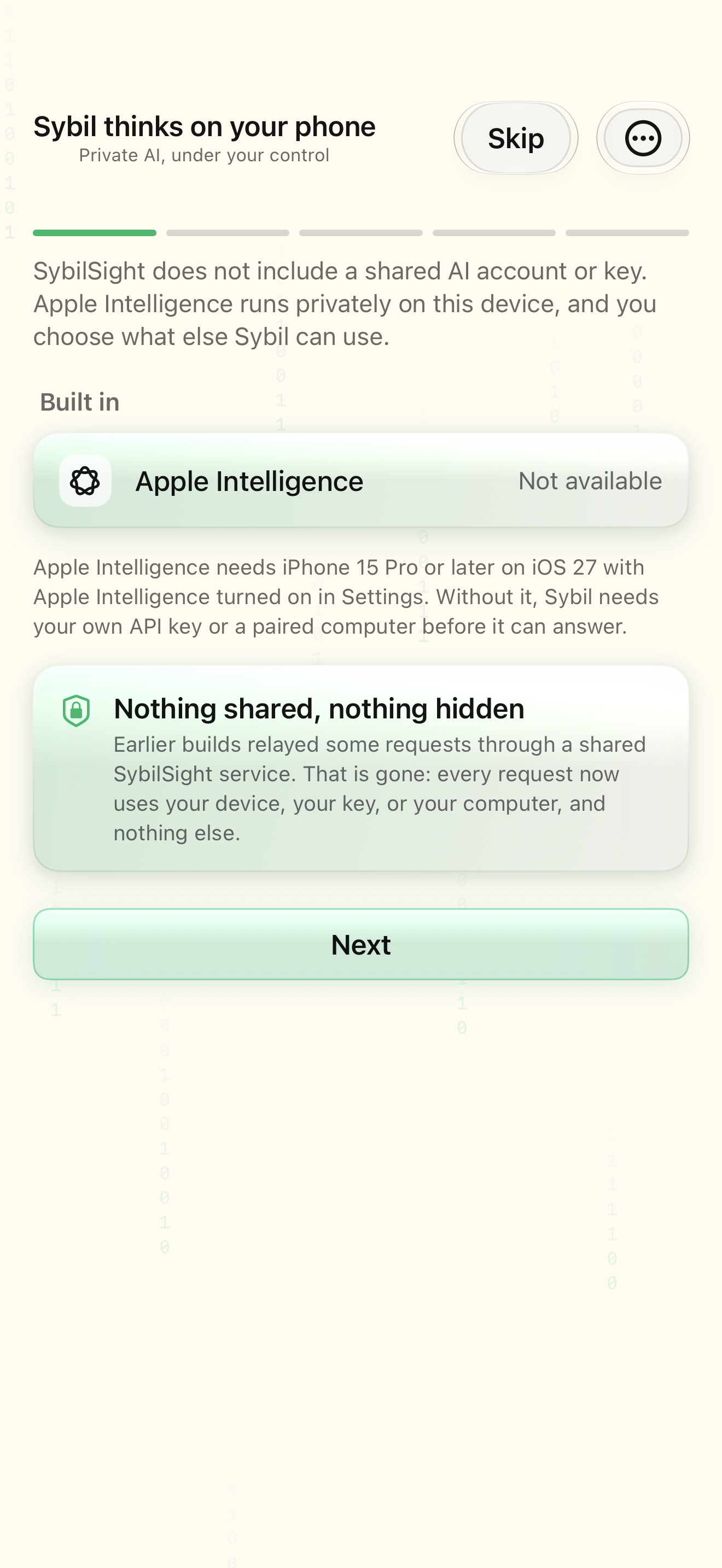
Finish the Set up Sybil checklist native iOS screen
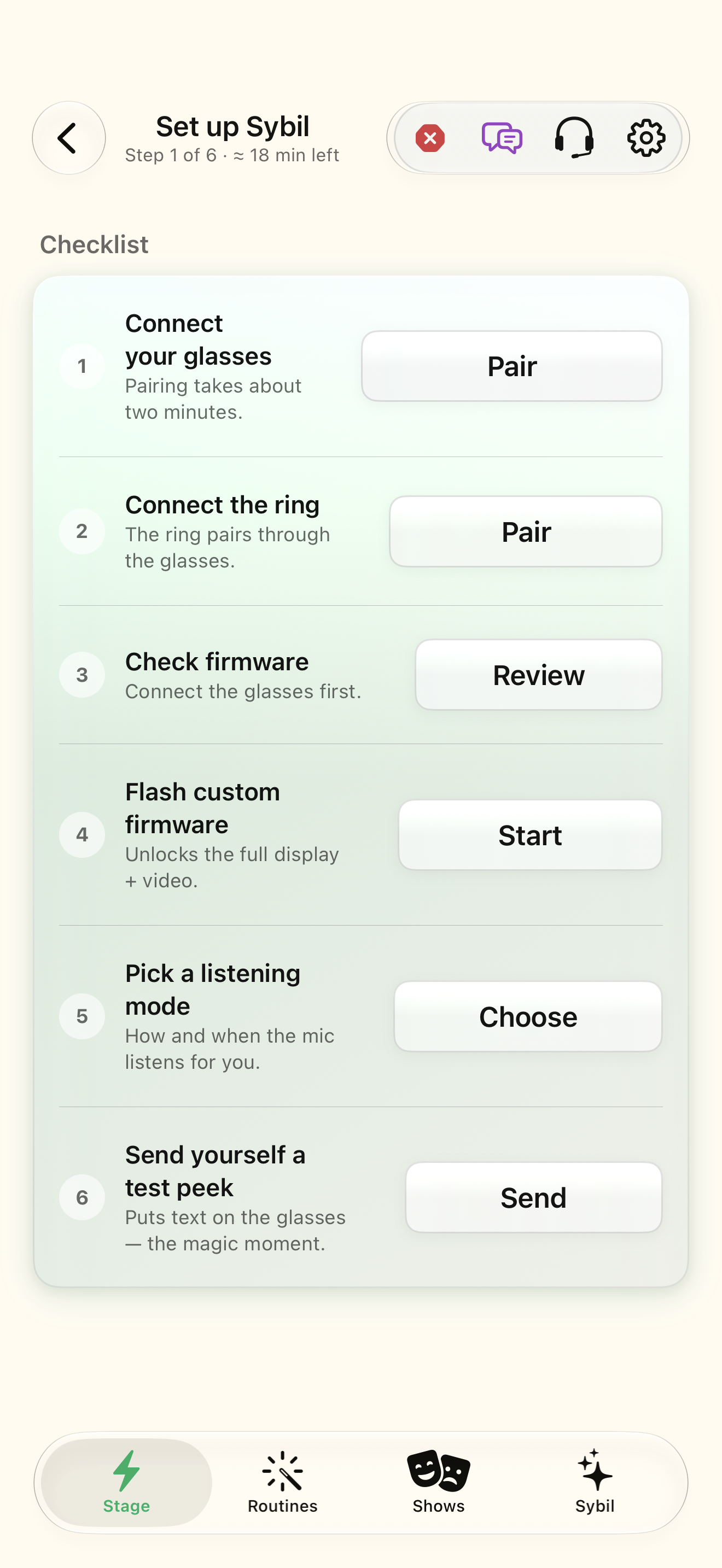
Getting started

Finish the Set up Sybil checklist

Pairing, firmware, listening, and a successful display write are separate checks.

  1. Open Settings › App › Setup checklist, then Pair under Connect your glasses.
  2. Use Pair under Connect the ring and follow the ring-through-glasses flow.
  3. Open Review under Check firmware. Wait for versions to resolve and inspect any recommendation.

Native iOS screen · clean simulator capture.

Try the guided example ↗
Choose and test the app’s AI connection native iOS screen
Getting started

Choose and test the app’s AI connection

Configure a usable built-in, provider-key, or paired-computer route and confirm it with a small request.

  1. Open the AI setup guide and read Sybil thinks on your phone.
  2. Bring your own API keys configures supported keys. Use the AI you already pay for pairs Terminal in editions that include it.
  3. Continue through Your recordings and the You’re set summary.

Native iOS screen · clean simulator capture.

Try the guided example ↗
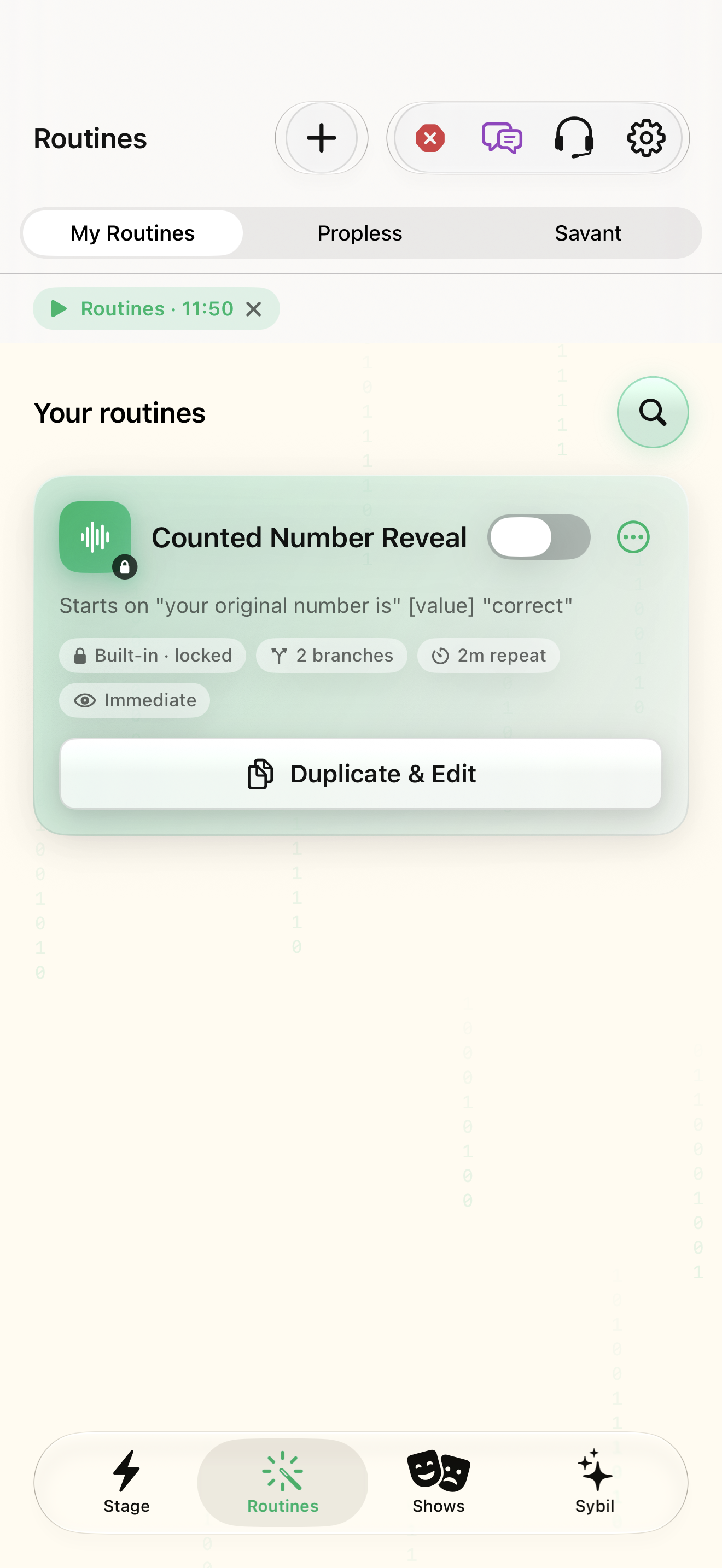
Build and rehearse a date-to-number routine native iOS screen
Routines

Build and rehearse a date-to-number routine

Capture “September 12”, calculate 12 + 9, and inspect 21 before arming.

  1. Open Routines › New routine. The name is entered later on Review.
  2. Select You say a trigger phrase. Enter “the date is” in Phrase that starts the routine.
  3. In Shows choose Pre-written text or crib, enter “Listen for the date”, and use Right away.

Native iOS screen · clean simulator capture.

Try the guided example ↗
Send text and image peeks native iOS screen
Glasses & display

Send text and image peeks

Put a deliberate detail in view, clear it, and find it again.

  1. Open Peeks and choose Send. Confirm the glasses connection before preparing a result.
  2. Select Text. Enter a short sample such as “Maya · proposal before Friday”.
  3. Tap Show on glasses, then inspect the Text peek region. Use Clear when the result should leave the display.

Native iOS screen · clean simulator capture.

Try the guided example ↗
Manage queued peeks and delivery history native iOS screen
Glasses & display

Manage queued peeks and delivery history

Keep the next result ready and understand where each result came from.

  1. Choose Queue. Inspect Now showing and Up next before advancing.
  2. Advance using the queue control or the mapped input. Rehearse the order with fictional values.
  3. Cancel an item you no longer want to reveal. Clear removes the current display without requiring a history deletion.

Native iOS screen · clean simulator capture.

Try the guided example ↗
Customize the status bar and its tokens native iOS screen
Glasses & display

Customize the status bar and its tokens

Keep time, device state, and connected information readable at a glance.

  1. Open Look & Layout → Status bar. Compare GUI and Text presentation.
  2. Choose Single line or Sections when using Text. Start with a short template rather than adding every available field.
  3. Insert $TIME24$ for 24-hour time, $TIME12$ for zero-padded 12-hour time, or $TIME12N$ for an unpadded hour. $DAY$, $DAYL$, $DATE$, and $DATEL$ control day and date labels.

Native iOS screen · clean simulator capture.

Try the guided example ↗
Build, save, and assign a glasses layout native iOS screen
Glasses & display

Build, save, and assign a glasses layout

Give Dashboard, Shows, Routines, and Propless the arrangements they need.

  1. Choose Edit layout for: Dashboard, Shows, Routines, or Propless. Check whether this is the currently live mode before editing.
  2. Apply a starting template such as status at top with captions at bottom. A template replaces the layout arrangement; compare before applying.
  3. Select an app. Drag to draw or adjust its region, or choose Full screen, Top half, Bottom half, Left half, or Right half. Use Snap to Grid for alignment.

Native iOS screen · clean simulator capture.

Try the guided example ↗
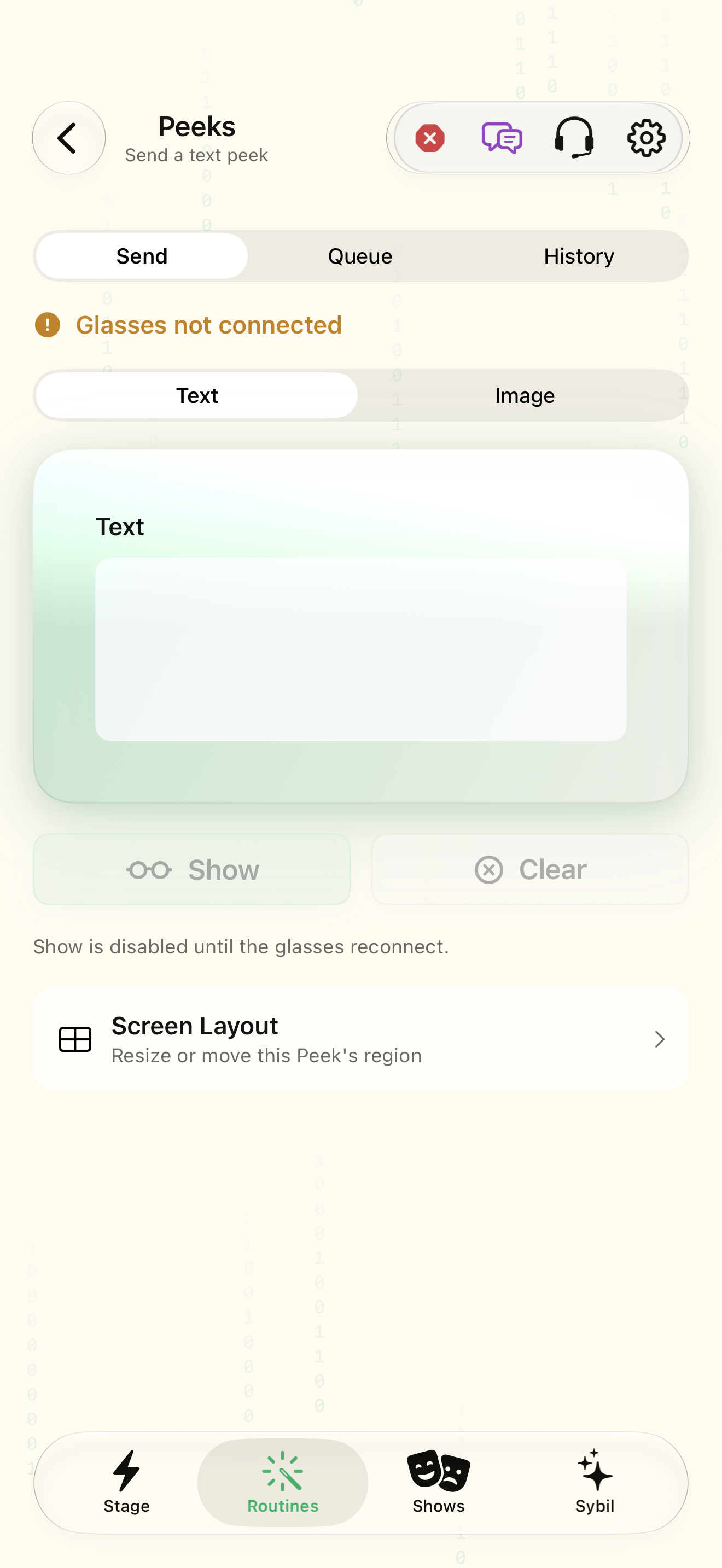
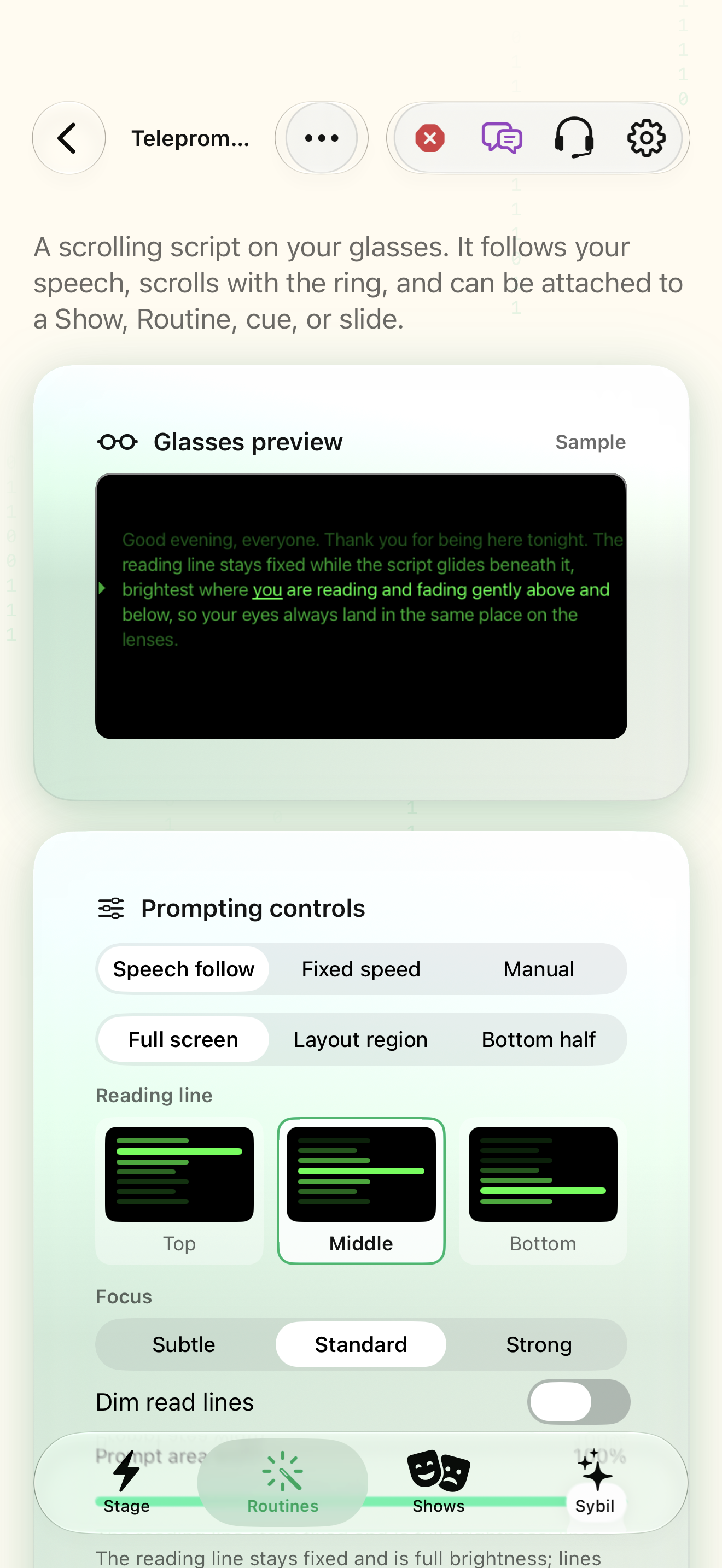
Create a script and rehearse teleprompter modes native iOS screen
Shows & reading

Create a script and rehearse teleprompter modes

Read comfortably while keeping your attention on the audience.

  1. Create a script or Import plain text, PDF, or Word content. Divide the script into useful segments and check the text before performing.
  2. Compare Speech follow, Fixed speed, and Manual. Start with a short paragraph. In Fixed speed choose a comfortable words-per-minute value.
  3. Choose Top, Middle, or Bottom. Top and Bottom preserve a row of context when the region is tall enough.

Native iOS screen · clean simulator capture.

Try the guided example ↗
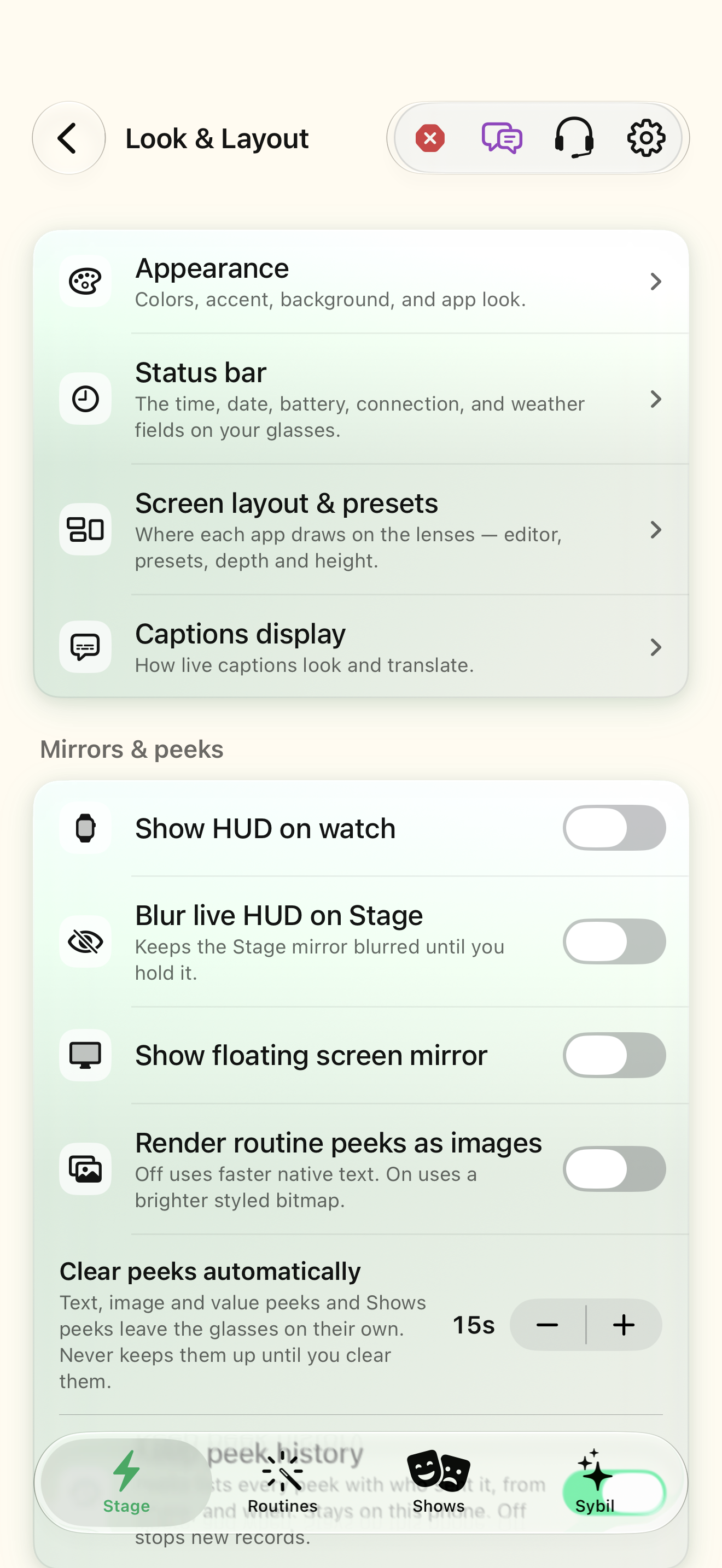
Bring PowerPoint slides into Shows and mirror them native iOS screen
Shows & reading

Bring PowerPoint slides into Shows and mirror them

Coordinate a deck, private notes, and the audience screen.

  1. Export PowerPoint or Keynote to PDF with one build per page when you want cue-by-cue playback. Import the PDF into Shows → Media Library and review its page order.
  2. Create a Deck cue and select the imported PDF. A general document preview can open presentation files, but the Deck cue expects the PDF workflow.
  3. Add the private note or teleprompter content needed for the cue. Rehearse the glasses regions for cue, clock, slides, notes, and captions.

Native iOS screen · clean simulator capture.

Try the guided example ↗
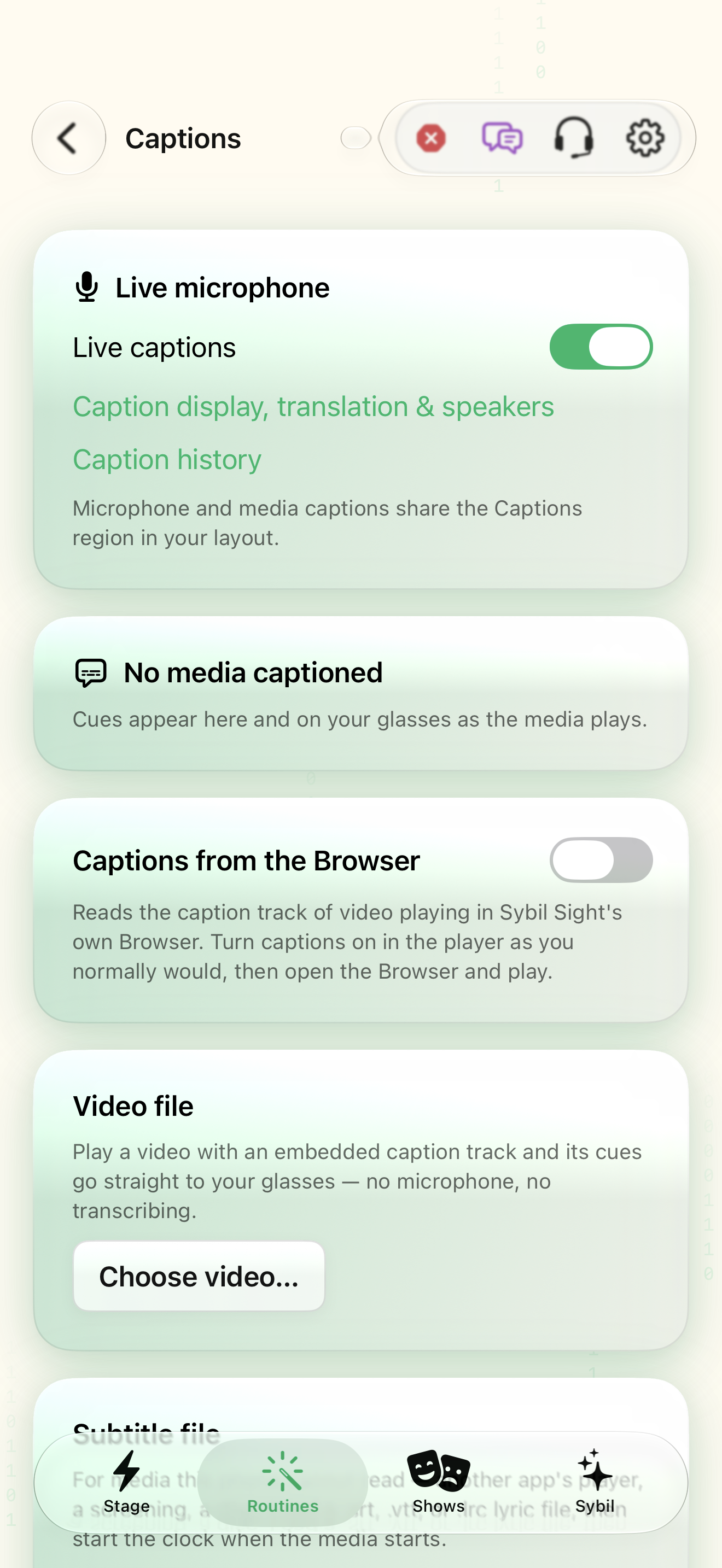
Read authored video captions and subtitle files native iOS screen
Everyday tools

Read authored video captions and subtitle files

Follow media using its written caption track where one is available.

  1. Open Media Captions and confirm Live captions. Select Caption display, translation & speakers to choose how the shared Captions region looks.
  2. For a video in SybilSight’s Browser, enable Captions from the Browser and turn captions on in the player.
  3. Choose a local video with an embedded caption track. Check available languages and play the video.

Native iOS screen · clean simulator capture.

Try the guided example ↗
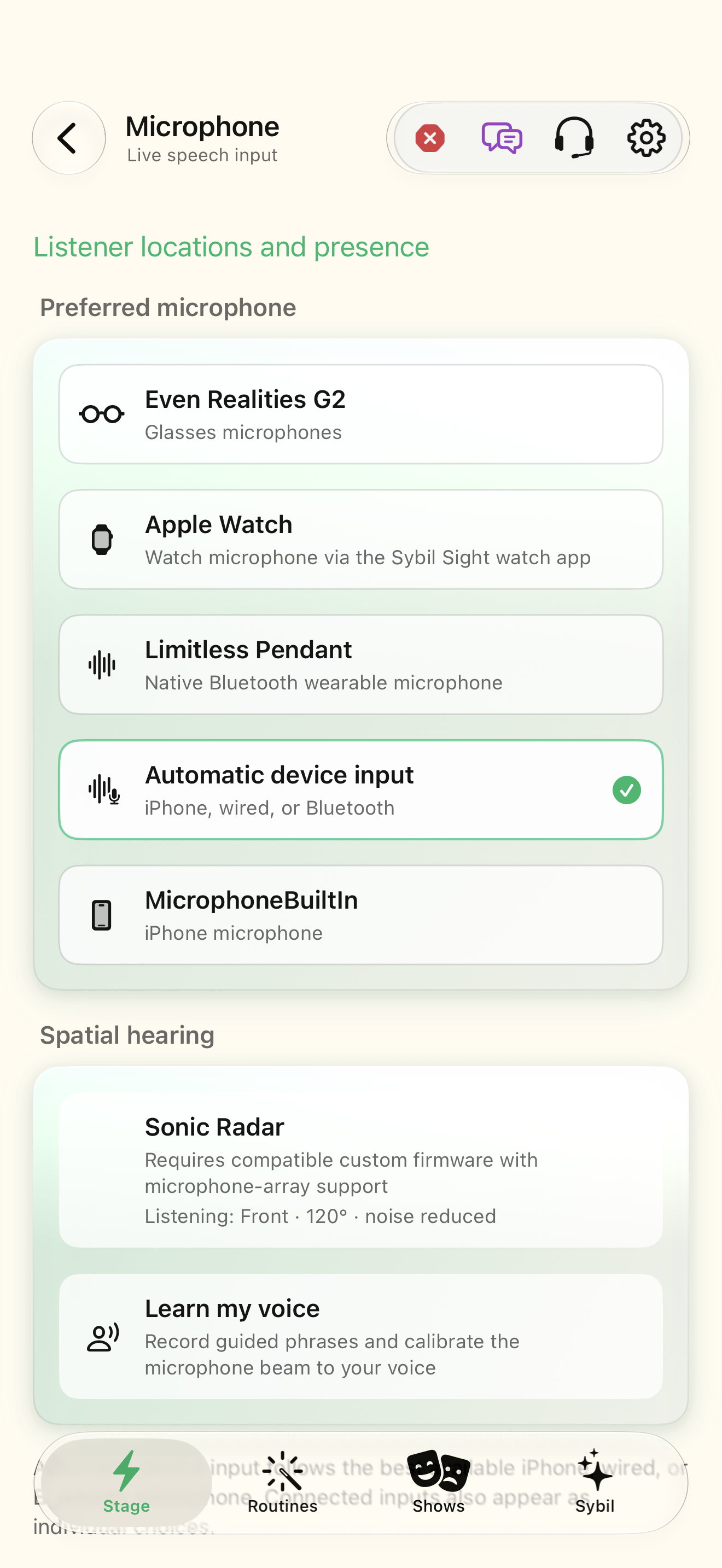
Tune an instrument and follow a score native iOS screen
Everyday tools

Tune an instrument and follow a score

Keep pitch and your place in the music close to view.

  1. Choose the input that can hear your instrument, then open Musician and Start listening.
  2. Choose Chromatic or an instrument preset. Auto selects the played string; tap a string to lock a manual target and Clear to return to automatic selection.
  3. Set the A4 reference, in-tune threshold, and temperament. Inspect cents relative to the target. Play reference A4 when needed.

Native iOS screen · clean simulator capture.

Try the guided example ↗
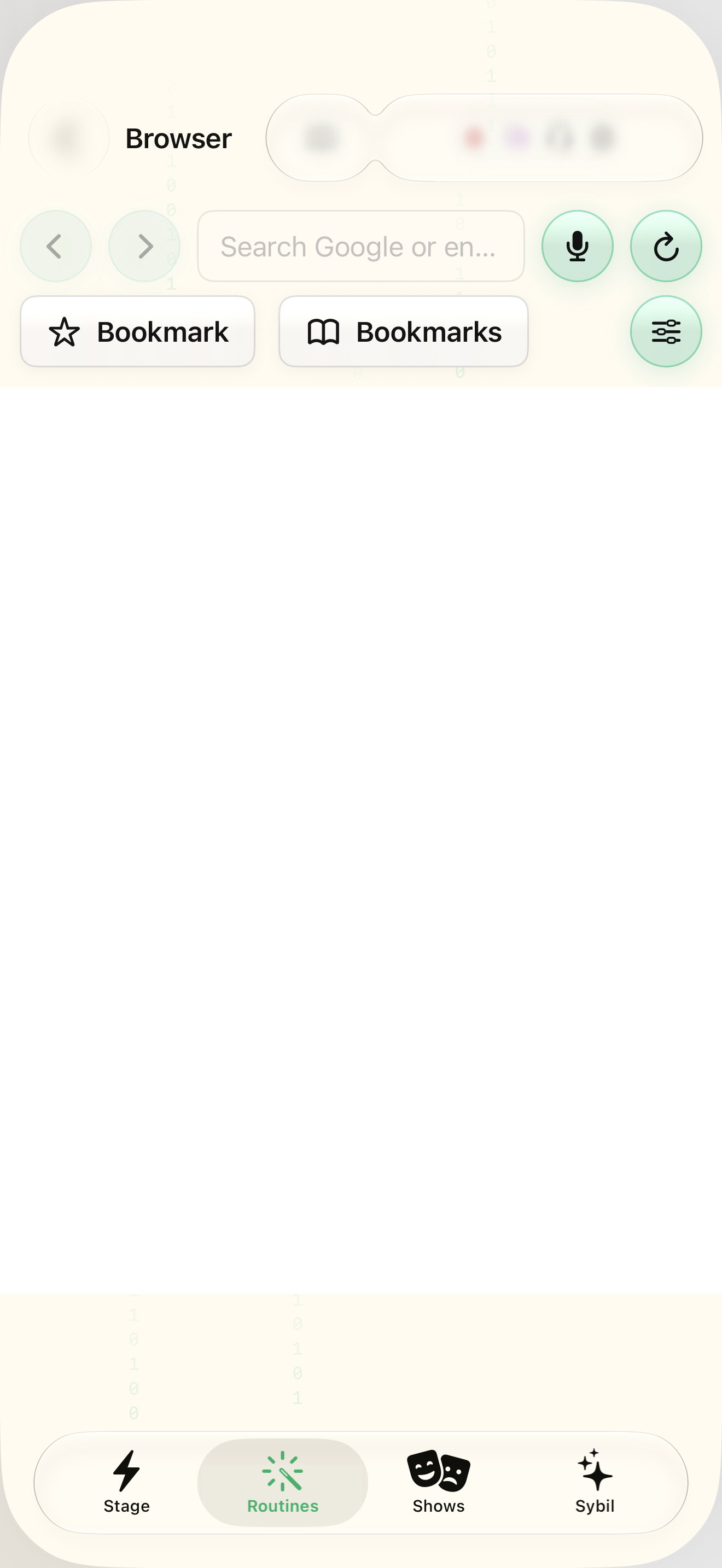
Browse and read EPUB books on the glasses native iOS screen
Everyday tools

Browse and read EPUB books on the glasses

Move through written material with predictable hands-free controls.

  1. Enter a URL in the app Browser and open it. Use the highlighted-link focus and navigation controls to choose the next link.
  2. Choose whether to draw the page graphically or show the link list as text. Review bookmarks and their order for the ring Shortcuts menu.
  3. Import an EPUB into the library. Rename, pin, or sort books to make the one you need easy to find.

Native iOS screen · clean simulator capture.

Try the guided example ↗
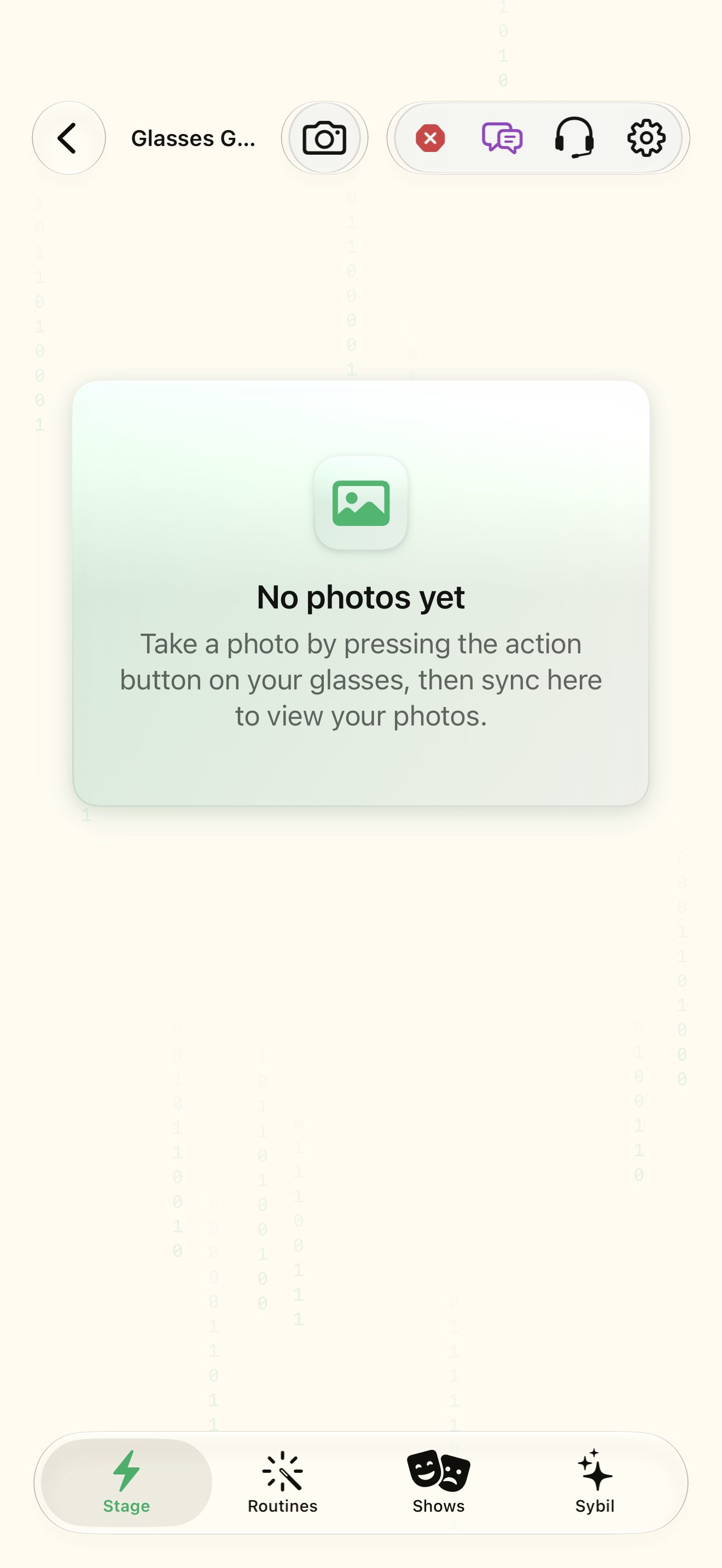
Configure microphone inputs and Sonic Radar native iOS screen
Everyday tools

Configure microphone inputs and Sonic Radar

Understand the source and direction of speech before changing listening behavior.

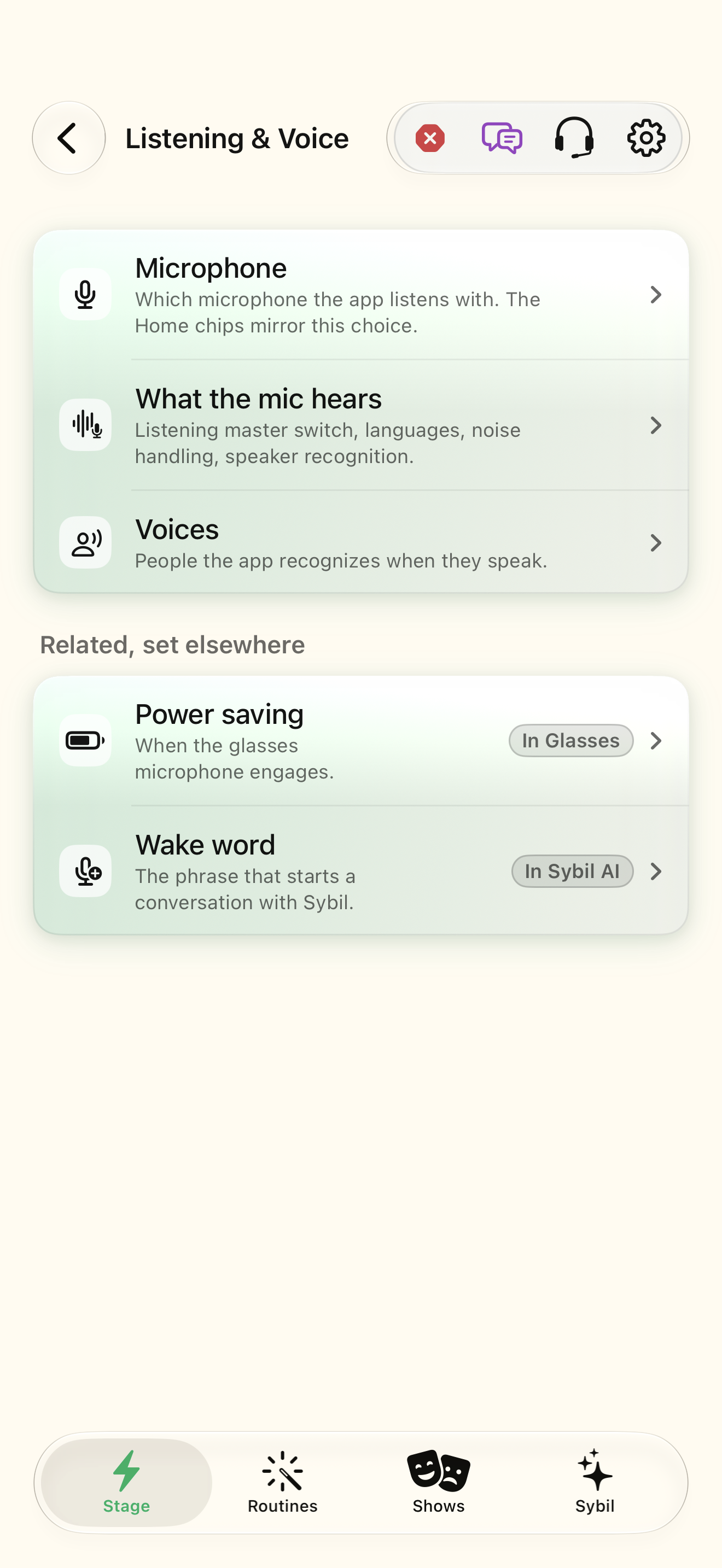
  1. Select the microphone and inspect its current source label. The Stage chip mirrors this choice.
  2. Open Sonic Radar and enable array capture when compatible custom firmware is connected.
  3. Compare beam forming and noise reduction with a sample voice in the intended environment.

Native iOS screen · clean simulator capture.

Try the guided example ↗
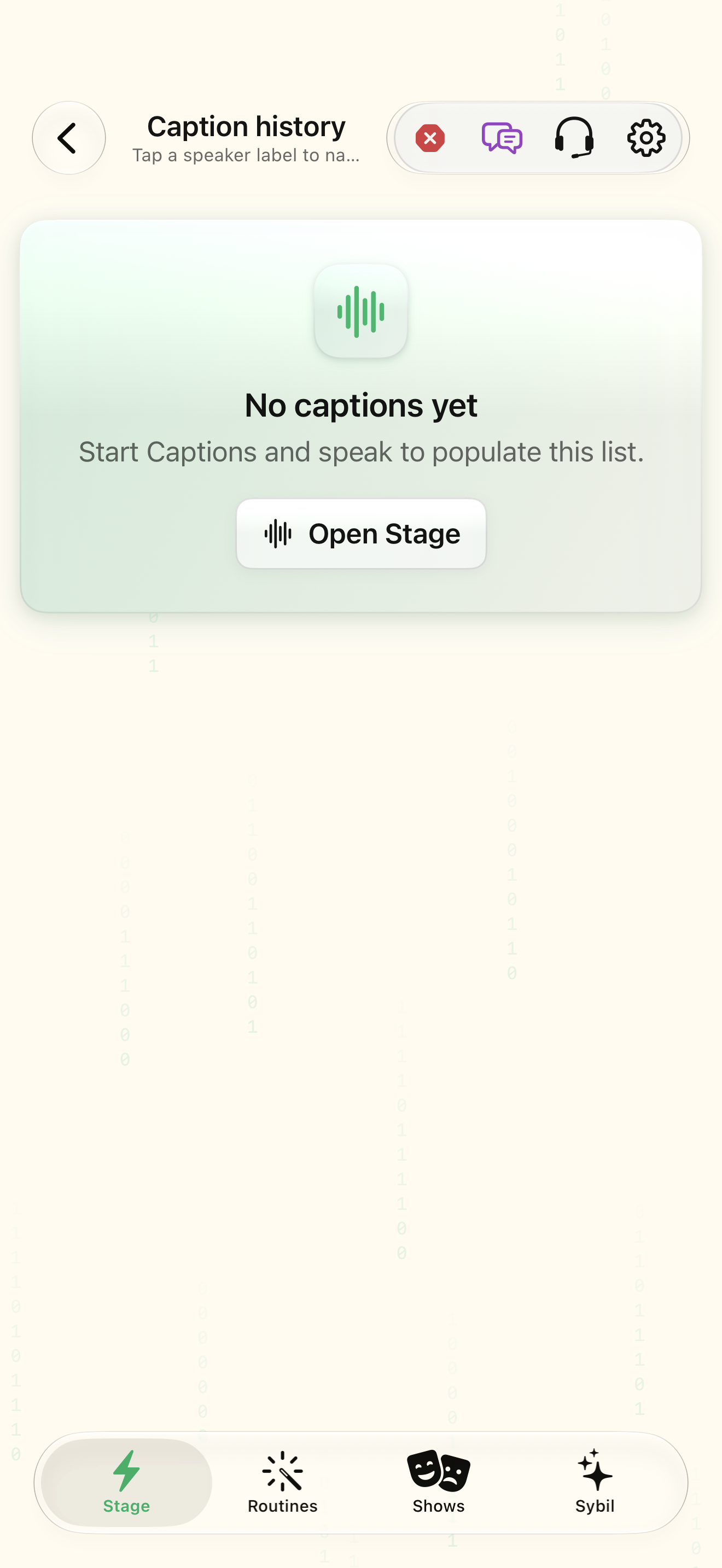
Capture, synchronize, and review glasses photos native iOS screen
Everyday tools

Capture, synchronize, and review glasses photos

Bring a glasses capture into the app gallery and manage its storage.

  1. Take a photo with the glasses action button, then open Gallery and Sync photos.
  2. Choose automatic synchronization only if it fits your use. Check progress and connection state while transferring.
  3. Review camera-roll saving and processing options before sharing an image.

Native iOS screen · clean simulator capture.

Try the guided example ↗
Name speakers and review voice profiles native iOS screen
Memory & relationships

Name speakers and review voice profiles

Keep speaker identity connected to captions and recordings.

  1. Start Captions and speak so a recent speaker sample is available.
  2. Open Voices and Label speakers from captions. Select a recent speaker and provide the correct name.
  3. Listen to or inspect the sample before merging or correcting a profile.

Native iOS screen · clean simulator capture.

Try the guided example ↗
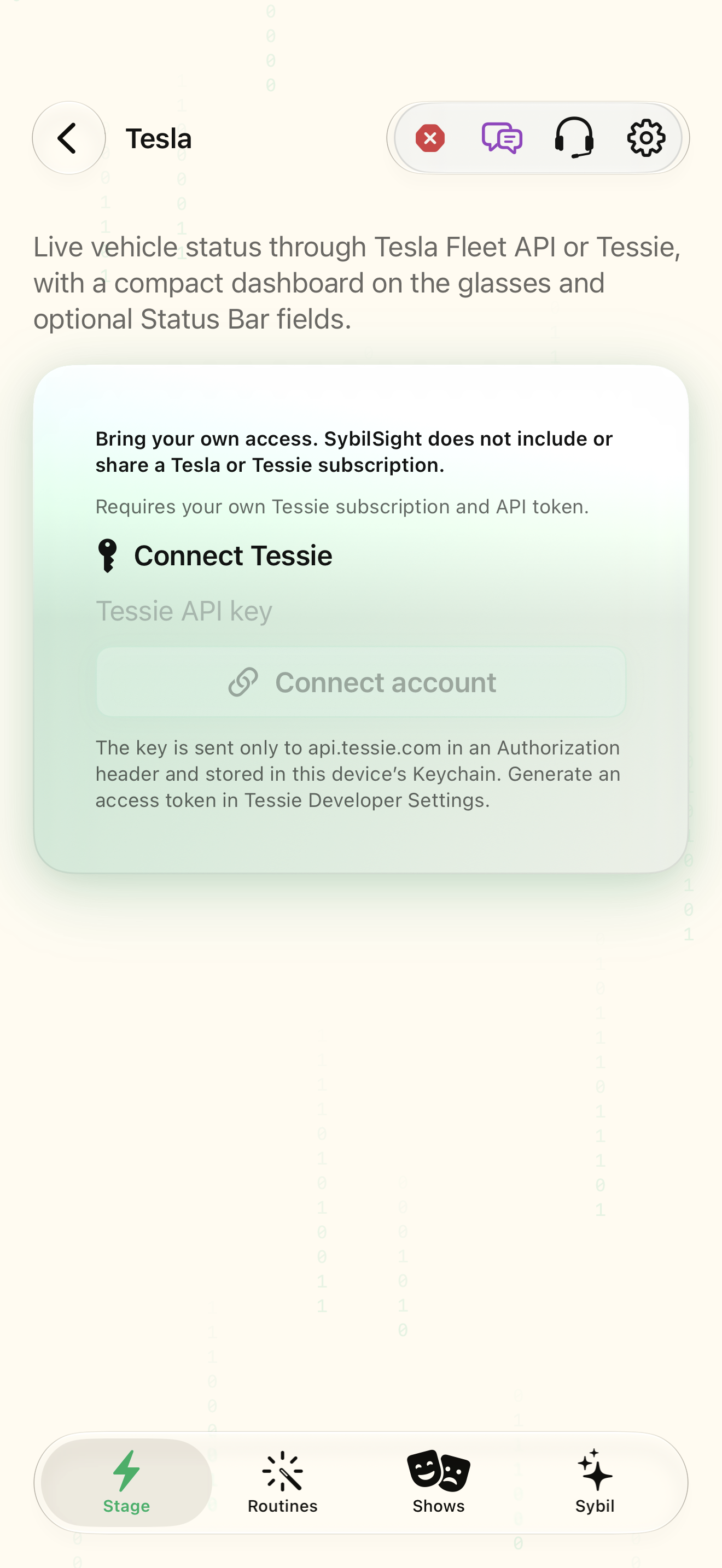
Connect vehicle data and choose HUD fields native iOS screen
Connected tools

Connect vehicle data and choose HUD fields

Inspect vehicle state on your phone and a compact glasses dashboard.

  1. Choose Tesla Fleet API or Tessie and complete that provider’s connection flow using your own access.
  2. Select the intended vehicle and review its live status before enabling a HUD view.
  3. Add only needed vehicle tokens such as $TBATT$, $TCHARGE_ETA$, $TLOCK$, or $TCABIN$.

Native iOS screen · clean simulator capture.

Try the guided example ↗
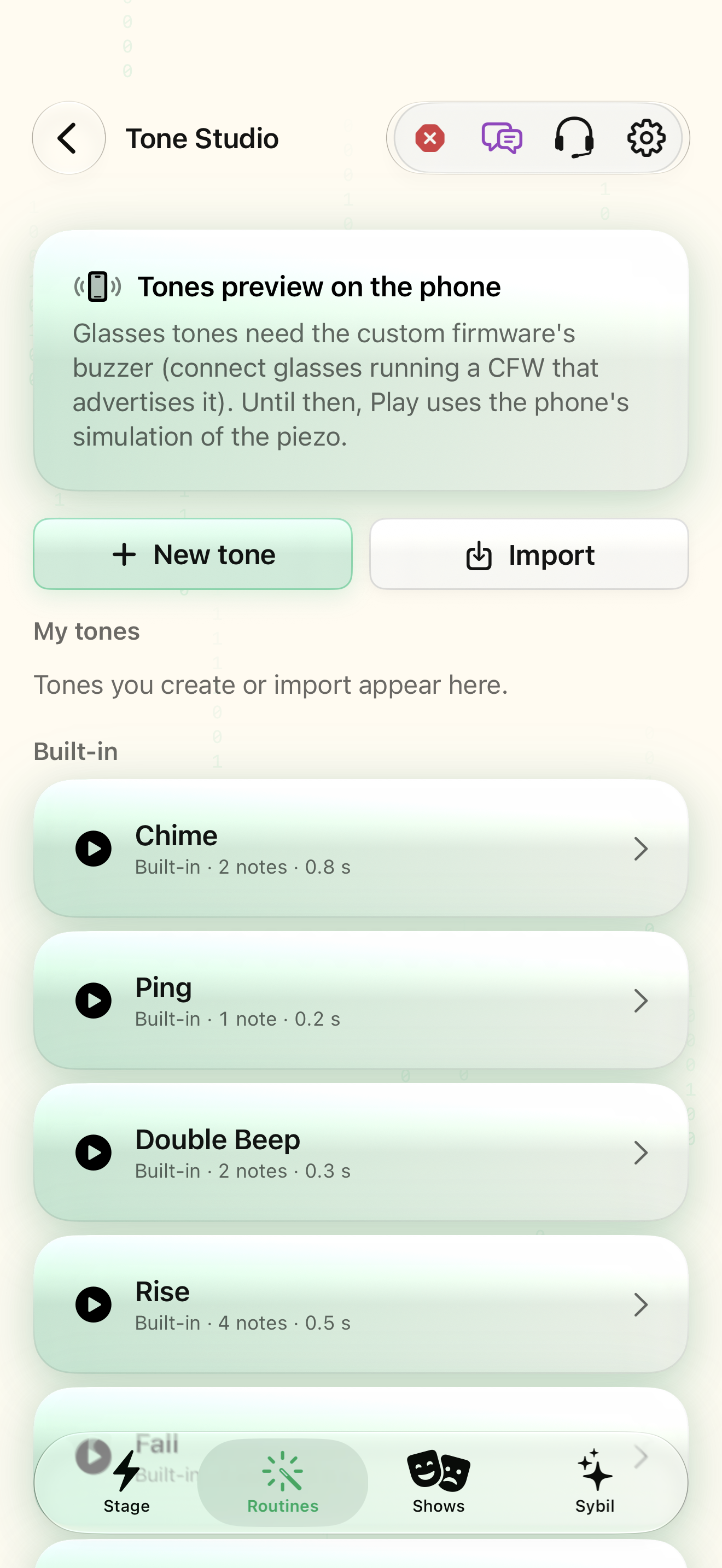
Create tones and understand piezo playback native iOS screen
Everyday tools

Create tones and understand piezo playback

Prepare a short notification and compare phone preview with supported glasses playback.

  1. Create a tone or import a supported pattern. Begin with a short built-in Chime, Ping, or Rise.
  2. Play the phone preview before using it as a notification. Compare loudness and spacing in the intended environment.
  3. Connect compatible custom-firmware glasses with a piezo buzzer, then play on glasses.

Native iOS screen · clean simulator capture.

Try the guided example ↗