
Choose and test the app’s AI connection
Configure a usable built-in, provider-key, or paired-computer route and confirm it with a small request.
Sign in to your SybilSight account. Use the app build and supported device for your chosen workflow.
Configure a usable built-in, provider-key, or paired-computer route and confirm it with a small request.
Review built-in processing
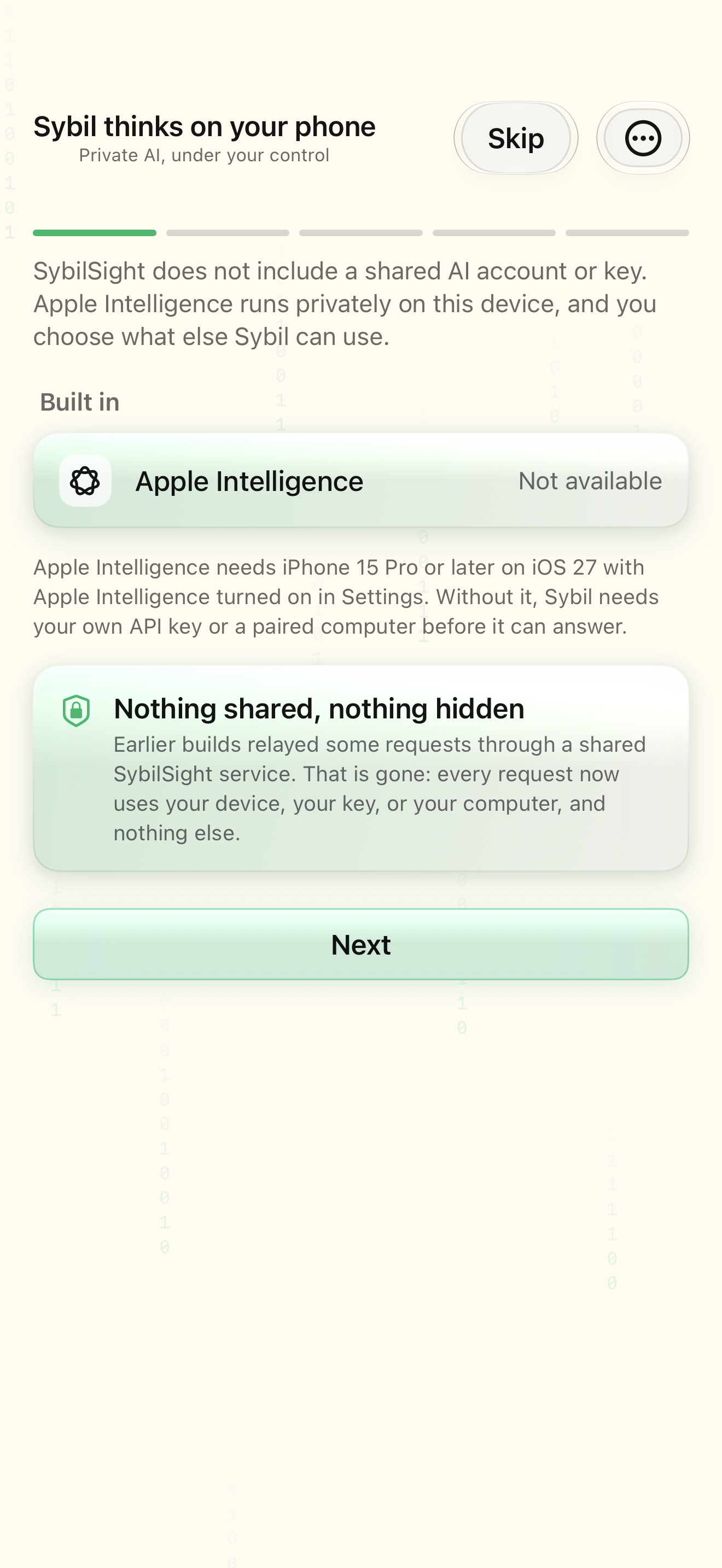
Open the AI setup guide and read Sybil thinks on your phone.
You can distinguish the available built-in option from an external provider.
Select the highlighted control in the teaching view.
Practice at your own pace. You can also use Next step.
AI setup
Built in
Your connection
Find Sybil thinks on your phone
Interactive HTML app view with sample data. Follow the outlined control, play the example, or explore at your own pace.
All steps, in writing
Review built-in processing
Open the AI setup guide and read Sybil thinks on your phone.
Expected: You can distinguish the available built-in option from an external provider.
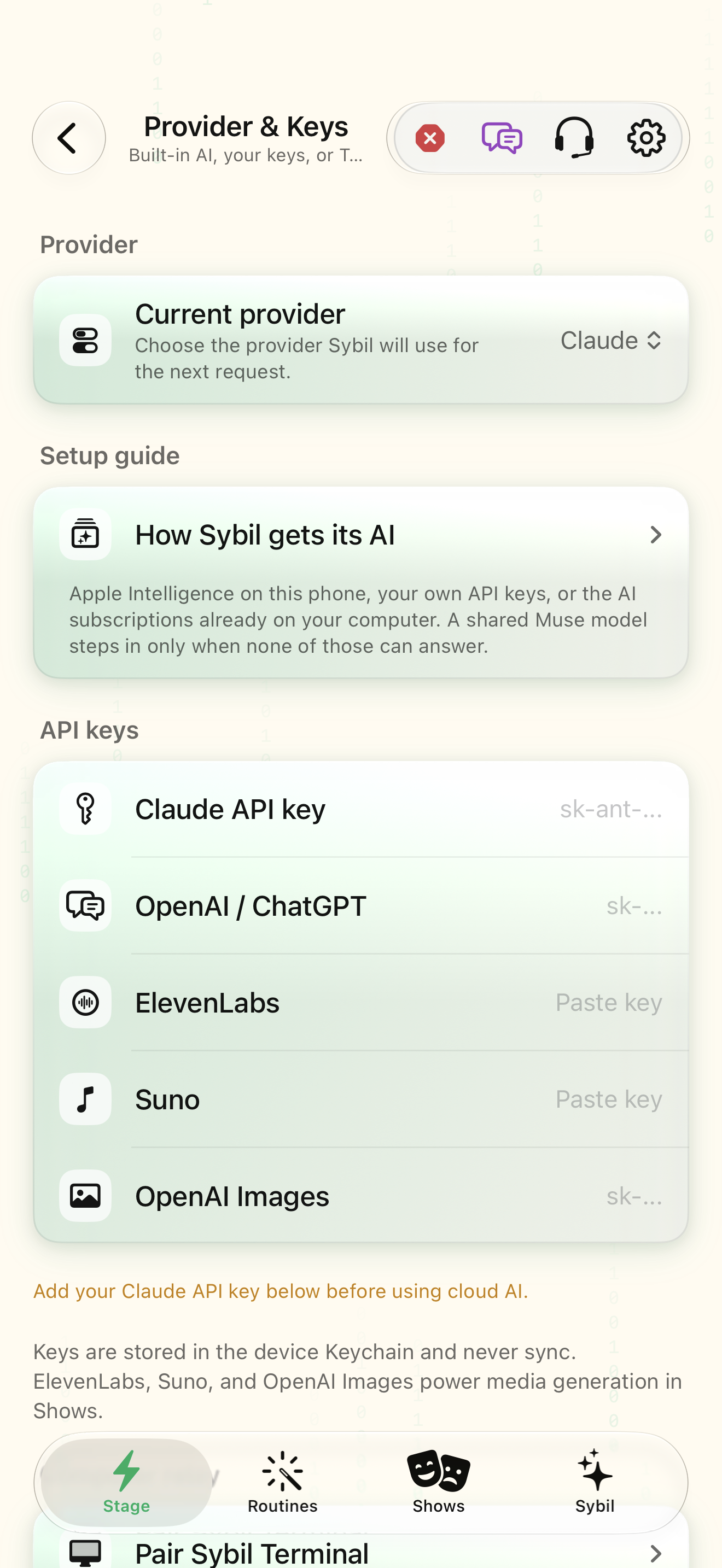
Configure your chosen provider
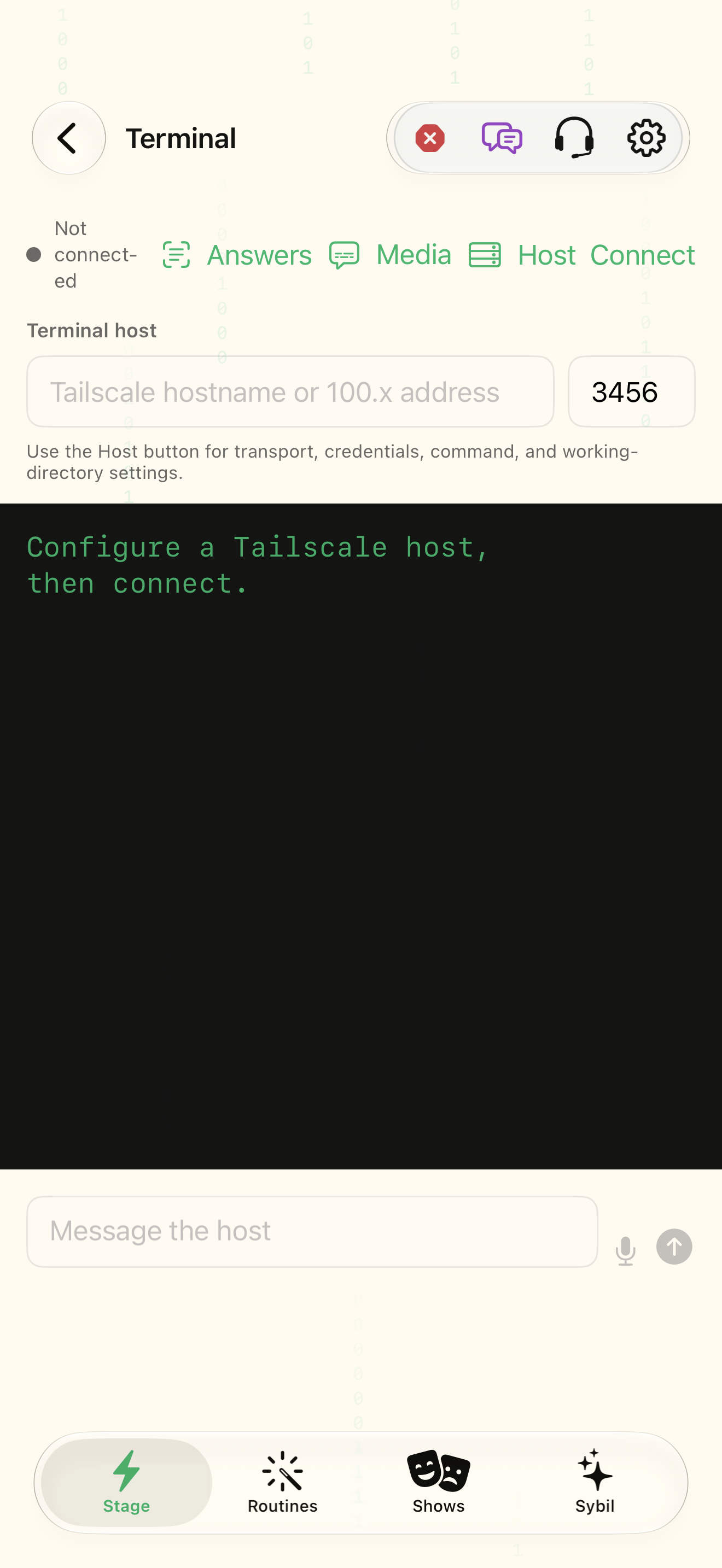
Bring your own API keys configures supported keys. Use the AI you already pay for pairs Terminal in editions that include it.
Expected: Your selected connection has the credentials or computer connection it needs.
Review recording choices
Continue through Your recordings and the You’re set summary.
Expected: You understand the configured storage/retention choices.
Test the selected route
Open Sybil in the app and send a small product request. Check Provider & keys or Terminal status if it fails.
Expected: A real response confirms the selected app connection; the website chat is a separate service.
If something differs
- Check the named readiness or connection state before continuing.
- Open the related screen reference if your build presents a different layout.
Open the screen references
Based on SybilSight/UI/AISetupWizardView.swift and the app help catalog. Edition, device, and build affect available controls.