
Sybil AI
Provider & keys, Terminal, consent & sources, recording & speakers, relationships & briefings, sync.
Find it: Settings › Sybil AI
Talking to Sybil
Interactive HTML app view · Play the full walkthrough ↗
Compare the visual reference
Reviewed sample screenshot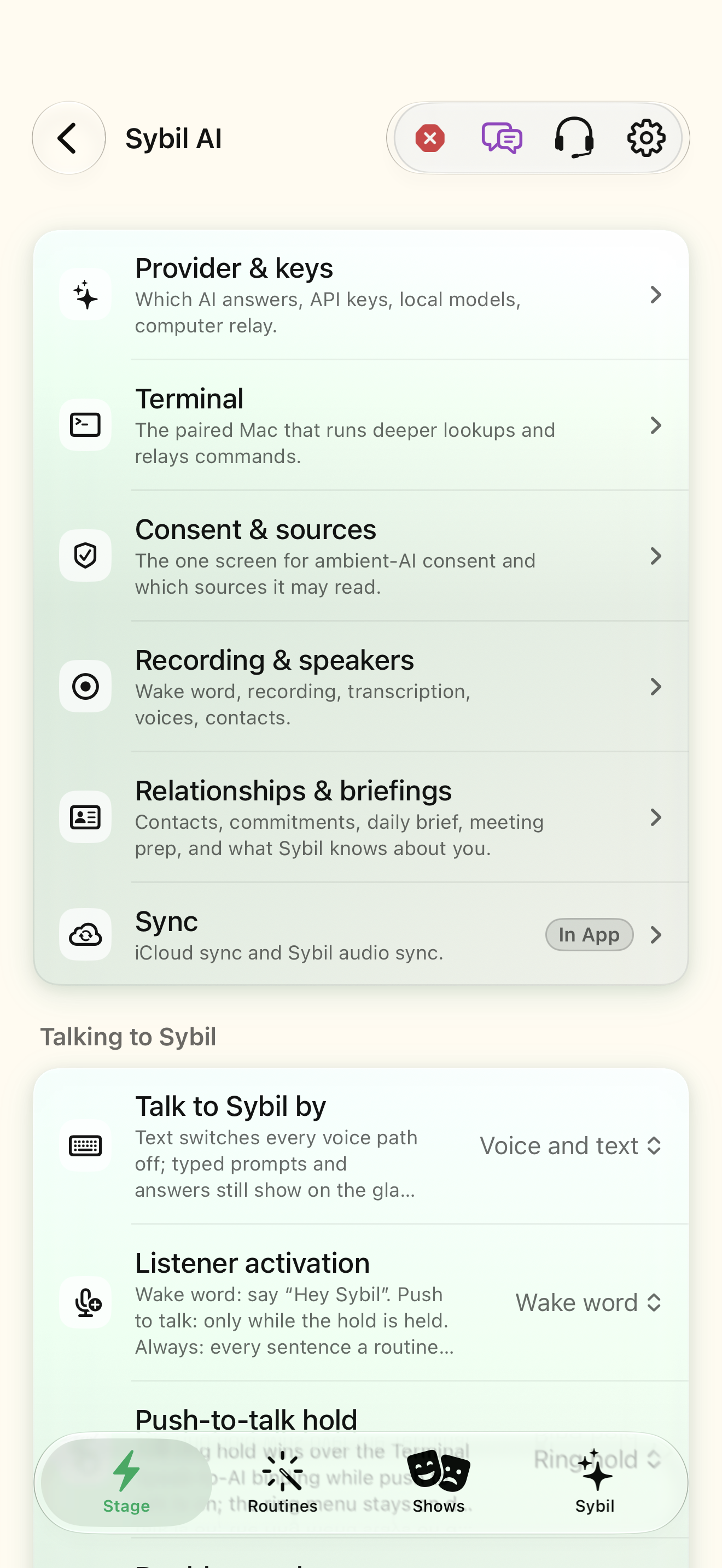
Captured with synthetic content on app build 0.9.1 (260723.1), compiled from reviewed source. Your edition, device, and build can change what appears.
Find: Sybil AI
Find Sybil AI
Open Settings › Sybil AI. Provider & keys, Terminal, consent & sources, recording & speakers, relationships & briefings, sync. Check: Identify the title and controls before beginning.
Go at your own pace. This does not operate the app.
Text is always available. Narration uses a local browser voice when available.
Learn a complete workflow
Configure the app’s AI and pair your computer ↗
Find settings and detailed app controls ↗
Choose and test the app’s AI connection ↗
What you’ll find
- Provider & keys
- AI setup guide
- Terminal
- Consent & sources
- Recording & speakers
- Relationships & briefings
- Sync
- Talking to Sybil: input (voice / text / both)
- Listener activation (wake word, push to talk, always, off) and hold gesture (ring / temple)
- Close the conversation: double tap, stop word, idle timeout
- How-to hints (say “Hey Sybil” / hold the ring; double tap or say “Goodbye” to close)
About this guide
Generated from the app’s maintained help catalog. This is a guided reference, not a device-verified recording. The interactive studio provides separate fictional practice examples.
Source: SybilSight/Services/AppAgent/AppAgentKnowledge.swift · Catalog 892fdd7c1507
Something doesn’t match your app?Settings, in plain language.
Glasses listener shade
Draw wake-word conversations in the on-glasses shade (a panel over the current display, multi-turn, ring-scrolled) instead of the plain AI text region.
Talk to Sybil by
voice, text, or both. Text switches every voice path off (wake word, push to talk, always) while the shade still shows typed prompts and answers on the glasses.
Listener activation
When Sybil listens: wake_word (say Hey Sybil), push_to_talk (only while the hold is held), always (every unclaimed sentence), off. Change it with listener.configure.
Push-to-talk hold
Which press-and-hold is the push-to-talk hold: ring_hold or temple_hold.
Double tap closes the shade
A ring or temple double tap closes the listener conversation.
Stop word closes the shade
Saying the stop word (whole sentence) closes the listener conversation.
Stop word
The word or phrase that closes the conversation (default goodbye; bye and that's all always work).
Listener idle timeout
Seconds an answered conversation waits for a follow-up before closing on its own.
Live contact briefings
Show who you are talking to on the glasses.
Personal cues
Include reminders and commitments in live briefings.
AI setup done
The AI setup wizard was completed.