
Review the setup choices
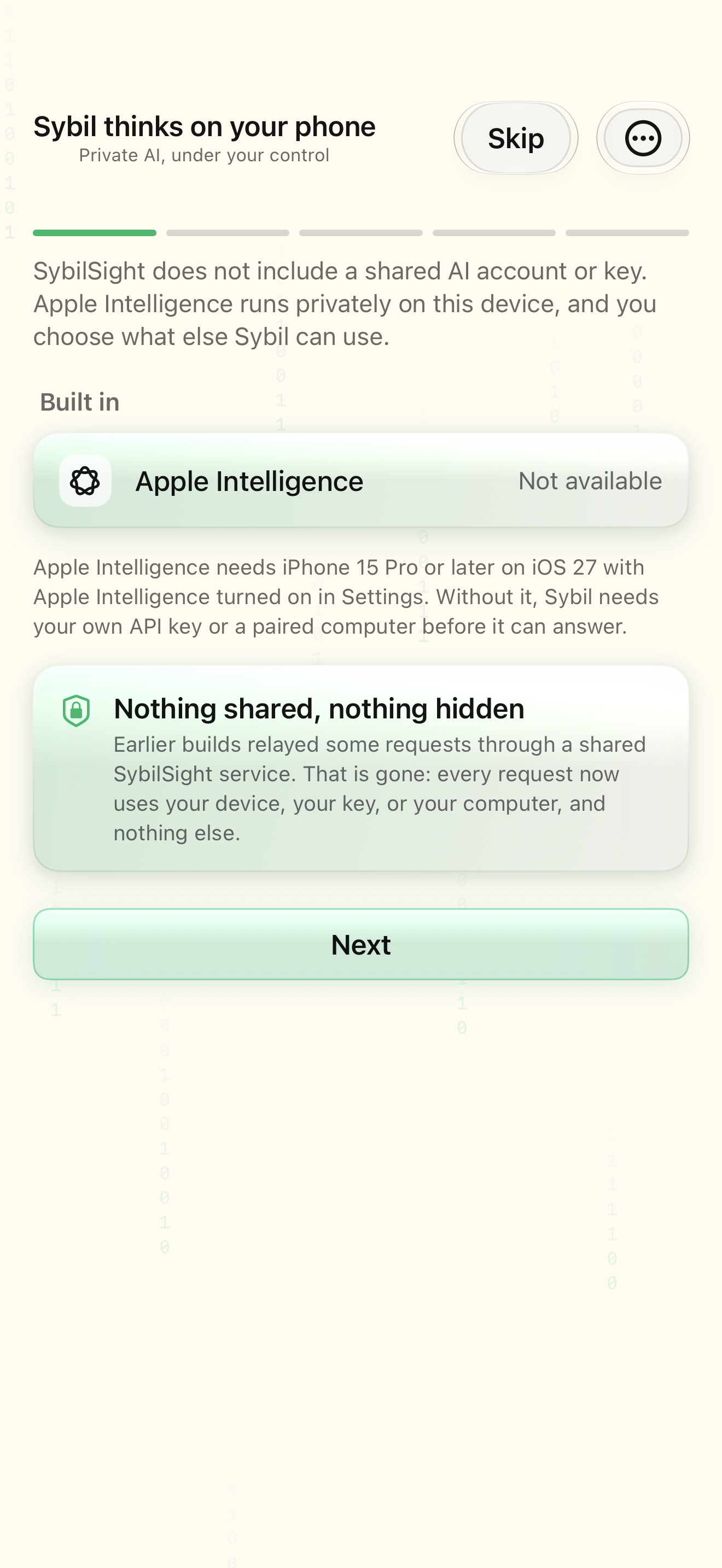
The introduction’s steps are Sybil thinks on your phone, Bring your own API keys, Use the AI you already pay for, Your recordings, and You’re set. Editions without Terminal skip the computer step. Apple Intelligence is offered where available; users can bring their own supported provider keys or connect their computer. The app does not ship a shared provider account.
Choose a working provider
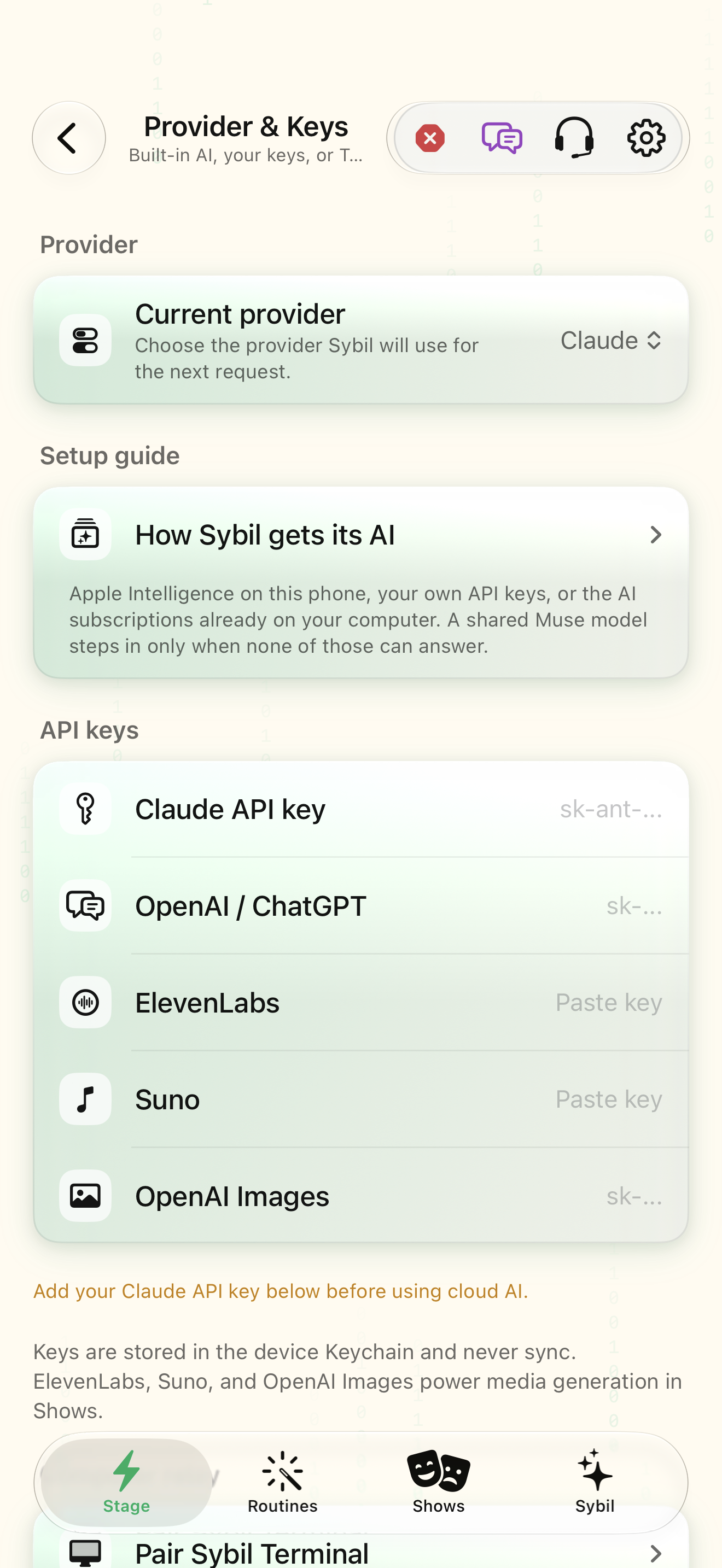
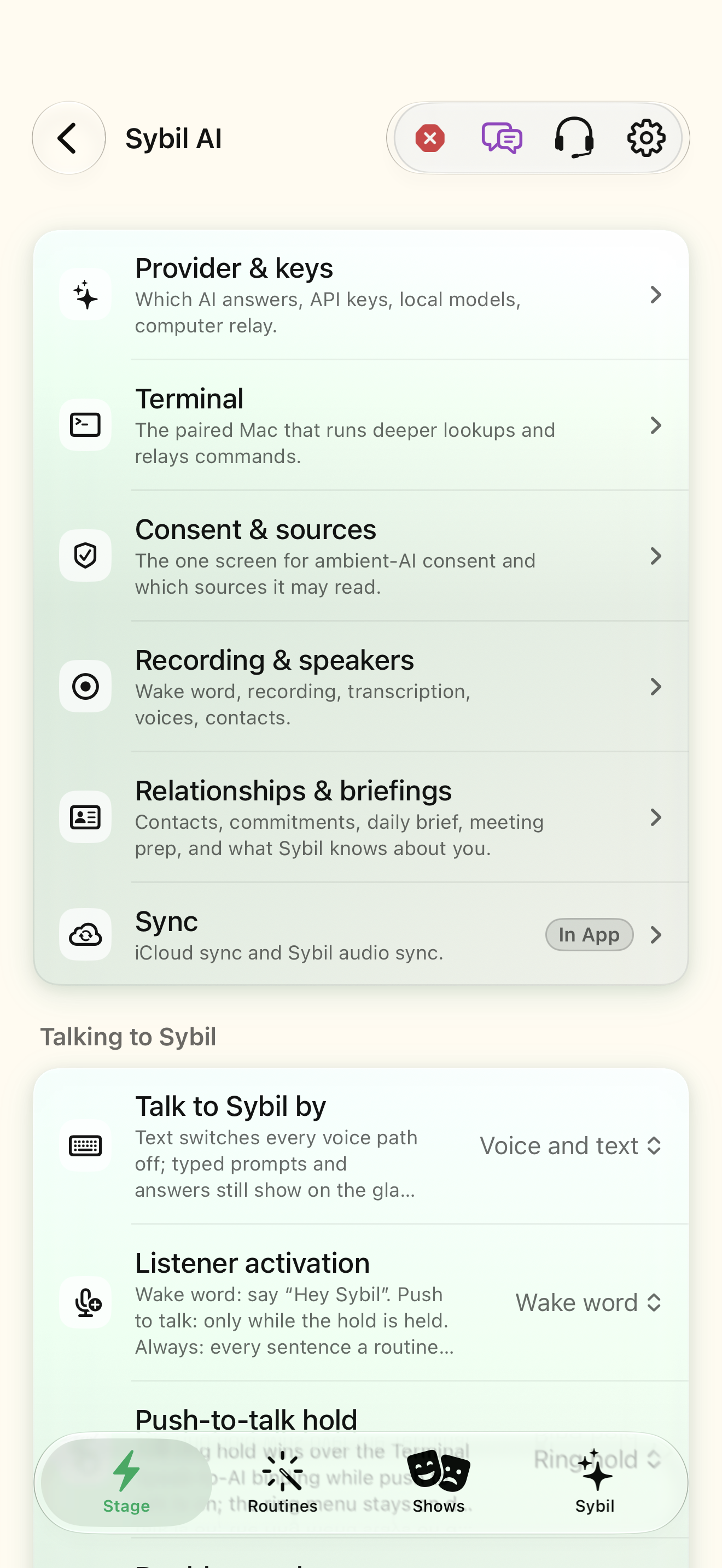
Provider & keys stores the app’s provider configuration. A provider selection without its required key or Terminal connection is not a working AI connection. The setup policy keeps a valid existing selection where possible and considers configured keys, Terminal, and available Apple Intelligence when selecting a usable option. Test a small in-app request after setup.
Pair Sybil Terminal
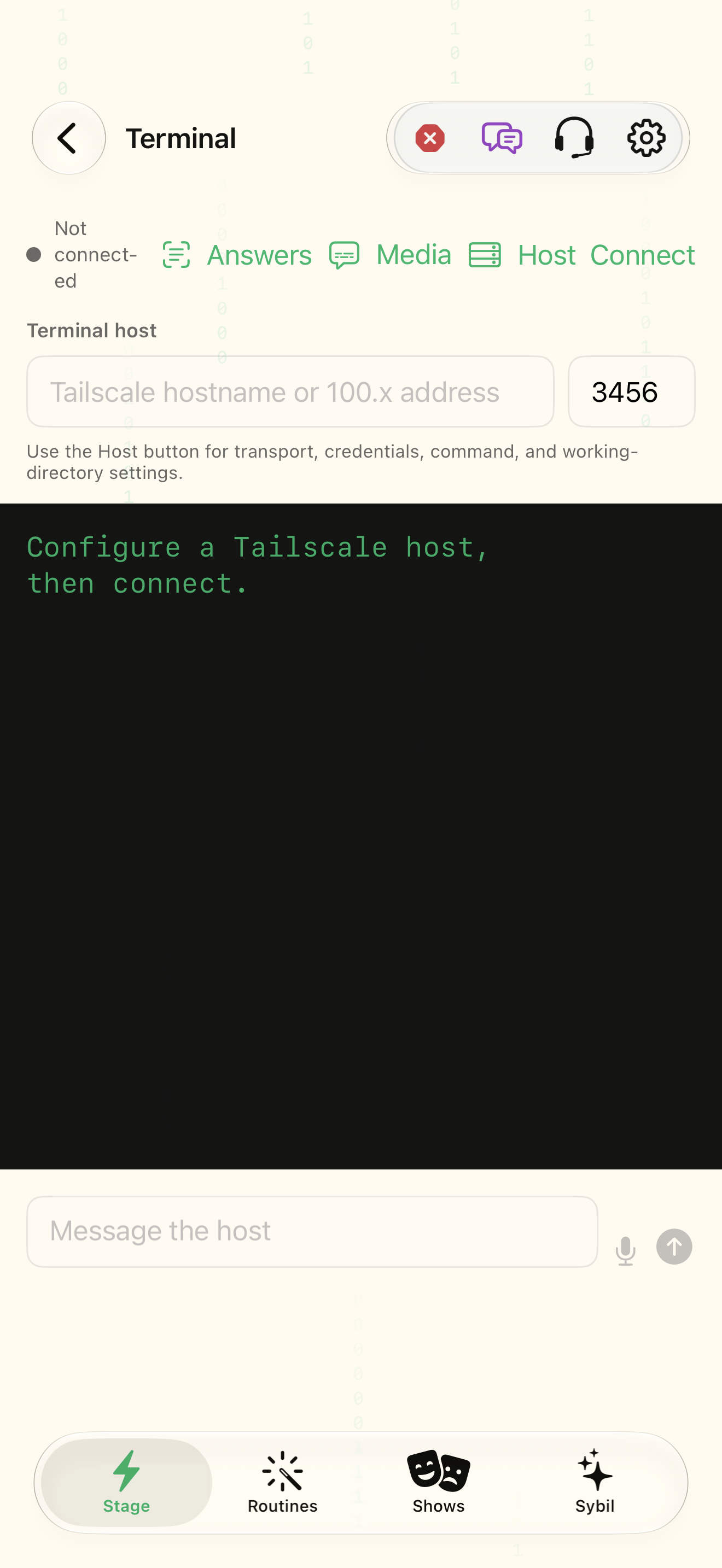
Open Terminal on the phone and run Sybil Terminal on your Mac. Pair by scanning its QR code or entering host, port, and token. Verify Connection status, choose the Preferred AI CLI, and test a small question. Supported computer-side subscriptions include Claude Code, Codex, Gemini, Grok, and Muse. Pairing alone does not configure or authenticate every CLI on the Mac.
Choose which computer data is available
Messages, Mail, Calendar, Contacts, Reminders, and Status Board are separate Mac-backed views. Enable and inspect the data sources you intend to use. Data source configuration and processing-node choices control different parts of the workflow. The website’s Muse support assistant is separately proxied and does not inherit your Mac or app access.
Related screens
Reviewed against the iOS implementation. Captured development-build screens use synthetic or empty content; hardware and connected-service states vary.