
Find settings and detailed app controls
Understand which controls change the whole app and which belong to a single workspace.
Use a sample workspace. Available controls depend on your device, edition, and app build.
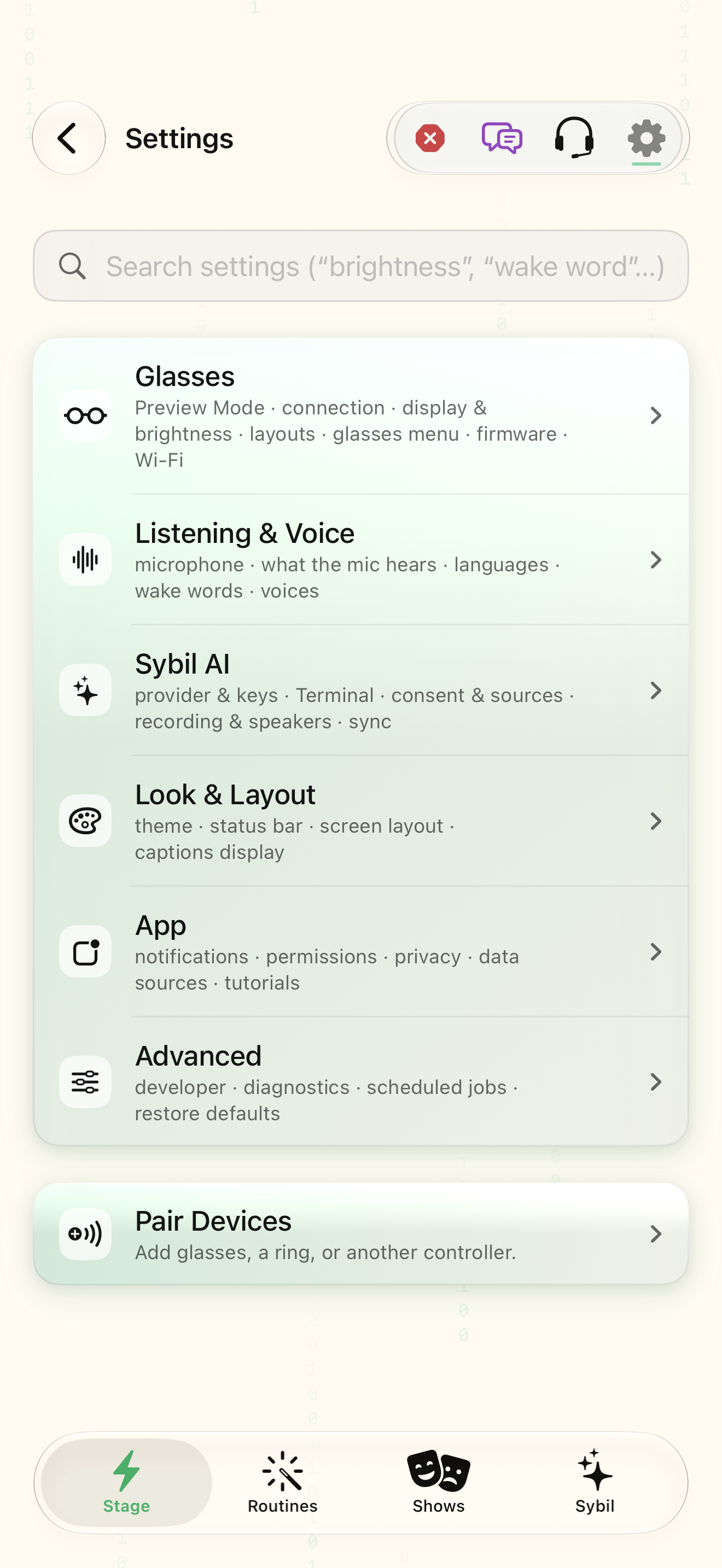
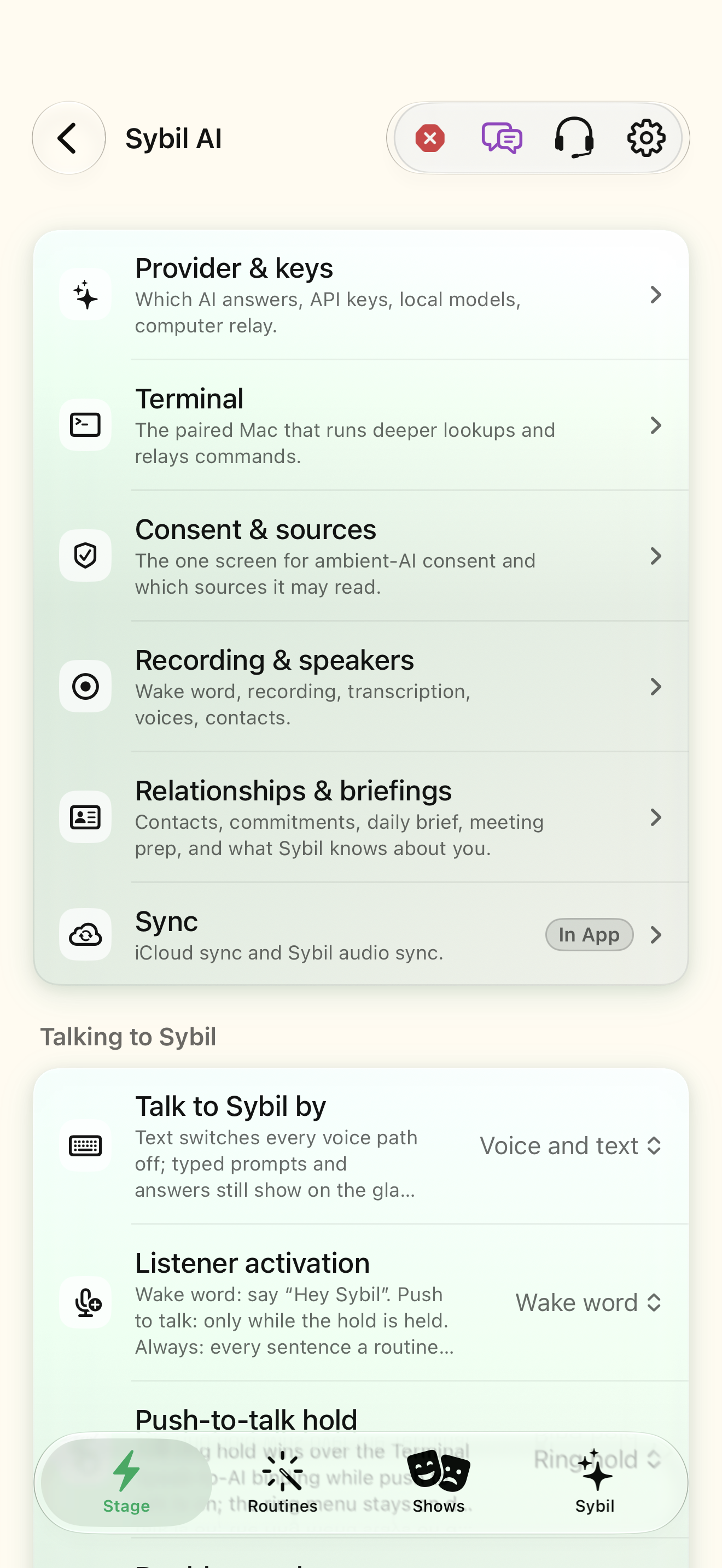
Global settings group hardware, listening, AI, appearance, app permissions, and advanced tools. Individual app pages expose their own controls.
Open Settings
From Home, open Settings. Choose a section according to what you want to change.
The settings groups are visible.
Select the highlighted control in the teaching view.
Practice at your own pace. You can also use Next step.
Settings
Find Look & Layout
Interactive HTML app view with sample data. Follow the outlined control, play the example, or explore at your own pace.
All steps, in writing
Open Settings
From Home, open Settings. Choose a section according to what you want to change.
Expected: The settings groups are visible.
Follow the category
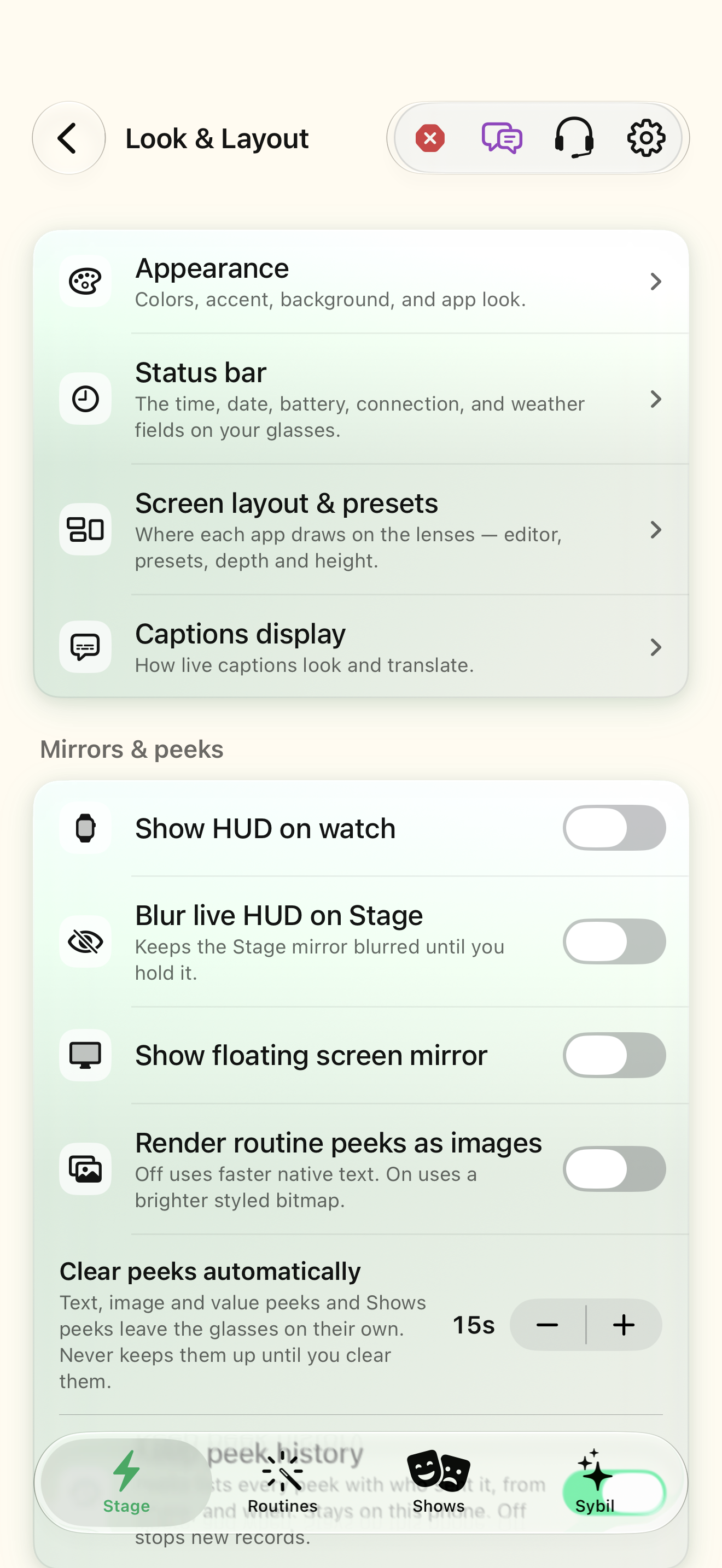
For presentation controls, open Look & Layout. Choose Screen Layout to change placement, or Appearance for the app’s visual preferences.
Expected: The detailed page matches the selected category.
Open an app’s own page
Return Home and tap the app icon or name. Its destination depends on the app: a native workspace or its app-settings page.
Expected: You see the controls provided by that app.
Distinguish the small controls
The run switch starts or stops an app. The eye controls display access. The three-line handle reorders display priority; it is not a settings menu.
Expected: You can change display access without confusing it with running state.
Use the contextual menu
Touch and hold the app tile to see its supported menu. The current Home menu offers Start/Stop app and Show/Hide from Home.
Expected: Hidden and stopped are understood as different states.
If something differs
- The app name may describe a behavior rather than a technical module name.
- An app can be running while denied display access. Check both controls when nothing appears in the HUD.
- Remote app settings may be unavailable while disconnected; read any saved-settings or connection notice.
Open the screen references
Based on SybilSight/UI/HomeViews.swift and the app help catalog. Edition, device, and build affect available controls.