
App settings
Settings for one mini-app (system apps such as Captions, Status Bar, and the AI listener render their native controls here; installed apps describe their own).
Find it: Home › app › Settings
Settings
App info
Interactive HTML app view · Play the full walkthrough ↗
Compare the visual reference
Reviewed sample screenshot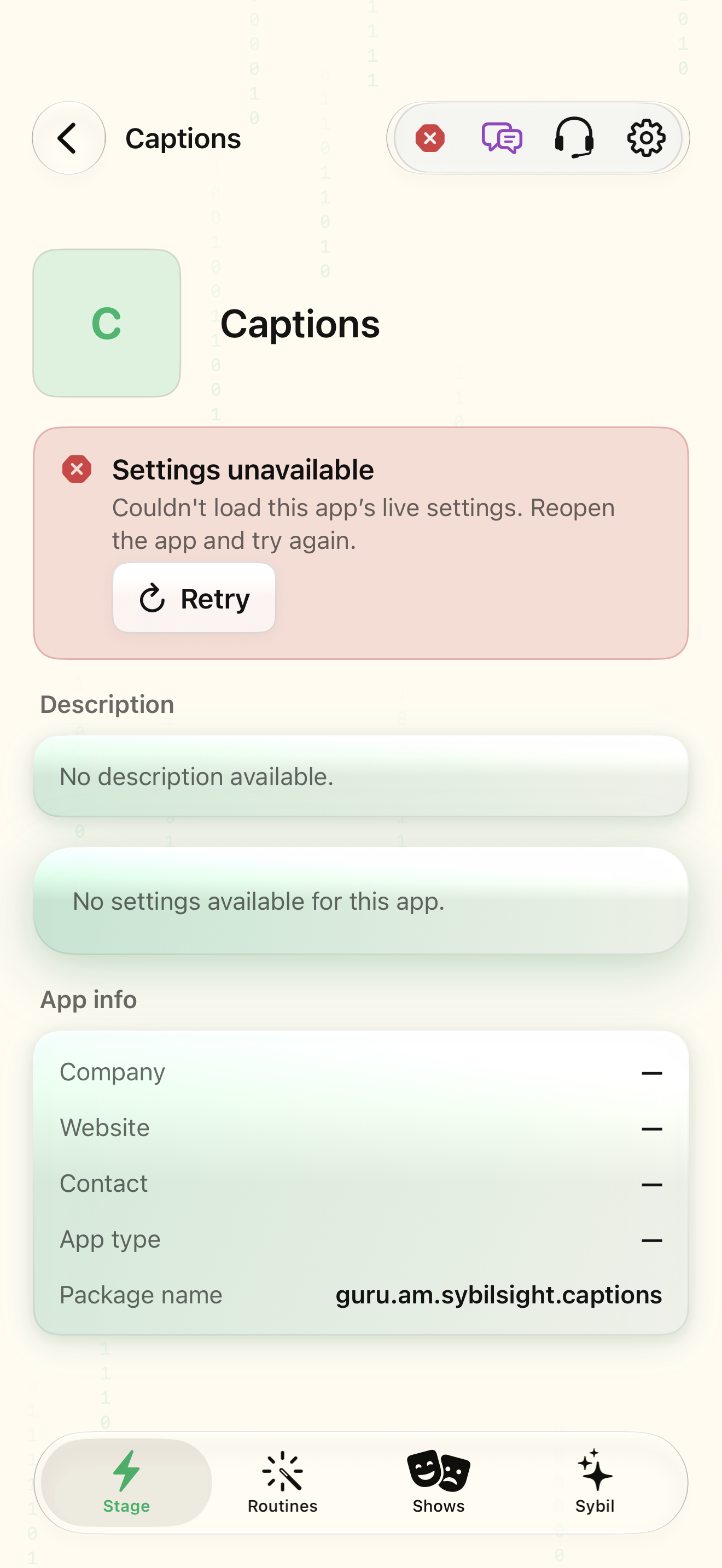
Captured with synthetic content on app build 0.9.1 (260723.1), compiled from reviewed source. Your edition, device, and build can change what appears.
Find: App settings
Find App settings
Open Home › app › Settings. Settings for one mini-app (system apps such as Captions, Status Bar, and the AI listener render their native controls here; installed apps describe their own). Check: Identify the title and controls before beginning.
Go at your own pace. This does not operate the app.
Text is always available. Narration uses a local browser voice when available.
Learn a complete workflow
Find settings and detailed app controls ↗
What you’ll find
- App header
- The app's settings
- Package info
About this guide
Generated from the app’s maintained help catalog. This is a guided reference, not a device-verified recording. The interactive studio provides separate fictional practice examples.
Source: SybilSight/Services/AppAgent/AppAgentKnowledge.swift · Catalog 892fdd7c1507
Something doesn’t match your app?Settings, in plain language.
Automatic capture
Let the AI listener capture reminders, events, and contacts it hears.
Capture reminders
Heard reminders go to Reminders.
Capture calendar events
Heard events go to the calendar.
Capture contacts
Heard people become contacts.
Device context
Use phone data for hints.
Mac lookups
Ask the paired Terminal for Mac data.
Web lookups
Search the web for hints.
Status bar running
The status bar app is active on the glasses.
Status bar template
Tokens such as $TIME12$, $DATE$, $GBATT$ that build the strip.
Status bar layout
Bar or GUI layout for the strip.
Left template
Tokens for the left section of the GUI layout.
Middle template
Tokens for the middle section of the GUI layout.
Right template
Tokens for the right section of the GUI layout.
Show time
Show the clock in the status bar.
Show date
Show the date in the status bar.
Show battery
Show battery in the status bar.
Show connection
Show the connection state in the status bar.
Battery style
Icon or percentage for the battery.
Battery items
Which batteries (glasses, case, ring, phone) the strip shows.
Indicators
Which indicators the strip shows.
24-hour clock
Use a 24-hour clock in the status bar.
Tap to show status bar
Only show the strip after a ring tap.