
Create a script and rehearse teleprompter modes
Read comfortably while keeping your attention on the audience.
Teleprompter app, a sample script, and the intended microphone or controller.
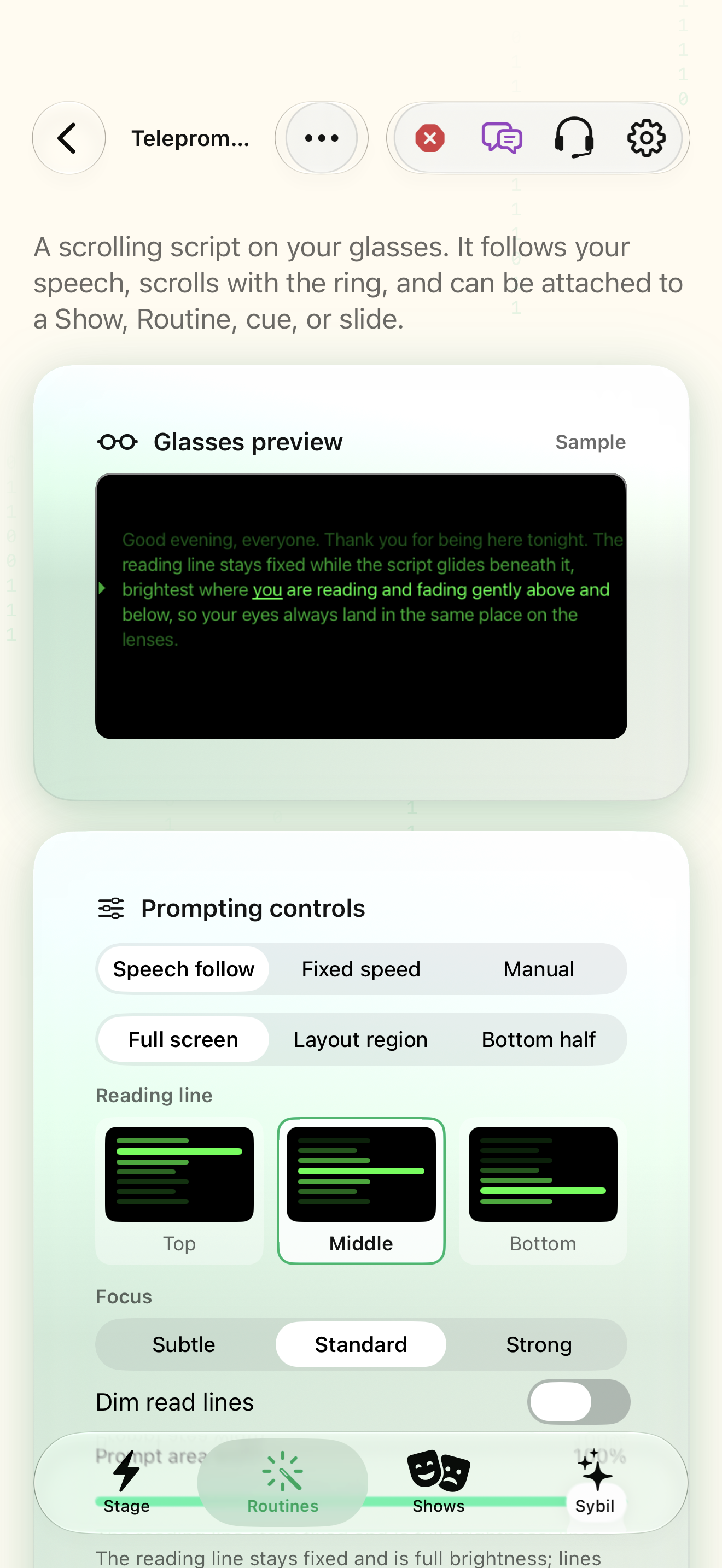
Speech follow tracks the reading cursor, Fixed speed advances at a chosen words-per-minute rate, and Manual pages using your mapped controls. Reading line and focus shape the brightness envelope.
New script
Create a script or Import plain text, PDF, or Word content. Divide the script into useful segments and check the text before performing.
The library contains a script with the intended wording and breaks.
Select the highlighted control in the teaching view.
Practice at your own pace. You can also use Next step.
Teleprompter
Glasses preview
I’m reading this script with the brightest line in view.
Keep your eyes on the audience.
Prompting controls
My scripts
Find New script
Interactive HTML app view with sample data. Follow the outlined control, play the example, or explore at your own pace.
All steps, in writing
New script
Create a script or Import plain text, PDF, or Word content. Divide the script into useful segments and check the text before performing.
Expected: The library contains a script with the intended wording and breaks.
Follow mode
Compare Speech follow, Fixed speed, and Manual. Start with a short paragraph. In Fixed speed choose a comfortable words-per-minute value.
Expected: The selected mode matches how you will control progress.
Reading line
Choose Top, Middle, or Bottom. Top and Bottom preserve a row of context when the region is tall enough.
Expected: The brightest reading line stays at a predictable location.
Focus
Compare Subtle, Standard, and Strong. Turn on Dim read lines if already-read context is distracting.
Expected: The reading line remains brightest and nearby lines supply enough context.
Display
Choose Full screen, Layout region, or Bottom half. Attach the script to a Show, Routine, cue, or slide as appropriate.
Expected: The script shares the display with only the content you intend.
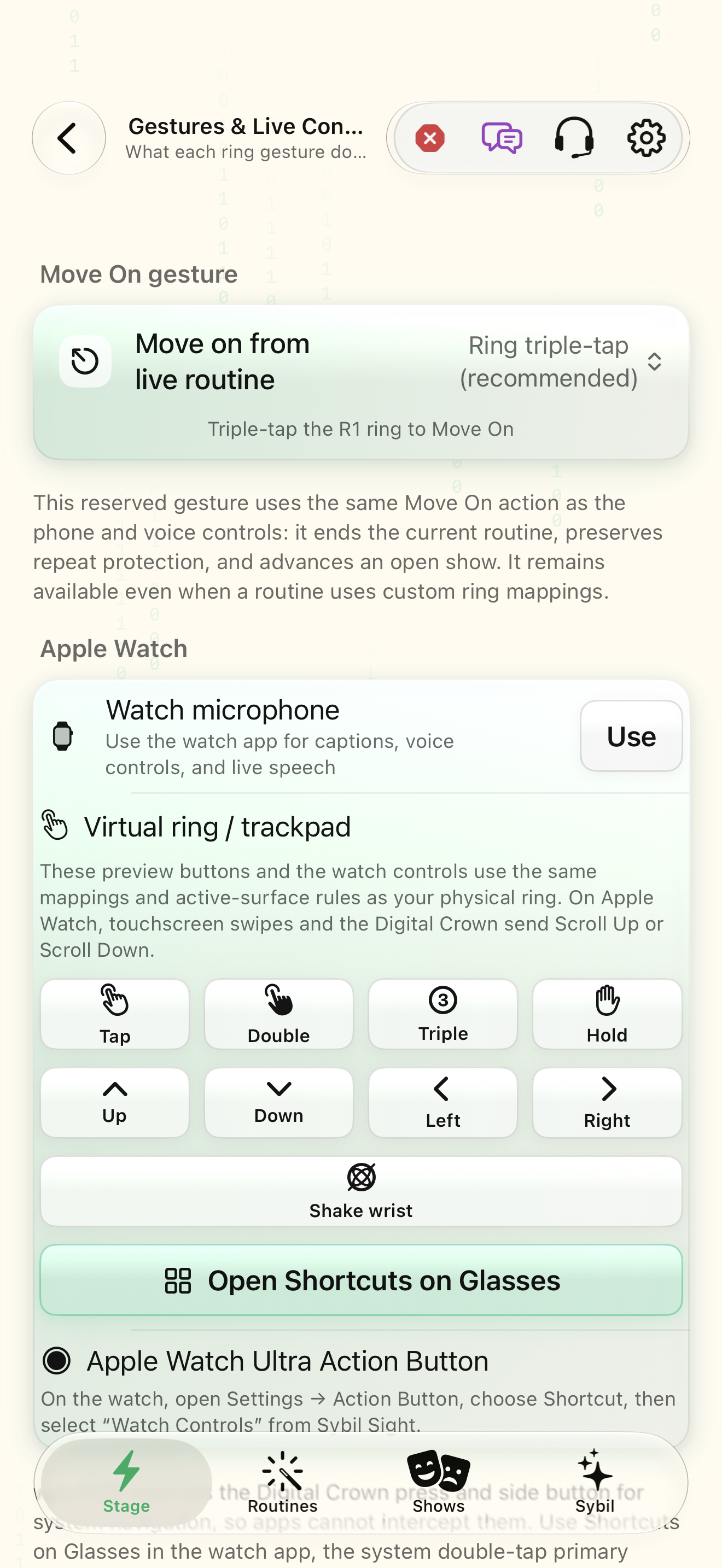
Virtual ring / trackpad
Rehearse paging and recovery with the ring. In Manual mode, optional volume-controller paging uses actual volume changes: Up goes back and Down goes forward. At volume limits, iOS may produce no event.
Expected: You can pause, return to a line, and continue without losing your place.
If something differs
- Speech follow needs the intended microphone and intelligible speech.
- A smaller region exposes fewer context rows.
- If a volume remote appears unresponsive, check the current system volume and use the ring instead.
Open the screen references
Based on SybilSight/UI/TeleprompterMiniapp.swift and the app help catalog. Edition, device, and build affect available controls.