
Connect an integration and test its value
Reuse a configured connection across routines instead of rebuilding it each time.
Your own supported integration account or device and a sample value.
The library distinguishes receive sources from send destinations. A successful receive test does not establish write support.
Choose the integration
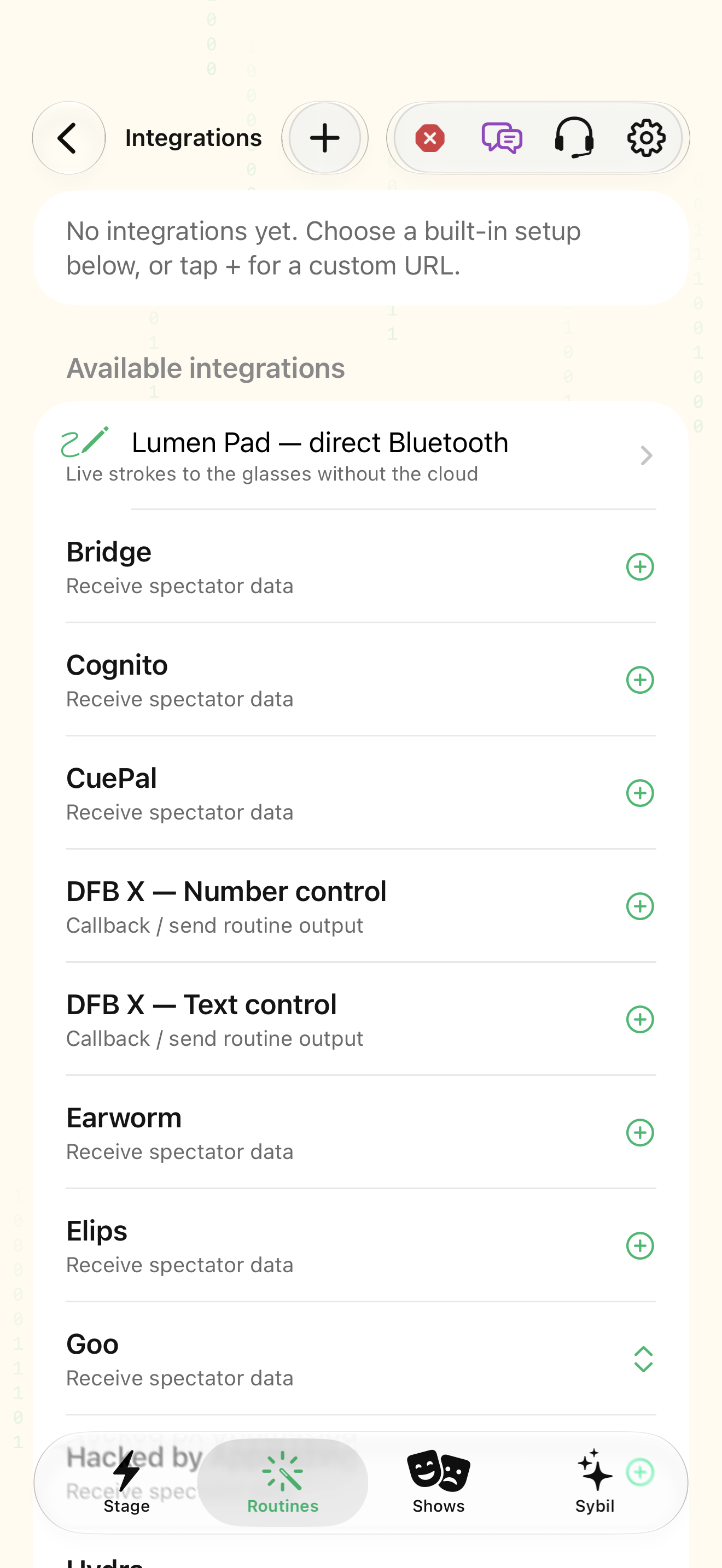
Open Integrations and choose a preset or Custom URL. See the directory for required field labels and restrictions.
You have selected the right provider and variant.
Select the highlighted control in the teaching view.
Practice at your own pace. You can also use Next step.
Integrations
Your integrations
Available integrations
Find Preset catalog
Interactive HTML app view with sample data. Follow the outlined control, play the example, or explore at your own pace.
All steps, in writing
Choose the integration
Open Integrations and choose a preset or Custom URL. See the directory for required field labels and restrictions.
Expected: You have selected the right provider and variant.
Configure locally
Enter the requested fields in the app, or paste the provider’s personal URL as instructed. Never put a token into the website chat.
Expected: The app has the connection details it needs.
Test with sample data
Choose Test and inspect the returned status and keys. Select the field that contains the intended sample value.
Expected: The correct field produces a readable sample.
Use it in a routine
Choose the saved integration as an appropriate source or configured output. Rehearse before using it live.
Expected: The routine reads or sends the sample through a supported route.
If something differs
- Send-only presets cannot be used as receive sources.
- A missing key, changed provider response, or unsupported send destination needs setup attention.
Open the screen references
Based on SybilSight/Routines/Integration.swift and the app help catalog. Edition, device, and build affect available controls.