
Pair a keyboard through G2 glasses
Type and navigate through the glasses’ supported keyboard bridge.
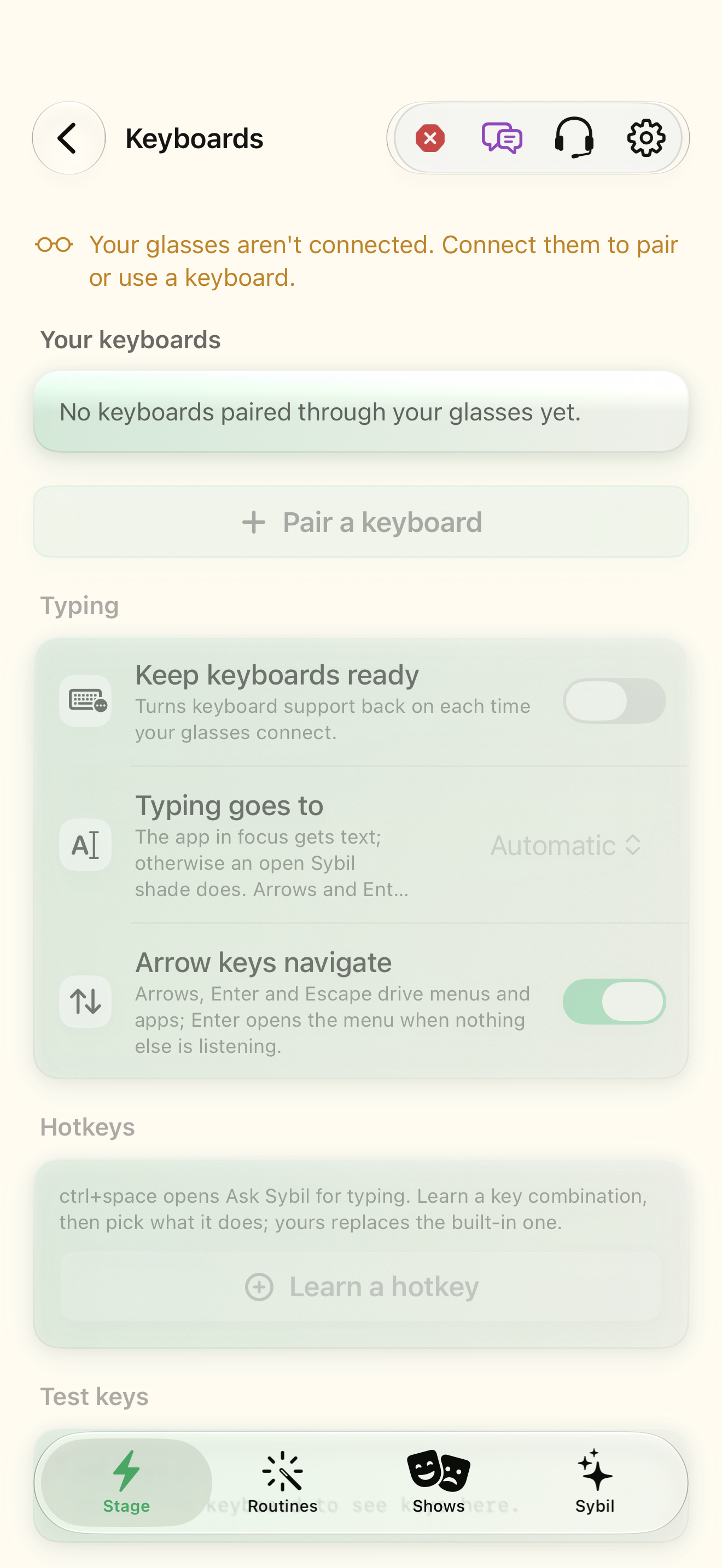
Use a sample workspace. Available controls depend on your device, edition, and app build.
This path uses compatible G2 firmware to search for and connect a keyboard through the glasses. It is separate from phone HID pairing.
Open Keyboards
Open Settings → Glasses → Keyboards, or the Keyboard card in Pair when using G2. Read the availability note first.
The app confirms whether this glasses connection can send keyboard commands.
Select the highlighted control in the teaching view.
Practice at your own pace. You can also use Next step.
Keyboards
Your keyboards
Typing
Hotkeys
Test keys
Find Pair a keyboard
Interactive HTML app view with sample data. Follow the outlined control, play the example, or explore at your own pace.
All steps, in writing
Open Keyboards
Open Settings → Glasses → Keyboards, or the Keyboard card in Pair when using G2. Read the availability note first.
Expected: The app confirms whether this glasses connection can send keyboard commands.
Search through the glasses
Put the keyboard in pairing mode, then choose Search for keyboards. Keep it near the glasses.
Expected: A short scan reports nearby candidates.
Select and verify
Choose the matching keyboard. Follow the actual code-entry or comparison prompt; only confirm matching codes.
Expected: The glasses connect and read the keyboard’s keys.
Finish pairing
When the keyboard is ready, choose Done.
Expected: It appears in Your keyboards.
Choose where typing goes
Review Typing, Hotkeys, and Test keys. The ready screen describes ctrl+space for Ask Sybil. Test ordinary text before assigning performance actions.
Expected: Typing reaches your chosen destination.
If something differs
- Unavailable firmware support is not the same as a missing Bluetooth permission. Follow the availability note.
- A discovered device may not advertise as a keyboard. Select only the hardware you intend to connect.
- Use Connect, Disconnect, or Forget for the selected keyboard deliberately; Forget requires pairing again.
Open the screen references
Based on SybilSight/UI/GlassesKeyboardsView.swift and the app help catalog. Edition, device, and build affect available controls.