
Firmware
Check the firmware version, flash the SybilSight custom firmware, and recover the glasses.
Find it: Settings › Glasses › Firmware
Installed
Local hardware qualification
Available firmware
Interactive HTML app view · Play the full walkthrough ↗
Compare the visual reference
UI reference diagram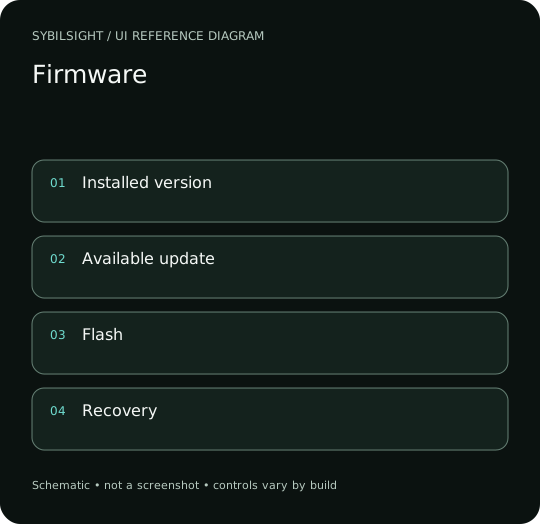
These elements follow the app’s help catalog. Placement is illustrative. Your edition, device, and build can change what appears.
Find: Firmware
Find Firmware
Open Settings › Glasses › Firmware. Check the firmware version, flash the SybilSight custom firmware, and recover the glasses. Check: Identify the title and controls before beginning.
Go at your own pace. This does not operate the app.
Text is always available. Narration uses a local browser voice when available.
Learn a complete workflow
Set up Sybil, one verified step at a time ↗
Pair a keyboard through G2 glasses ↗
Finish the Set up Sybil checklist ↗
What you’ll find
- Installed version
- Available update
- Flash
- Recovery
About this guide
Generated from the app’s maintained help catalog. This is a guided reference, not a device-verified recording. The interactive studio provides separate fictional practice examples.
Source: SybilSight/Services/AppAgent/AppAgentKnowledge.swift · Catalog 892fdd7c1507
Something doesn’t match your app?Settings, in plain language.
Firmware updates
Allow firmware discovery and in-app installation on this device.