
Connect the glasses and ring
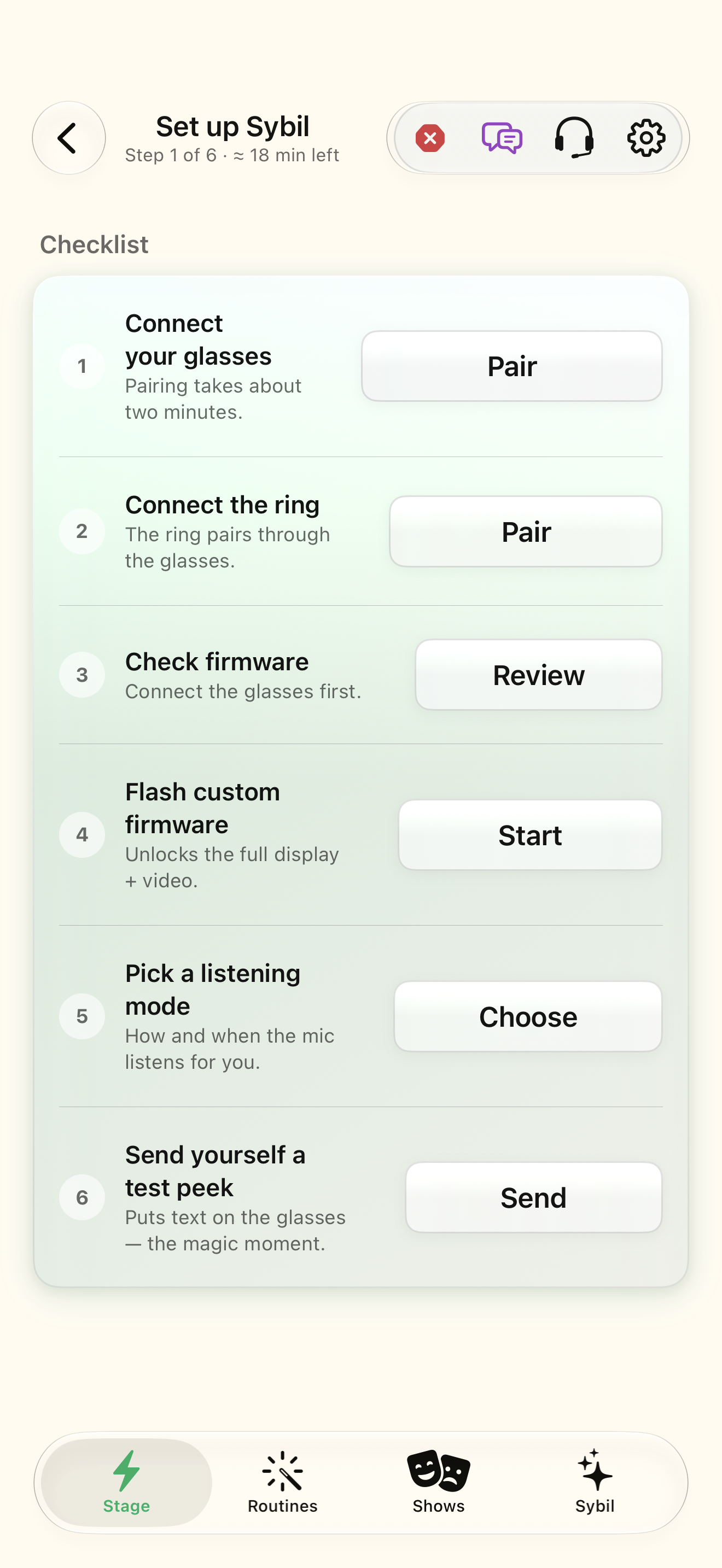
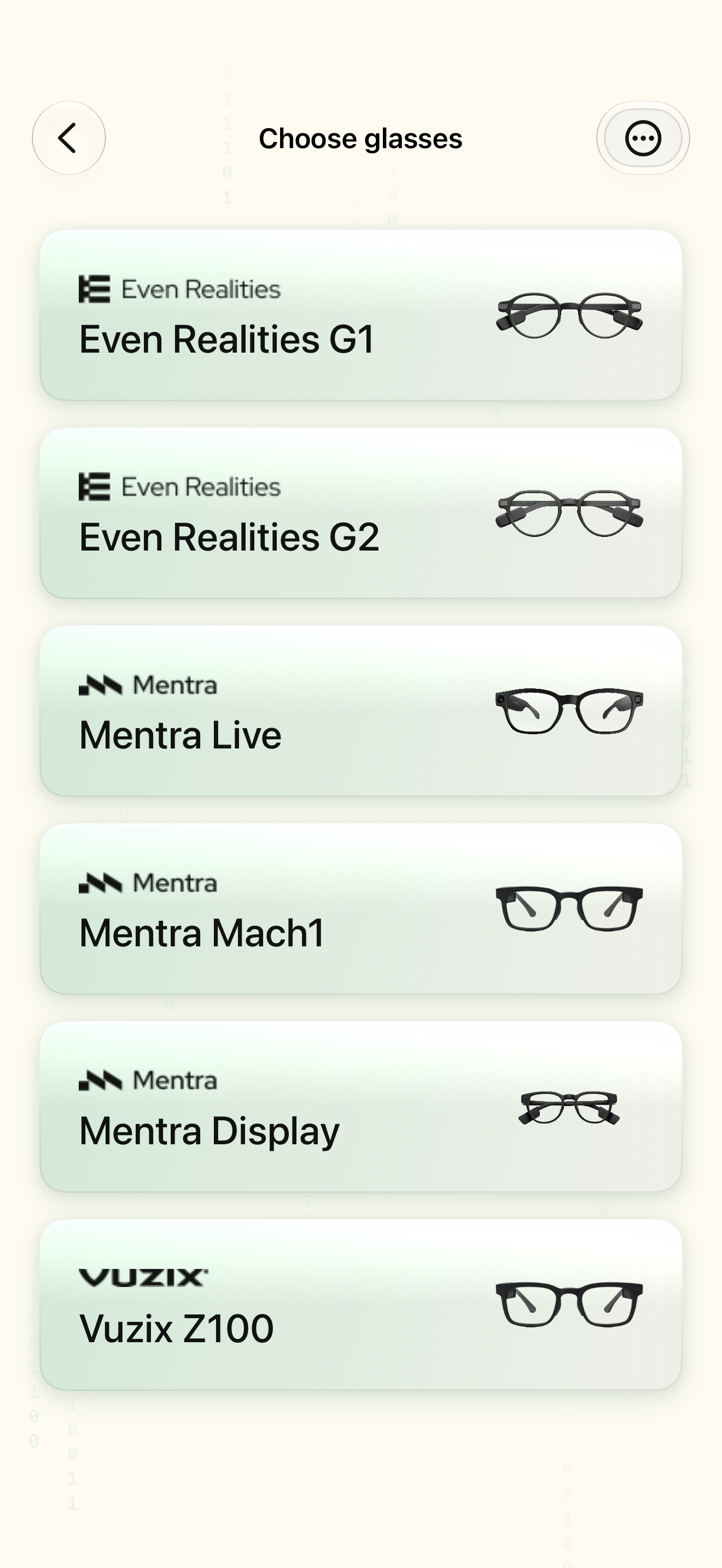
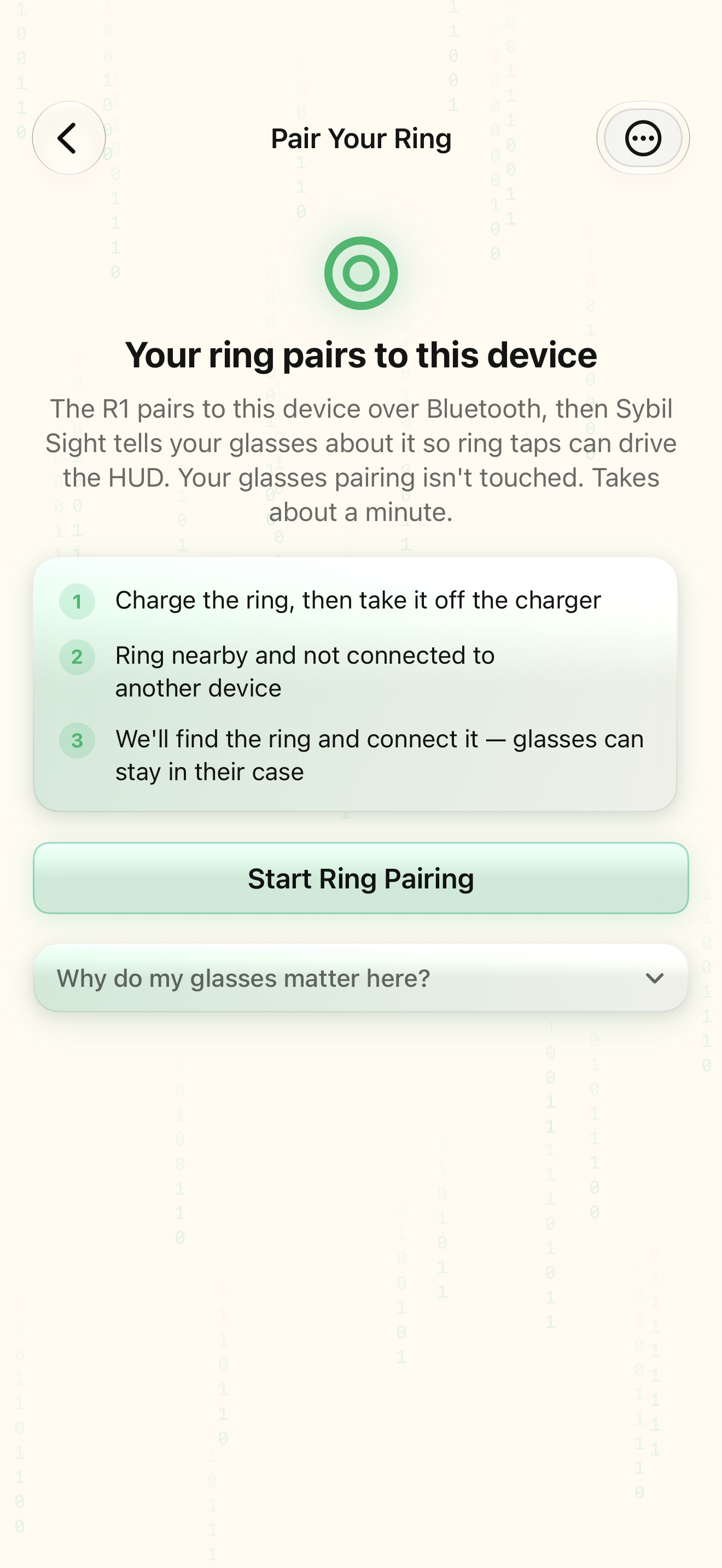
Open Settings › App › Setup checklist. Connect your glasses opens Pair; completion depends on both connected and ready state. Connect the ring opens its pairing explanation. The R1 ring pairs through the glasses. A saved device choice by itself does not satisfy the connected check.
Read the firmware state
Check firmware reads the observed glasses identity and compares it with the app’s recommendations. The screen can say Reading firmware versions while it is still resolving them. A matched ring claim requires an actually observed ring version. Review the current recommendation in Firmware; use the firmware guide for the supported update procedure.
Understand the custom-firmware step
The G2-oriented checklist includes Flash custom firmware, which opens Firmware and completes when the installed identity is custom firmware. This is separate from Bluetooth pairing and the version check. The checklist describes custom firmware as enabling the full display and video. Follow the device-specific instructions and progress in the app rather than treating a connection as proof the update completed.
Choose listening and test a real write
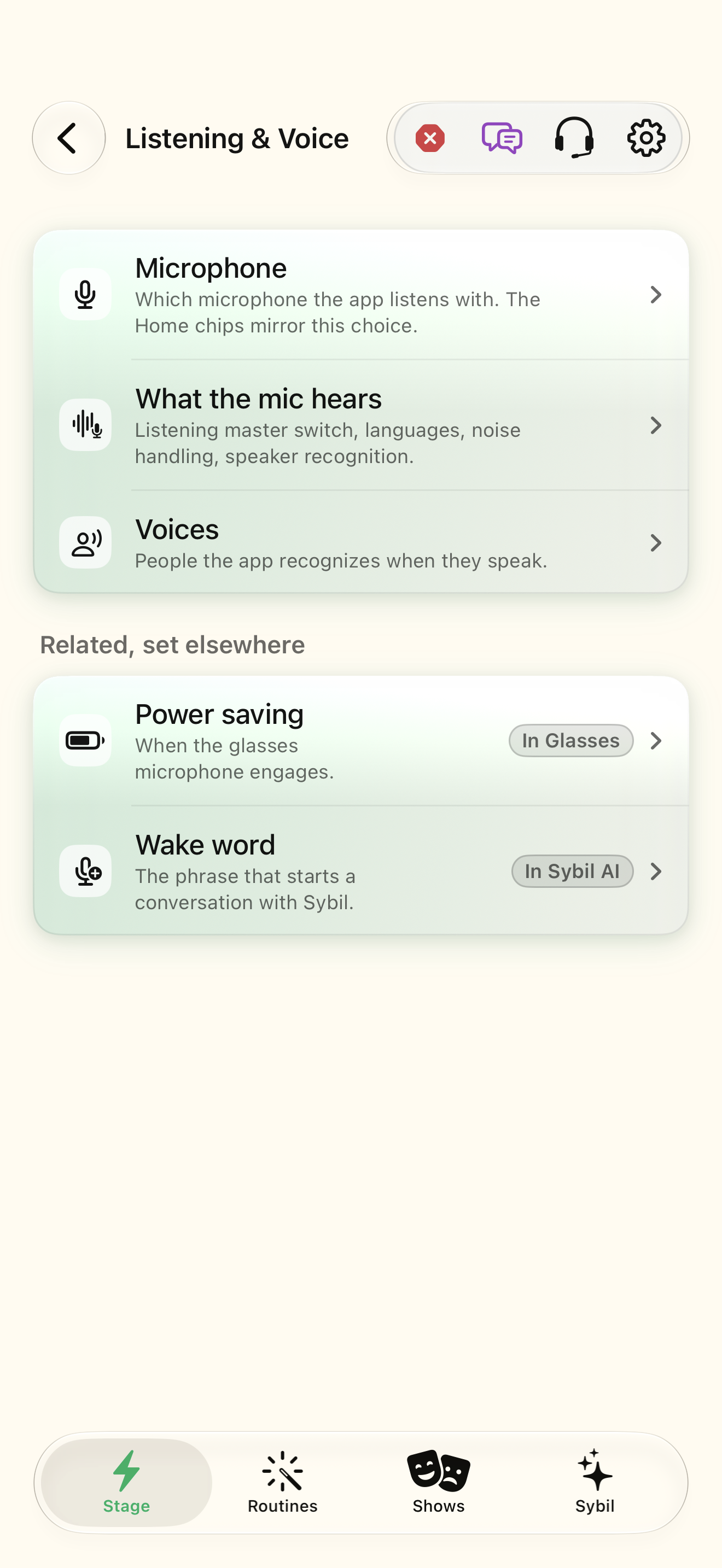
Pick a listening mode opens Listening & Voice. That checklist tick records a visit, so also check the actual microphone and listening choices. Send yourself a test peek writes text to the glasses. It completes only when the display write succeeds; an error stays visible. Reopening the checklist recomputes connection and firmware checks, making it useful after reconnecting as well as on day one.
Related screens
Reviewed against the iOS implementation. Captured development-build screens use synthetic or empty content; hardware and connected-service states vary.