
Finish the Set up Sybil checklist
Pairing, firmware, listening, and a successful display write are separate checks.
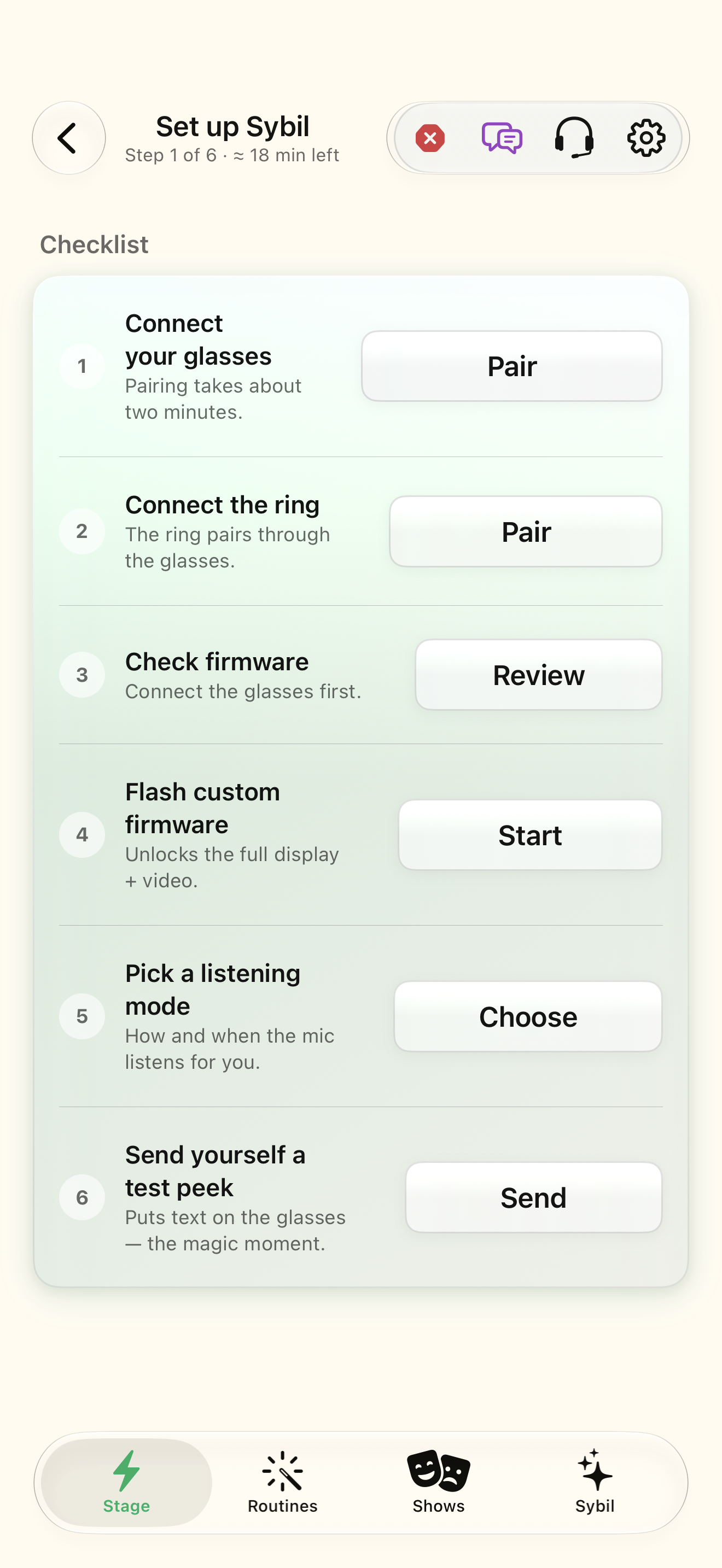
Sign in to your SybilSight account. Use the app build and supported device for your chosen workflow.
Pairing, firmware, listening, and a successful display write are separate checks.
Connect the glasses
Open Settings › App › Setup checklist, then Pair under Connect your glasses.
The connected and ready glasses earn a check.
Select the highlighted control in the teaching view.
Practice at your own pace. You can also use Next step.
Set up Sybil
Checklist
Find Connect your glasses
Interactive HTML app view with sample data. Follow the outlined control, play the example, or explore at your own pace.
All steps, in writing
Connect the glasses
Open Settings › App › Setup checklist, then Pair under Connect your glasses.
Expected: The connected and ready glasses earn a check.
Connect the ring
Use Pair under Connect the ring and follow the ring-through-glasses flow.
Expected: The ring connection earns its own check.
Check observed firmware
Open Review under Check firmware. Wait for versions to resolve and inspect any recommendation.
Expected: Firmware is identified; a matched ring requires an observed ring version.
Follow the supported firmware procedure
The G2 checklist includes Flash custom firmware. Open Start and follow the current Firmware instructions.
Expected: The custom-firmware check reflects the installed identity.
Choose listening deliberately
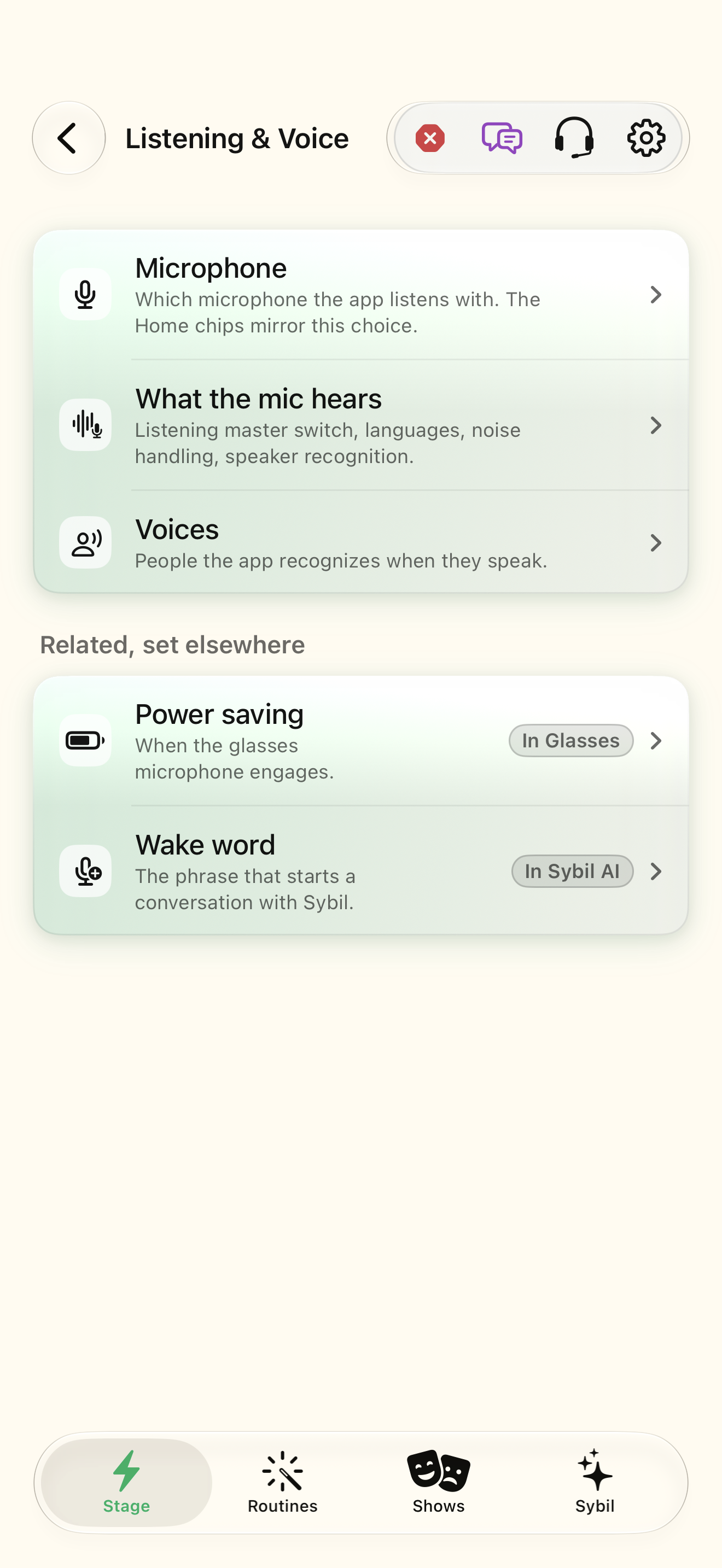
Open Choose under Pick a listening mode. Inspect listening and microphone settings.
Expected: The checklist records your visit; you also verify the actual selected mode.
Send a test peek
Use Send under Send yourself a test peek while the glasses are ready.
Expected: The display receives text; a failed write leaves an error instead of a completed tick.
If something differs
- Check the named readiness or connection state before continuing.
- Open the related screen reference if your build presents a different layout.
Open the screen references
Based on SybilSight/UI/SetupChecklistView.swift and the app help catalog. Edition, device, and build affect available controls.