
Pair glasses and a controller
Make the physical input and display dependable before adding workflows.
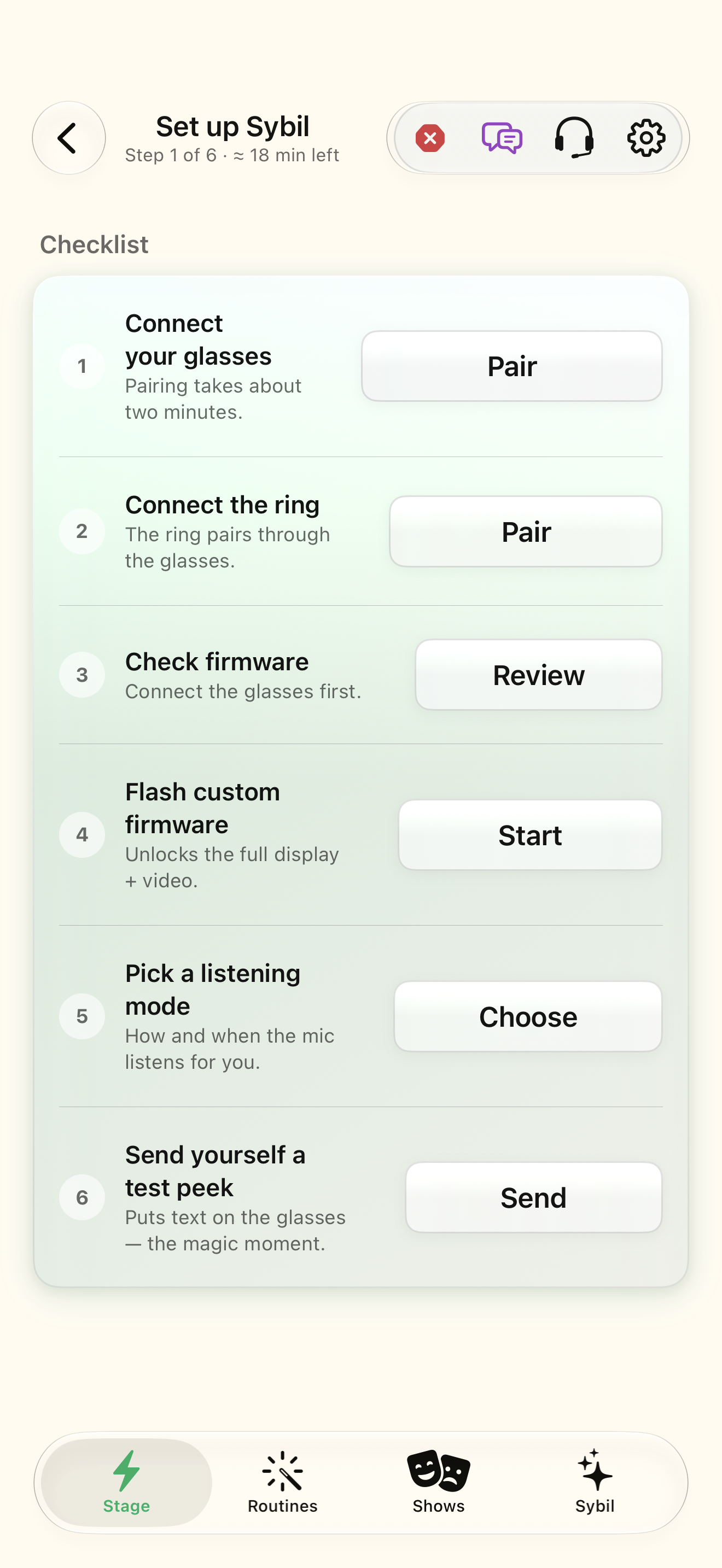
The supported glasses/controller you own, Bluetooth access, and sufficient battery.
Setup flows are model-specific. Pairing the display and configuring a controller are related but separate steps.
Follow the checklist
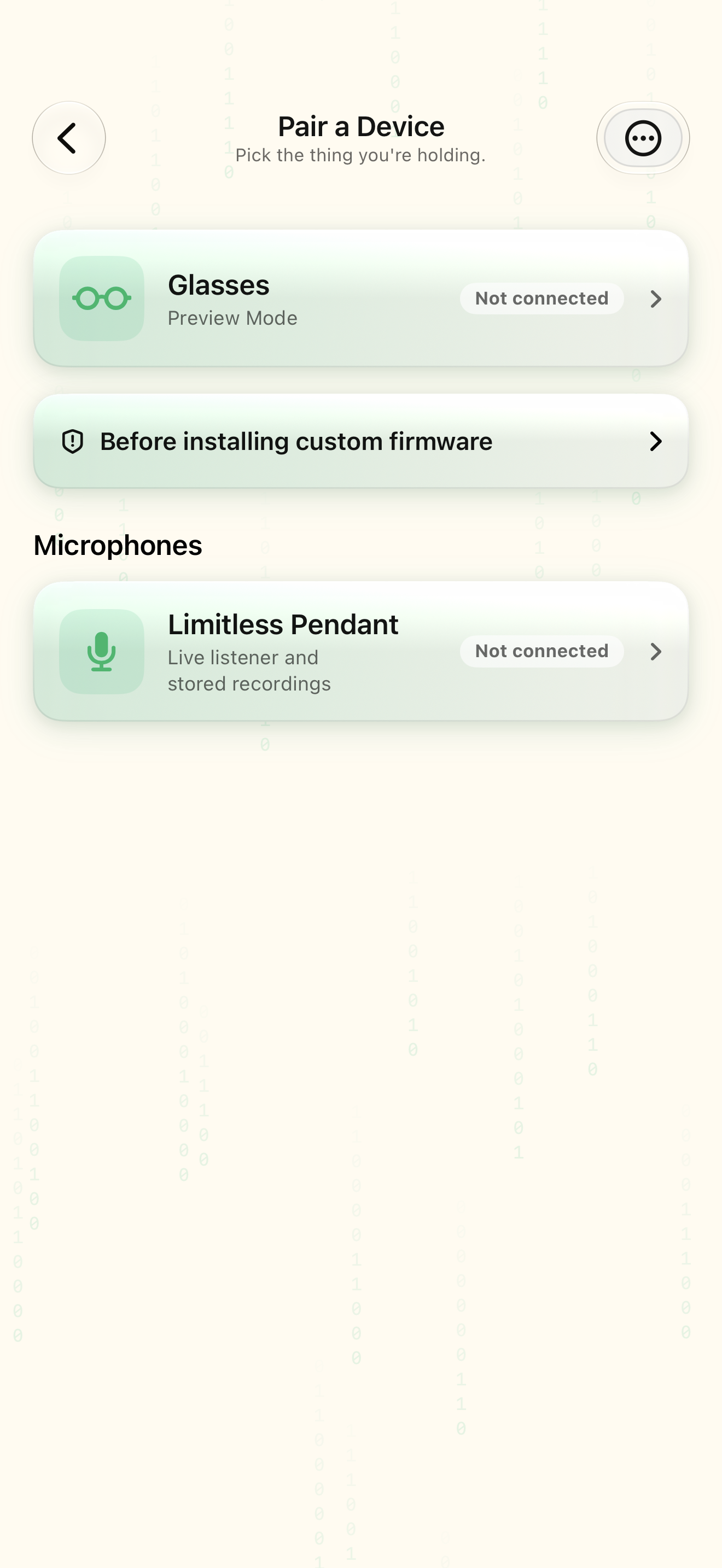
Open Setup Checklist and choose the device family you actually have.
The app shows the appropriate setup path.
Select the highlighted control in the teaching view.
Practice at your own pace. You can also use Next step.
Setup
Checklist
Find Devices
Interactive HTML app view with sample data. Follow the outlined control, play the example, or explore at your own pace.
All steps, in writing
Follow the checklist
Open Setup Checklist and choose the device family you actually have.
Expected: The app shows the appropriate setup path.
Complete pairing
Follow the preparation and scan steps; identify the intended device and wait for a confirmed connection.
Expected: The app reports the right device as connected.
Review permissions
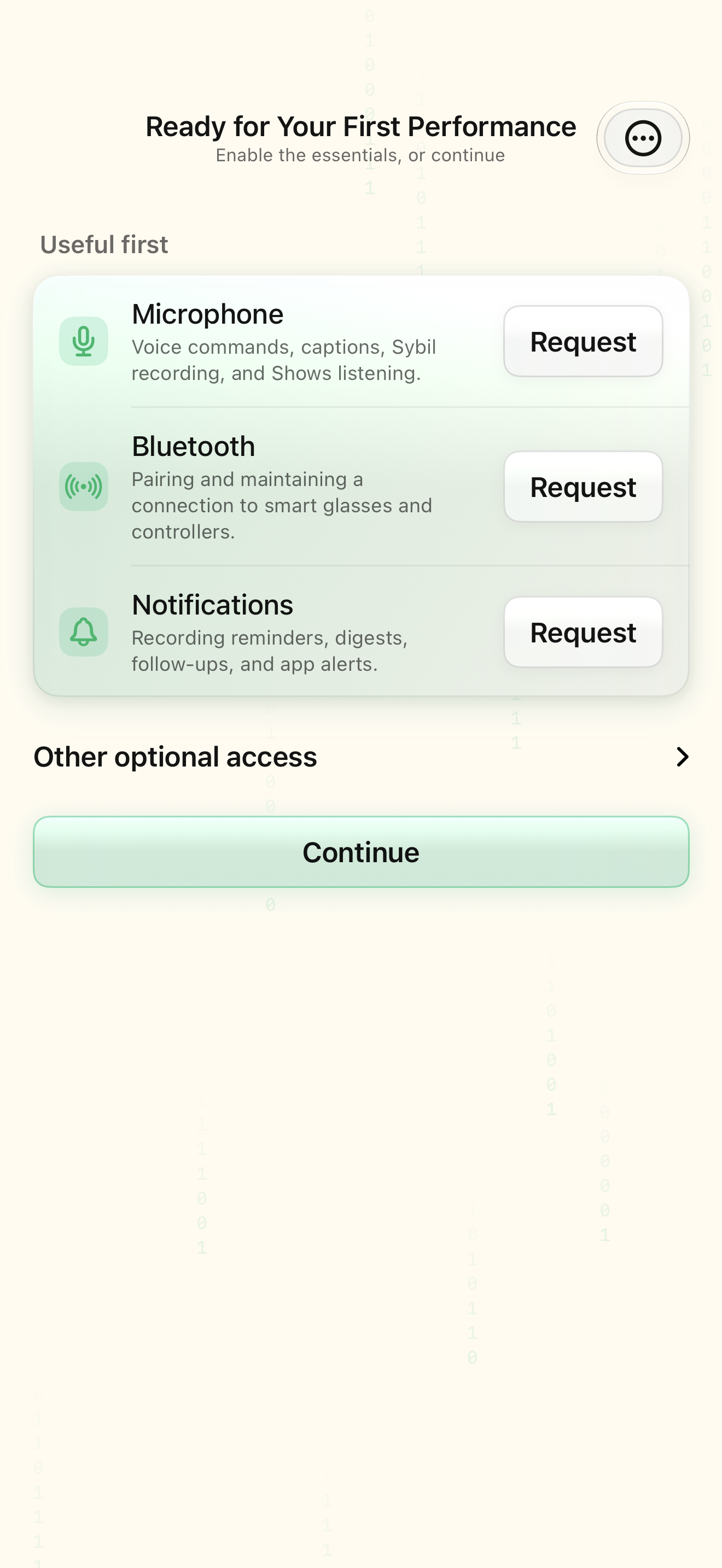
Grant the permissions needed by the selected features.
Expected: Required inputs are available.
Test one input and output
Review controller mappings and send a sample peek before starting a routine.
Expected: A deliberate input and sample display both work.
If something differs
- A missing device can mean pairing mode, battery, Bluetooth, or another connection needs attention.
- Controller gestures and display capabilities depend on the selected hardware.
Open the screen references
Based on SybilSight/Services/AppAgent/AppAgentKnowledge.swift and the app help catalog. Edition, device, and build affect available controls.