
Arrange and inspect the HUD
Keep the information you need legible and in a predictable place.
A paired supported display or explicitly labeled preview mode.
Regions and layout presets organize app output. The mirror shows an app-rendered view, not an optical recording of the lenses.
Inspect the mirror
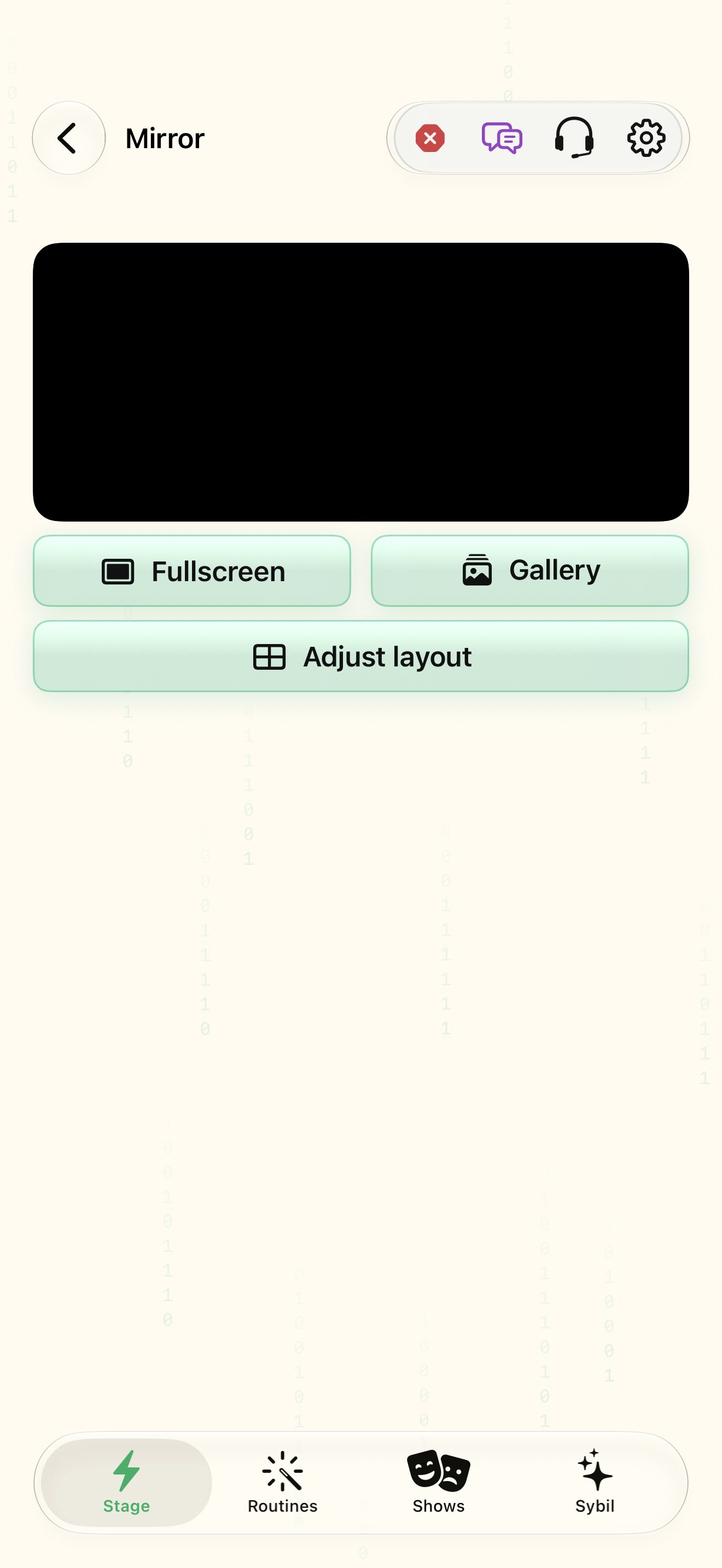
Open Mirror and identify what is currently driving the display.
The preview corresponds to the intended app output.
Select the highlighted control in the teaching view.
Practice at your own pace. You can also use Next step.
Display
Live output
Find Mirror
Interactive HTML app view with sample data. Follow the outlined control, play the example, or explore at your own pace.
All steps, in writing
Inspect the mirror
Open Mirror and identify what is currently driving the display.
Expected: The preview corresponds to the intended app output.
Choose a layout
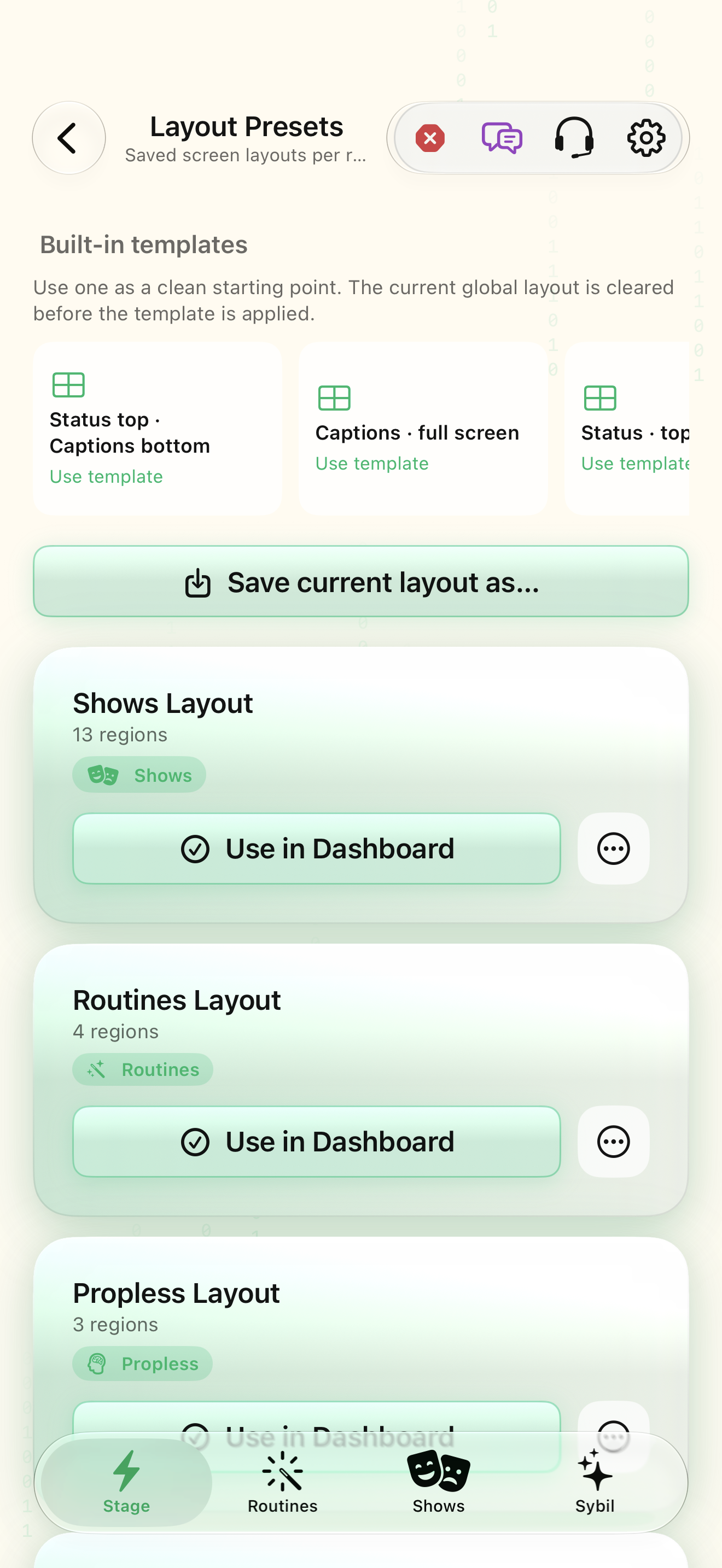
Open Layout presets and select a starting point that leaves space for the important content.
Expected: The layout fits your workflow.
Adjust regions
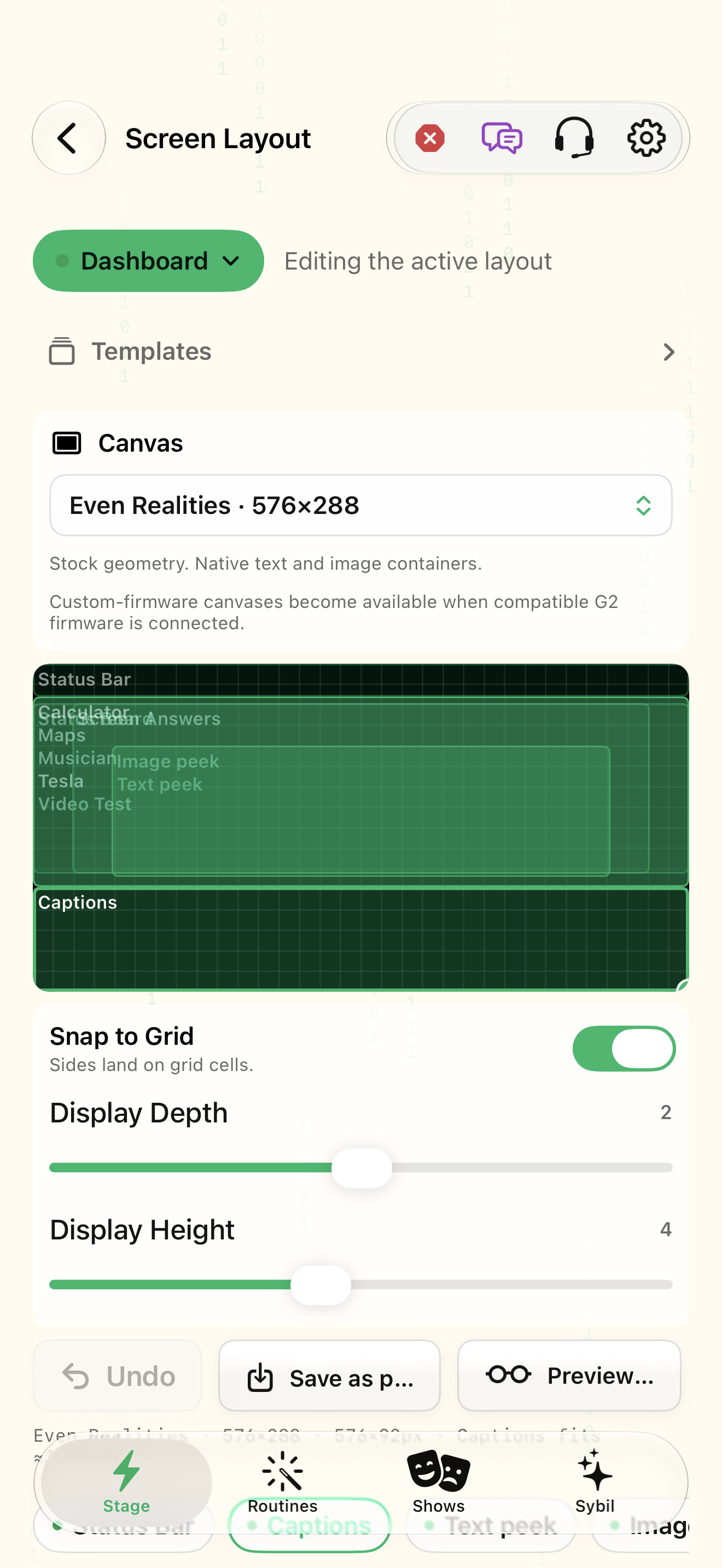
Review the content assigned to each region and its available sizing/placement controls.
Expected: Key content remains readable without overlap.
Check on your device
Tune appearance and compare with the actual wearable in your intended environment.
Expected: The result is comfortable and legible for you.
If something differs
- The black-and-green HUD mirror should not inherit the website’s decorative background.
- A website preview does not measure optical legibility.
Open the screen references
Based on SybilSight/Services/AppAgent/AppAgentKnowledge.swift and the app help catalog. Edition, device, and build affect available controls.