
Find the cause and get useful support
Turn “it did not work” into a clear next step.
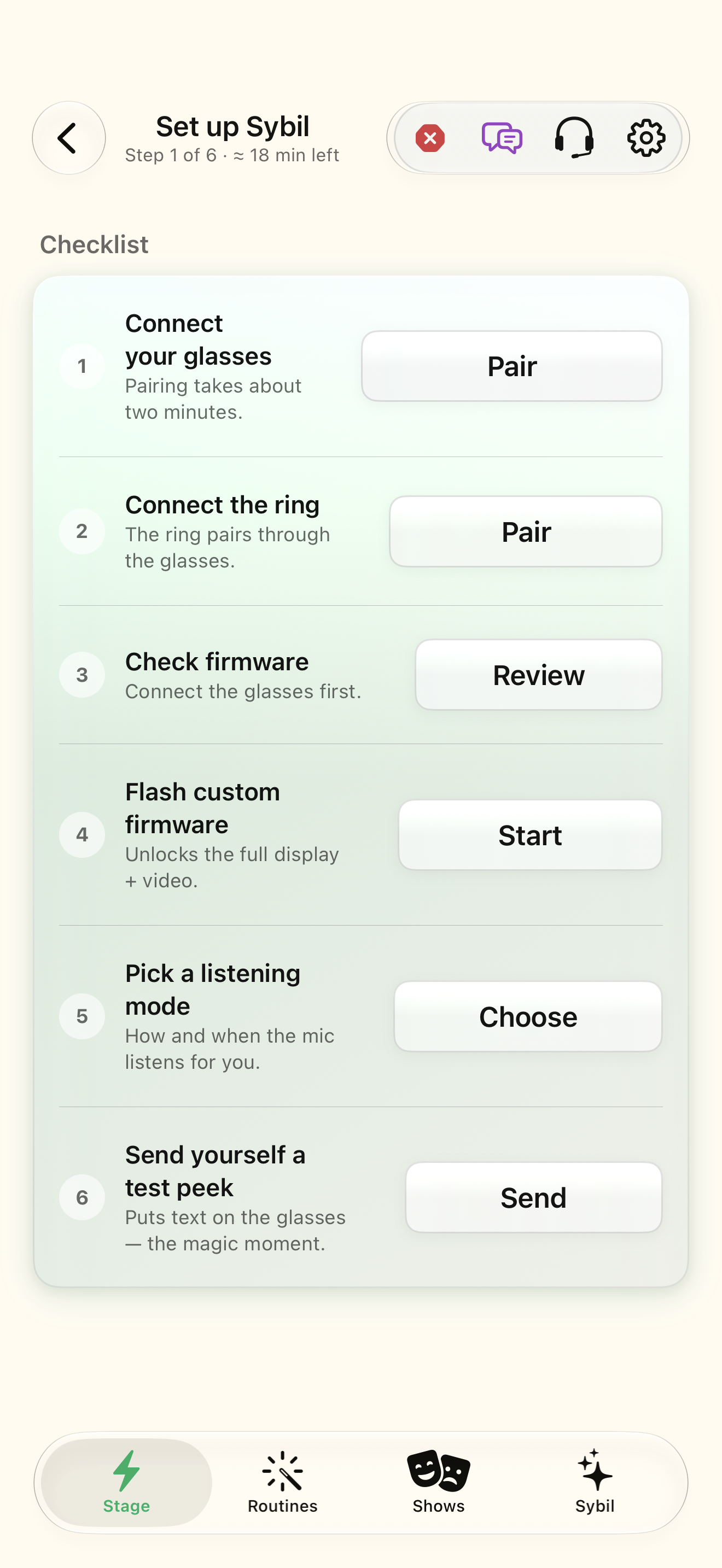
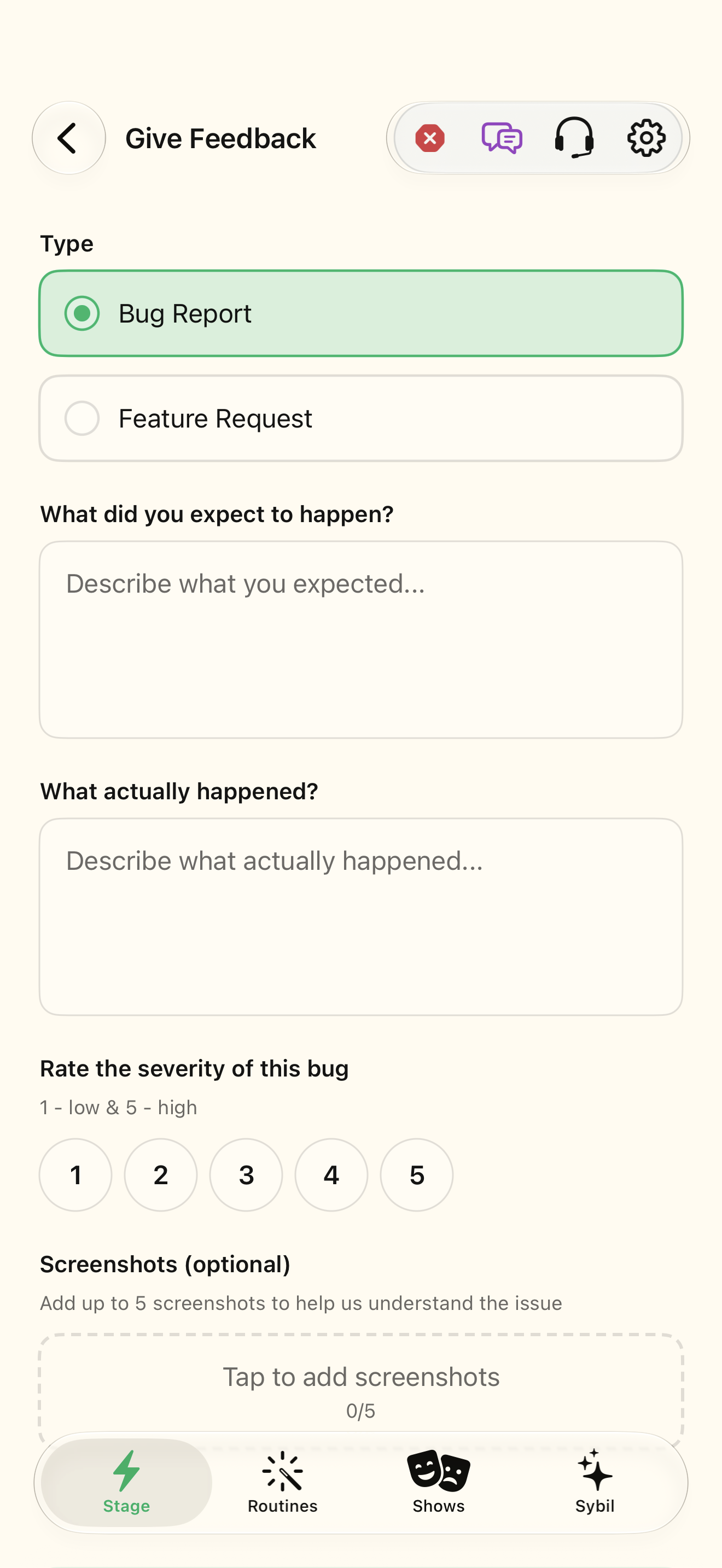
The device/build and the exact steps that led to the problem.
Start with setup and dependencies, then narrow the failure to input, processing, or output. Share only the context needed for support.
Name the expected result
Write what you tried and what you expected to see. Include the screen name.
The problem has a reproducible description.
Select the highlighted control in the teaching view.
Practice at your own pace. You can also use Next step.
Support preparation
Checklist
Find Expected
Interactive HTML app view with sample data. Follow the outlined control, play the example, or explore at your own pace.
All steps, in writing
Name the expected result
Write what you tried and what you expected to see. Include the screen name.
Expected: The problem has a reproducible description.
Check the dependencies
Review setup, permissions, connection, and processing route for that feature.
Expected: A missing input or connection is either resolved or identified.
Use the matching guide
Search the learning library with the exact screen or feature name. Try a safe sample to isolate the issue.
Expected: You can distinguish a setup mismatch from a repeatable failure.
Submit useful context
Use Feedback or Support Tickets. Review screenshots and attachments for unrelated personal information.
Expected: The request explains expected/observed behavior and how to reproduce it.
If something differs
- The website assistant cannot access your account, logs, or device status.
- For an unresolved issue, use the support page instead of repeatedly sharing more private content with AI.
Open the screen references
Based on SybilSight/Services/AppAgent/AppAgentKnowledge.swift and the app help catalog. Edition, device, and build affect available controls.