
Create a show and prepare its cues
Keep scripts, media, and routine cues in an intentional running order.
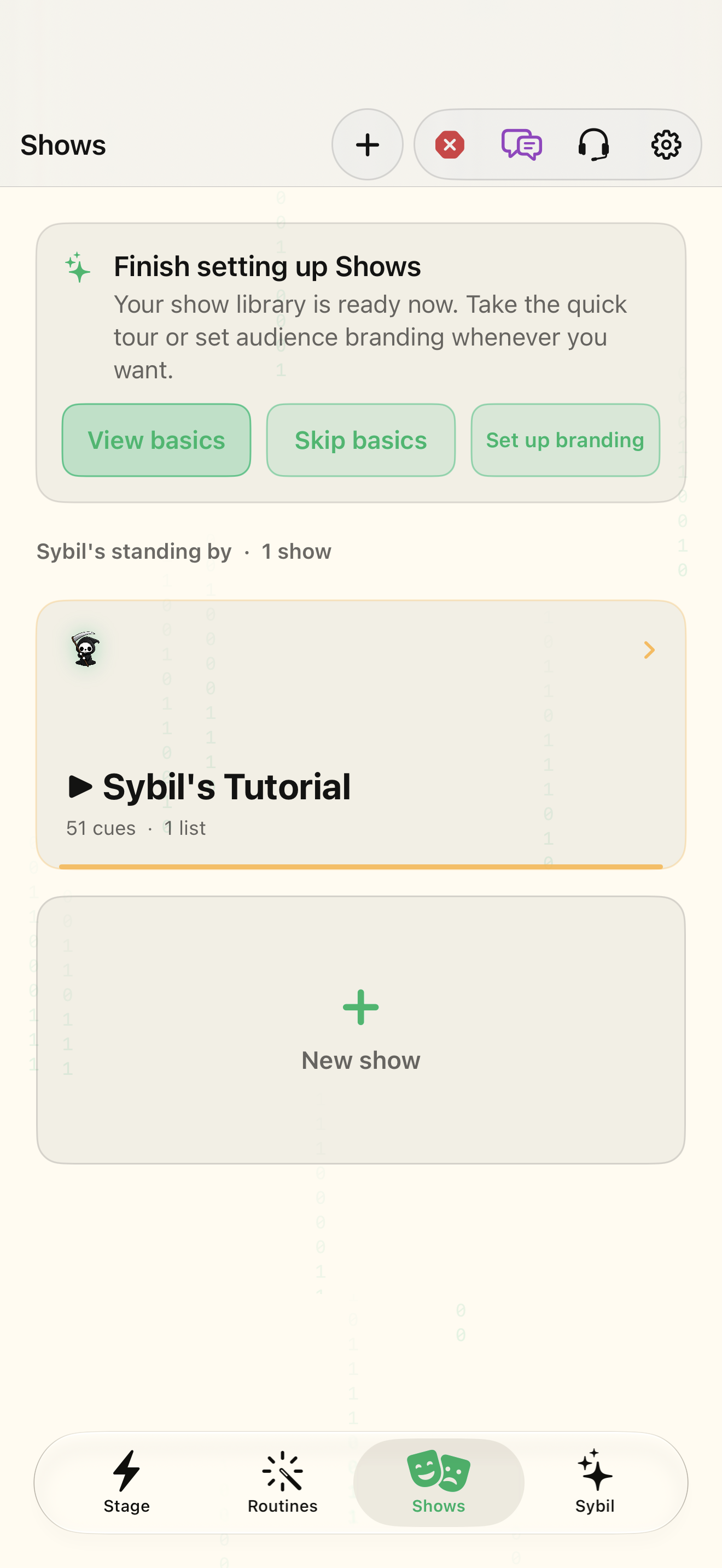
A show-enabled edition and sample media/routines.
The Shows console separates standby from live output. Pre-show checks inspect cues, dependencies, and relevant device needs.
Open a sample show
Open Shows and create or choose a rehearsal show. Review its current list and standby cue.
You know which show and list you are editing.
Select the highlighted control in the teaching view.
Practice at your own pace. You can also use Next step.
Shows
Finish setting up Shows
Sybil’s standing by
Find Add cue
Interactive HTML app view with sample data. Follow the outlined control, play the example, or explore at your own pace.
All steps, in writing
Open a sample show
Open Shows and create or choose a rehearsal show. Review its current list and standby cue.
Expected: You know which show and list you are editing.
Add one cue
Choose Add cue and configure a supported type. For a routine cue, choose an existing routine and review its requirements.
Expected: The cue points to valid sample content.
Review progression
Place cues in the order you intend. Inspect timing and progression settings rather than assuming one cue waits for another.
Expected: The sequence behaves deliberately.
Run checks
Open Pre-show check. Resolve missing media, missing routine targets, unsupported cue types, and device requirements.
Expected: The list of issues is understood before rehearsal.
Rehearse the outputs
Advance a sample cue and compare the console with Mirror and History.
Expected: The observed result matches the cue.
If something differs
- A routine cue does not automatically hold show progression until the routine finishes.
- An unavailable routine host or deleted target must be fixed in cue setup.
Open the screen references
Based on docs/routines-facts-usability.md and the app help catalog. Edition, device, and build affect available controls.