
Capture, synchronize, and review glasses photos
Bring a glasses capture into the app gallery and manage its storage.
Camera-equipped compatible glasses, required permissions, and a connected transfer path.
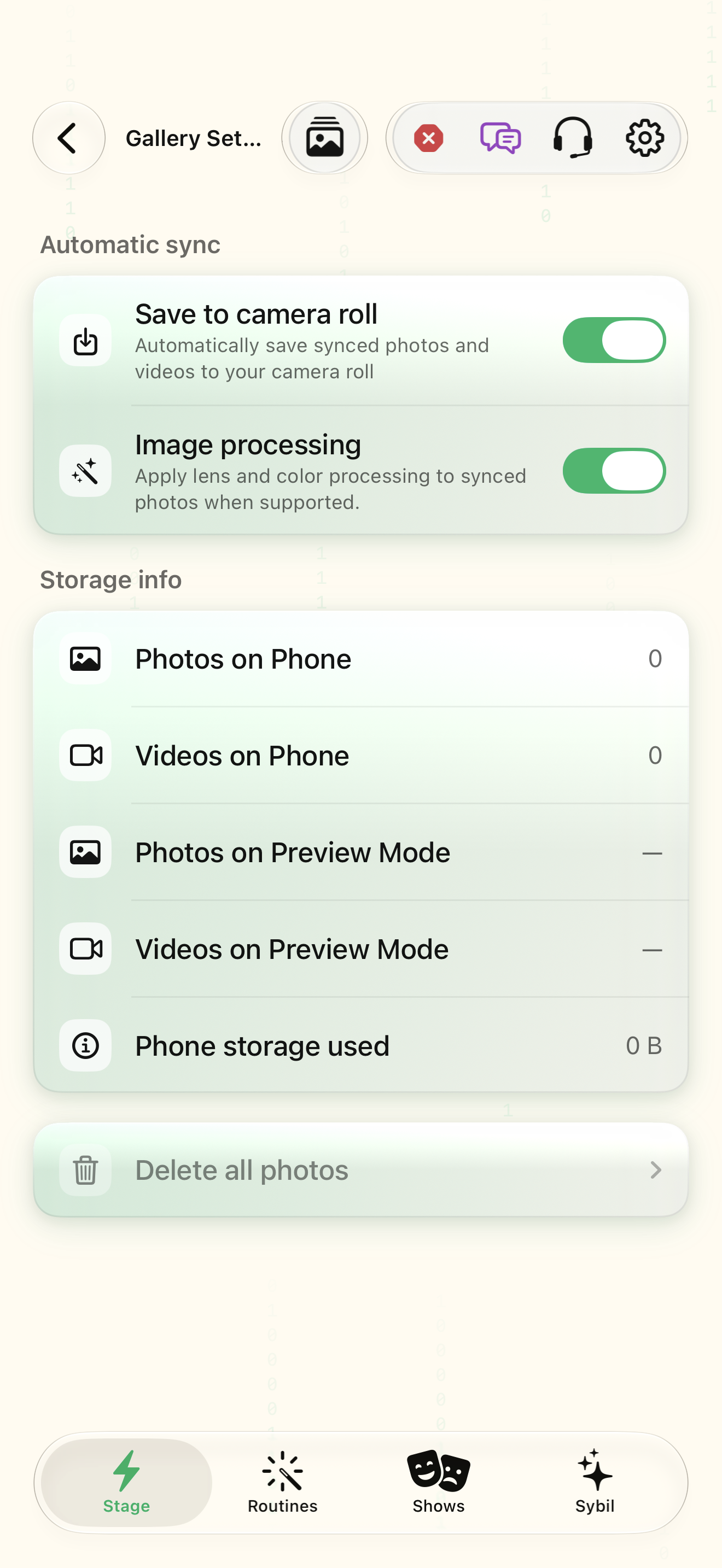
Capture happens on supported glasses; Gallery syncs and displays photos. Gallery settings control automatic sync, camera-roll saving, processing, and storage.
Sync photos
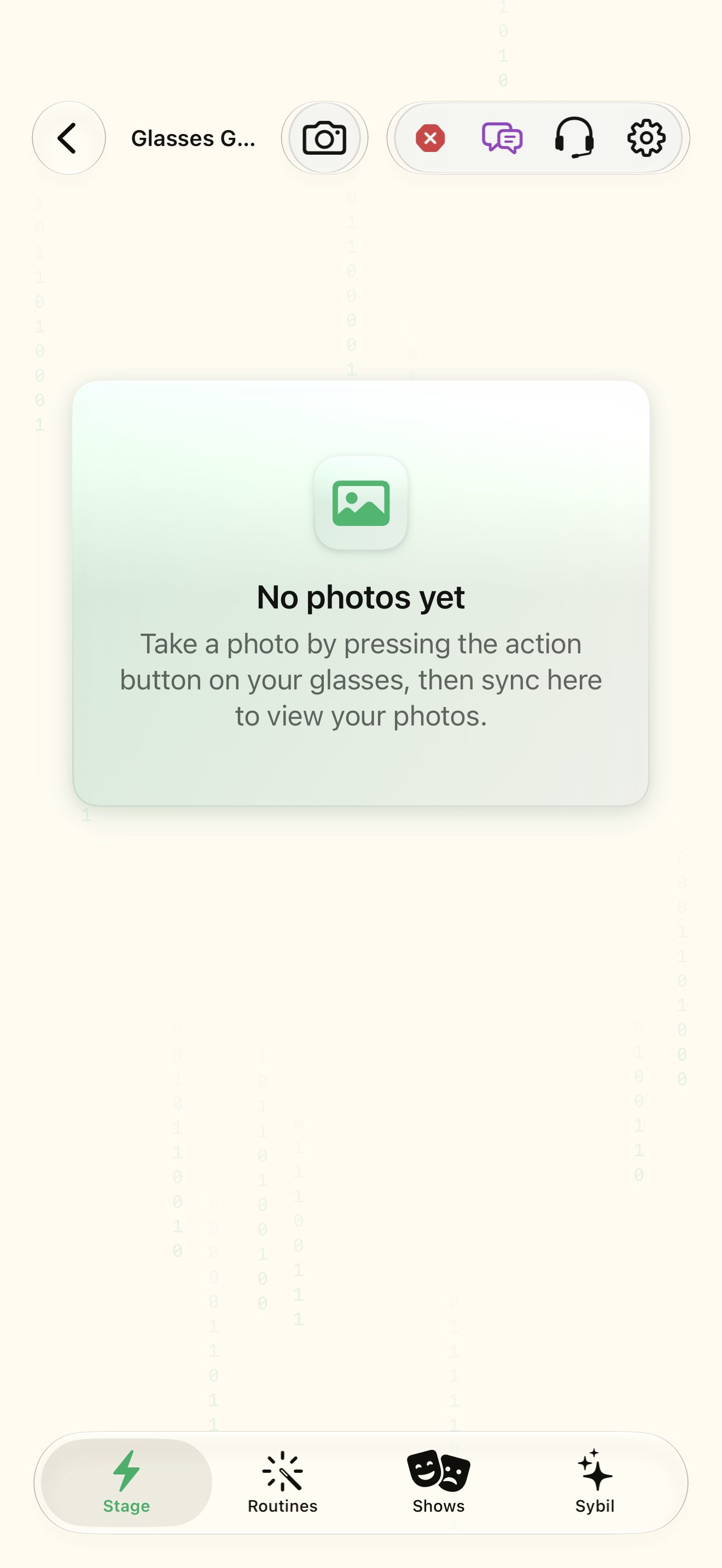
Take a photo with the glasses action button, then open Gallery and Sync photos.
The gallery contains a transferred photo instead of an empty state.
Select the highlighted control in the teaching view.
Practice at your own pace. You can also use Next step.
Gallery
Find Sync photos
Interactive HTML app view with sample data. Follow the outlined control, play the example, or explore at your own pace.
All steps, in writing
Sync photos
Take a photo with the glasses action button, then open Gallery and Sync photos.
Expected: The gallery contains a transferred photo instead of an empty state.
Automatic Sync
Choose automatic synchronization only if it fits your use. Check progress and connection state while transferring.
Expected: You know whether a transfer is running, complete, or interrupted.
Save to Camera Roll
Review camera-roll saving and processing options before sharing an image.
Expected: The image is saved to the intended destination.
Storage
Inspect photo counts and storage before deleting. Delete all photos is destructive in the app; use it only for the intended library.
Expected: You understand which local media will be removed.
If something differs
- An empty gallery can mean no photo has been captured or synced yet.
- Interrupted synchronization requires a ready connection before retrying.
- Camera support varies by device.
Open the screen references
Based on SybilSight/UI/GalleryMirrorViews.swift and the app help catalog. Edition, device, and build affect available controls.