
Gallery settings
Auto-save to camera roll and image processing options.
Find it: Home › Gallery › Settings
Automatic sync
Storage info
Interactive HTML app view · Play the full walkthrough ↗
Compare the visual reference
Reviewed sample screenshot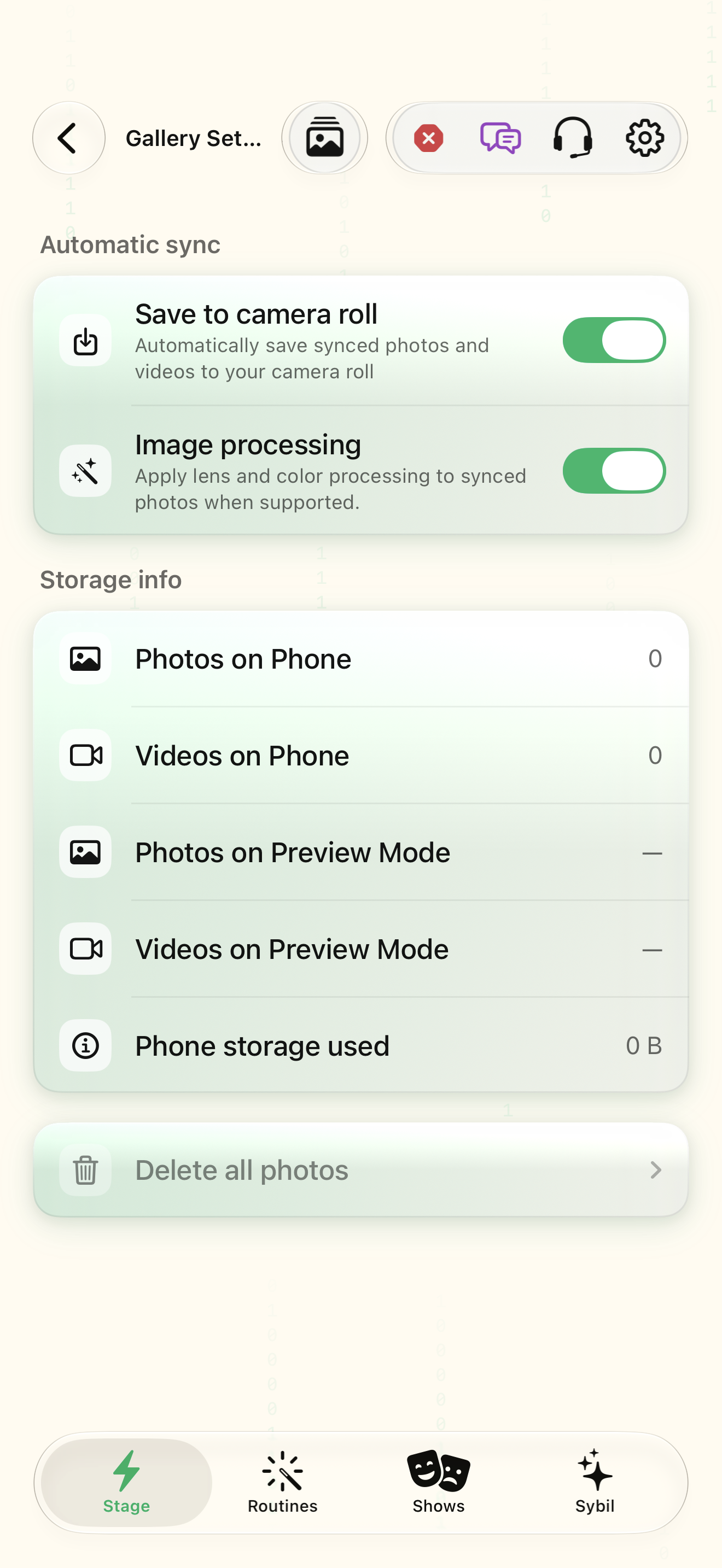
Captured with synthetic content on app build 0.9.1 (260723.1), compiled from reviewed source. Your edition, device, and build can change what appears.
Find: Gallery settings
Find Gallery settings
Open Home › Gallery › Settings. Auto-save to camera roll and image processing options. Check: Identify the title and controls before beginning.
Go at your own pace. This does not operate the app.
Text is always available. Narration uses a local browser voice when available.
Learn a complete workflow
Capture, synchronize, and review glasses photos ↗
What you’ll find
Auto-save to camera roll and image processing options.
About this guide
Generated from the app’s maintained help catalog. This is a guided reference, not a device-verified recording. The interactive studio provides separate fictional practice examples.
Source: SybilSight/Services/AppAgent/AppAgentKnowledge.swift · Catalog 892fdd7c1507
Something doesn’t match your app?Settings, in plain language.
Media post-processing
Process captured media after sync.
Gallery sync
Sync glasses media to the phone gallery.
Gallery sync explained
Whether the gallery sync explainer was shown.
Camera app running
The camera app is active on the glasses.