
Arrange apps in the Live HUD layout editor
Give the information you need a clear place in your glasses display.
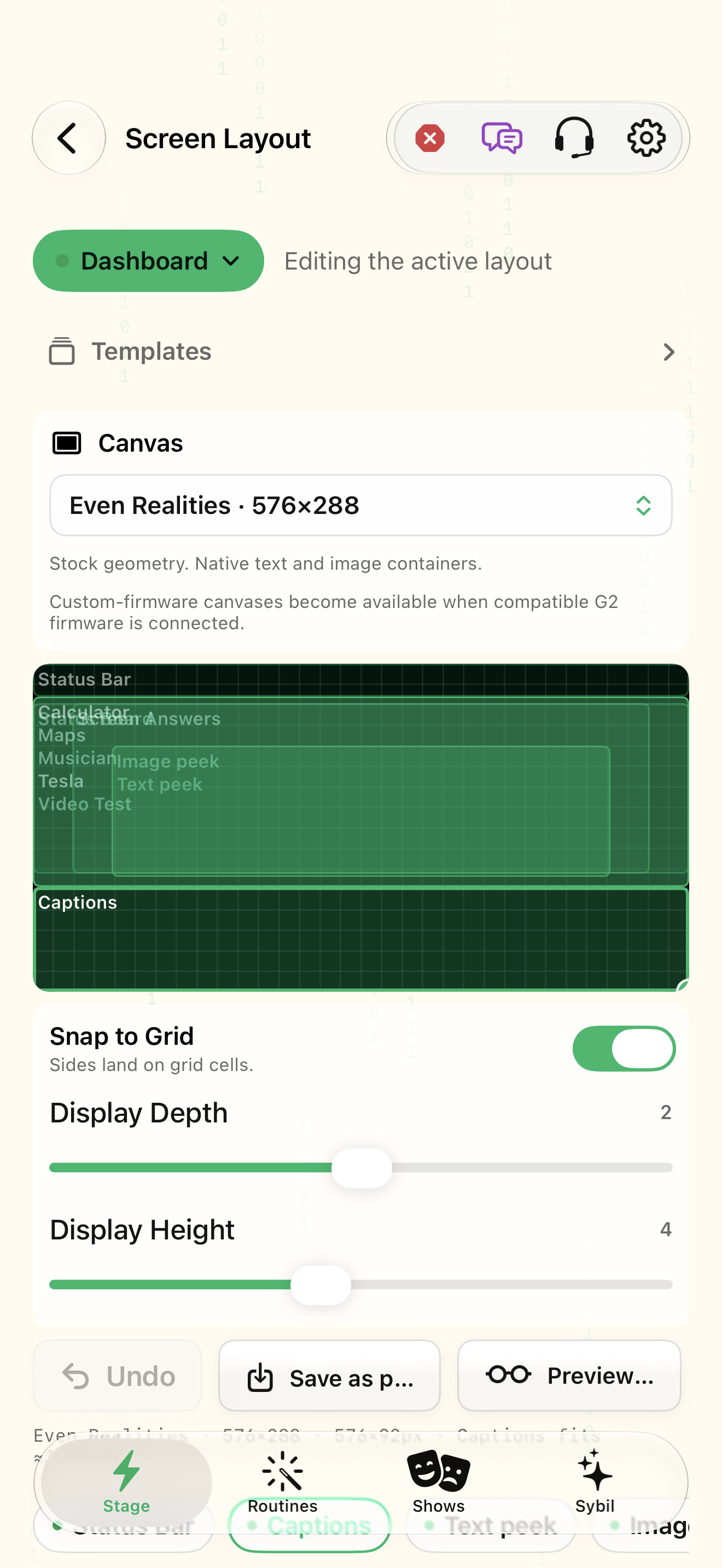
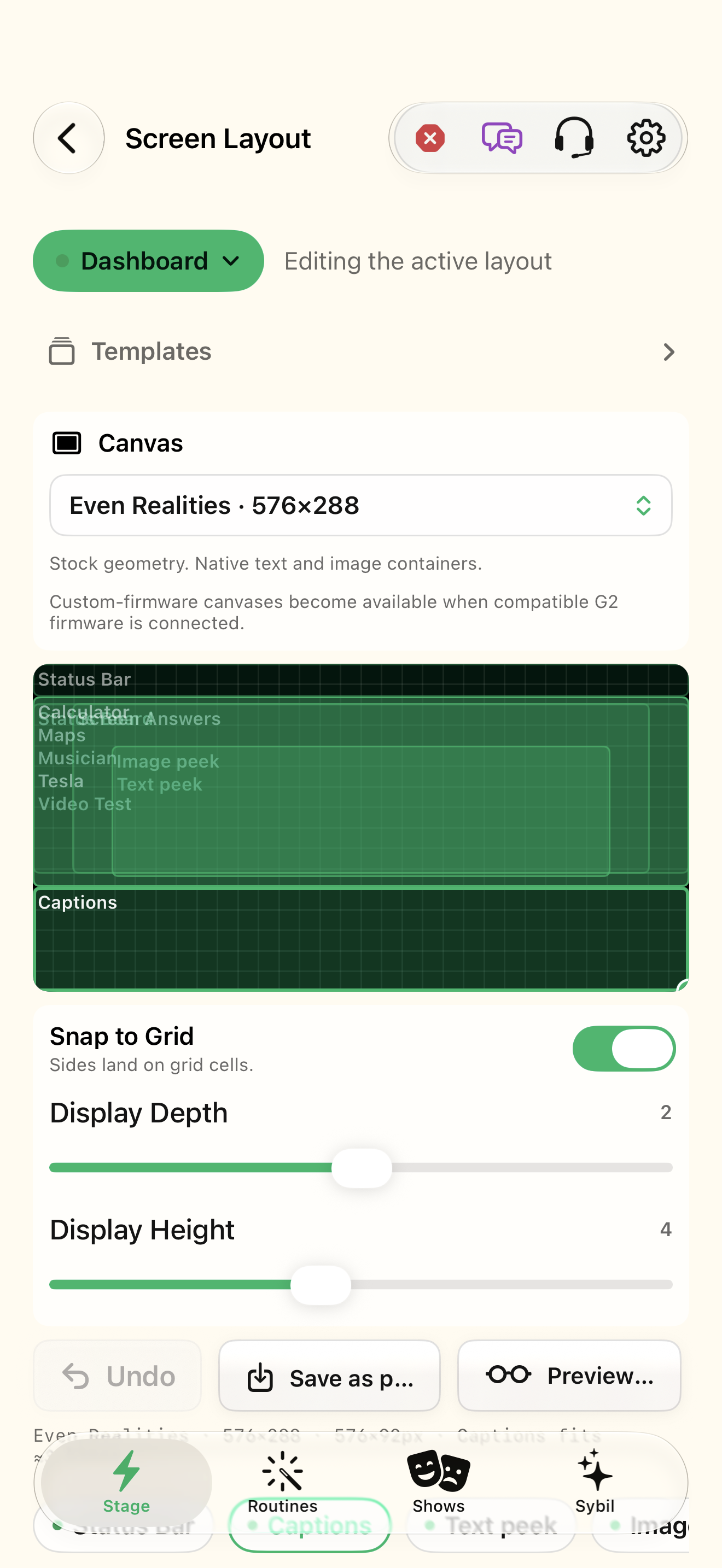
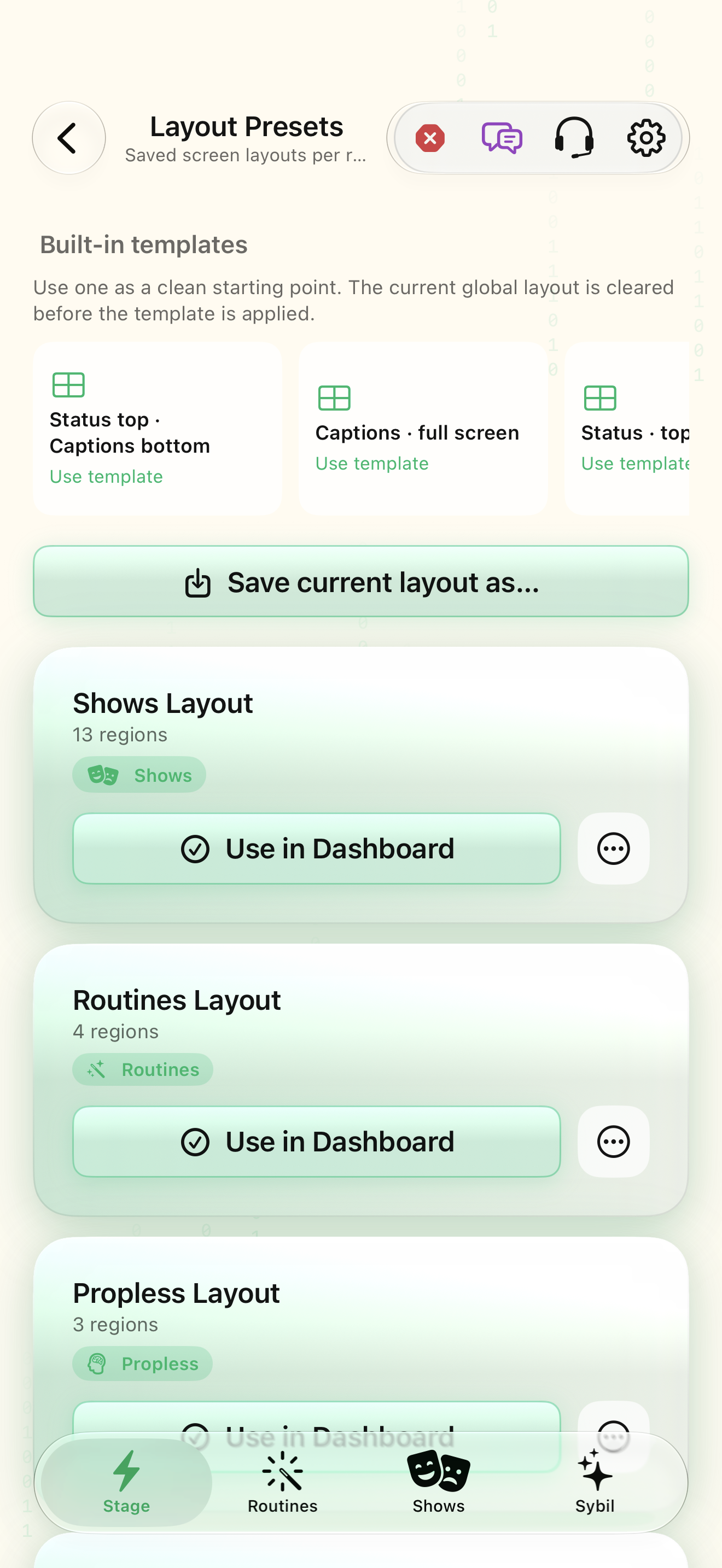
Use a sample workspace. Available controls depend on your device, edition, and app build.
Screen Layout assigns app regions to a selected layout mode. Presets, inherited positions, and a live mode can differ; the editor states which mode you are editing.
Open Screen Layout
Open Settings → Look & Layout → Screen Layout. Read the current Edit layout for selection.
The canvas and layout context appear.
Select the highlighted control in the teaching view.
Practice at your own pace. You can also use Next step.
Screen Layout
Canvas
Find Edit layout for
Interactive HTML app view with sample data. Follow the outlined control, play the example, or explore at your own pace.
All steps, in writing
Open Screen Layout
Open Settings → Look & Layout → Screen Layout. Read the current Edit layout for selection.
Expected: The canvas and layout context appear.
Choose the layout context
Use Edit layout for to select the intended mode. Decide whether to follow global positions or use a dedicated layout.
Expected: Edits apply to the selected context.
Add an app
Choose Add App and select the app that needs a region.
Expected: That app becomes available for placement.
Give it a place
With the app selected, draw a region on the canvas or choose a placement such as Top half. The example shows a top-half region.
Expected: A visible region represents the app’s fixed placement.
Refine the frame
Select Frame style to inspect its style and shape controls. Keep small text readable and leave room for other content.
Expected: The selected region has an intentional frame.
Save and check in context
Save a named preset when you want to reuse the positions. Check the live mode and inspect actual output before a performance.
Expected: The reusable layout and the mode using it are clear.
If something differs
- Removing an inherited placement creates a mode-specific override; it does not delete the shared position.
- An app without a fixed placement may temporarily use the full screen while it has content.
- Custom-firmware canvases appear only when compatible G2 firmware is connected.
- The website demo changes sample geometry only. Use the interactive studio to preview your own captured Live HUD window.
Open the screen references
Based on SybilSight/UI/DisplayRegionEditorView.swift and the app help catalog. Edition, device, and build affect available controls.