
Use Shortcuts, the local API, and MCP
Connect supported automation to the same app capabilities used by the in-app operator.
The app process is running; access to its local device API and an authorized per-device bearer token.
The documented listener is on loopback port 8766. Read capabilities before choosing an action; the website is not a remote control proxy into this listener.
Discover the surface
Review the local Integration API documentation and distinguish query resources from actions.
You know which operation is a read and which changes state.
Select the highlighted control in the teaching view.
Practice at your own pace. You can also use Next step.
Integration API
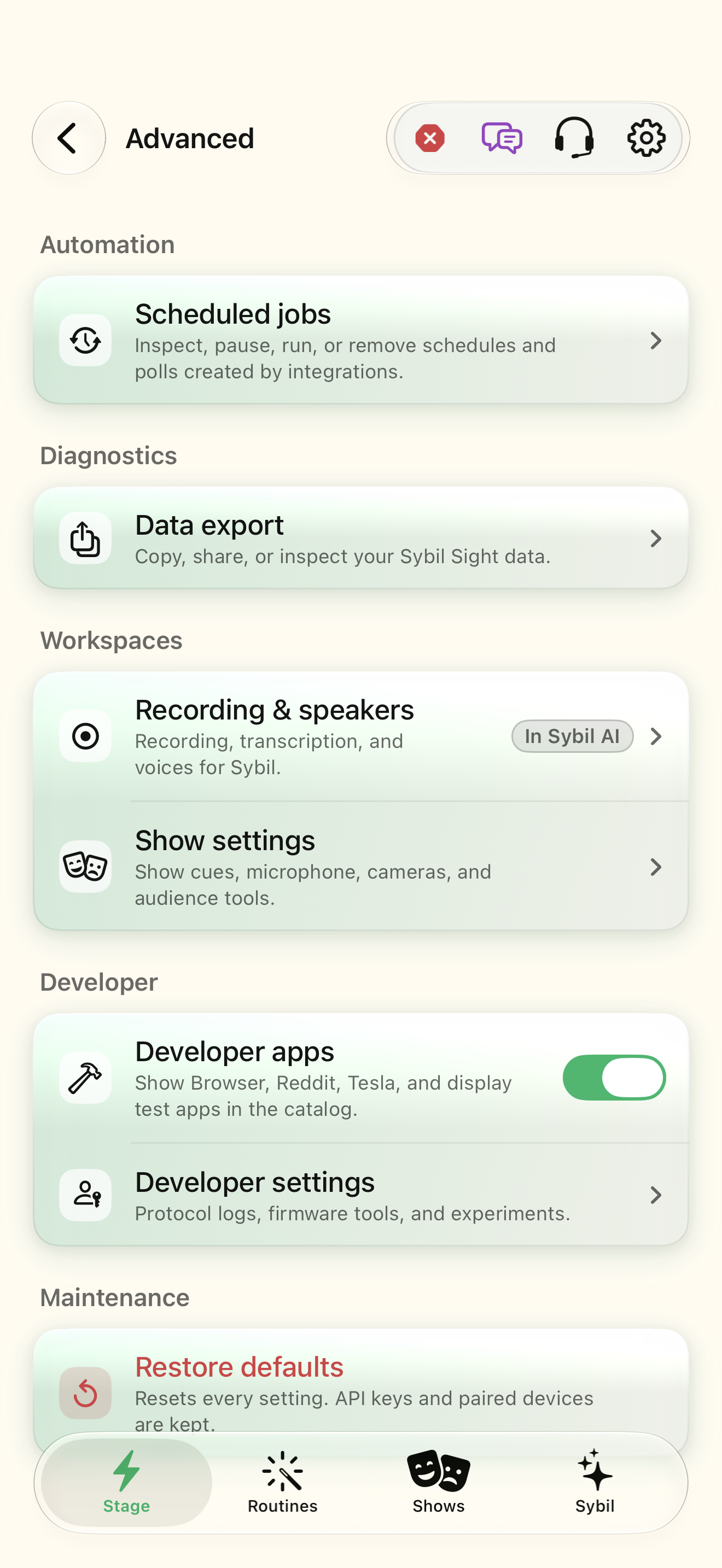
Automation
Diagnostics
Workspace
Developer
Maintenance
Find Capabilities
Interactive HTML app view with sample data. Follow the outlined control, play the example, or explore at your own pace.
All steps, in writing
Discover the surface
Review the local Integration API documentation and distinguish query resources from actions.
Expected: You know which operation is a read and which changes state.
Obtain the token locally
Use the Get Integration API Token shortcut and the required device authentication. Keep the value in your local client.
Expected: The token belongs to the device you intend to operate.
Read capabilities
Call the documented capabilities endpoint from an authorized local context before invoking an action.
Expected: You know the methods supported by that running build.
Try a harmless query
Inspect a status or device query. For an action, review parameters and its effects first.
Expected: The response is the actual app result, not a website simulation.
If something differs
- A loopback address refers to the machine making the request, not automatically to your phone from another computer.
- Never expose a bearer token in a public URL or paste it into support chat.
Open the screen references
Based on SybilSight/Services/AppAgent/AppAgentKnowledge.swift and the app help catalog. Edition, device, and build affect available controls.