
Pair a keyboard to your iPhone
Learn each physical button once, then assign the action you want it to perform.
Use a sample workspace. Available controls depend on your device, edition, and app build.
A phone-connected HID device pairs in iOS Settings. SybilSight then learns the button events it can receive. This differs from pairing a keyboard through G2 glasses.
Pair in iOS Settings
Put your Bluetooth keyboard in its manufacturer’s pairing mode. In iOS Settings → Bluetooth, select it and complete any system pairing instructions. Return to SybilSight.
The device is connected to the phone.
Select the highlighted control in the teaching view.
Practice at your own pace. You can also use Next step.
iOS Settings · Bluetooth
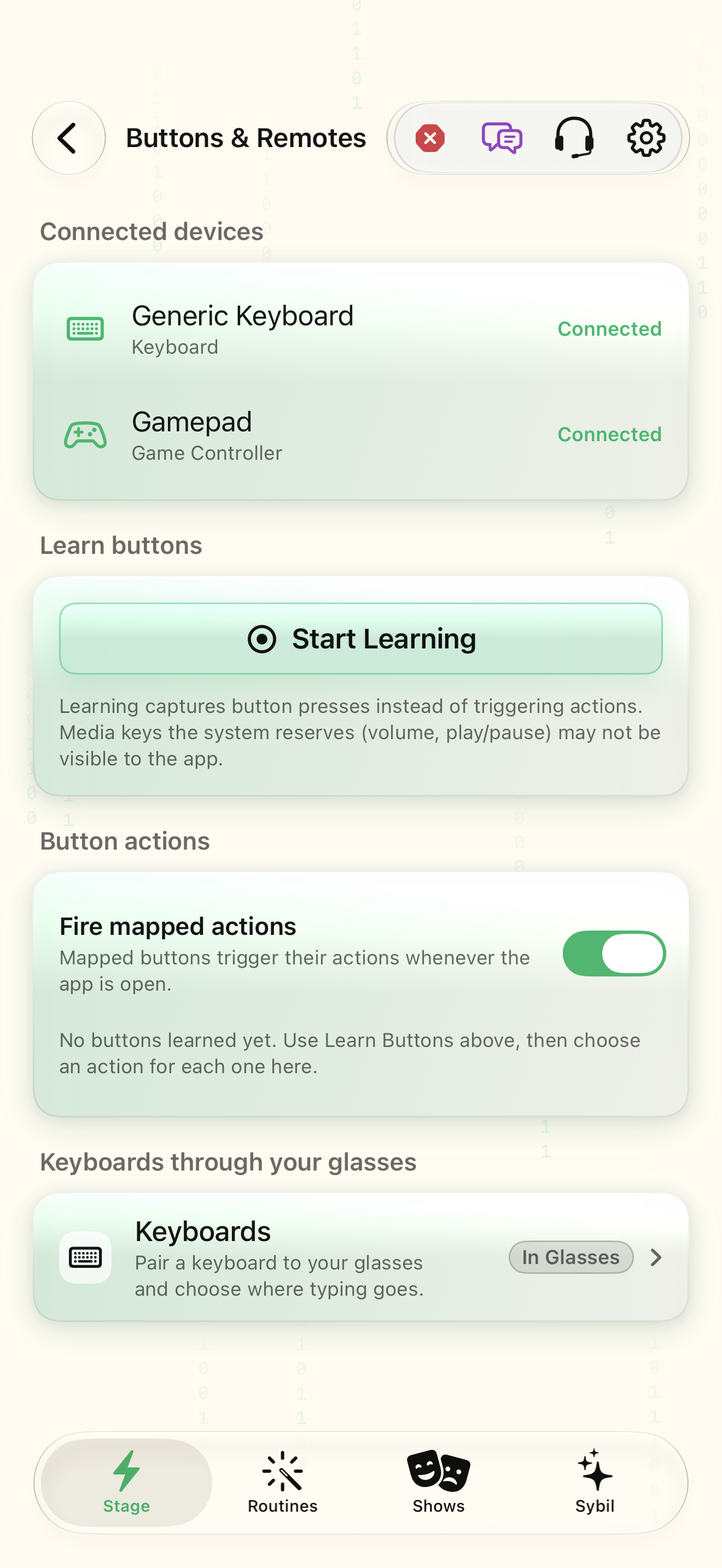
Connected devices
Learn buttons
Button actions
Keyboards through your glasses
Find Sample Bluetooth keyboard
Interactive HTML app view with sample data. Follow the outlined control, play the example, or explore at your own pace.
All steps, in writing
Pair in iOS Settings
Put your Bluetooth keyboard in its manufacturer’s pairing mode. In iOS Settings → Bluetooth, select it and complete any system pairing instructions. Return to SybilSight.
Expected: The device is connected to the phone.
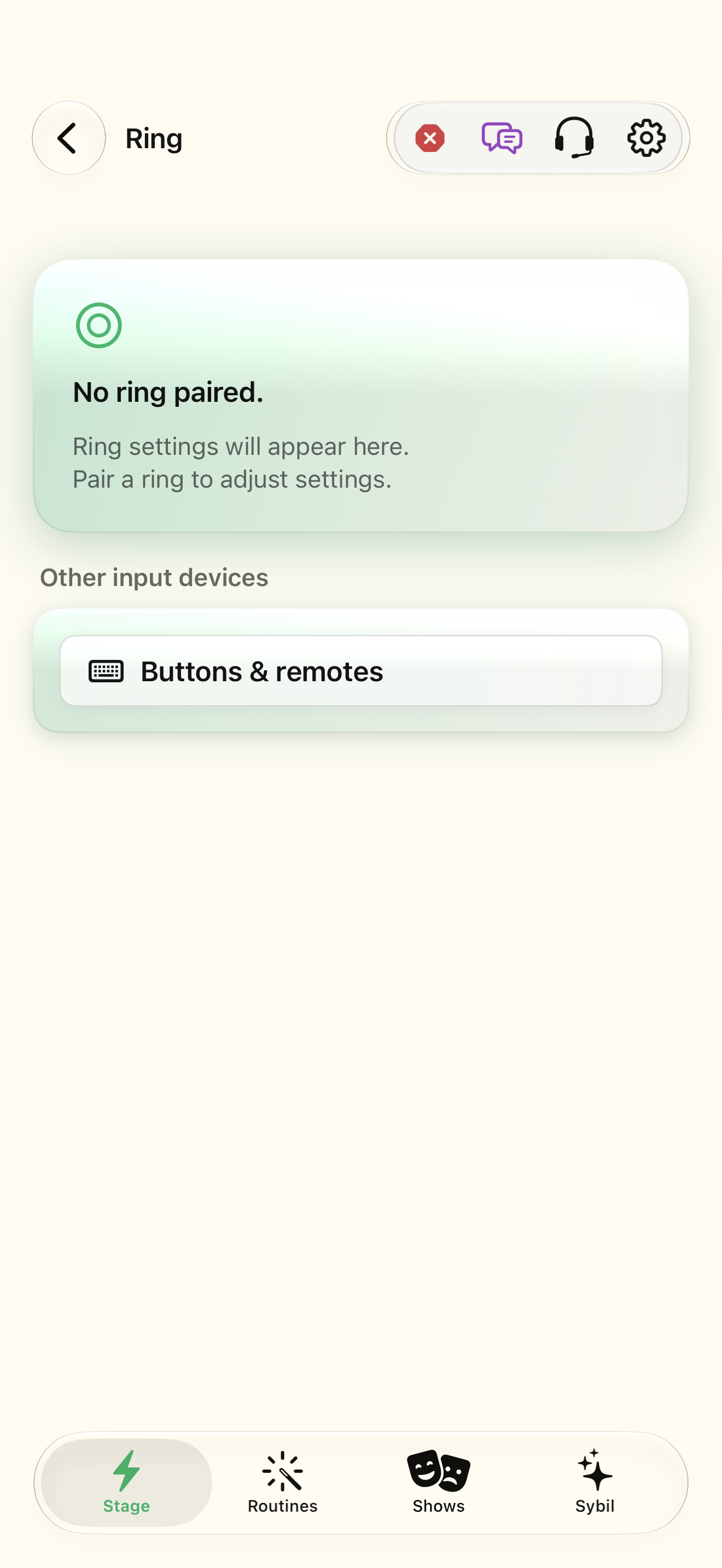
Open Buttons & remotes
In SybilSight, open Settings → Ring → Buttons & remotes. Check Connected devices.
Expected: Your device is listed as Connected.
Learn the physical buttons
Choose Start Learning, then press each button on the real device. Existing learned buttons light up rather than firing actions.
Expected: Each distinct captured button appears in Button actions.
Leave learning mode
Choose Stop Learning before testing mapped actions.
Expected: The app no longer captures presses as learning input.
Assign and test an action
In Button actions, choose an action for a learned button. Enable Fire mapped actions only when ready; test with a sample routine or display.
Expected: The learned press invokes its assigned action.
If something differs
- System-reserved volume or media keys may not reach SybilSight. Try a supported ordinary key.
- If no device is connected, check iOS Bluetooth first. Learning does not pair hardware.
- Turn off Fire mapped actions when you need normal button input without triggering configured actions.
Open the screen references
Based on SybilSight/UI/HIDDevicesView.swift and the app help catalog. Edition, device, and build affect available controls.