
Customize the status bar and its tokens
Keep time, device state, and connected information readable at a glance.
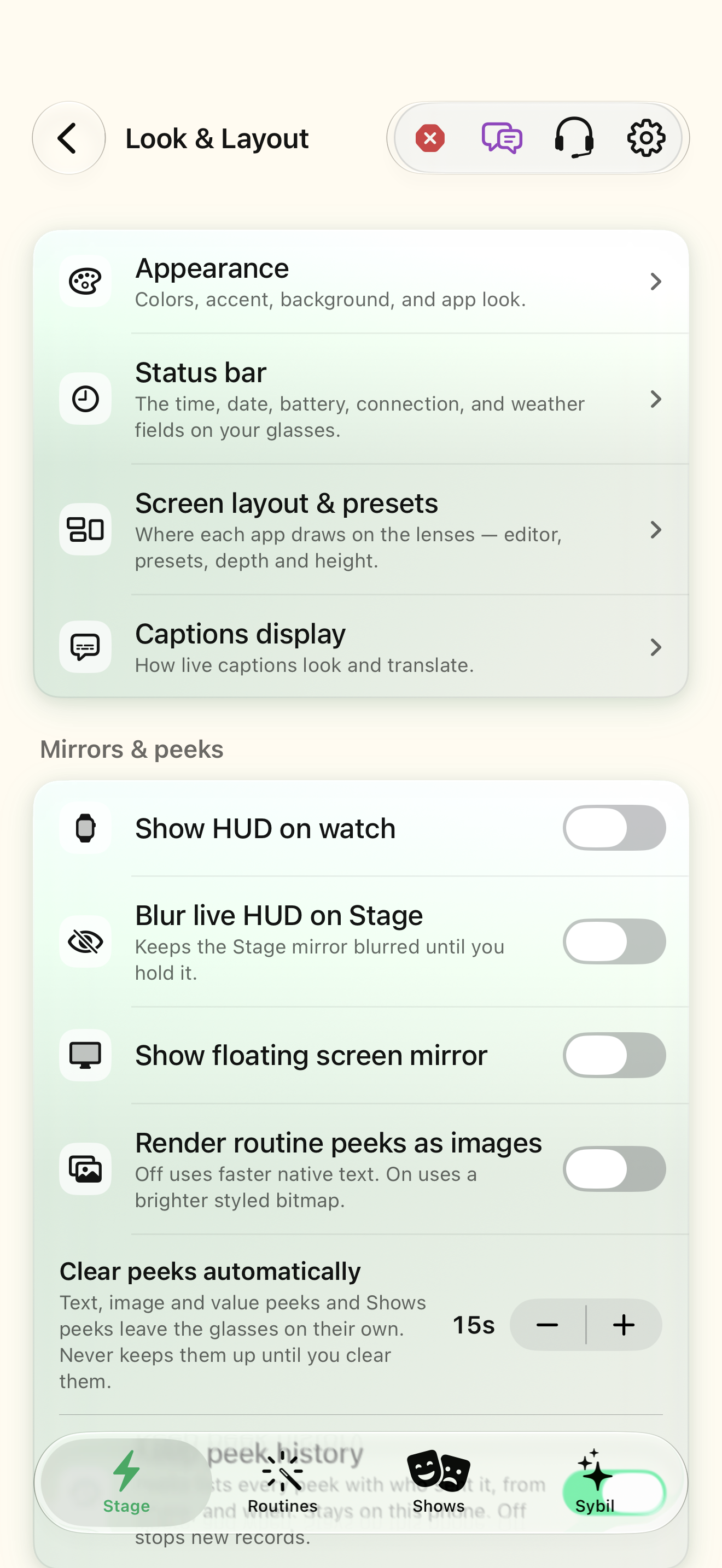
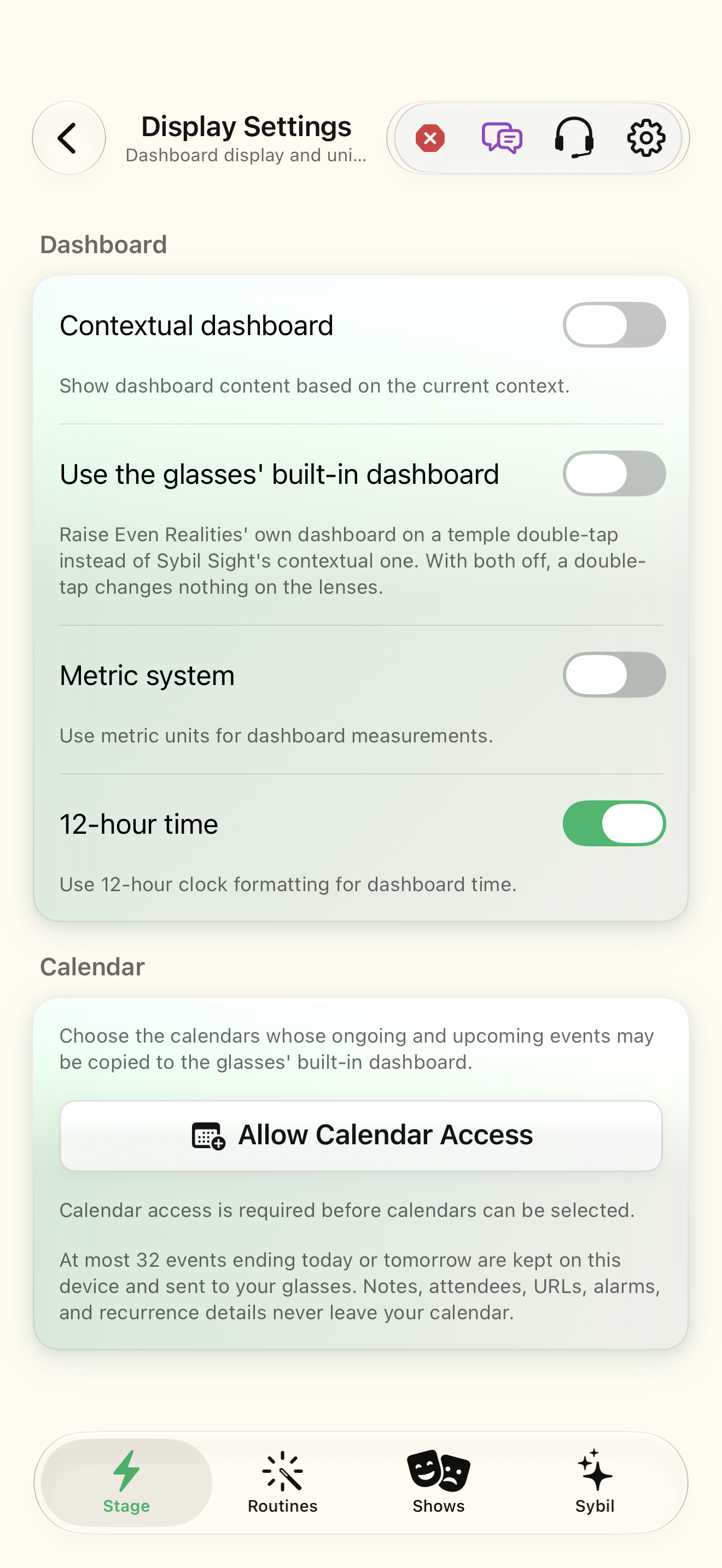
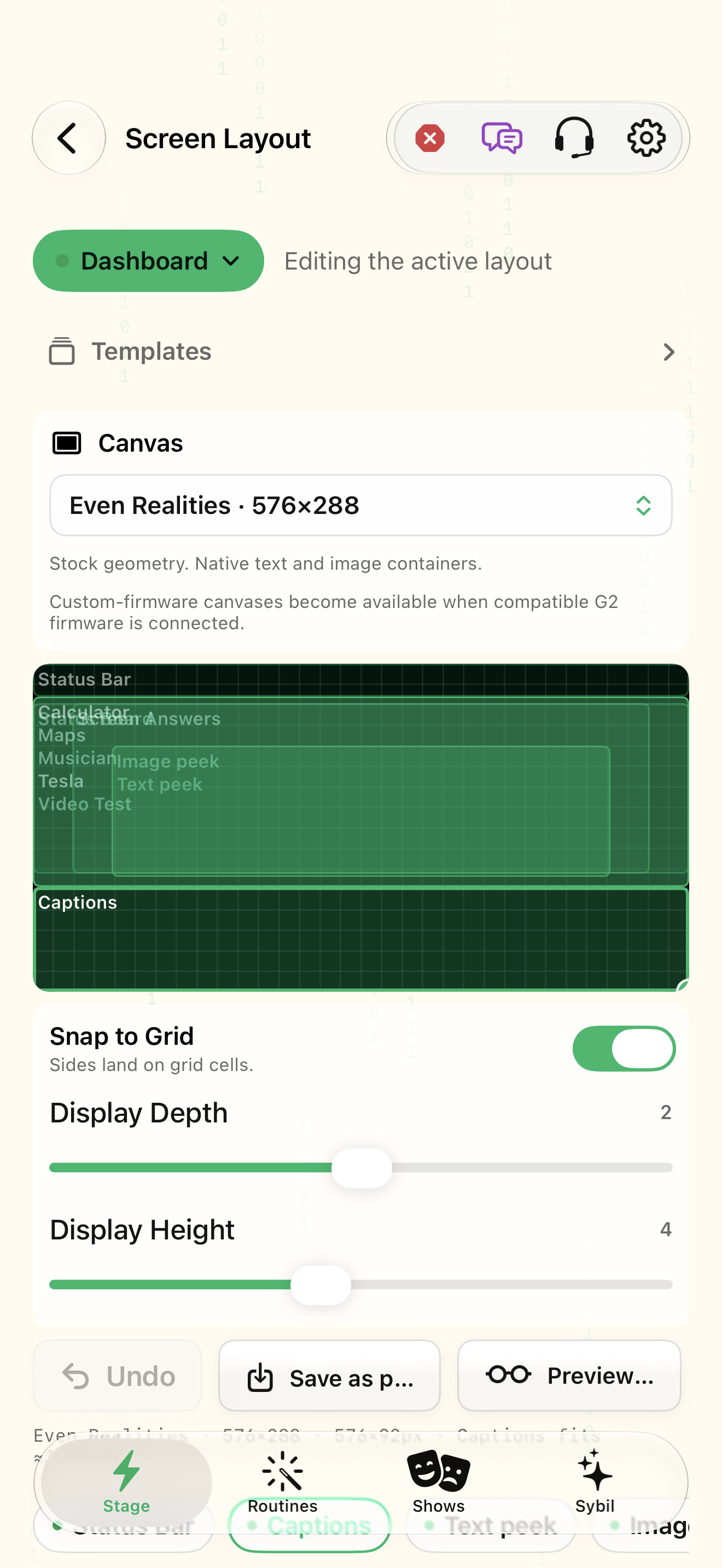
Status Bar running on Stage; optional weather or vehicle setup for those fields.
GUI draws a compact clock and device strip. Text supports a single line or split sections. Tokens expand to the current values, and the microphone glyph distinguishes active from muted.
Status bar
Open Look & Layout → Status bar. Compare GUI and Text presentation.
GUI has a graphic strip; Text exposes template-driven arrangements.
Select the highlighted control in the teaching view.
Practice at your own pace. You can also use Next step.
Look & Layout
Mirrors & peeks
Find Status bar
Interactive HTML app view with sample data. Follow the outlined control, play the example, or explore at your own pace.
All steps, in writing
Status bar
Open Look & Layout → Status bar. Compare GUI and Text presentation.
Expected: GUI has a graphic strip; Text exposes template-driven arrangements.
Status bar
Choose Single line or Sections when using Text. Start with a short template rather than adding every available field.
Expected: The line fits the assigned region and is easy to scan.
Time
Insert $TIME24$ for 24-hour time, $TIME12$ for zero-padded 12-hour time, or $TIME12N$ for an unpadded hour. $DAY$, $DAYL$, $DATE$, and $DATEL$ control day and date labels.
Expected: Time and date use the format you selected.
Battery
Use $GBATT$, $RBATT$, and $PBATT$ for glasses, ring, and phone battery. $CONN$ shows connection state; $MIC$ shows • when live and ◌ when muted.
Expected: A device or microphone state is visible without opening Settings.
Canvas
Place the status region across the top or use a template. Use $SPACE1$, $SPACE3$, or $SPACE6$ for spacing. Weather and Tesla fields need their connected services.
Expected: The status strip leaves sufficient height for captions and content.
If something differs
- Unknown tokens remain literal; check spelling and dollar signs.
- GUI does not use text templates.
- Weather and vehicle values cannot appear without the corresponding service.
Open the screen references
Based on SybilSight/Services/StatusBarTokens.swift and the app help catalog. Edition, device, and build affect available controls.