
Build choices into a routine
Prepare different outcomes and choose deliberately in the moment.
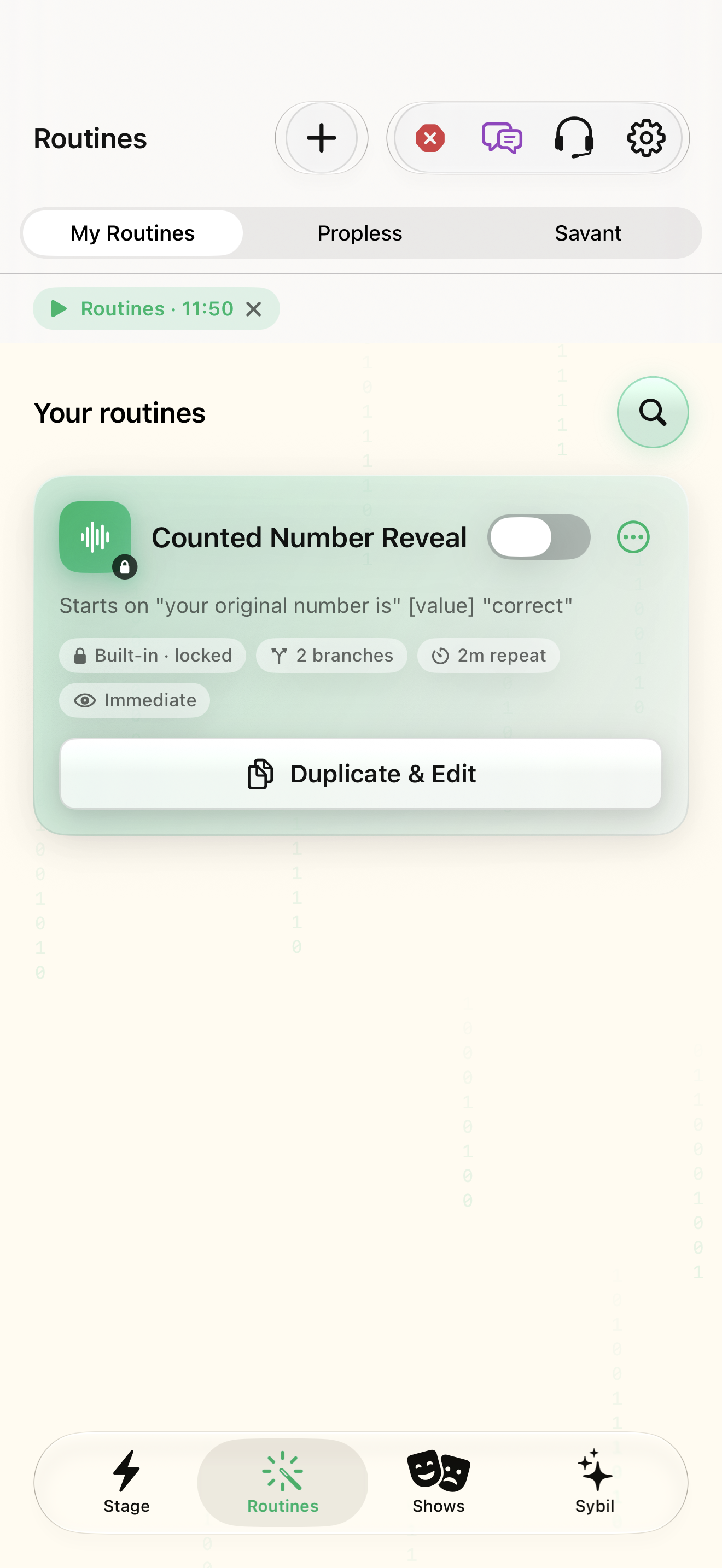
A saved routine, two sample outcomes, and a selection method you have rehearsed.
A branch has a trigger, an input, processing, and an output. Live choices differ from automatic first-match rules.
Choose branches
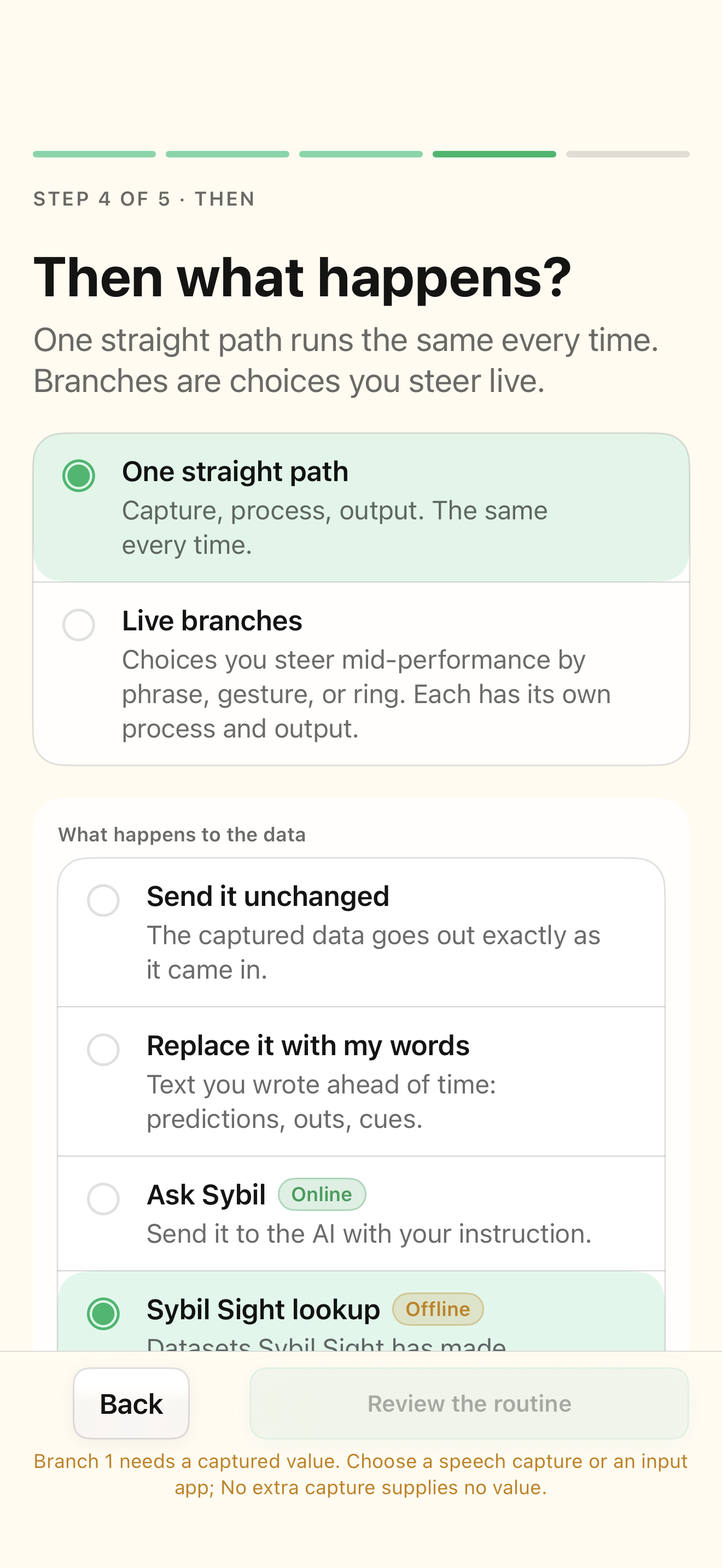
In Then, choose a path that offers choices in the moment. Give each choice a short recognizable label.
The choices describe different outcomes.
Select the highlighted control in the teaching view.
Practice at your own pace. You can also use Next step.
Then
Then what happens?
Find Branches
Interactive HTML app view with sample data. Follow the outlined control, play the example, or explore at your own pace.
All steps, in writing
Choose branches
In Then, choose a path that offers choices in the moment. Give each choice a short recognizable label.
Expected: The choices describe different outcomes.
Choose how it starts
In the branch editor, configure a phrase, supported head gesture, or wearable-only selection.
Expected: The branch has a selection method you can demonstrate.
Choose the input
Use Input and variable to choose routine input, start trigger data, a connected app, or an earlier saved action output.
Expected: The branch reads the value you intend.
Choose processing
In The answer, select pass-through, fixed text, a formula, lookup, or configured AI processing as appropriate.
Expected: The result is predictable with a sample input.
Choose the destination
In Where it shows, choose the glasses or an explicitly configured supported destination. Rehearse every branch.
Expected: Each choice has a tested input-to-output path.
If something differs
- An API receive connection does not prove the same endpoint accepts writes.
- If wearable selection is enabled, highlighting and confirming a branch are separate actions.
Open the screen references
Based on SybilSight/Routines/BranchEditorView.swift and the app help catalog. Edition, device, and build affect available controls.