
Check a request and reply to support
Follow the status, see replies, and provide the missing detail without starting over.
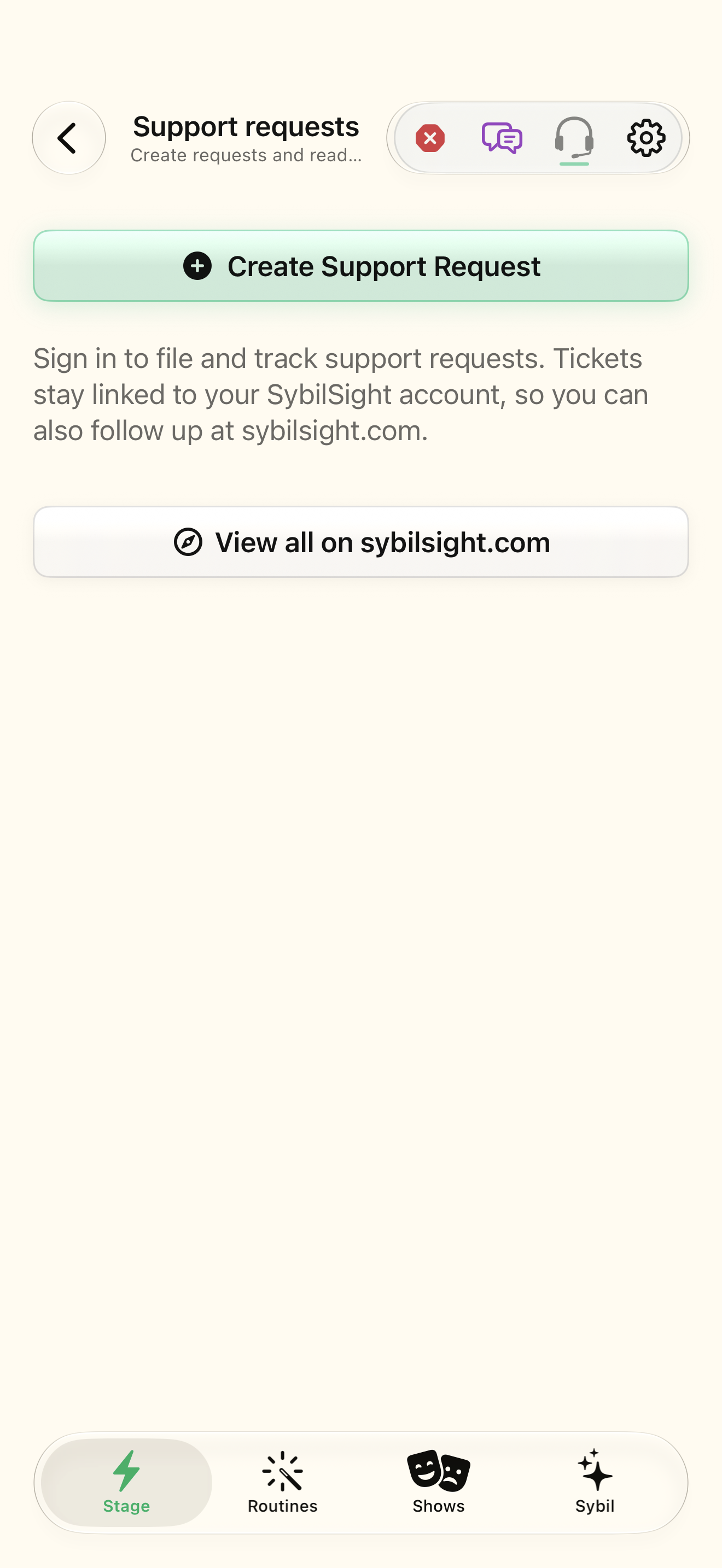
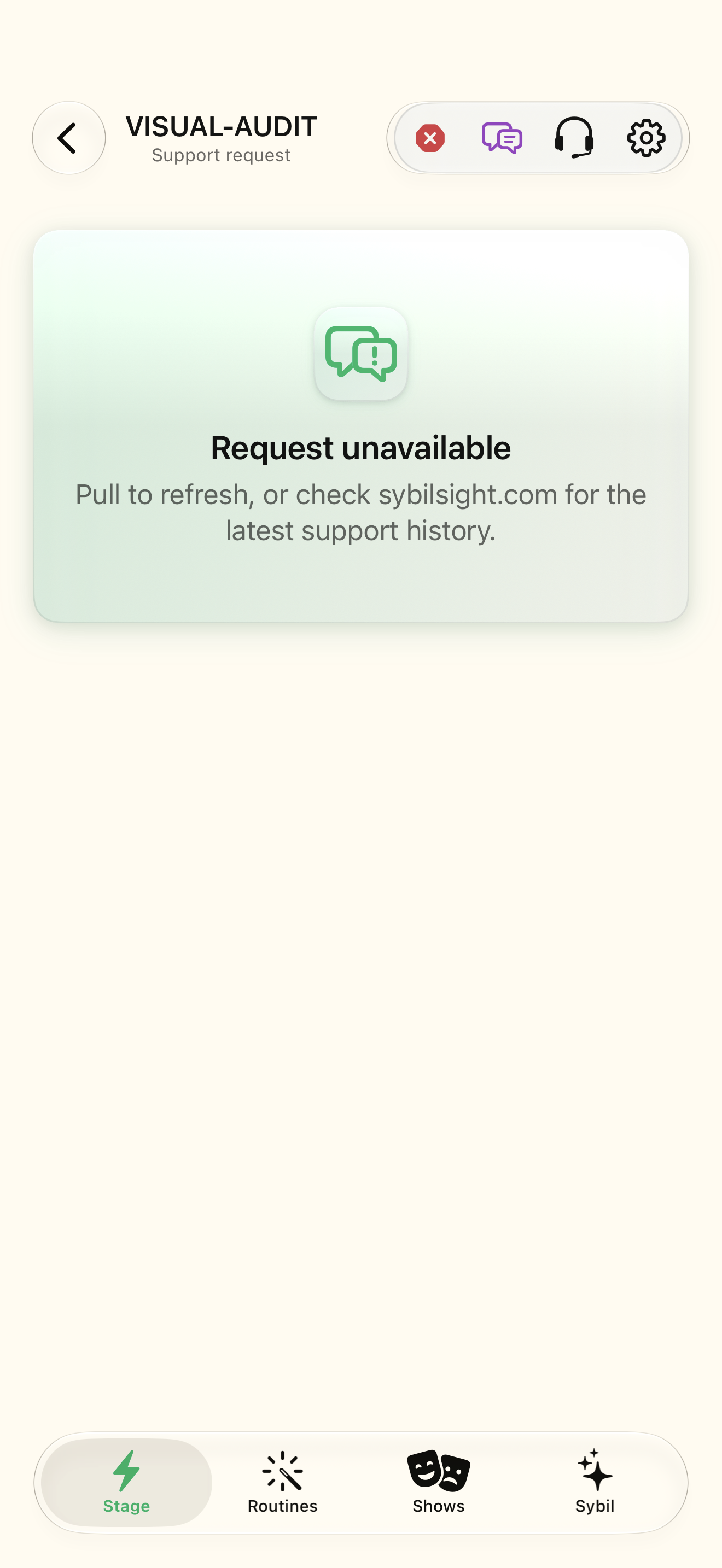
Use a sample workspace. Available controls depend on your device, edition, and app build.
Tickets are linked to your account and available in the app and on the website. A Home headset badge can indicate unread updates.
Find your requests
Tap the Home headset button. Check the request list and its status chips; an unread badge can signal an update.
Your requests appear under the signed-in account.
Select the highlighted control in the teaching view.
Practice at your own pace. You can also use Next step.
Support requests
Find Sample display issue
Interactive HTML app view with sample data. Follow the outlined control, play the example, or explore at your own pace.
All steps, in writing
Find your requests
Tap the Home headset button. Check the request list and its status chips; an unread badge can signal an update.
Expected: Your requests appear under the signed-in account.
Read the conversation
Select your request and read Conversation, the status, and any reply-by date.
Expected: You know whether support needs a response.
Send a useful reply
Enter the requested details in Reply to support, then choose Send Response. Wait for confirmation.
Expected: The new response is part of the request conversation.
Follow up on the website
Use View on sybilsight.com for this request or View all on sybilsight.com for the list. Use the account associated with the ticket.
Expected: You can continue with the same support history.
Handle a resolved request
If the request is resolved and you need more help, use Create Support Request as instructed by the app and describe the earlier issue.
Expected: A new request can reference the previous case.
If something differs
- If the list cannot refresh, read the connection error and retry later; do not assume requests were deleted.
- A reply deadline may apply when support is waiting for you. Read the actual date shown.
- A resolved request uses the new-request flow rather than the normal reply composer.
Open the screen references
Based on SybilSight/UI/SupportTicketViews.swift and the app help catalog. Edition, device, and build affect available controls.