
Pair an R1 smart ring
Control your display with deliberate ring input without re-pairing the glasses.
Use a sample workspace. Available controls depend on your device, edition, and app build.
The R1 links to this device separately. SybilSight passes its details to the glasses; a pending handoff can replay when the glasses reconnect.
Choose Ring
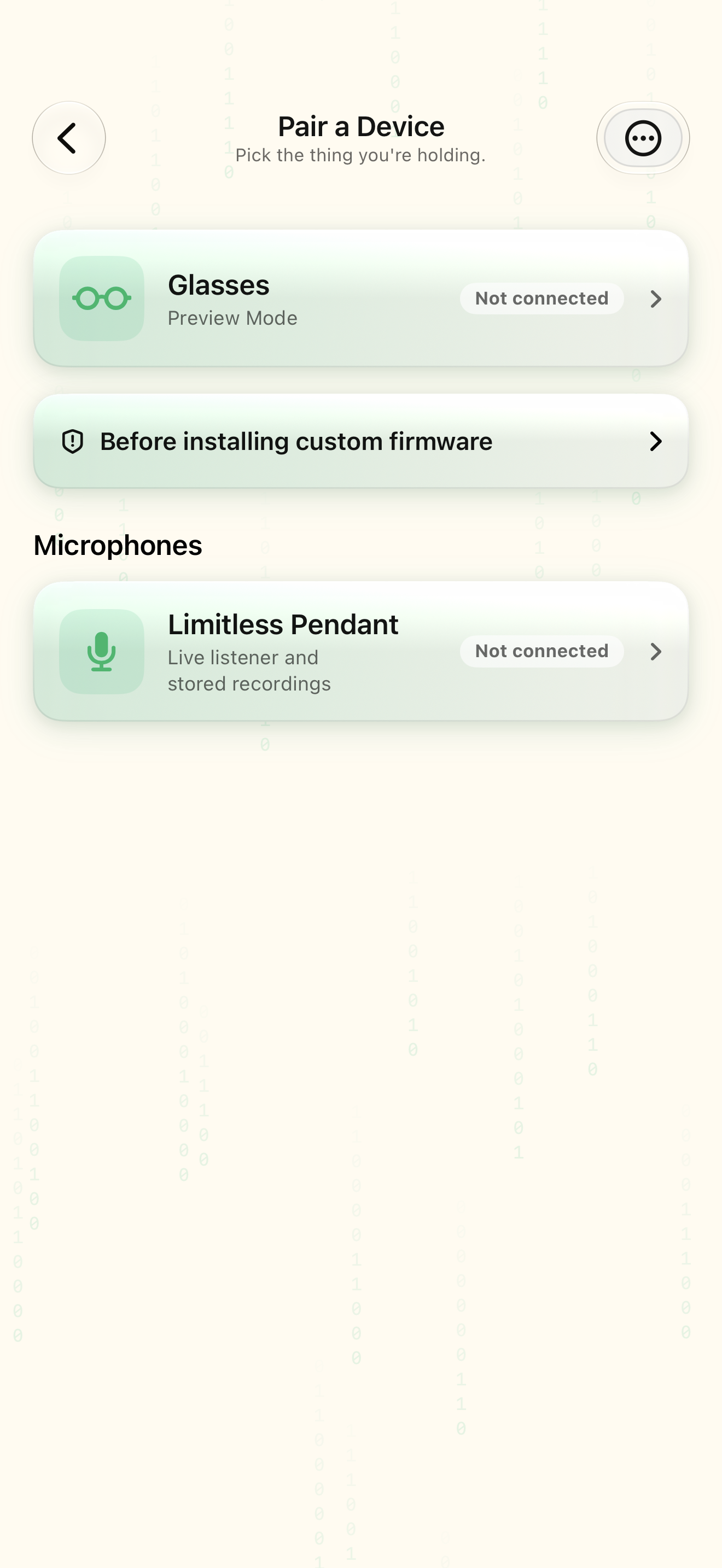
Open Home → Pair → Ring.
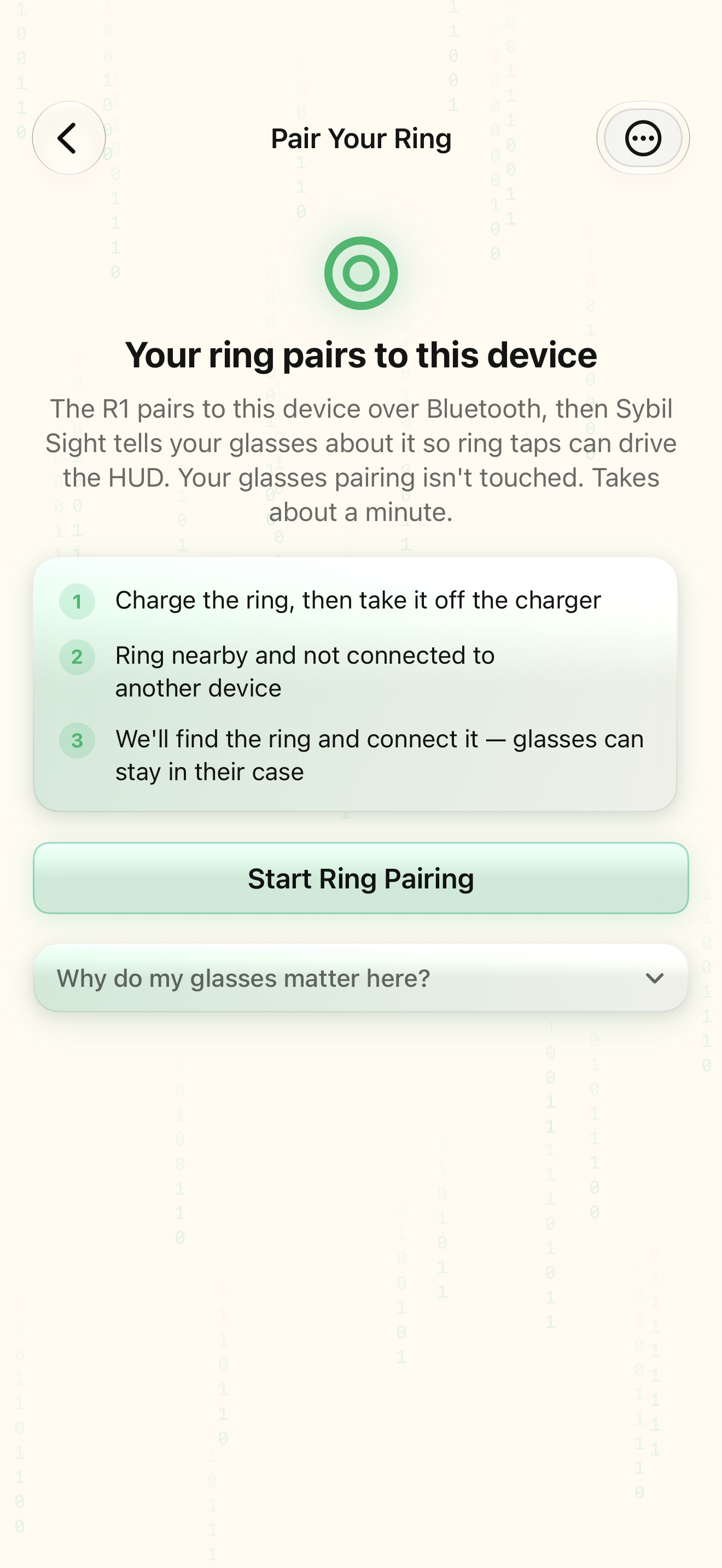
The ring explainer describes its separate connection.
Select the highlighted control in the teaching view.
Practice at your own pace. You can also use Next step.
Pair a device
Microphones
Find Ring
Interactive HTML app view with sample data. Follow the outlined control, play the example, or explore at your own pace.
All steps, in writing
Choose Ring
Open Home → Pair → Ring.
Expected: The ring explainer describes its separate connection.
Start the ring flow
Read the explanation and choose Start Ring Pairing.
Expected: Ring-specific preparation opens.
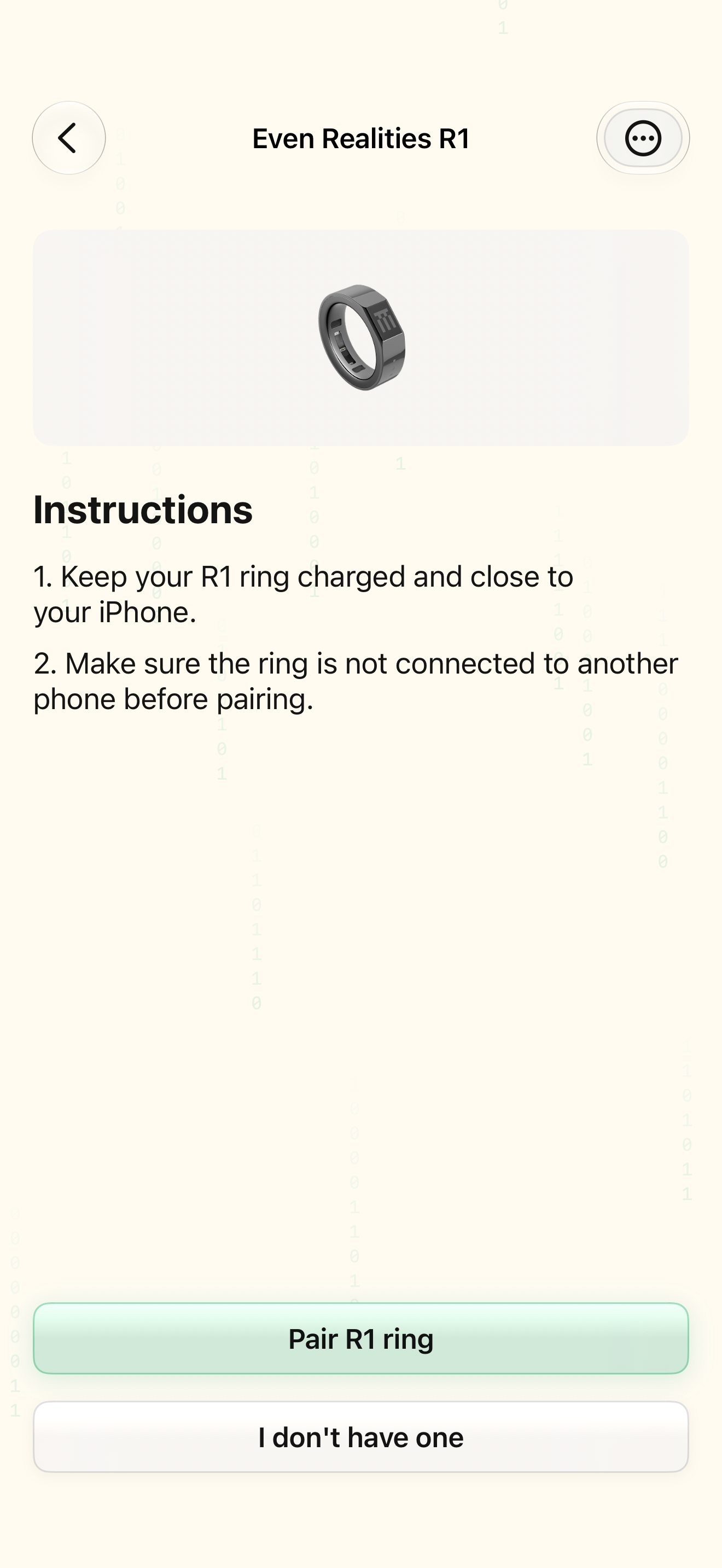
Prepare and scan
Keep the ring charged and nearby, and disconnected from another phone. Follow the pairing-mode instructions, then choose Pair R1 ring.
Expected: The scan can discover an advertising ring.
Choose your ring
Select your discovered R1 and wait for the connection result. If none appears, use Scan again after checking pairing mode.
Expected: The app completes pairing or provides a recoverable error.
Check your controls
Open Settings → Ring. Inspect the assigned actions and test a harmless control with your glasses awake.
Expected: A ring input does the action you selected.
If something differs
- Glasses pairing is preserved when starting the ring flow.
- If the ring will not enter pairing mode, the app suggests placing it on the charger and tapping the charger until orange; follow the in-app help for the charger-detection workaround.
- When the glasses are in their case, verify the control handoff again after they reconnect.
Open the screen references
Based on SybilSight/UI/PairingFlow.swift and the app help catalog. Edition, device, and build affect available controls.