
Send text and image peeks
Put a deliberate detail in view, clear it, and find it again.
Connected glasses, or the website simulator for practice.
Text and image peeks use separate app containers and layout regions. Their history includes the sender, source, time, and delivery state.
Section
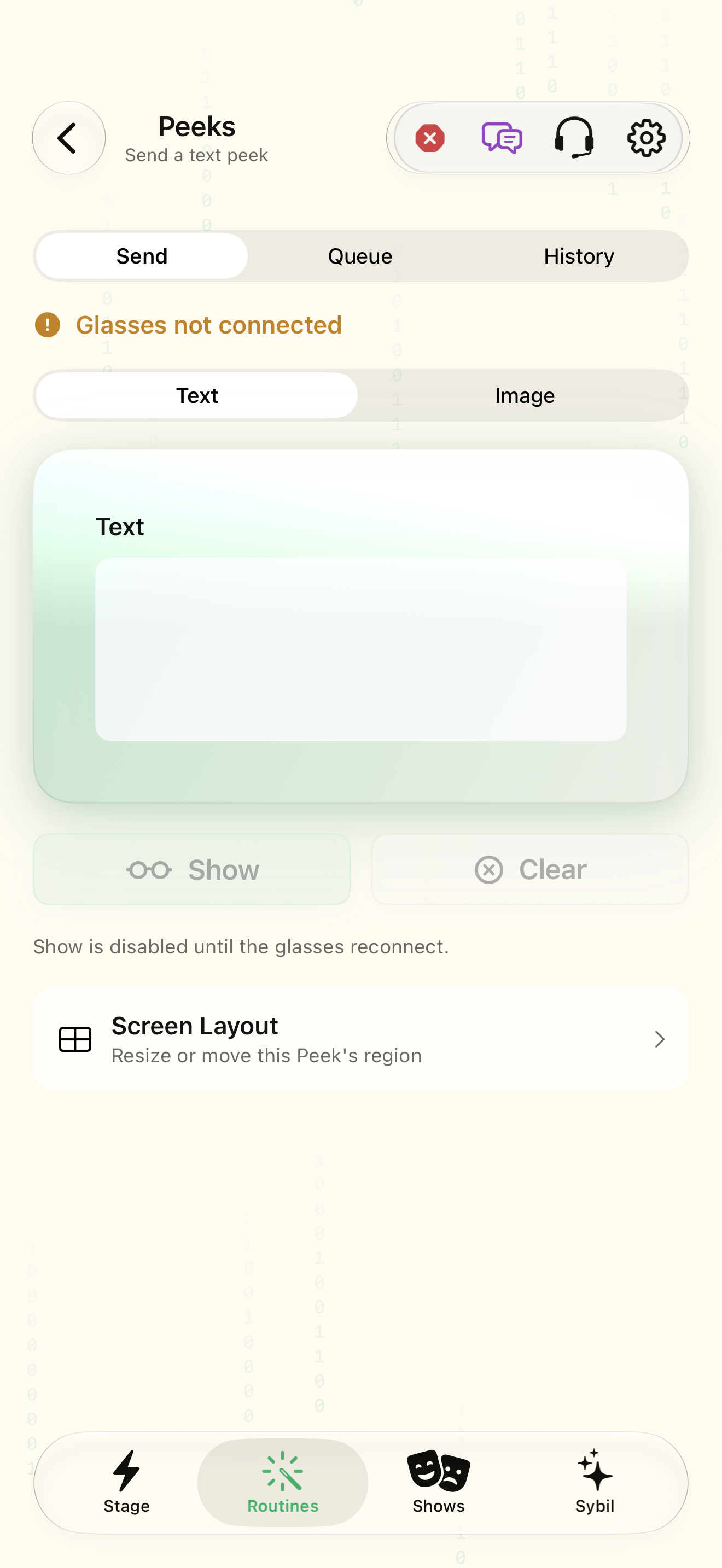
Open Peeks and choose Send. Confirm the glasses connection before preparing a result.
Send is available when the display reconnects; disconnected hardware keeps Show disabled.
Select the highlighted control in the teaching view.
Practice at your own pace. You can also use Next step.
Peeks
Composer
Showing now and up next
History
Find Section
Interactive HTML app view with sample data. Follow the outlined control, play the example, or explore at your own pace.
All steps, in writing
Section
Open Peeks and choose Send. Confirm the glasses connection before preparing a result.
Expected: Send is available when the display reconnects; disconnected hardware keeps Show disabled.
Type
Select Text. Enter a short sample such as “Maya · proposal before Friday”.
Expected: The composer contains the exact text you intend to display.
Show on glasses
Tap Show on glasses, then inspect the Text peek region. Use Clear when the result should leave the display.
Expected: The text is presented deliberately; clearing removes the current result.
Choose image
Switch Type to Image and choose an image from Photos. Compare Fit, which preserves the whole picture, with Fill, which crops the center to the region.
Expected: The image preview makes the scaling choice visible before sending.
Canvas
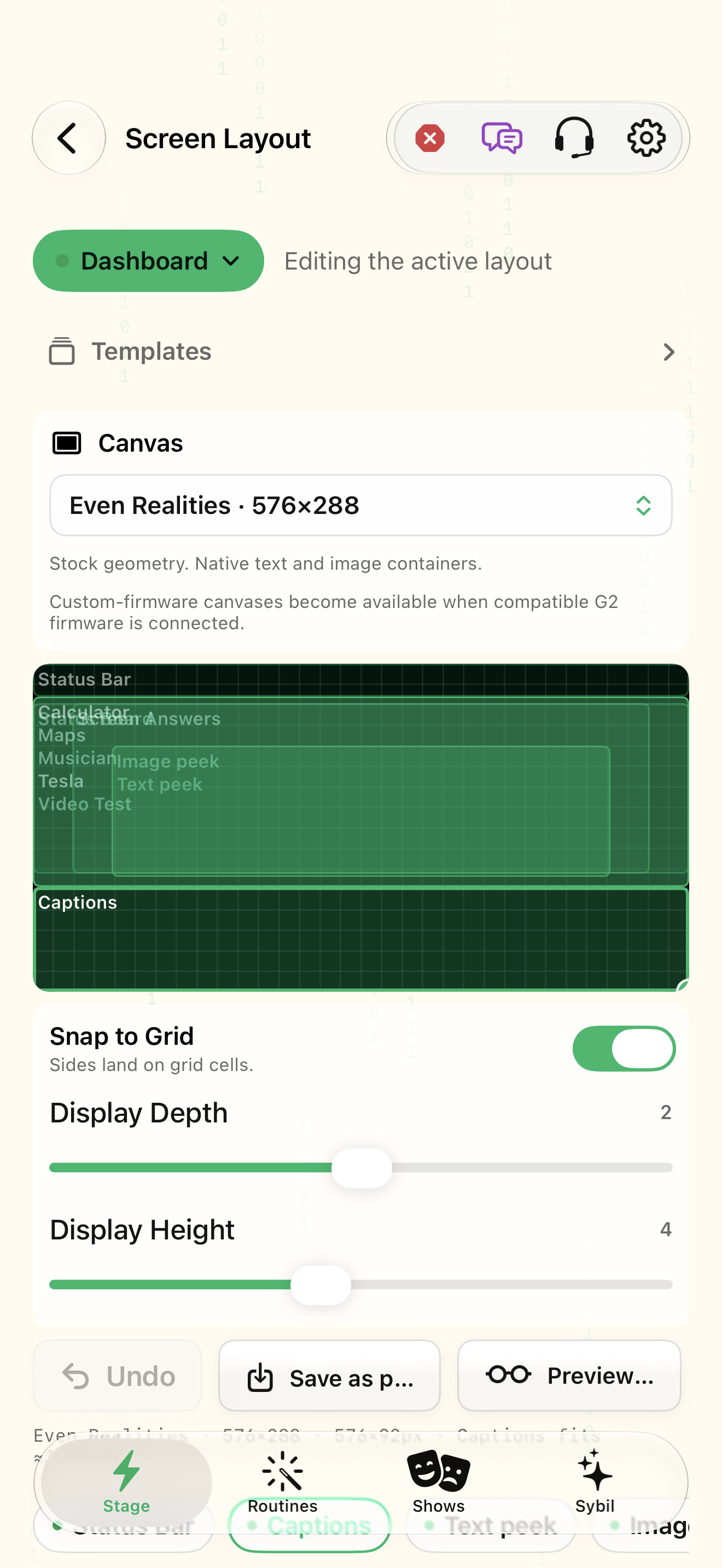
Open Screen Layout for the peek. Move or resize Text and Image regions for the intended mode and save the preset.
Expected: Your picture and text each have a predictable, readable location.
If something differs
- Show disabled: reconnect the glasses and provide nonempty text or an image.
- An image can be cropped in Fill; compare Fit before changing the original.
- Auto-clear applies to the display; history is managed separately.
Open the screen references
Based on SybilSight/UI/PeeksView.swift and the app help catalog. Edition, device, and build affect available controls.