
Open a support request
Give support the details needed to reproduce a problem and follow up with you.
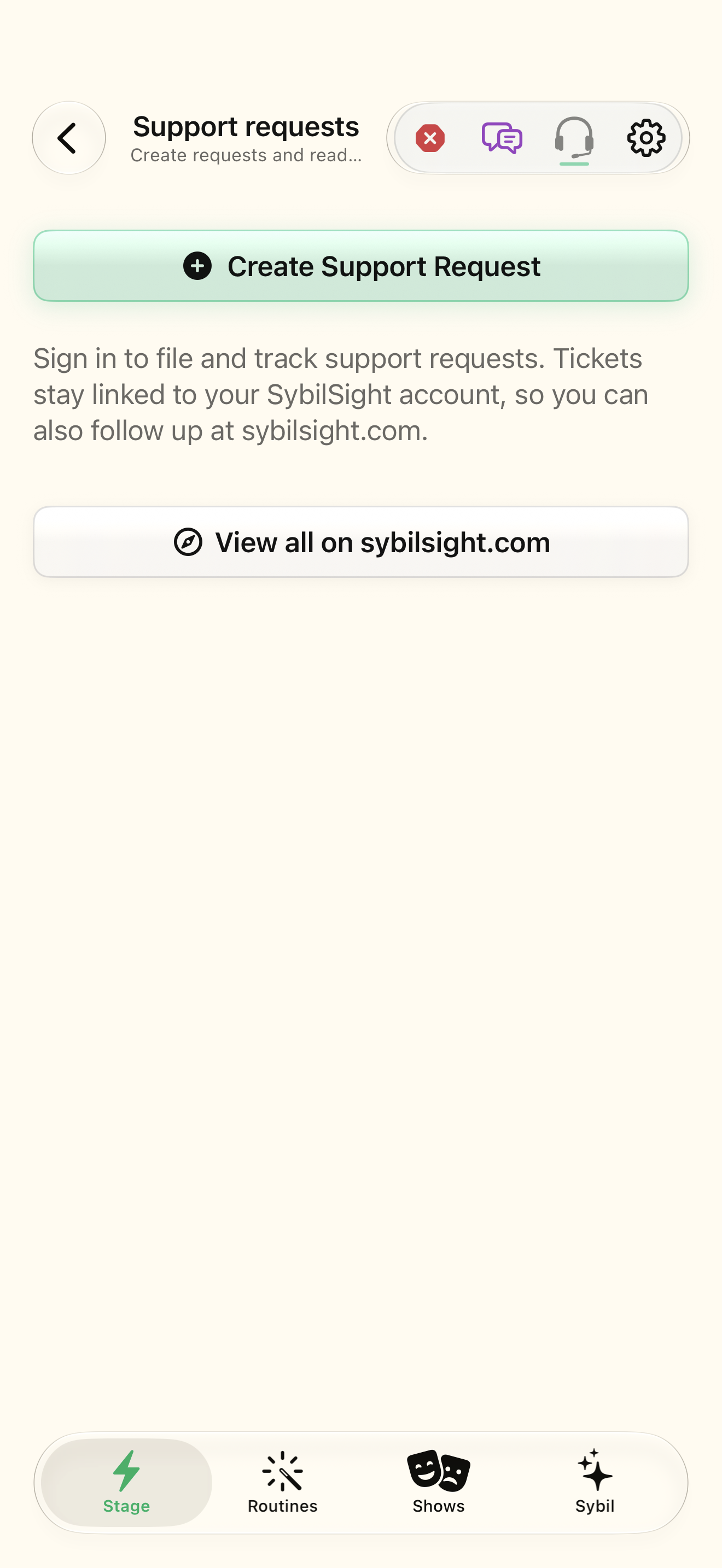
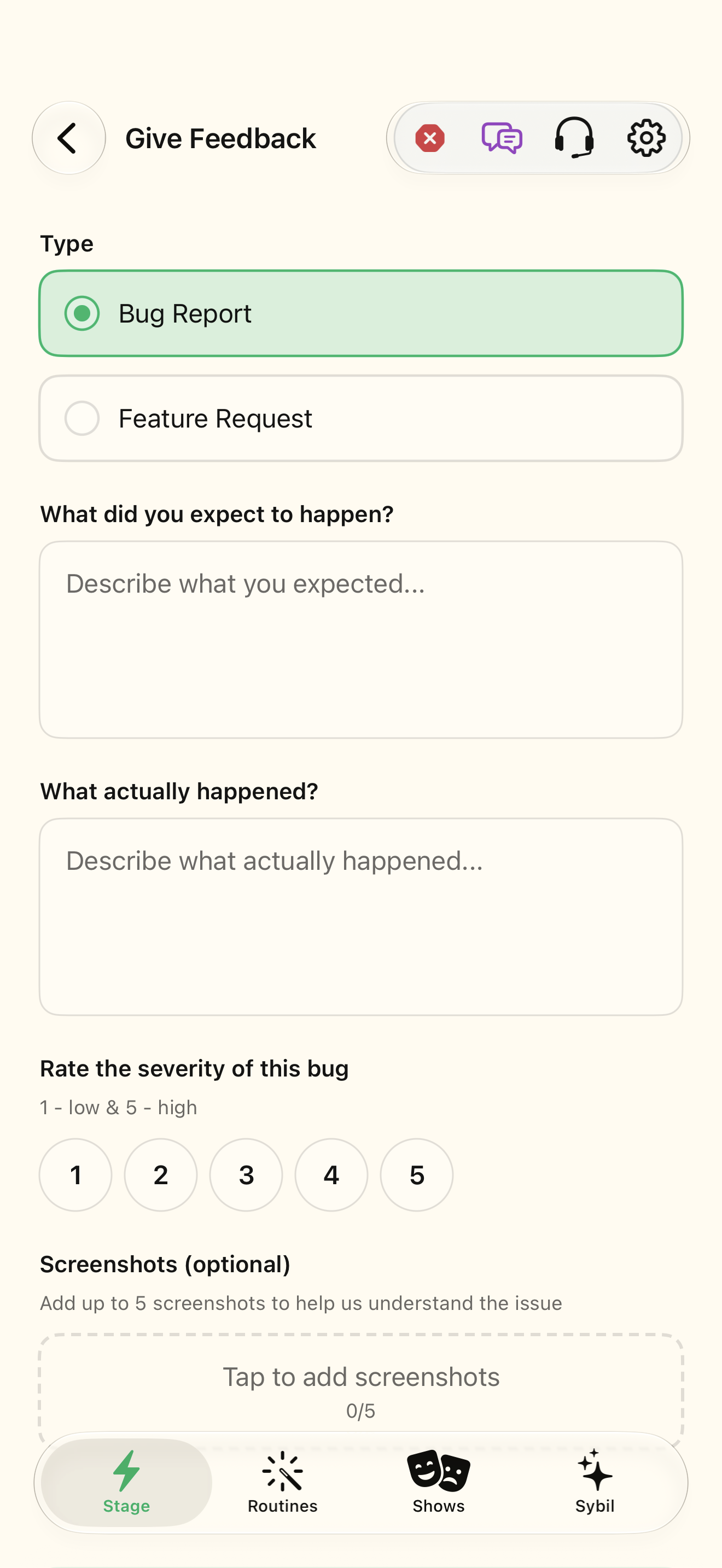
Sign in to the SybilSight account you want to use for support. Support requests send the submitted information to the support service.
The Home headset opens Support requests. Create Support Request opens Give Feedback, with bug and feature-request forms.
Open support
Tap the headset button in the Home header. Sign in if requested so the ticket can be associated with your account.
Support requests opens.
Select the highlighted control in the teaching view.
Practice at your own pace. You can also use Next step.
Support requests
Find Create Support Request
Interactive HTML app view with sample data. Follow the outlined control, play the example, or explore at your own pace.
All steps, in writing
Open support
Tap the headset button in the Home header. Sign in if requested so the ticket can be associated with your account.
Expected: Support requests opens.
Choose the request type
Choose Create Support Request, then Bug Report or Feature Request as appropriate.
Expected: The form shows the fields for that type.
Describe the difference
For a bug, describe What did you expect to happen? and What actually happened? Include the steps, hardware, and build that make the problem repeat.
Expected: The report explains expected and observed behavior.
Review optional attachments
Choose a severity and inspect any optional screenshots. Remove private conversation text or contact details you do not want to send. A relay account may require a contact email.
Expected: The information you intend to share is ready.
Submit and retain the result
Use the form’s Submit or Submit Feedback button and wait for success. If it fails, resolve the error before assuming a ticket exists.
Expected: A confirmed request can be followed in Support requests.
If something differs
- A disabled submit button can indicate missing required fields.
- A failed network request is not a submitted ticket. Check for confirmation before retrying.
- Use fictional or redacted screenshots when the private content is unnecessary to reproduce the issue.
Open the screen references
Based on SybilSight/UI/FeedbackModels.swift and the app help catalog. Edition, device, and build affect available controls.