
Turn conversations into relationship context
Arrive prepared, remember the person, and see the commitments that need attention.
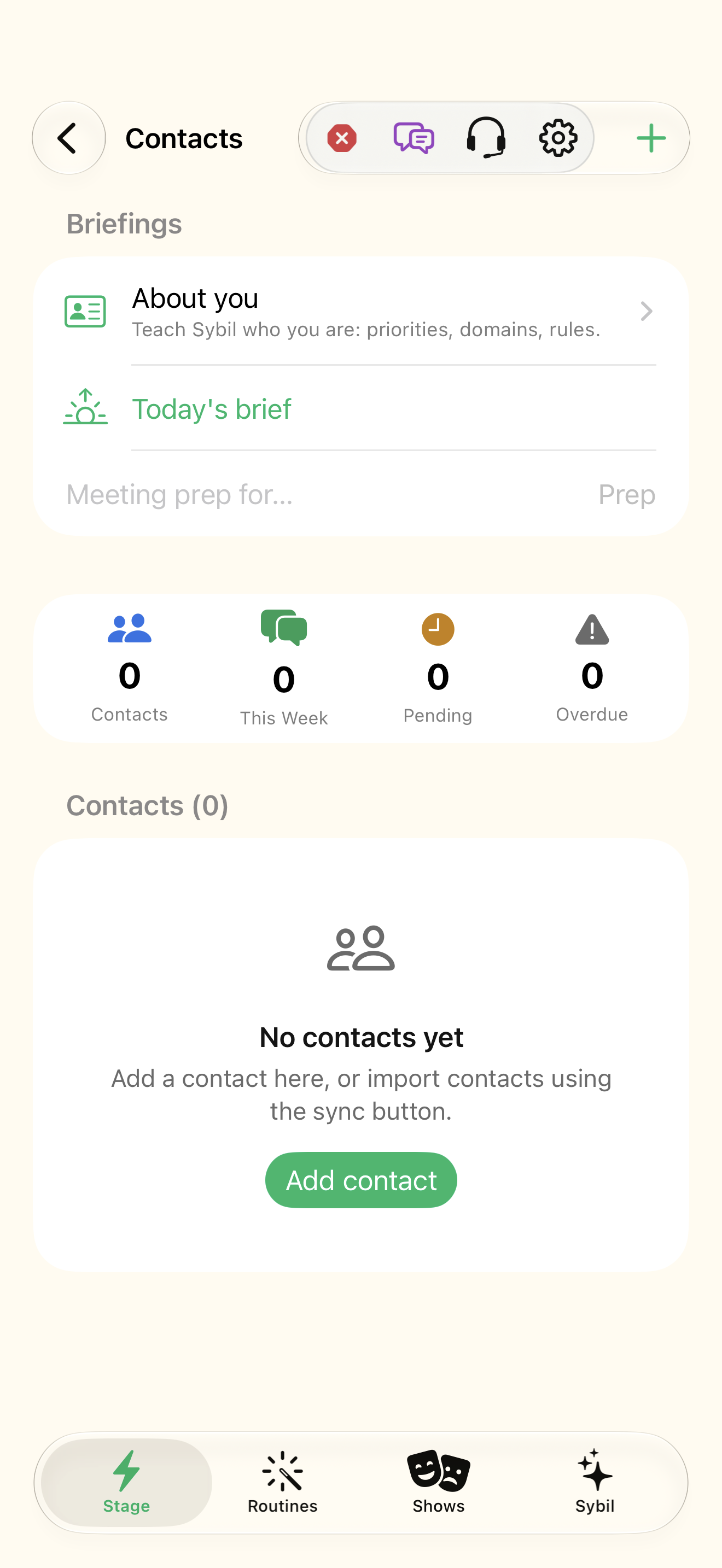
Sample contacts and retained interactions; Contacts synchronization requires its own permission.
The CRM connects contacts, interactions, commitments, reminders, voice identity, and sourced intelligence. Imports and full sync are explicit choices.
Choose a contact
Open Contacts and select a sample person. Use Import from Contacts only when you intend to bring those records into the app.
The person record is the intended one.
Select the highlighted control in the teaching view.
Practice at your own pace. You can also use Next step.
Contacts
CRM & Contacts
Find Contacts
Interactive HTML app view with sample data. Follow the outlined control, play the example, or explore at your own pace.
All steps, in writing
Choose a contact
Open Contacts and select a sample person. Use Import from Contacts only when you intend to bring those records into the app.
Expected: The person record is the intended one.
Review the relationship
Inspect details, interaction history, and relationship stage.
Expected: You can connect the person with the source exchanges.
Check obligations
Review pending commitments and reminders, including who owes what and when.
Expected: The next step is specific and attributable.
Prepare for the next meeting
Use the briefings and contact context, correcting a mismatched identity or unsupported fact before relying on it.
Expected: The briefing is useful and grounded in the retained record.
If something differs
- Full sync can import and export; it is different from browsing local contacts.
- Voice identity and sourced research should be reviewed when a namesake or attribution mismatch appears.
Open the screen references
Based on Modules/Assistant/App/Views/CRMDashboardView.swift and the app help catalog. Edition, device, and build affect available controls.