
Pair your smart glasses
Bring the private display into your workflow, from model selection to a verified connection.
Charged supported glasses nearby, Bluetooth enabled, and permission for SybilSight to use Bluetooth. The browser does not scan or pair hardware.
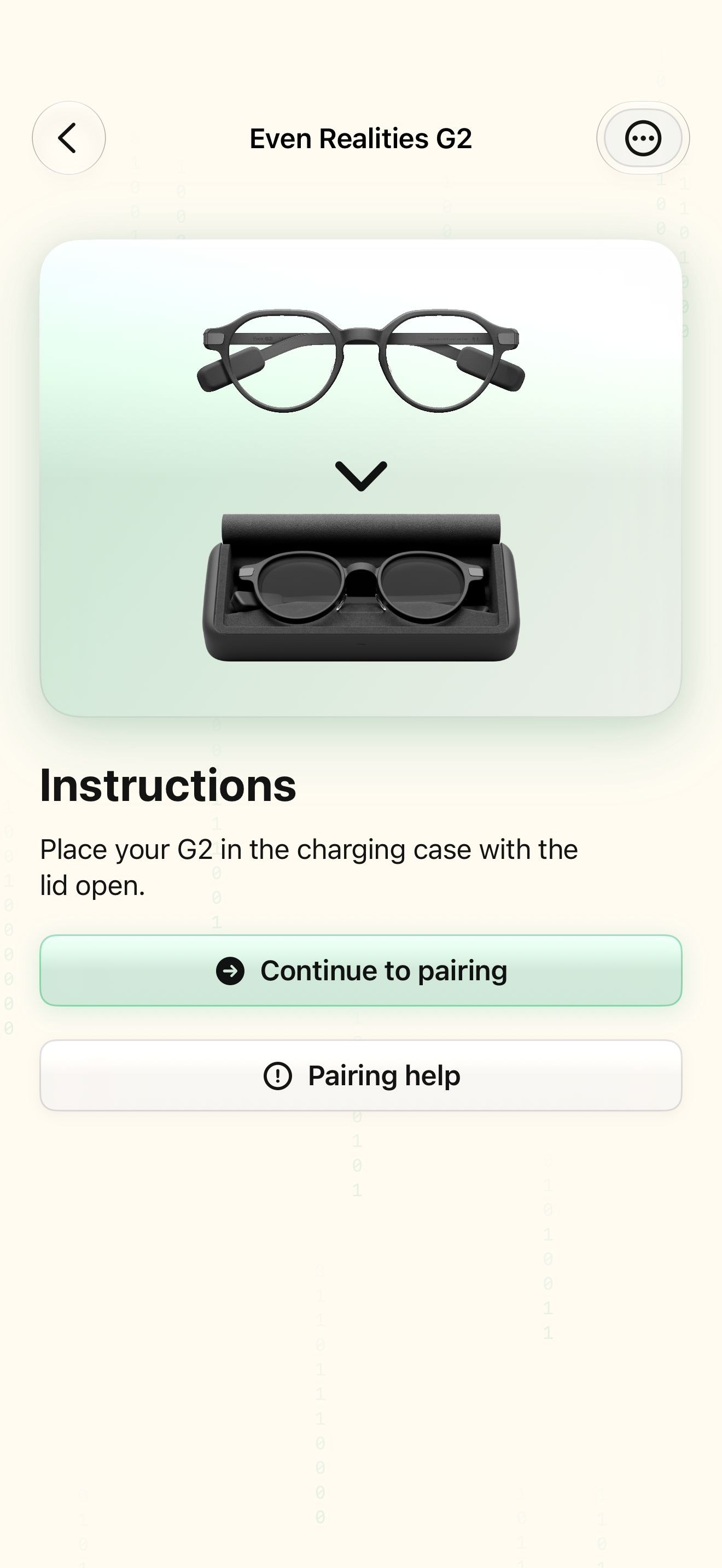
Pairing chooses a model, shows its preparation instructions, scans nearby devices, and reports the result. The demonstration uses an Even G2 example; follow the preparation shown for your own model.
Open the device chooser
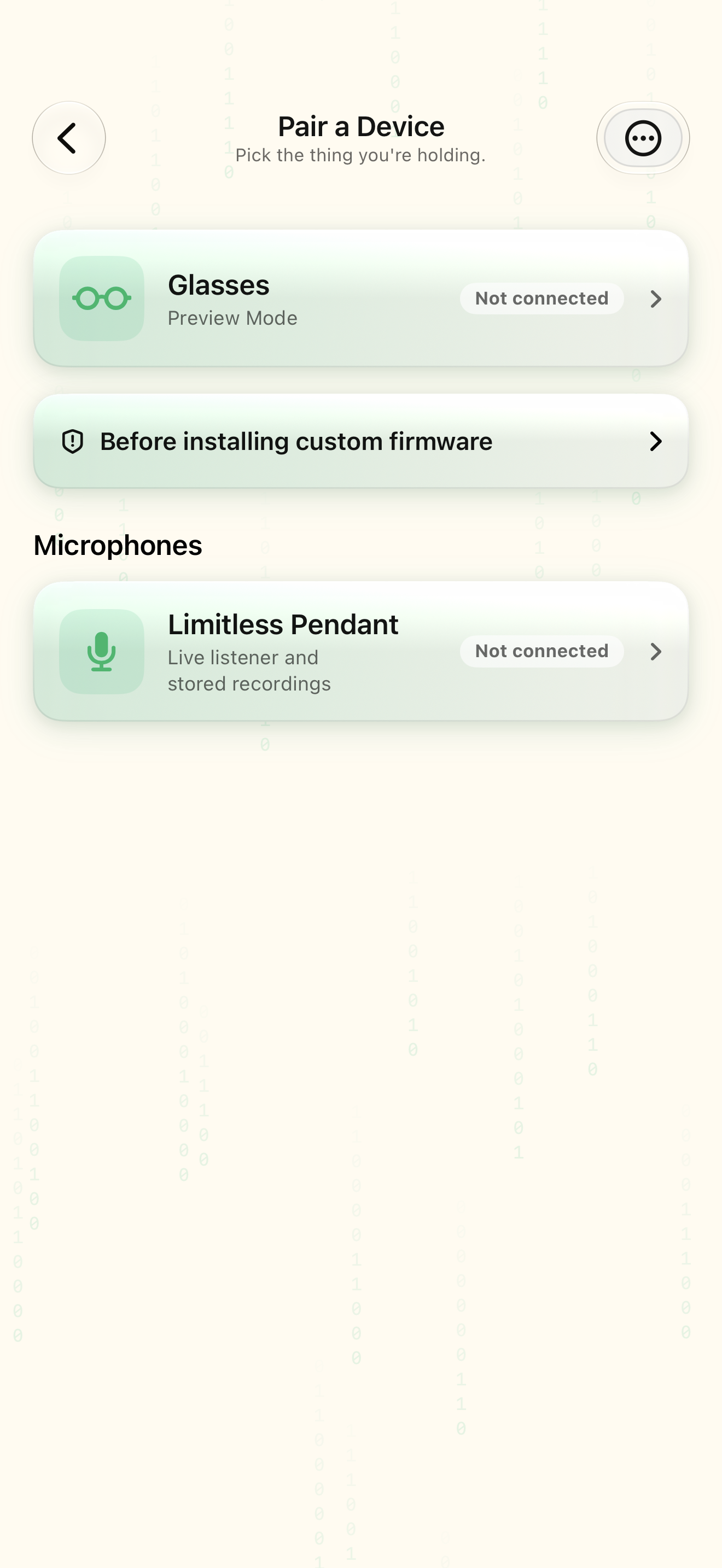
From Home, open Pair and choose Glasses.
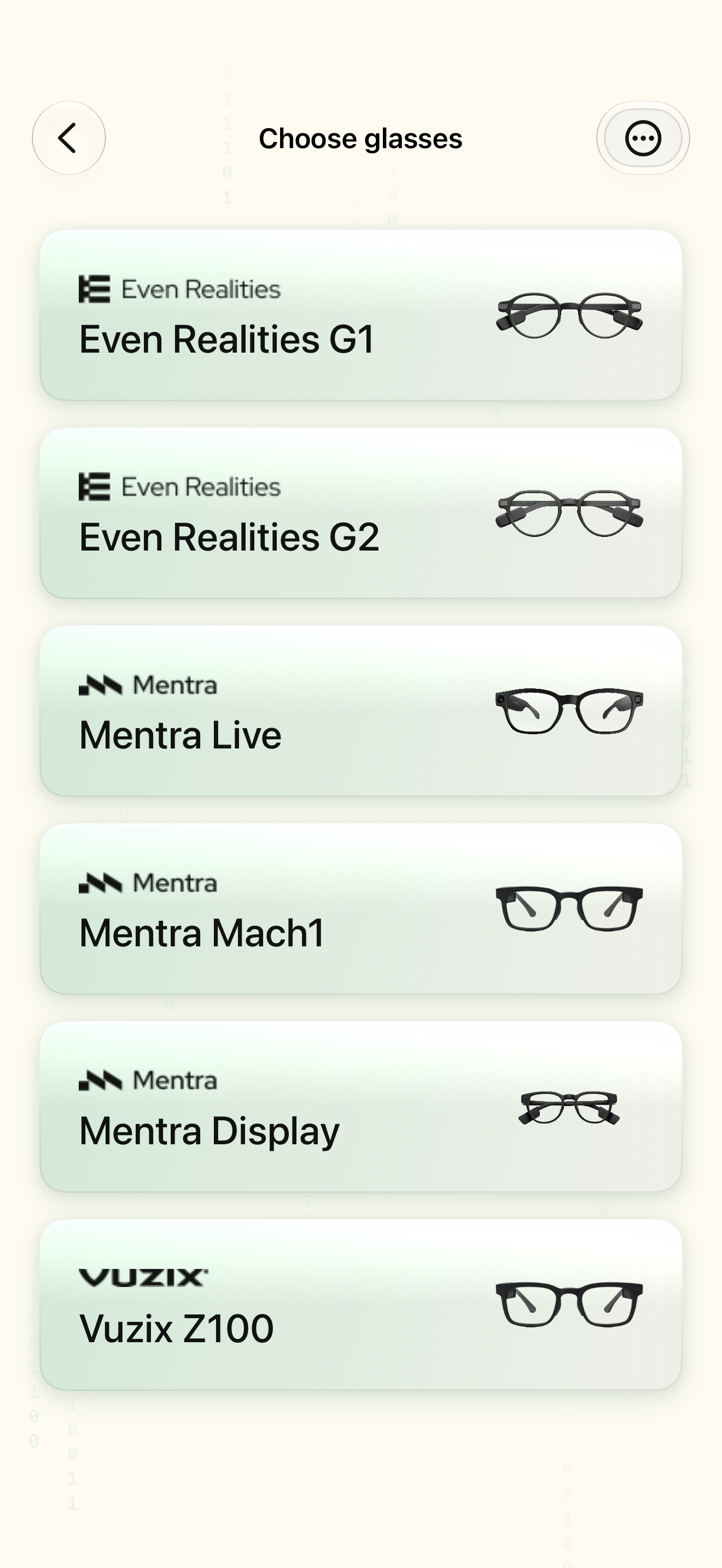
A model chooser appears.
Select the highlighted control in the teaching view.
Practice at your own pace. You can also use Next step.
Pair a device
Microphones
Find Glasses
Interactive HTML app view with sample data. Follow the outlined control, play the example, or explore at your own pace.
All steps, in writing
Open the device chooser
From Home, open Pair and choose Glasses.
Expected: A model chooser appears.
Choose your actual model
Choose the glasses you own. The example selects Even G2; other models have different preparation and capabilities.
Expected: Instructions match the selected hardware.
Prepare the glasses
Charge the glasses and follow the on-screen instructions for their case and pairing mode. Resolve any competing app connection before continuing.
Expected: The glasses are ready to advertise over Bluetooth.
Select the nearby device
Allow the system Bluetooth request if shown. Select the discovered glasses whose name matches yours. Never select a stranger’s device.
Expected: Connecting appears while the app establishes the link.
Check the outcome
Wait for the pairing result before leaving. Continue back into the app, then check the device status and a harmless Live HUD sample.
Expected: The app reports a successful connection; the display can be checked separately.
If something differs
- If permission is denied, enable SybilSight’s Bluetooth access in iOS Settings.
- If the device is already linked elsewhere, follow the app’s unpair guidance before retrying. Do not reset hardware solely because a scan is slow.
- A successful pairing is different from a currently connected display. Check both before performing.
Open the screen references
Based on SybilSight/UI/PairingFlowModels.swift and the app help catalog. Edition, device, and build affect available controls.