
Complete the first-run flow
Learn the real onboarding sequence and complete one trigger-to-result loop.
Sign in to your SybilSight account. Use the app build and supported device for your chosen workflow.
Learn the real onboarding sequence and complete one trigger-to-result loop.
Review access and permissions
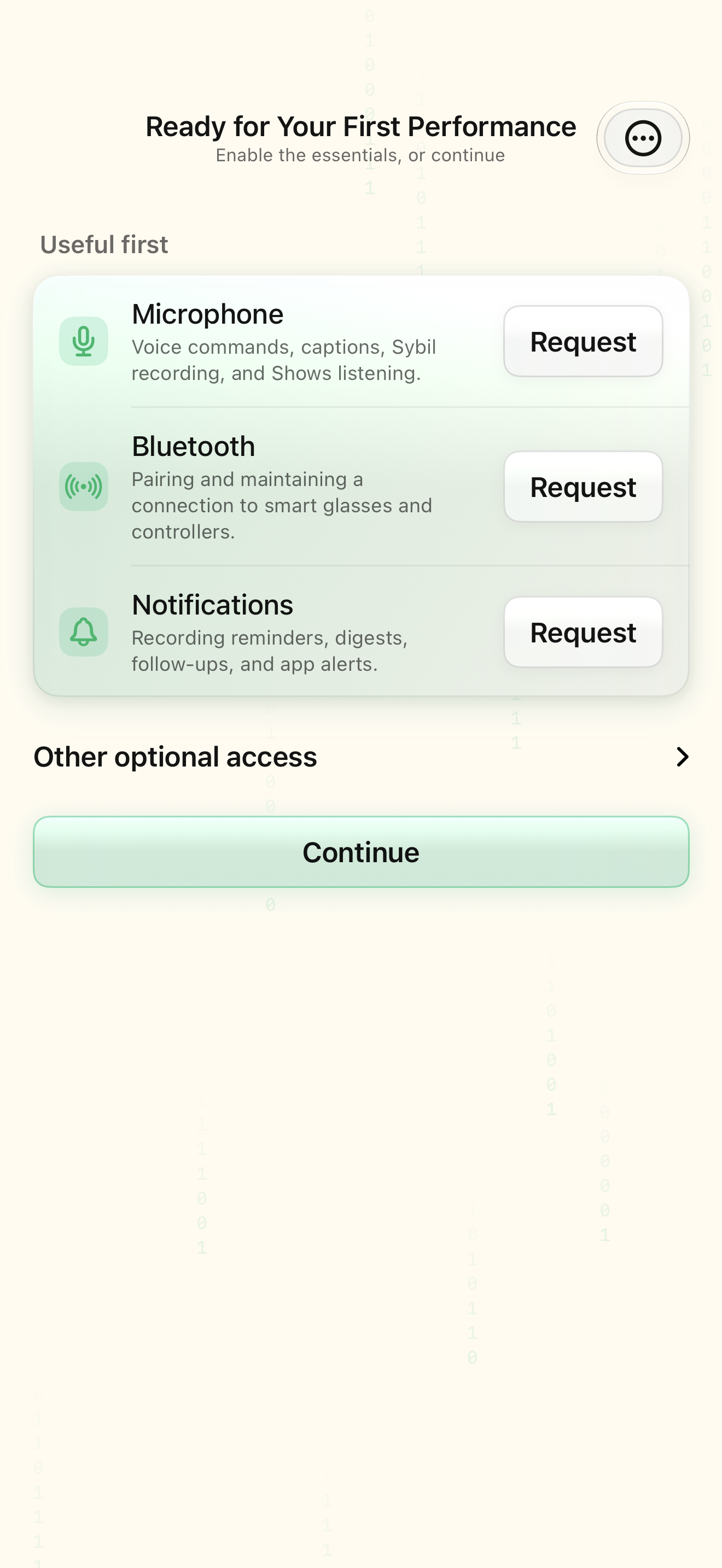
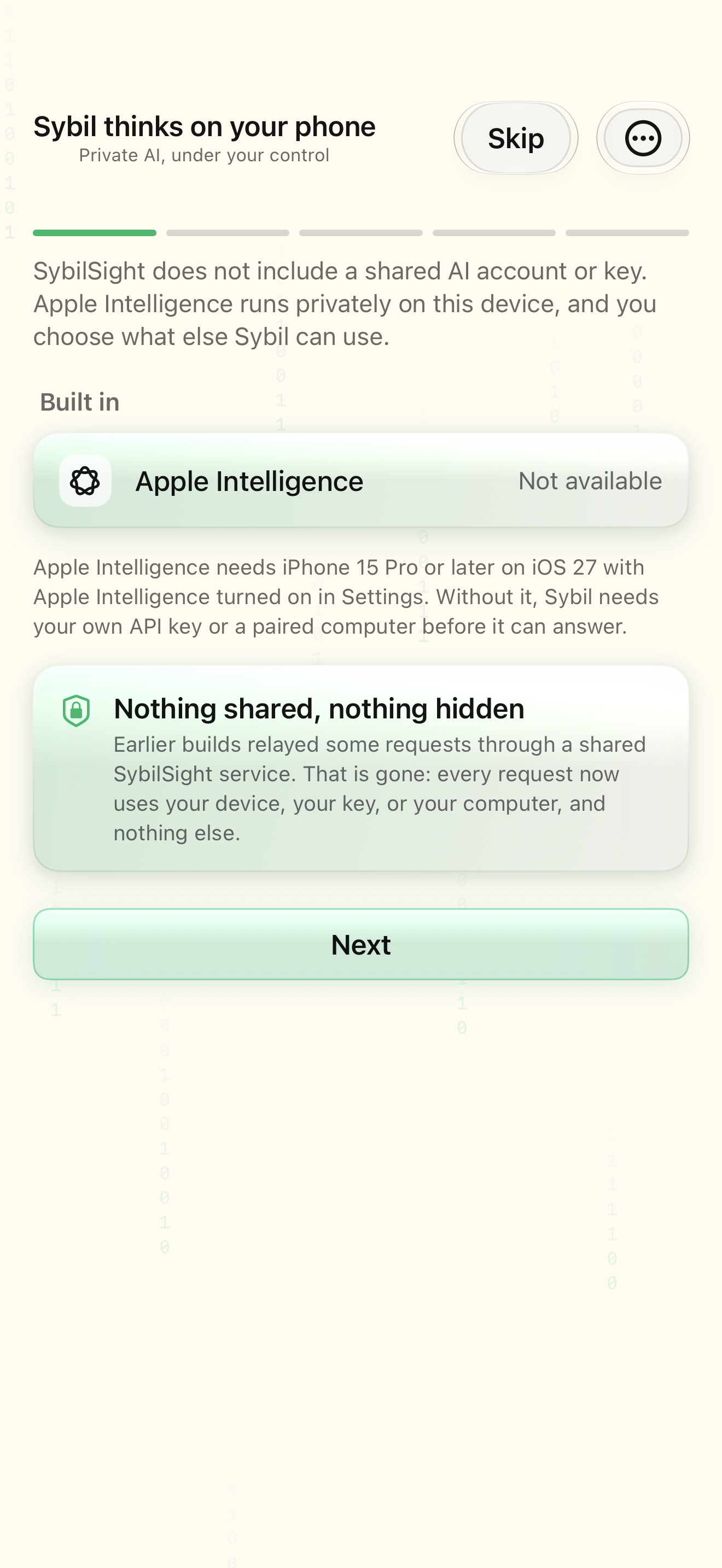
Sign in using your account email, then review the permission requests for the features you want to use.
The account and permission gates finish before the wearable welcome flow.
Select the highlighted control in the teaching view.
Practice at your own pace. You can also use Next step.
Permissions review
Useful first
Other optional access
Find Permissions review
Interactive HTML app view with sample data. Follow the outlined control, play the example, or explore at your own pace.
All steps, in writing
Review access and permissions
Sign in using your account email, then review the permission requests for the features you want to use.
Expected: The account and permission gates finish before the wearable welcome flow.
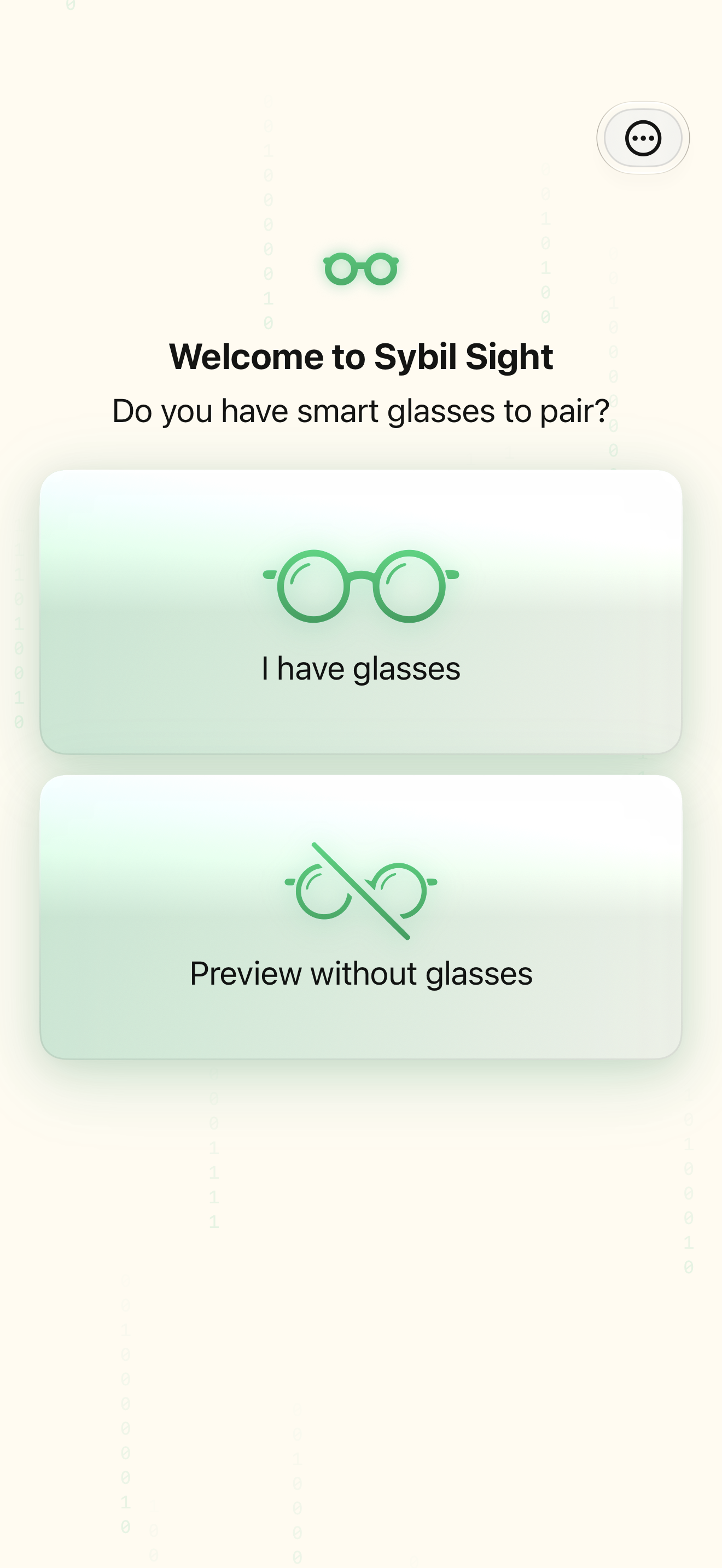
Choose a physical or simulated display
Choose I have glasses to pair hardware, or Preview without glasses to use the Simulated wearable.
Expected: You enter the matching pairing/preparation route.
Choose visibility and Move On
In the guided routine, choose Display visibility, then your Move On gesture. Ring triple-tap is the recommended default.
Expected: The guide shows the same kind of result you will later see on the display.
Arm the sample
Continue to Arm your first routine. Allow the microphone request for voice practice.
Expected: Armed and listening appears only after arming and microphone setup succeed.
Trigger and inspect the result
Say “show me the secret”. If the mic is inactive, use the manual trigger the guide offers.
Expected: The result reads “You did it — Sybil heard the phrase.”
If something differs
- Check the named readiness or connection state before continuing.
- Open the related screen reference if your build presents a different layout.
Open the screen references
Based on SybilSight/UI/OnboardingViews.swift and the app help catalog. Edition, device, and build affect available controls.