
Compare baselines and review projects
Notice drift early and revisit whether the next action still makes sense.
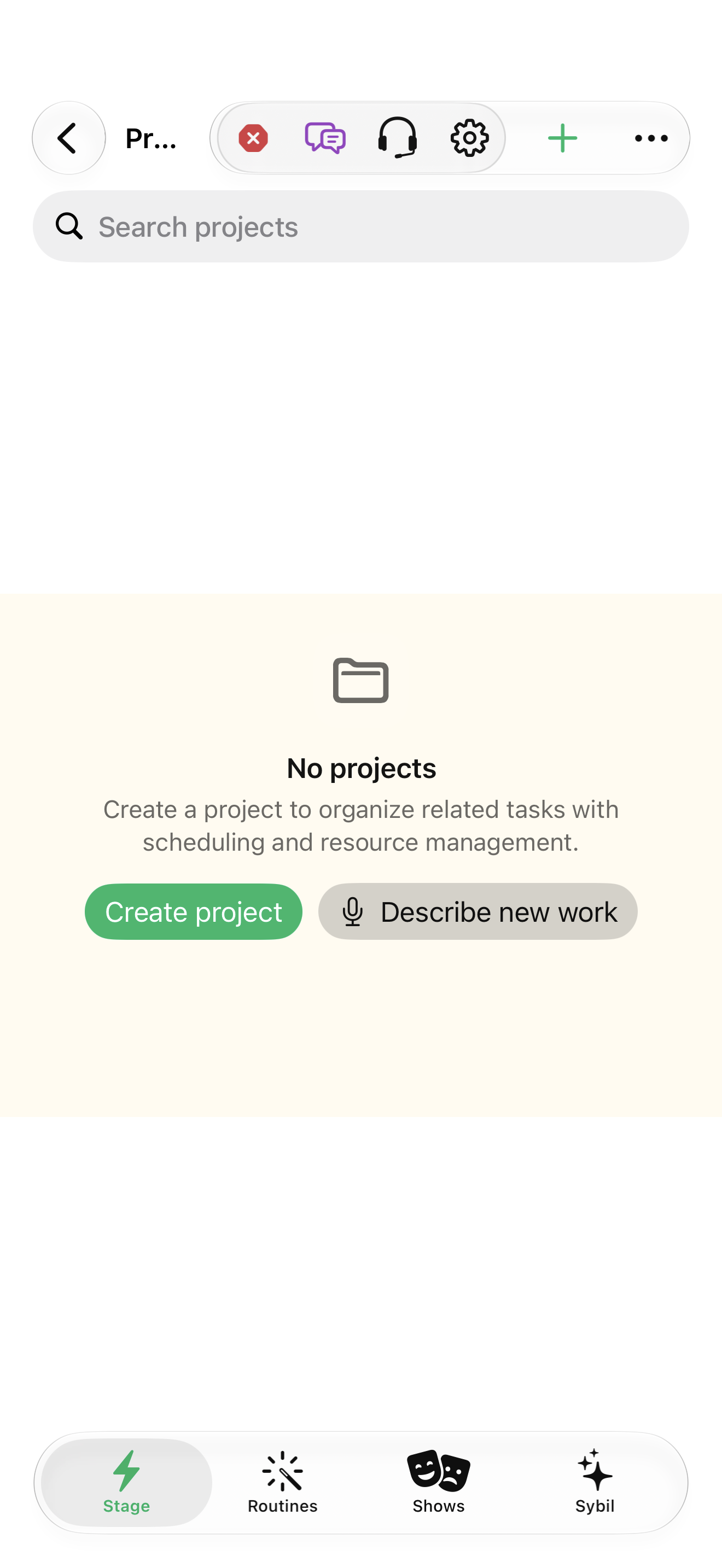
A sample project with an initial plan and a later change.
A baseline records a comparison point. Overview compares selected baselines; project reviews track a recurring planning check.
Capture a comparison point
Use Capture baseline before changing the sample plan. Name it meaningfully.
The initial plan is available as a baseline.
Select the highlighted control in the teaching view.
Practice at your own pace. You can also use Next step.
Project menu
Find Capture baseline
Interactive HTML app view with sample data. Follow the outlined control, play the example, or explore at your own pace.
All steps, in writing
Capture a comparison point
Use Capture baseline before changing the sample plan. Name it meaningfully.
Expected: The initial plan is available as a baseline.
Change one assumption
Update a sample task or resource assumption and recalculate.
Expected: The current plan reflects the change.
Compare the outcome
Open Overview, select the baseline, and inspect finish movement, effort, added/removed tasks, and available cost metrics.
Expected: You can distinguish the current forecast from the stored comparison.
Review the project
Use the project Review queue, inspect remaining/available actions, and Mark Reviewed after making a considered decision.
Expected: The next review is scheduled and the work still has a sensible next step.
If something differs
- Earned-value metrics depend on the entered cost/progress data.
- Closed and archived projects are excluded from the review queue; paused projects can still need review.
Open the screen references
Based on docs/task-project-workflows-2026-09-17.md and the app help catalog. Edition, device, and build affect available controls.