
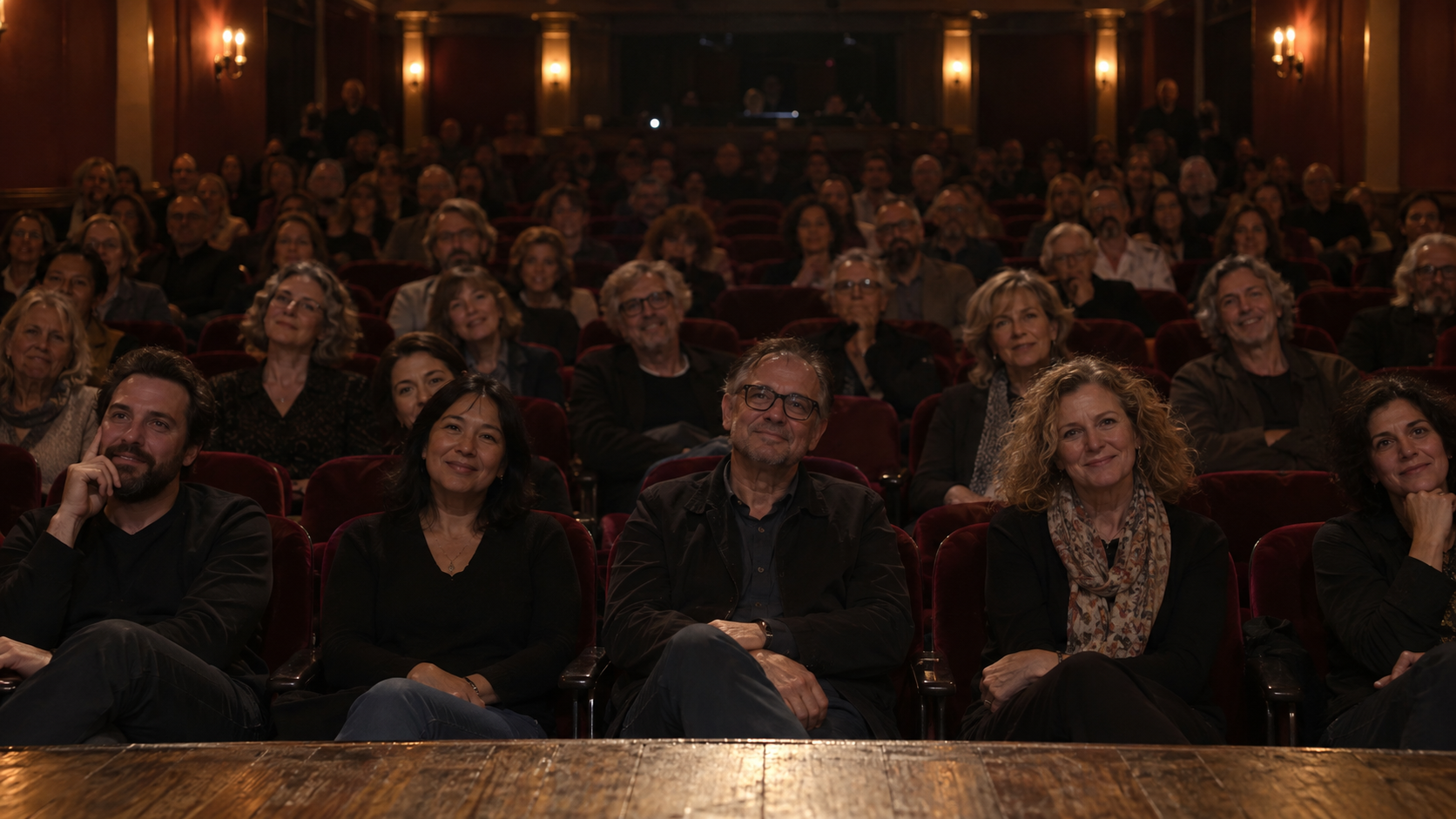
A seated theatre audience viewed from the stage; generated scene
SybilSight / Stage Performer

Stay in the performance. Keep the next cue close.

Scripts, scores, private notes, and a running order—within reach of a voice command, mapped gesture, or controller. Start with one performer’s workflow and build the show around it.

G2 smart glasses / try a moment

Your world.
A little more in view.

Follow a conversation. Find your next line. Bring back a useful detail. Choose a moment and see how it unfolds.

On stage, facing the roomAI scene · simulated Live HUD
9:41PhoneG2RingTELEPROMPTERMANUAL · STANDARD FOCUSGood evening, everyone.Thank you for being here.Let’s begin with a question.›
Single-eye view · 16 green levels
Stage & performance

Keep your next line close.

Read a prepared script with a highlighted reading line. Advance this example as you speak and see the earlier line fade.

01 / 04Ready to begin

Your prepared script is open. The bright line is your reading position.

What you need for this example

Import or write a script, choose Speech follow, Fixed speed, or Manual, and rehearse the reading position and controller. This example uses manual advance.

A guided illustration of app behavior with fictional content. AI-generated backgrounds with a single-lens wearer’s viewpoint. Status values and content are samples; display size, position, clarity, and brightness are illustrative. Your fit, lighting, firmware, and settings affect the view in real G2 glasses.

Put it to work

The right information for the moment you are in.

Keep the technology in rehearsal and the useful information in view. Prepare your outputs, check your controls, and know how to stop or recover before the room is watching.

Read without losing your place — generated scene
01 / A useful moment

Read without losing your place

Keep a reading line in focus while already-read and upcoming lines use different brightness levels.

See how this works
  1. Write or import a script and split it into useful segments.
  2. Choose Speech follow, Fixed speed, or Manual; set focus and reading position.
  3. Rehearse advance, pause, and recovery using the controller you will perform with.

Try the full walkthrough ↗
Run the show, keep the notes private — generated scene
02 / A useful moment

Run the show, keep the notes private

Prepare a PDF deck, cue media, and a paired audience mirror while keeping your presenter notes on the glasses.

See how this works
  1. Export slides to PDF with one build per page and create a Deck cue.
  2. Pair the audience display, then inspect private notes and the projector separately.
  3. Rehearse GO, Back, Hold, Duck, and the appropriate stop controls.
Try the full walkthrough ↗
Tune, follow, and practice a part — generated scene
03 / A useful moment

Tune, follow, and practice a part

Use the selected microphone for tuning or following an imported score. Keep the active part in a display region you can read.

See how this works
  1. Choose your instrument, input, tuning reference, and target.
  2. Import MIDI or MusicXML and select the part to follow.
  3. Try count-in, bar navigation, and practice mode that waits for the right note.
Try the full walkthrough ↗
Go a little deeper

Build the workflow that fits you.

A display layout for each role

Place status, notes, captions, cues, and active app content in their own regions. Save mode-specific layouts and verify fit on the supported glasses you use.

Explore this workflow ↗

Controls that fit the show

Map a ring, remote, keyboard, voice phrase, NFC cue, or supported OSC input. Lighting consoles and show-control tools can drive the same show actions through configured OSC routes.

Explore this workflow ↗

Play together, keep your own part

Shared sheet music and lyrics keep performers aligned while each sees the part and cues relevant to them. Integrated tuning, score following, and timing tools support rehearsal and performance. Group synchronization is in TestFlight for the next public release.

Explore this workflow ↗

A message at the right moment

Route management notes by role and context. Urgent information gets through; routine and personal notifications wait for downtime. Configure and rehearse these TestFlight workflows before depending on them in a show.

Explore this workflow ↗

Keep outputs separate

A performer’s private prompt, an audience mirror, and audio serve different purposes. Rehearse the route and fallback for each, including on your actual hardware.

Explore this workflow ↗
Next public release / in TestFlight

One company. The right cue for each person.

Coordinate shared scores, lyrics, cues, and management notes across a group. Route information to the performer’s configured glasses, watch, floor display, or headphones. Keep urgent messages visible while holding routine and personal notifications for downtime. A stage manager can ask Sybil to tell Jeremy at his next break to use the scene-three costume because his usual one is torn.

Available in the TestFlight build and being prepared for the next public release. Group timing, supported destinations, and notification routing require configuration and rehearsal.

Discuss your performance workflow ↗
Make it yours

Start with one useful moment.

Choose a guide, rehearse with sample information, and check the result on your device.

The examples cover verified script, score, show-control, and display workflows. Device families have different capabilities; supported firmware, input, output, and controller setup determine what is available. An OSC trigger is not a promise of direct support for every lighting desk or OBS workflow.

Built for the long run

Our commitment to you.

A system should come with people who help you use it. Get setup guidance, integration support, and ongoing help from the SybilSight team as you make it part of your work, performance, or everyday life.

01 / A personal start

Guided onboarding

Start with one useful workflow. Get help pairing devices, choosing controls, and making that first routine or everyday task your own.

02 / Room to grow

Lifetime software updates

Your software grows as we release capabilities, improvements, and integrations. Keep discovering what your system can do.

03 / People to learn with

Community access

Connect with other SybilSight users to share setups, techniques, and practical experience. Performers can go deeper into routines with the performer community.