
Voices
Known speakers and voice profiles used to label captions and identify the wearer.
Find it: Home › Captions › Voices
Known voices
Voice maintenance
Interactive HTML app view · Play the full walkthrough ↗
Compare the visual reference
Reviewed sample screenshot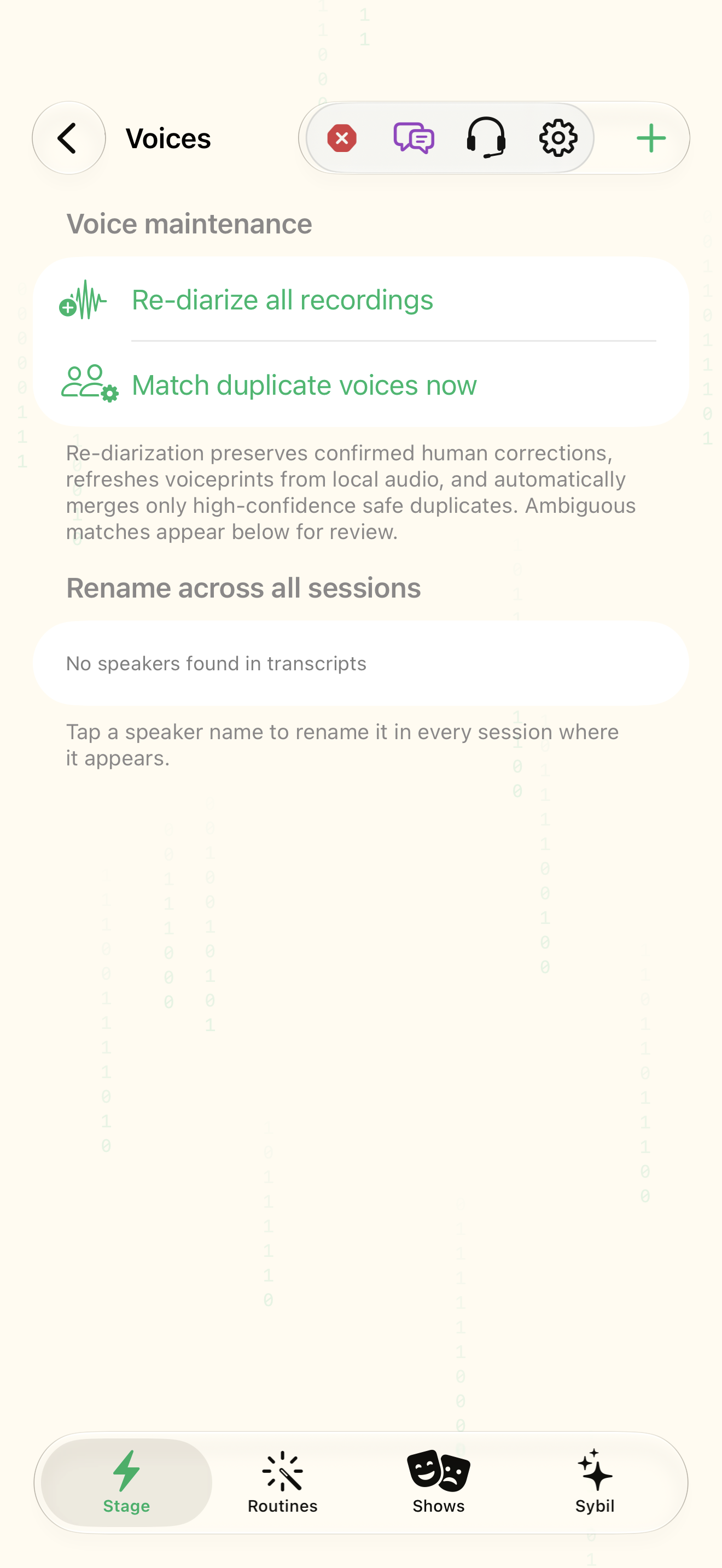
Captured with synthetic content on app build 0.9.1 (260723.1), compiled from reviewed source. Your edition, device, and build can change what appears.
Find: Voices
Find Voices
Open Home › Captions › Voices. Known speakers and voice profiles used to label captions and identify the wearer. Check: Identify the title and controls before beginning.
Go at your own pace. This does not operate the app.
Text is always available. Narration uses a local browser voice when available.
Learn a complete workflow
Name speakers and review voice profiles ↗
What you’ll find
- Known voices
- Identify as me
- Enroll a voice
About this guide
Generated from the app’s maintained help catalog. This is a guided reference, not a device-verified recording. The interactive studio provides separate fictional practice examples.
Source: SybilSight/Services/AppAgent/AppAgentKnowledge.swift · Catalog 892fdd7c1507
Something doesn’t match your app?Settings, in plain language.
Speaker identification
Label captions with Speaker N or enrolled names.