
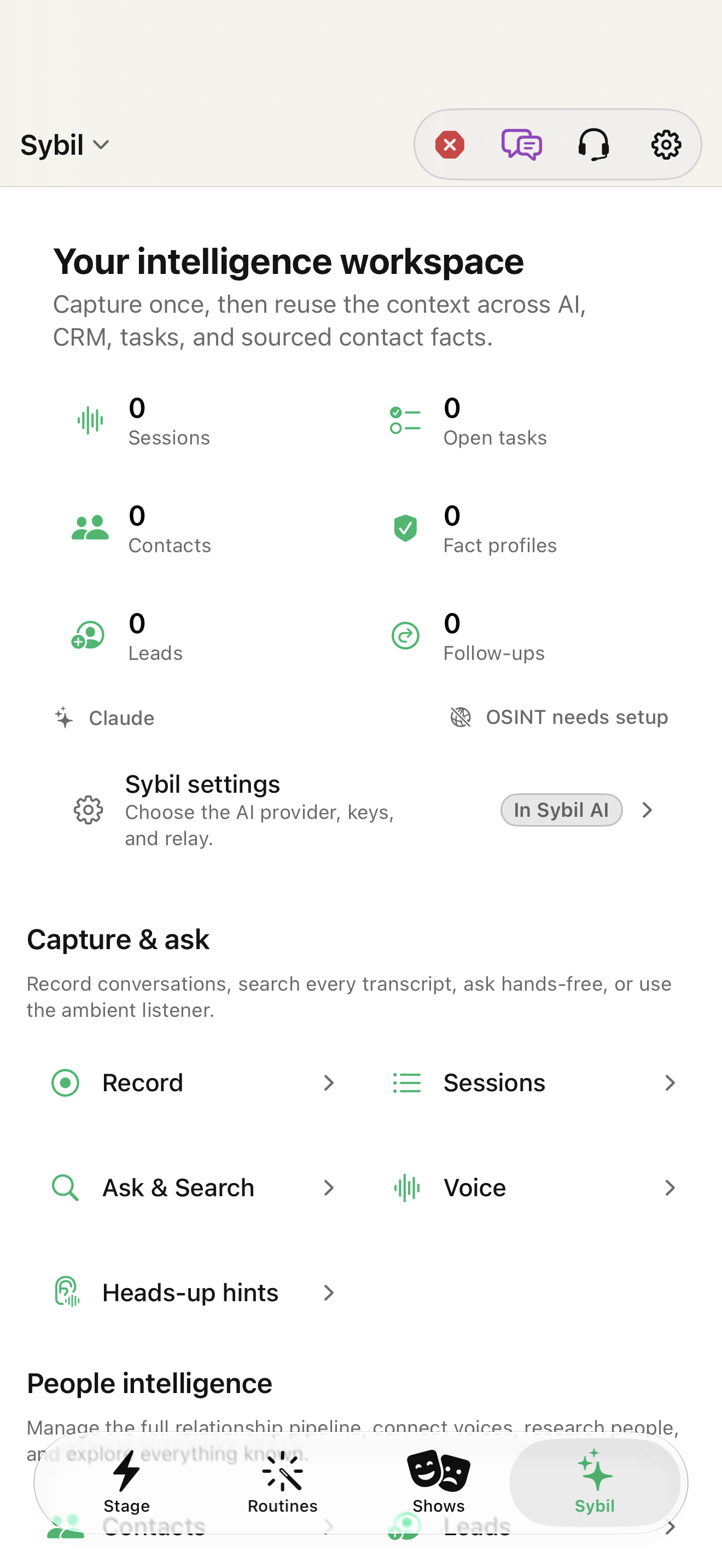
Pick the source before starting
Open Sybil › Record. Choose the microphone and a recording preset suited to the situation. Start recording begins capture. The screen shows duration and signal level; Pause recording, Resume recording, Add bookmark, and Stop recording control the active session. Check the level before relying on a long recording.
Wait for processing rather than assuming completion
After Stop, the recording may need transcription and analysis; the screen exposes a processing stage and can offer analysis now or later. A completed audio capture and a completed summary are different states. Processing location is configured in AI Processing: supported work can run on device, a paired Terminal, or a configured cloud service.
Inspect the session
Sessions contains the transcript, speaker labels, summary, and follow-ups for each recording. Use a bookmark or a transcript segment to return to the source of an important statement. Correct an attribution that does not fit. A generated interpretation is most useful when the recording and exact words support it.
Ask a question with a useful boundary
In the app’s Ask & Search, try a focused query such as “What did we decide about the sample project in yesterday’s meeting?” Search spans the configured recordings, contacts, notes, and captions. Inspect the referenced material before turning a suggested commitment into a task. This website chat explains the workflow and has no access to those private records.
Related screens
Reviewed against the iOS implementation. Captured development-build screens use synthetic or empty content; hardware and connected-service states vary.