
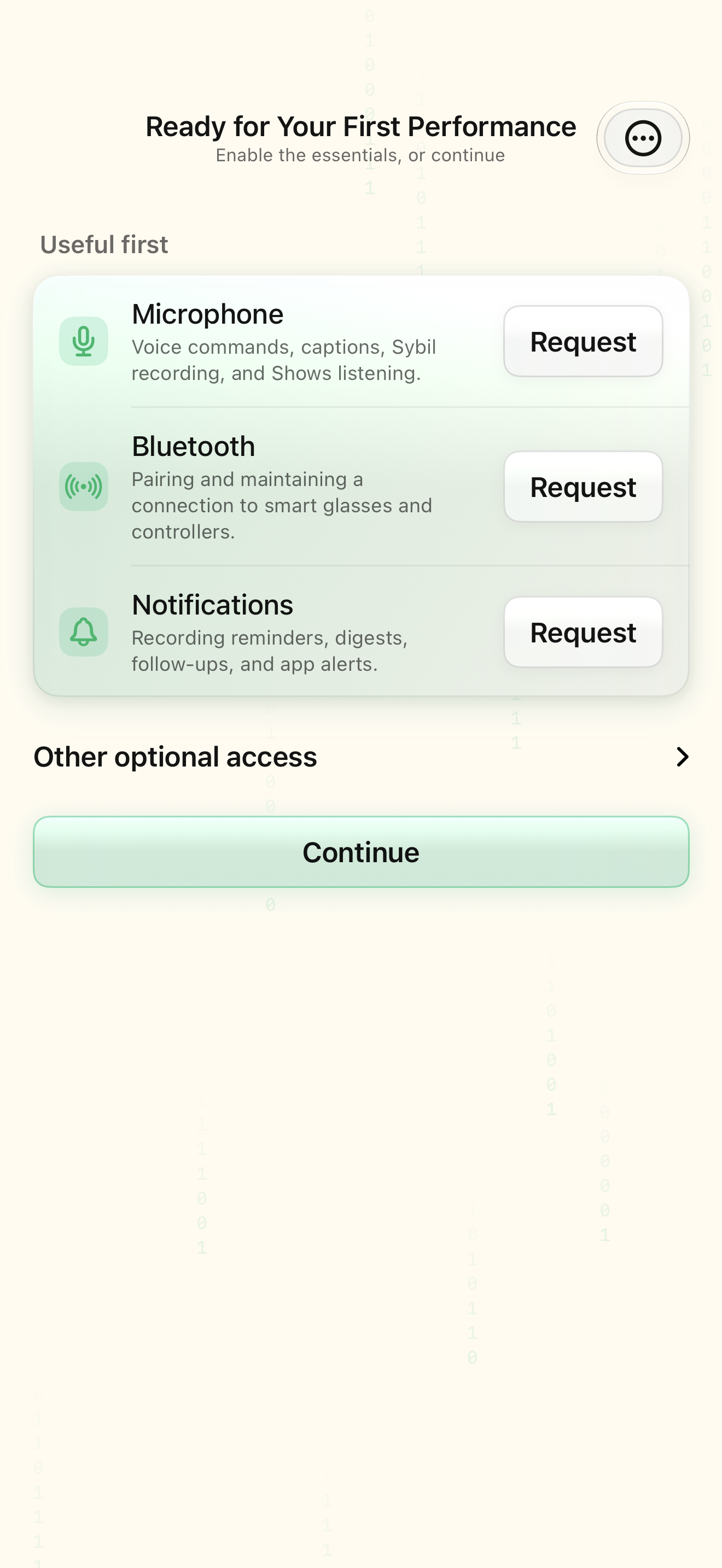
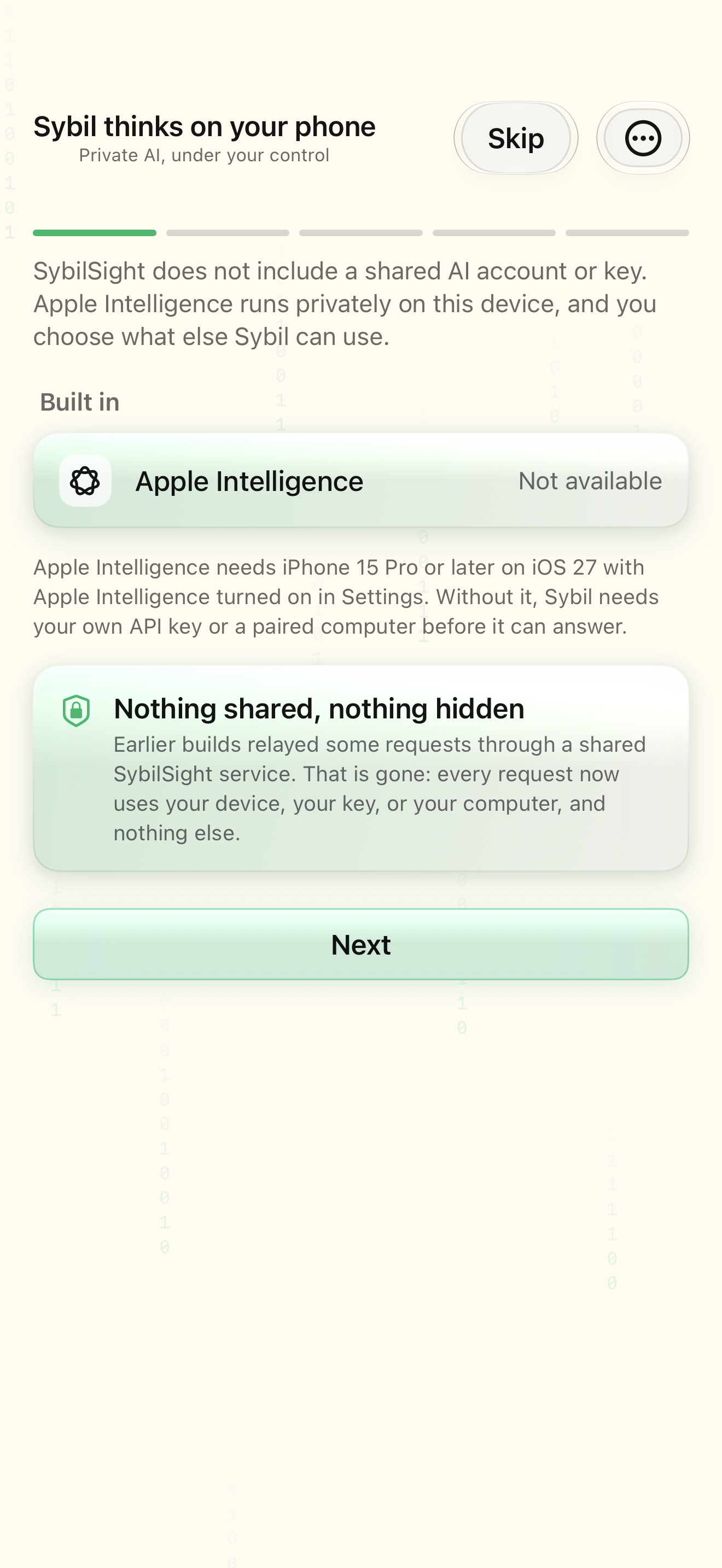
Sign in and review permissions
Use the same account email as your website account and purchase. After the account gate, the app can present Permissions review, the AI setup introduction, and Welcome. A user who has already configured a provider or paired Terminal may skip the AI introduction. Permissions and edition determine which later routes are available.
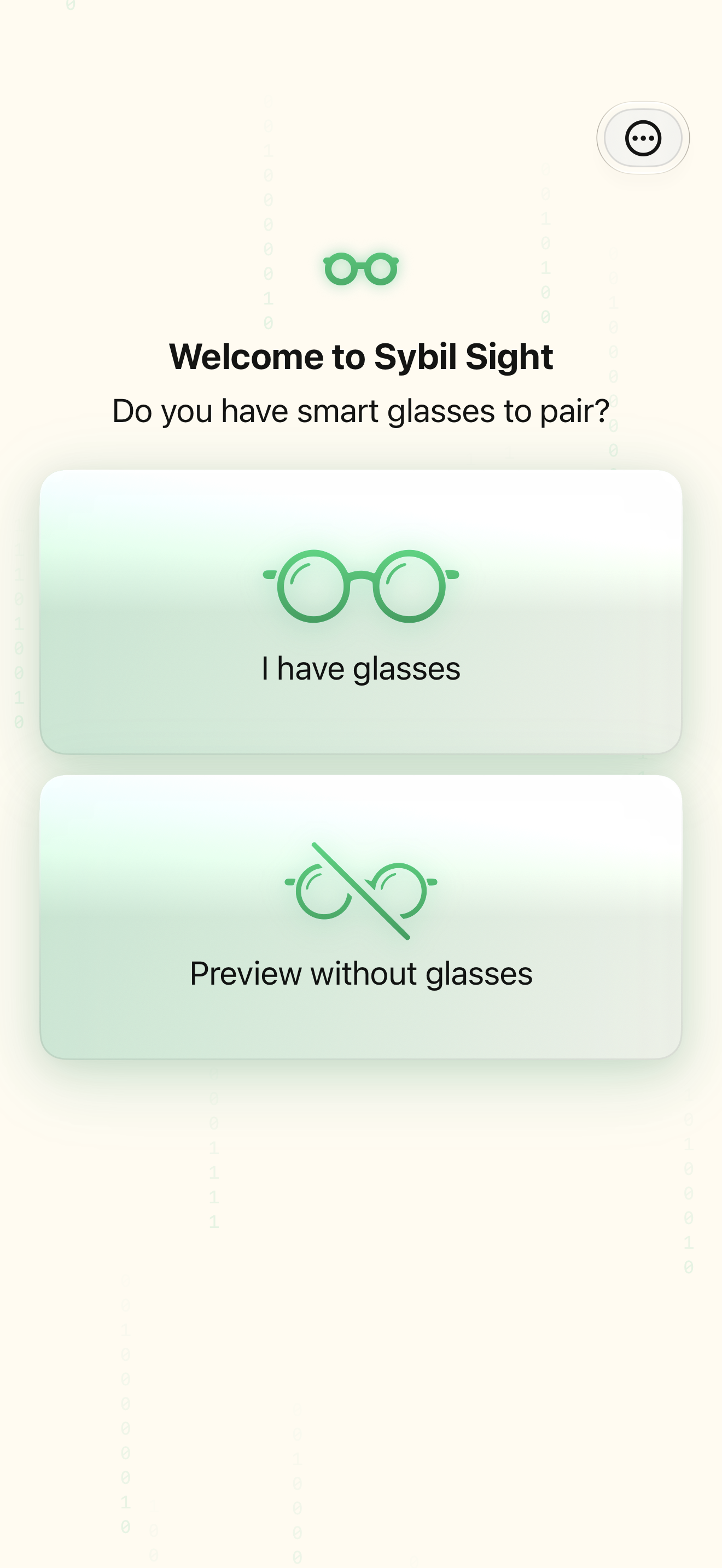
Choose your display
Welcome asks whether you have smart glasses. I have glasses opens the model selection and pairing flow. Preview without glasses selects the Simulated wearable so you can learn the app and inspect results on the phone. A simulated display is a practice environment; it does not establish a physical glasses connection.
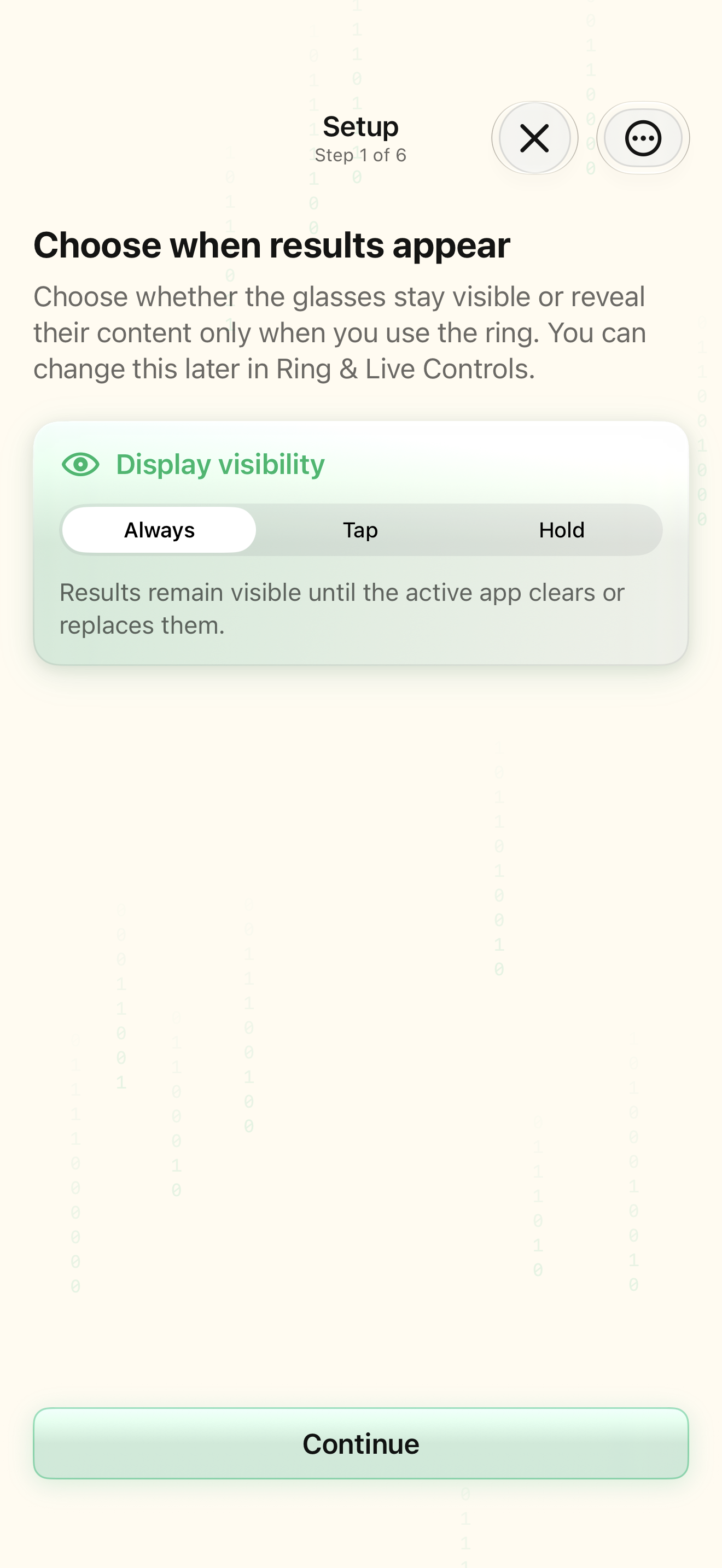
Complete the six-part first routine
The guided routine asks you to choose Display visibility, choose a Move On gesture, inspect the phone preview, arm the sample, trigger it, and inspect the result. Ring triple-tap is the recommended Move On gesture in this guide. Arming requests microphone access and starts routine listening; the routine is armed only after those are ready.
Verify the loop
Say “show me the secret” when the guide is listening. The sample result reads “You did it — Sybil heard the phrase.” If the microphone is inactive, the guide offers a manual trigger. Use this to distinguish a working routine/display from a microphone problem. You can replay the guided first run from Settings. After this, build your own routine in the Routines workspace.
Related screens
Reviewed against the iOS implementation. Captured development-build screens use synthetic or empty content; hardware and connected-service states vary.