
Developer
Developer tools: test notifications, display parity lab, logs, simulated inputs.
Find it: Settings › Advanced › Developer
Settings
Quick links
Interactive HTML app view · Play the full walkthrough ↗
Compare the visual reference
Reviewed sample screenshot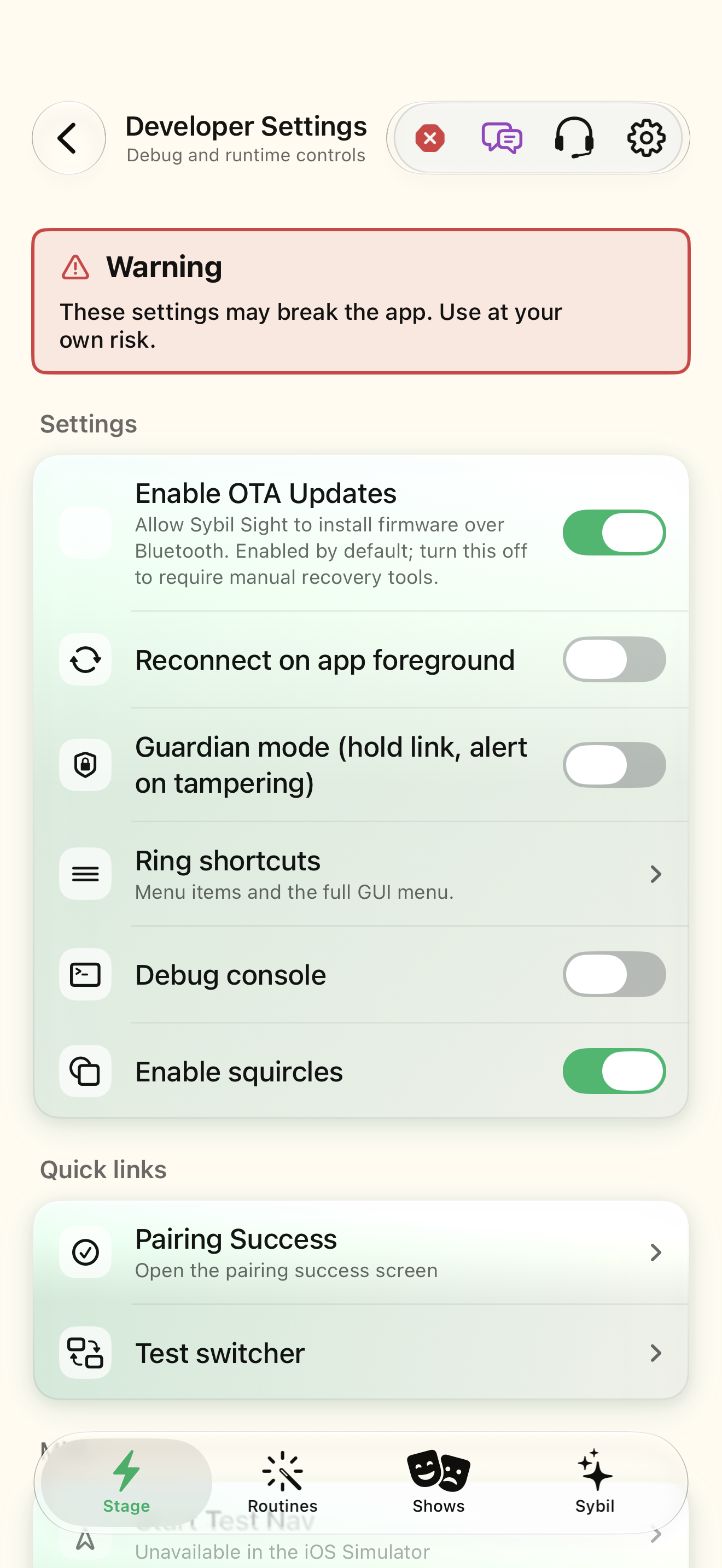
Captured with synthetic content on app build 0.9.1 (260723.1), compiled from reviewed source. Your edition, device, and build can change what appears.
Find: Developer
Find Developer
Open Settings › Advanced › Developer. Developer tools: test notifications, display parity lab, logs, simulated inputs. Check: Identify the title and controls before beginning.
Go at your own pace. This does not operate the app.
Text is always available. Narration uses a local browser voice when available.
Learn a complete workflow
Explore the illustrated handbook ↗
What you’ll find
Developer tools: test notifications, display parity lab, logs, simulated inputs.
About this guide
Generated from the app’s maintained help catalog. This is a guided reference, not a device-verified recording. The interactive studio provides separate fictional practice examples.
Source: SybilSight/Services/AppAgent/AppAgentKnowledge.swift · Catalog 892fdd7c1507
Something doesn’t match your app?Settings, in plain language.
Test power saving (developer)
Developer override for the power-saving path.
LC3 frame size
Audio frame size for the glasses microphone stream.
Bypass VAD (debug)
Developer switch that ignores voice activity detection.
Bypass audio encoding (debug)
Developer switch that sends raw PCM.
Location tier
How precise a location the app uses.
Saved backend URLs
Previously used backend servers.
Developer mode
Show developer tools and developer apps.
Public developer mode
Developer features safe for public builds.
Debug console
Show the in-app debug console.
Debug navigation history
Show the route history overlay.
Debug core status bar
Show the transport status strip.